Personal & team booking pages
Publish a page for yourself or a shared page with your team’s services and members.
Booking pages, team scheduling, payments and client management. Explore everything you can do with LunaCal, organized in one place.
Browse 16 categories ↓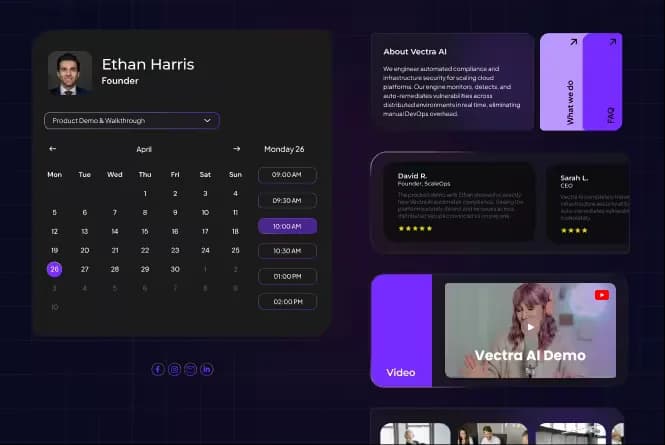
Browse the categories or search for a capability.
Give people your services, availability and business information on the same LunaCal booking page.
Explore booking pages ↗Publish a page for yourself or a shared page with your team’s services and members.
Choose a theme and customize page colors, backgrounds and brand content.
Introduce yourself with a profile photo, bio, logo and an About section.
Add product images, a gallery or an introductory video beside your booking calendar.
Display client quotes and company logos directly on your scheduling page.
Answer common questions on the page before a visitor chooses an appointment.
Share downloadable documents and audio content through booking-page widgets.
Embed social posts, maps and forms alongside your appointment options.
Add links to your social profiles, WhatsApp and other destinations.
Choose which content widgets appear for each event instead of showing everything everywhere.
Use your own booking subdomain, browser icon and destination for the domain’s home address.
Keep the customer-facing booking page under your own brand.
Set your booking page’s title, description and social sharing image.
Rename the labels for services and team members across your team booking pages.
Configure what people can book, how long it lasts and where the appointment happens.
Explore event types ↗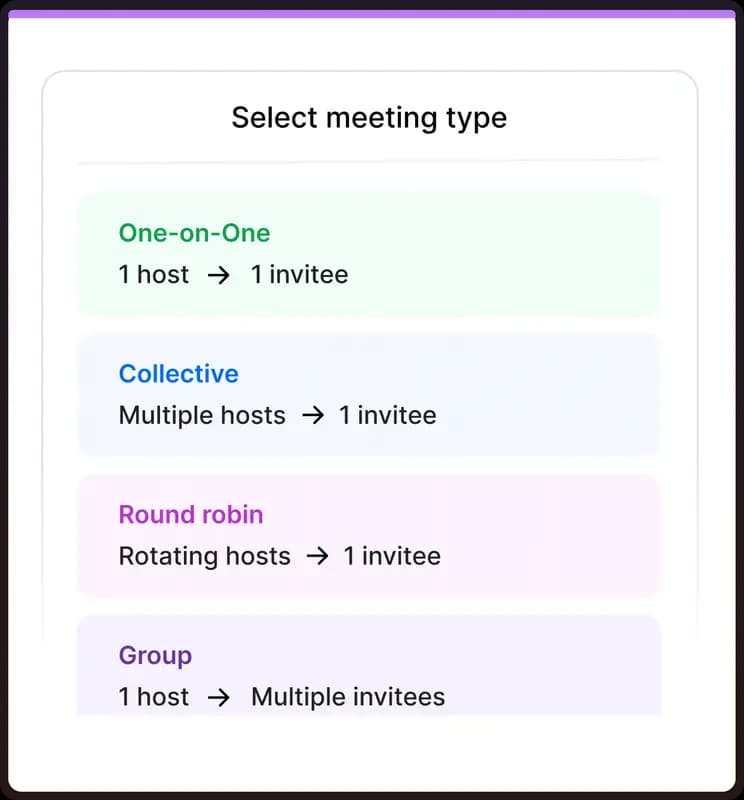
Create separate event types with their own names, descriptions and booking settings.
Let one attendee reserve an available time with one host.
Let multiple attendees book the same session until its seat capacity is reached.
Set seats per time slot, limit seats per booking and choose whether to show remaining places.
Set one meeting length or let visitors choose from several lengths with a default selection.
Use a video link, your address, the guest’s address or a phone number as the meeting location.
Offer multiple meeting locations on one event so attendees can choose how to meet.
Choose whether your address or custom meeting link appears before the booking is confirmed.
Control whether an event type appears on your public booking page.
LunaCal checks connected calendars alongside your working hours and booking rules before offering a time.
Explore calendar availability ↗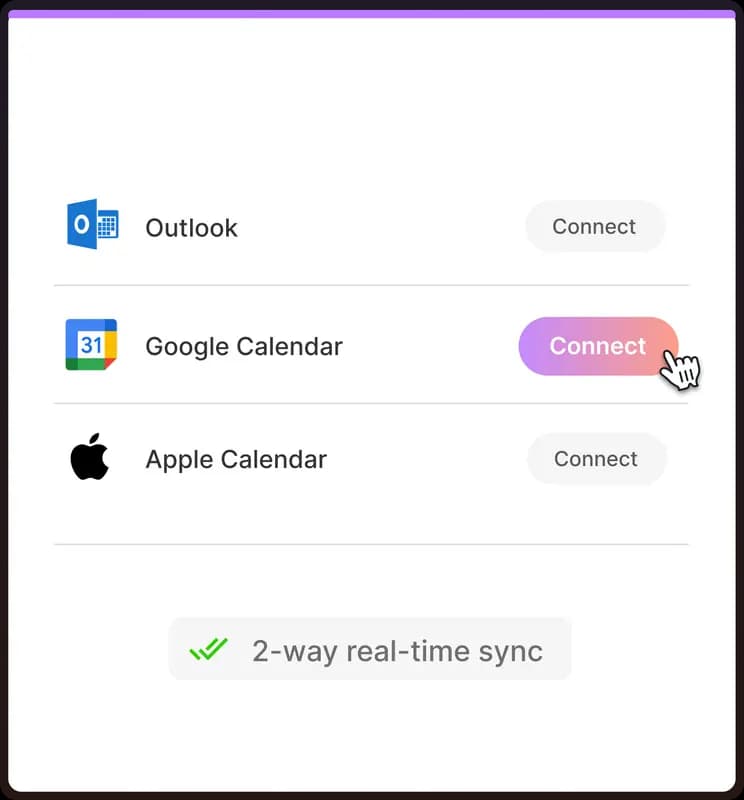
Connect multiple calendars to keep your booking availability aligned with existing commitments.
Choose which connected calendars LunaCal checks for busy time.
Select the calendar that receives new appointments separately from calendars checked for conflicts.
Set working days and more than one available time block within a day.
Create and reuse named schedules, select a default and assign schedules to event types.
Override regular hours on particular dates or mark those dates unavailable.
Set preparation time before appointments and a separate break afterward.
Set how much advance notice a new appointment requires.
Control how far into the future attendees can reserve a time.
Limit how often an individual attendee can book within a day, week, month or year.
Configure the interval between available starting times for an event.
Pause new bookings while you are away or direct requests to a teammate for coverage.
Run a shared booking flow while keeping each team member’s availability and event assignments separate.
Explore team scheduling ↗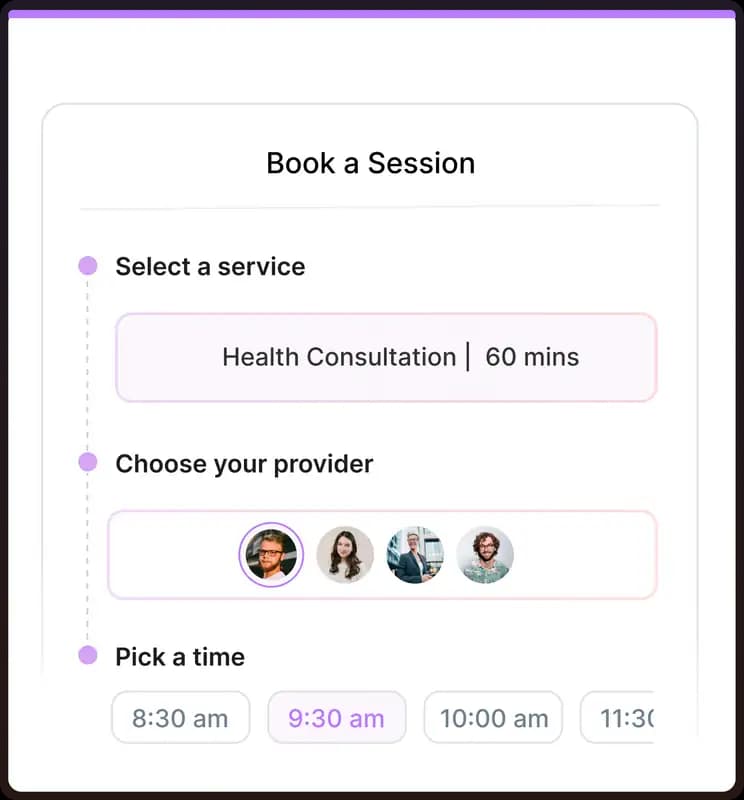
Let clients choose a service, select a team member and then pick an available time.
Automatically distribute bookings among available assigned members, accounting for conflicts and booking limits.
Show overlapping availability and book the same meeting with all assigned hosts.
Show eligible team members so visitors can choose who they book.
Organize booking for different locations, services and team members.
Give each member working hours and schedules that inform their bookable times.
Assign and unassign team members for specific event types.
Combine teammates’ usernames in one link to find a time when everyone is available.
Collect appointment payments in LunaCal, sell multiple sessions and manage repeat billing through Stripe.
Explore appointment payments ↗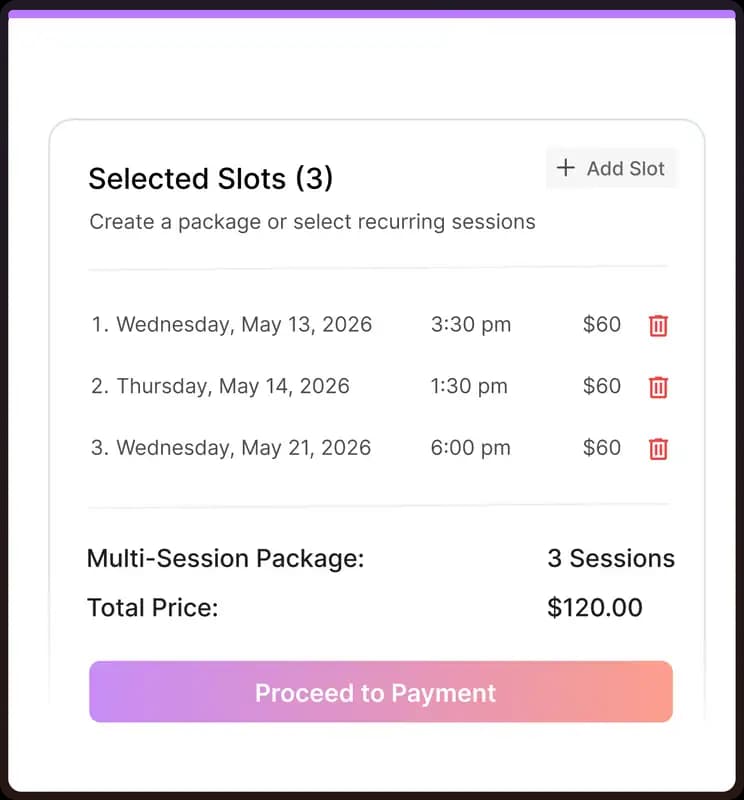
Connect a payment account and collect payment during booking for personal or team events.
Set a price and payment method for each paid event type.
LunaCal adds no booking commission to payments processed through your connected payment provider.
Sell a set of sessions upfront so clients can arrange multiple appointments.
Require a fixed number of sessions or let attendees choose a count within your allowed range.
Let clients select a repeating daily, weekly or monthly pattern within a package.
Create percentage or fixed-amount discounts for paid event types.
Control when a coupon expires and how many times it can be redeemed.
Set a minimum booking price so a discount applies only to qualifying session purchases.
Charge through Stripe on a recurring billing schedule and issue a new session allowance each cycle.
Apply a subscription coupon to the first payment or to every recurring payment.
View renewal dates, remaining sessions and payment history, or cancel renewal at the billing period’s end.
Send automated reminders to people who leave the booking payment process unfinished.
Set up appointment messages once and let LunaCal send them at the right point in the booking lifecycle.
Explore reminders & workflows ↗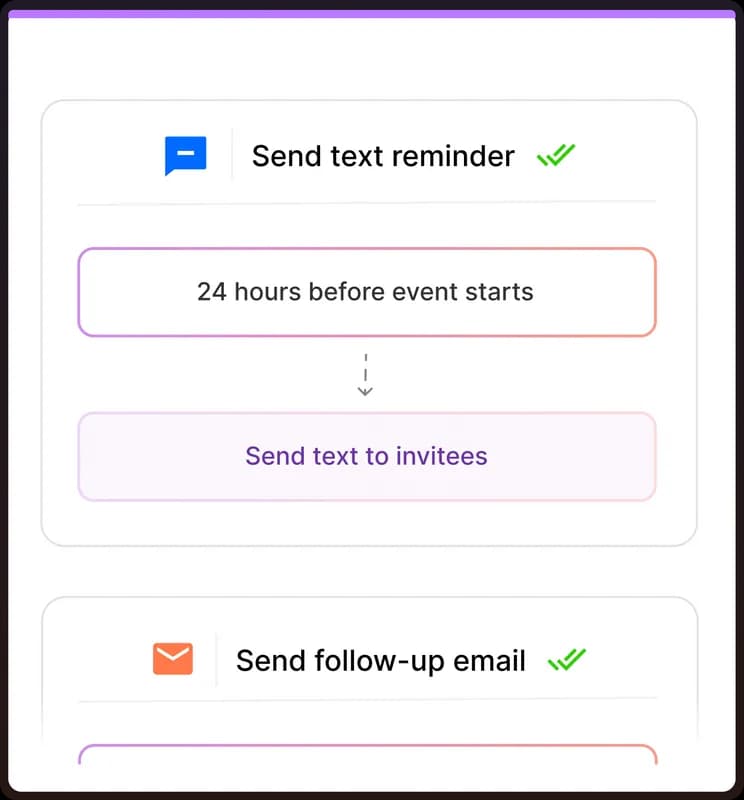
Send confirmed appointment details to attendees and hosts.
Schedule email and text reminders before an appointment starts.
Trigger an email or SMS after an appointment ends.
Send messages when a booking is created, rescheduled or canceled.
Combine message actions and timing in a workflow attached to selected event types.
Choose recipients and personalize messages with attendee, appointment and location details.
Configure communications for your own events or centrally for a team workspace.
Send booking emails and workflow messages through your own email server and sender identity.
Customize attendee booking-email themes, colors and the visibility of booking-question answers.
Collect the information you need before an appointment, or use answers to decide where a visitor should book.
Explore routing forms ↗Add email, phone, short text, long text, dropdown, checkbox and single-choice fields.
Make important answers mandatory and keep other booking questions optional.
Collect attachments and consent through your booking form.
Allow multiple guest email addresses on the booking form.
Prepopulate booking details through a URL or embed, and hide fields that need not be shown.
Route visitors with rules that match their form responses using AND or OR conditions.
Send each route to an event type, an external page or a custom message.
Choose what happens when a visitor’s answers do not match your routing rules.
Publish a routing form as a link or add it directly to your website.
Manage confirmed appointments and pending requests without losing the booking details or attendee communication.
Explore booking approval ↗View upcoming, unconfirmed, past and canceled appointments in separate lists.
See bookings across your team’s event types in the workspace.
Review a request and approve or reject it before the appointment is confirmed.
Move an appointment yourself or ask the attendee to choose another available slot.
Cancel appointments or disable attendee cancellation and rescheduling for an event.
Change the meeting address or conferencing location and notify participants.
Open a booking to review contact information, form answers, assigned hosts and meeting links.
Give returning clients a branded space for their appointments, packages, files and notes.
Explore the client portal ↗Customize portal colors, your logo, profile information and welcome content.
Let guests sign in through an emailed access link or one-time code without a LunaCal account.
Clients can view bookings and reschedule or cancel when the event settings allow it.
Let clients browse packages and book sessions from their portal.
Share resources and notes with clients, who can also upload files and add notes.
Add text, videos, galleries, documents, audio or social posts, then publish your portal changes.
Give clients a place to review sessions, renewal dates and active or inactive subscriptions.
Share a direct booking link or keep the scheduling experience inside your existing website.
Explore website embeds ↗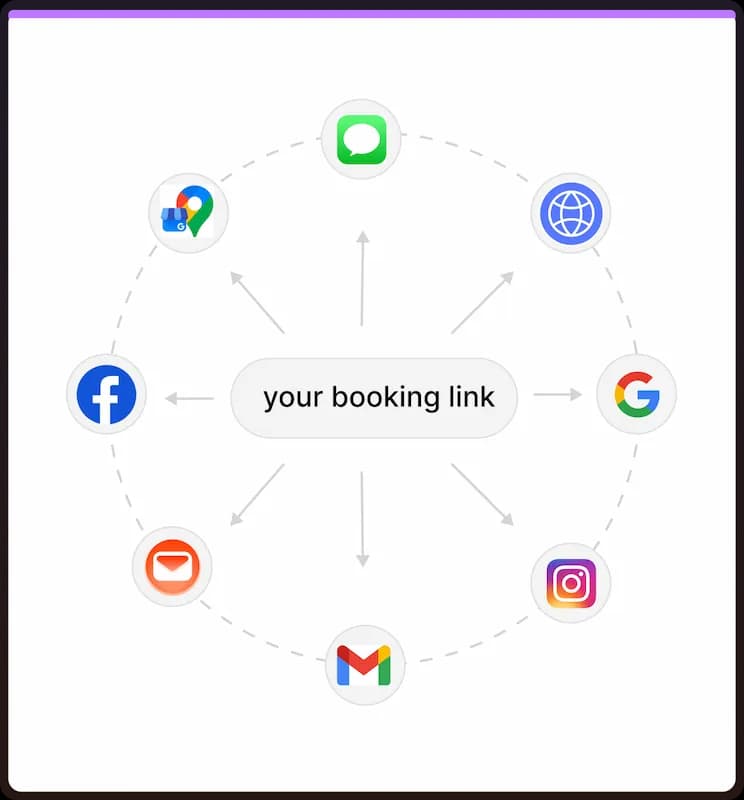
Link to your booking page or a specific event from your website, email and social profiles.
Generate a booking link that stops accepting appointments after its usage limit is reached.
Display a LunaCal calendar within your webpage so visitors can book without leaving it.
Keep a booking button visible as visitors scroll and open the calendar in an overlay.
Open the scheduler from an existing button or link on your website.
Insert clickable available times into an email that open the booking flow.
Send attendees to a chosen webpage after their appointment is confirmed.
Offer booking in your clients’ language and show appointment times in their local time zone.
Explore international scheduling ↗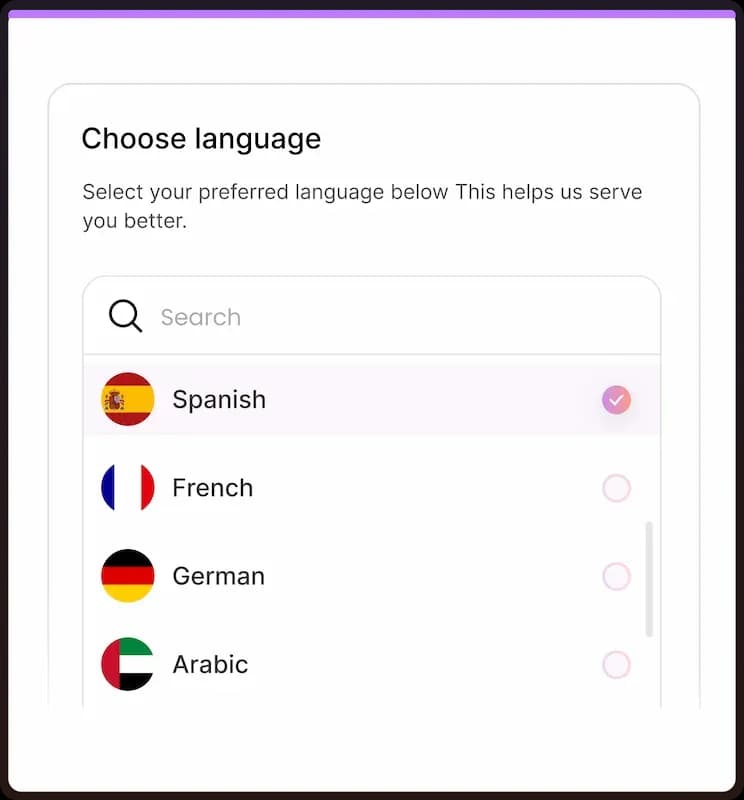
Offer English, Spanish, French, German, Italian, Polish, Dutch, Portuguese, Russian, Arabic, Hebrew, Vietnamese and Swedish.
Apply the visitor language to booking pages, confirmations, emails and calendar invitations.
Show available appointment times in the visitor’s local time zone.
Set a workspace time zone while allowing members to use their own time zones.
Choose 12-hour or 24-hour time and the first day of the calendar week.
Connect LunaCal bookings with the calendar, meeting, payment and customer tools you already use.
Explore all integrations ↗Connect your conferencing account and use video meetings as an appointment location.
Add a Teams or FaceTime meeting link as the location for an event.
Use another online meeting URL and give the link a custom label.
Create contacts, log meeting activity and send booking-question responses to HubSpot.
Sync scheduled, completed, no-show and canceled meeting statuses to HubSpot’s outcome field.
Create or update contacts, map custom fields and record meeting activity in Pipedrive.
Send booking data to other apps and automate actions through Zapier.
Configure integrations for a personal account or team and enable them on relevant events.
Review booking activity and connect appointment conversions to your marketing measurement tools.
Explore booking analytics ↗Review appointment activity and booking performance within LunaCal.
Capture campaign parameters in hidden booking fields and retain them with the appointment.
Add your GTM container and enable tracking on selected booking events.
Track service and time selection, booking requests, completed bookings, payment success and rescheduling through GTM.
Pass booking answers and UTM values to downstream systems through webhooks or Zapier.
Set up scheduling centrally while controlling what each member can see and change.
Explore teams & workspaces ↗Manage multiple companies or clients from one account with separate events, bookings and settings.
Assign roles that control access to members, events, bookings and workspace settings.
Create central event settings and apply updates across assigned team members for future bookings.
Choose which managed-event settings a member may edit and which stay locked.
Hide a member from the public page or stop new bookings without removing their existing appointments.
Configure shared branding, availability schedules, communication workflows and custom labels.
Bring Calendly event types and bookings into LunaCal.
Access setup help, email and phone support, with dedicated account management on Enterprise.
Control workspace access, collect consent and manage personal-data requests with LunaCal’s privacy tools.
Explore security & data controls ↗Request access to or deletion of account, team and booker information through LunaCal’s data-request process.
Review LunaCal’s DPA for the terms governing processing of customer personal data.
Prevent team members from seeing one another’s data within a private workspace.
Use SSO for organization access on the Enterprise plan.
Authorize connected services and disconnect installed apps when access is no longer needed.
Automate appointment calls and connect your own software or AI assistant to LunaCal’s scheduling tools.
Explore developer tools ↗Trigger outbound AI calls before booked appointments to remind attendees and answer meeting questions.
Let attendees ask the voice agent to move or cancel their existing appointment during the call.
Connect an authorized AI assistant to check availability and manage bookings or event types.
Fetch available slots and list, create or cancel appointments from your own application.
Create, read, update, delete, publish or unpublish personal and team event types.
Create API keys for server-side integrations, set an expiration and revoke keys you no longer need.
Receive booking-created, canceled, rescheduled, requested, rejected and payment-event notifications at your endpoint.
Offer service-first booking, provider choice, round robin and collective meetings within the same team workspace.
Combine paid sessions, packages, recurring billing and a client portal for ongoing client relationships.
Bring your identity to the page, domain, attendee emails and client portal, with shared controls for your team.
Looking for plan details?
Compare Standard, Teams and Enterprise ↗
Choose your services, connect a calendar and start accepting appointments.
Start your free trial ↗

