

Introduction
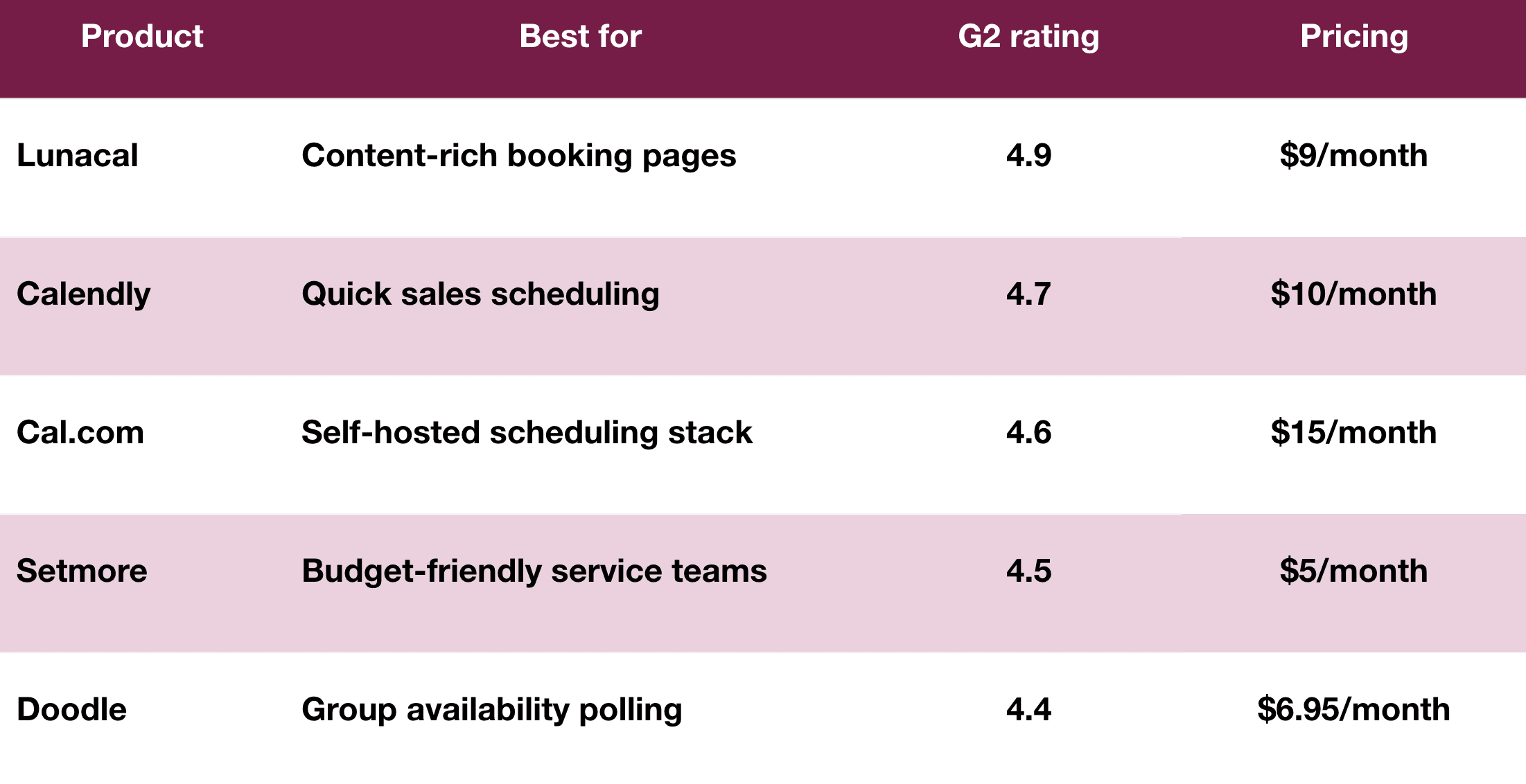
In 2026, the best calendar scheduling software include Lunacal, Calendly, cal.com, Setmore, Doodle and Zoho Bookings.
Choosing the right calendar scheduling software takes more than evaluating scheduling pages and their monthly pricing. The right tool depends on the kind of scheduling you handle, how much flexibility do you need over availability, and whether your booking page needs to simply collect meetings or actively help convert them.
We've written several blogs around scheduling, but for this guide, my team and I manually reviewed 8 widely used tools. We checked Google and Outlook calendar sync, reminders, routing, round robin, payments, embeds, booking-page flexibility, team scheduling,, buffers, limits, and availability rules. We also manually went through public reviews, pricing pages, help docs, and took demos.
Our initial shortlist also had Acuity Scheduling, Square Appointments, Appointy, Appointlet, Microsoft Bookings, and YouCanBookMe. They were left out because they felt limited for broader scheduling needs or did not hold up as strongly across feature depth and user feedback. This article also covers country-specific nuances (eg. GDPR compliance in EU, language requirements in France, Germany, Spain, Brazil, Italy, etc., 12-hour time settings in US, Canada, Australia, etc.)
Calendar Scheduling Software Compared
Calendar scheduling software comparison table by use case
| Scenario | Best tool | G2 rating | Paid plan starts at |
|---|---|---|---|
| Brand-first booking pages that drive higher bookings | Lunacal | 4.9 | $9/month |
| Self-hosted scheduling stack for teams that want deep customization | Cal.com | 4.6 | $15/user/month |
| Fast one-on-one meeting links for sales, recruiting, and customer calls | Calendly | 4.7 | $10/month |
| Budget-friendly scheduling for small service teams | Setmore | 4.5 | $5/user/month (annual) |
| Group scheduling polls when you need consensus on a time | Doodle | 4.4 | $6.95/month |
| Scheduling that fits best inside the Zoho ecosystem | Zoho Bookings | 3.9 | $6/user/month (annual) |
| Add-on heavy service booking flows, including classes and operational controls | SimplyBook.me | 4.4 | $9.90/month |
| Inbound meeting distribution where routing, ownership, and capacity caps must stay fair | LeadAngel | 4.5 | Custom pricing |
Detailed table with feature-by-feature comparison
| Feature | Lunacal | Cal.com | Calendly | Setmore | Doodle | Zoho Bookings | SimplyBook.me | LeadAngel |
|---|---|---|---|---|---|---|---|---|
| Rating on G2 (out of 5) | 4.9 ★★★★★ | 4.6 ★★★★☆ | 4.7 ★★★★☆ | 4.5 ★★★★☆ | 4.4 ★★★★☆ | 3.9 ★★★☆☆ | 4.4 ★★★★☆ | 4.5 ★★★★☆ |
| Starting Price of Paid Plans (USD) | $9 | $15/user | $10 | $5/user (annual) | $6.95 | $6/user (annual) | $9.90 | Custom Pricing |
| Calendar Sync: Google, Outlook, Apple | Yes (Google, Outlook, Apple) | Yes (Google, Outlook, iCloud) | Partial (Google/Outlook; iCloud existing only) | Partial (Google/Outlook; Apple 1-way) | Yes (Google/Outlook, iCloud) | Partial (Zoho/Google/Outlook) | Partial (Google, Outlook) | Partial (Google, Outlook) |
| SMS/Email Reminders | Yes | Yes | Partial | Yes | Partial | Yes | Yes | Partial |
| Paid meetings | Yes (Stripe, PayPal) | Yes (Stripe) | Yes (Stripe) | Yes (Square/Stripe/PayPal) | Yes (Stripe) | Yes | Yes | No |
| Scheduling page Themes | Yes | Yes | Partial | Partial | Partial | Yes | Yes | No |
| Team Scheduling | Yes | Yes | Yes | Yes | Partial | Yes | Yes | Yes |
| Round Robin Scheduling | Yes | Yes | Yes | Partial (auto-assign "any team member") | No | Yes | No | Yes |
| Multi-session Packages | Yes | No | No | No | No | Partial (series/group bookings) | Yes | No |
| Custom domain | Yes | Partial (self-host/subdomain) | Partial | No | No | Yes | Yes | No |
| GDPR | Yes | Partial | Yes | No | Yes | Yes | Yes | Yes |
In-depth analysis of scheduling software
Lunacal
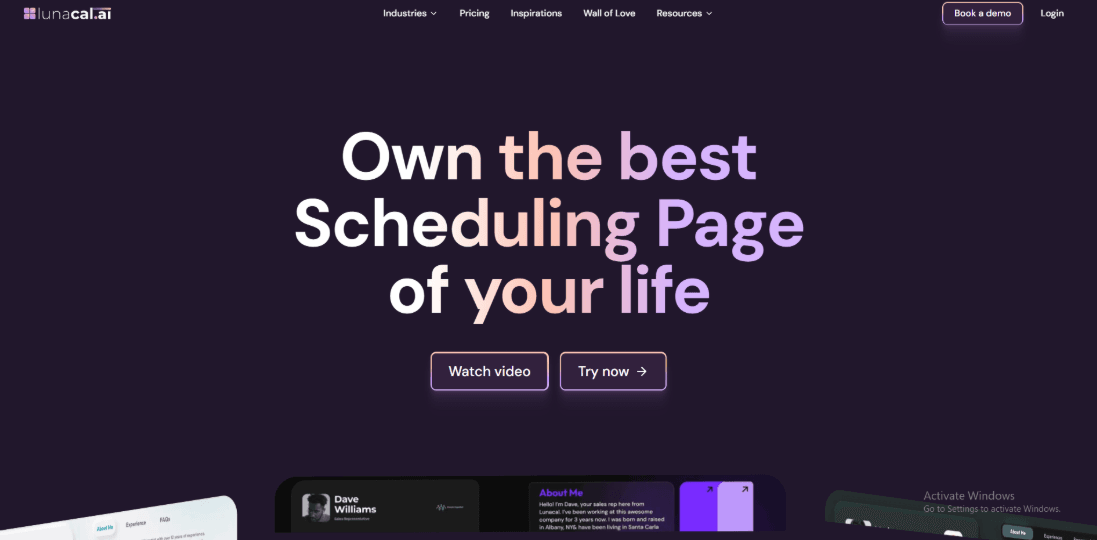
Lunacal is calendar scheduling software designed to drive more bookings with branded scheduling pages, reminders, routing, and workflow automation. For teams comparing scheduling tools, Lunacal is rated 4.9/5 on G2 and stands among the highest-rated options.
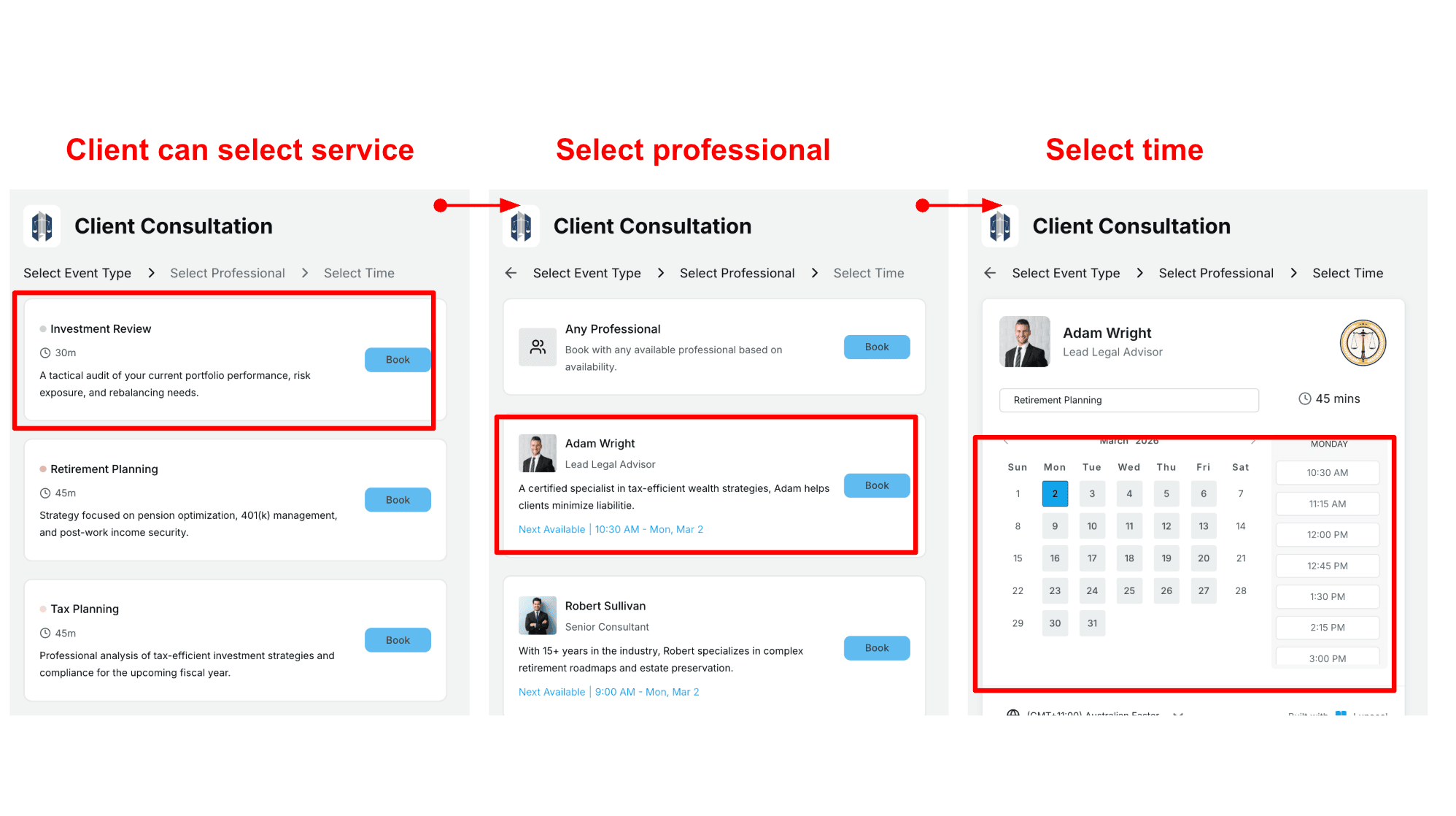
Lunacal helps increase bookings by turning a simple scheduling link into a more informative booking page. Instead of sending clients to a basic calendar view, you can create a page that explains the session and shares helpful details before someone books. You can add videos, testimonials, documents, and simple explanations around the calendar. This helps visitors understand the offer before booking. For teams that rely on discovery calls, consultation bookings, or paid sessions, this style of calendar scheduling software can make the booking page feel more complete and informative.
Features
- Availability rules
I tested buffer time, notice periods, daily booking limits, and overlapping calendars. The system handled these situations once the settings were clear. The main learning curve appears when you try unusual availability setups. Here is how I tested the availability rules:
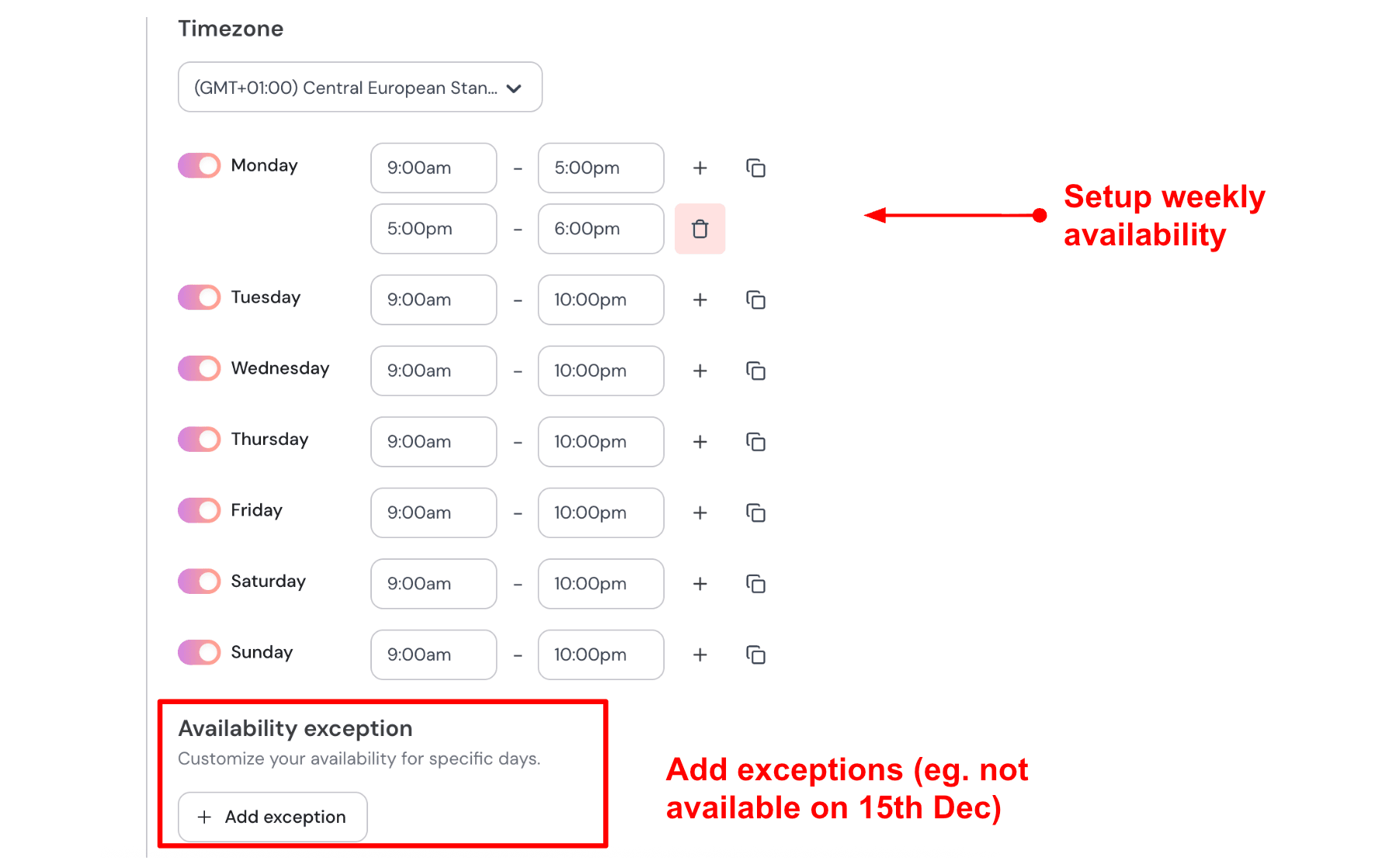
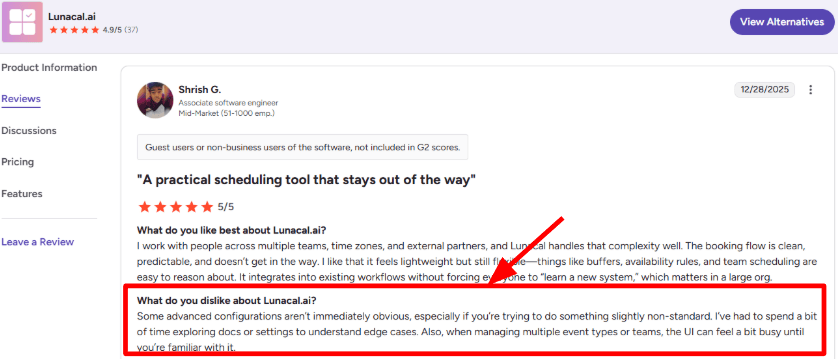
It takes a little exploration to find the right controls. I noticed a similar point mentioned in a G2 review. Here is a screenshot of the review below:
- Team routing
Round robin and collective scheduling are built in. These features help with two common workflows. Sales teams often distribute incoming bookings across several representatives. The system can rotate meetings automatically. Some businesses run group sessions where several hosts must be available simultaneously. Collective scheduling helps manage that overlap. When I added more event types and team members, the dashboard felt crowded at first. After spending some time with it, the layout started to make more sense. That experience also appears in some community feedback. Here is a screenshot attached below:
- Payments
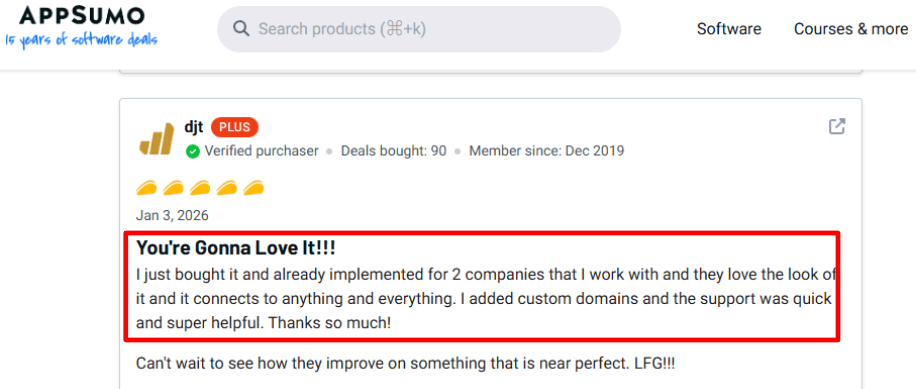
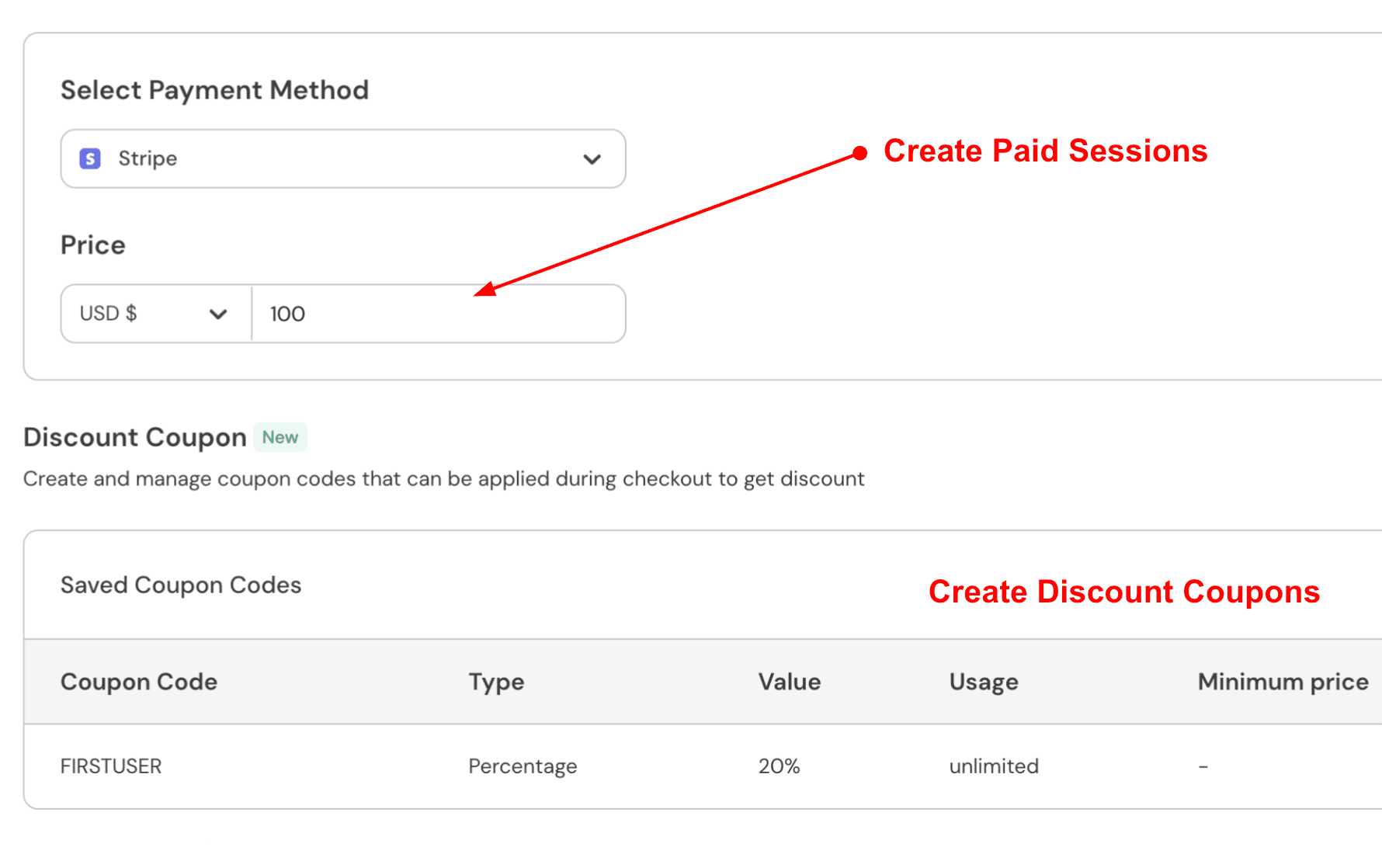
Payments are part of the booking flow, which makes testing paid sessions straightforward. A AppSumo review claimed it connects to anything and everything. Here is a screenshot of the review:
- Automated email and SMS reminders
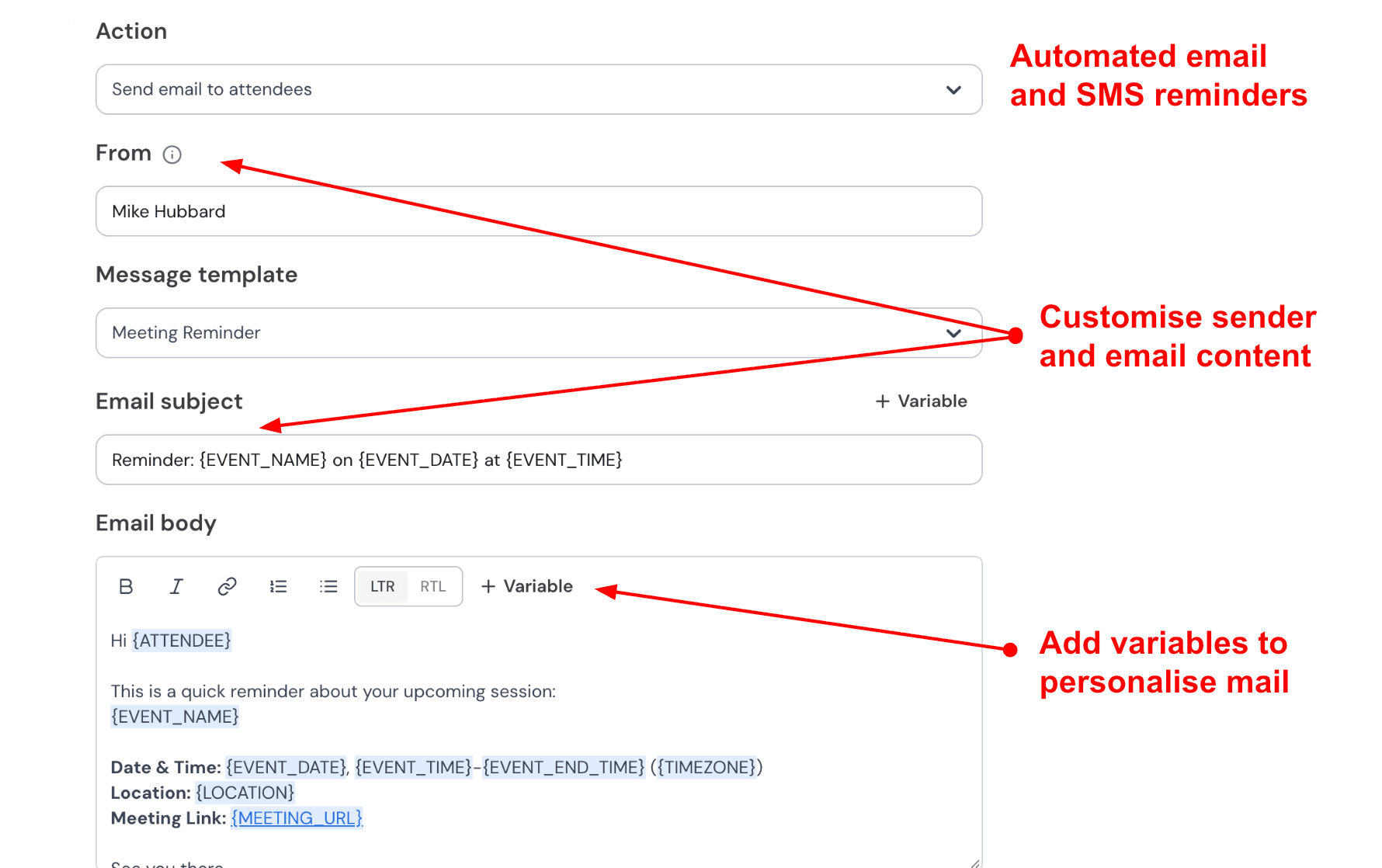
You can set automatic reminders by email and SMS. You control the message and the timing. Session details are filled in automatically. I recommend one email reminder 24 hours before and one SMS reminder one hour before. Here are the settings for configuration:
- Security and GDPR
Lunacal provides a public responsible disclosure page that explains how security issues can be reported. They also publish a data processing agreement that outlines how customer data is handled and what happens if an account closes. For teams that review compliance details before adopting new calendar scheduling software, those documents help clarify how the platform manages data.
Pros
- Best fit when the booking page must carry context and proof, not just availability.
- Strong webhook and Zapier paths for automation.
- Team scheduling works for round robin and group overlap.
- Payments plus packages reduce tool sprawl for paid sessions.
- Clear security posture signals like responsible disclosure.
Cons
- If you only need a simple personal booking link with the cleanest possible UI, I would pick a more minimal tool.
- No public API yet, so native integrations can be limiting for some stacks.
- Multi team and multi event setups can feel dense until you learn the structure.
- Some advanced configurations are not obvious on first setup.
- Deep CRM specific workflows may require Zapier or custom glue.
Pricing
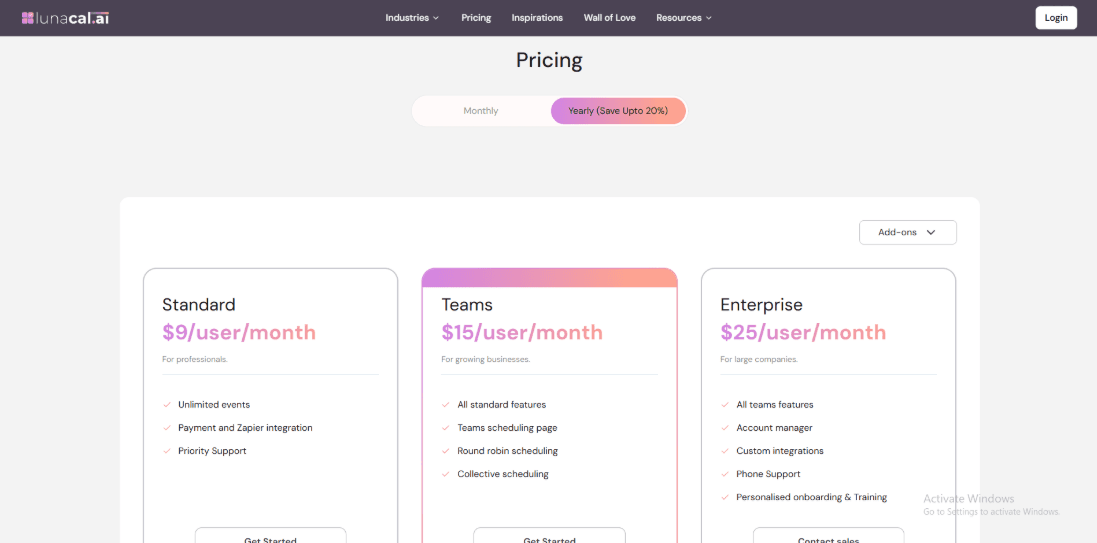
- Standard is $9 per user per month with unlimited events, plus payments and Zapier integration, and priority support.
- Teams is $15 per user per month and adds team scheduling pages, round robin, and collective scheduling.
- Enterprise is $25 per user per month with an account manager, custom integrations, and phone support.
When I'd choose Lunacal
Choose Lunacal when your booking page needs credibility content alongside scheduling, or when you sell paid sessions or packages and want payment tied to booking. It's also strong for teams that need round robin or collective scheduling without adopting a heavy suite. Pick a simpler scheduler if you want the most minimal setup and the lightest admin UI.
Cal.com
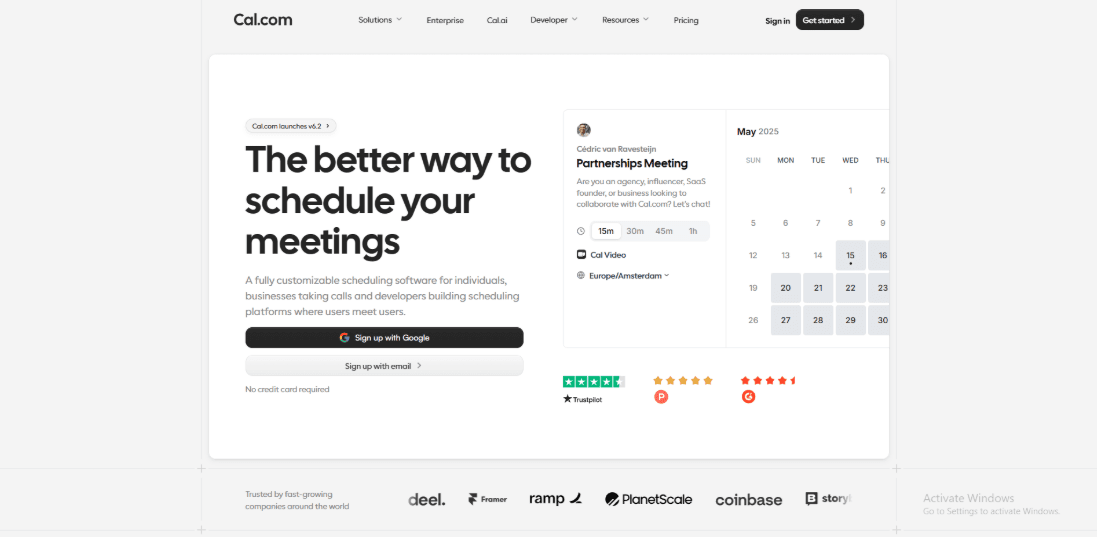
Cal.com is a scheduling tool made for teams and builders. It allows you more control than most booking systems, especially if your setup is more complicated than just a personal link.
Best fit scenarios
- Product or operational teams that need standardized scheduling flows, routing, and round robin.
- Businesses that want to be able to customize things a lot, add things, and access APIs.
- Teams that want to host their own servers or want to know more about security measures.
Features
- Calendar integration
I connected Google Calendar first. Conflict checking worked well after the initial sync finished.
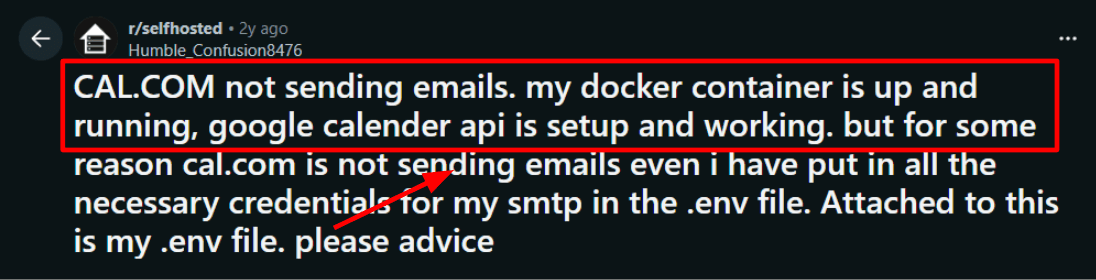
Where it gets more complex is admin-style scheduling. If one person needs to book on behalf of someone else, you have to think through the flow. That planning matters. I have seen similar feedback from users who expected it to work more like a traditional assistant booking tool.
I saw the same expectation gap in a Reddit review, and I'm sharing a screenshot below.
- Team controls
Setting up a team is direct. The first time you configure roles and shared event types, you may need some trial and error.
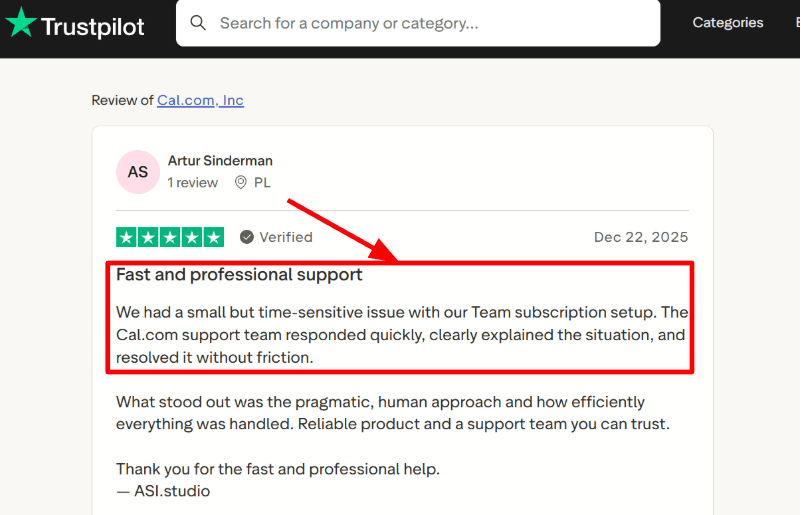
I reported a subscription issue that needed to be fixed right away, and support responded promptly. I've also seen public reviews talk about how quick and helpful the support responses are. When scheduling is linked to revenue, that is crucial.
I also saw a similar fast, pragmatic support note in a Trustpilot review, and I'm attaching that screenshot below too.
- Availability rules
Buffers, booking limits, and working hours are flexible. You can separate general availability from specific event types, which gives you more control. It took extra time to fine-tune edge cases, such as travel time and back-to-back meetings. Once configured properly, it held up well.
- Routing forms
Routing is where Cal.com stands out. You can ask questions before someone books and use the answers to send them to the right person or team. For example, you can route by region, company size, or request type. Start with something easy. Ask one or two clear questions. You should only add more when you see how genuine bookings go via the system. It gets difficult to handle if you build too much logic too soon.
Note: Routing forms are only valuable if the answers create a real operational decision. If your team would still handle the lead the same way regardless of the answers, the form only adds friction. The best Cal.com setups I've seen use two to three questions max, then route based on a single high-signal factor like region, company size, or request type.
- Security posture
Cal.com provides detailed security documentation, which is helpful for larger organizations. Security updates are also visible in public records. For example, a critical authentication issue was listed in the NIST vulnerability database and patched in version 5.9.8. That kind of transparency matters for teams that need documented fixes.
Pros
- Strong option when you need routing, teams, and API access.
- Open source with a self-hosting path for teams that want more control.
- Round robin and routing support structured team scheduling.
- Clear documentation around security and compliance.
- EU data residency is available for teams that require it.
Cons
- If you need a simple personal booking link with minimal setup, this can be more than you need.
- If you build deep API integrations, you are responsible for maintaining them. API version changes are documented and require attention.
- Some advanced admin and orgs need to push you into higher tiers.
- Self-hosting means you own upgrades and patch speed. A good reminder is the GitHub Security Advisory .
- Routing can be easy to overcomplicate if you do not start with a precise flow.
Pricing
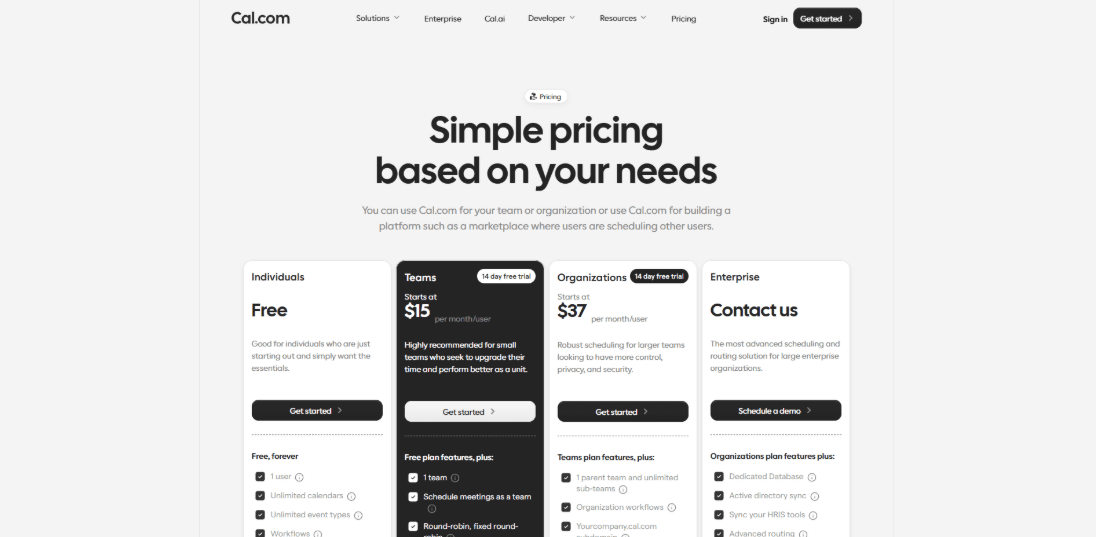
- A free plan is available for individual use and basic booking.
- Teams starts at 15 dollars per user per month and includes a 14-day trial.
- Organizations are listed at $37 per user per month with more administrative features.
- Enterprise pricing is custom and handled through sales.
- Use the official page for current limits and plan details: Cal.com pricing.
When I'd choose Cal.com
When you want to schedule team meetings in a structured way with routing and better integration with existing systems, Cal.com is a great choice.
It works well for businesses that want to be able to embed things, control APIs, or host their own content.
A lighter tool may be easier to use if the main goal is to get a personal booking link up and running quickly with little setup. You can also check for other Cal.com alternatives on our page.
Calendly
Calendly is renowned for its effective and straightforward scheduling. You send a link, someone chooses a time, and the meeting shows up on your calendar. It was made to be fast and big.
Best fit scenarios
- You have a lot of one-on-one meetings for sales, hiring, or customer success and need something live right away.
- Your team wants simple booking links, reminders, and routing without having to construct complicated systems.
- You want everyone in the team to be able to send their availability in the same way.
Features
- Availability rules
When I tested it, setting working hours, buffer time, and booking limits was easy. This is always my first check. If availability rules are wrong, your calendar fills in ways you did not expect. Time zone handling worked well for regular cross-region bookings.
- Meeting tool integration
Video links are added automatically once connected.
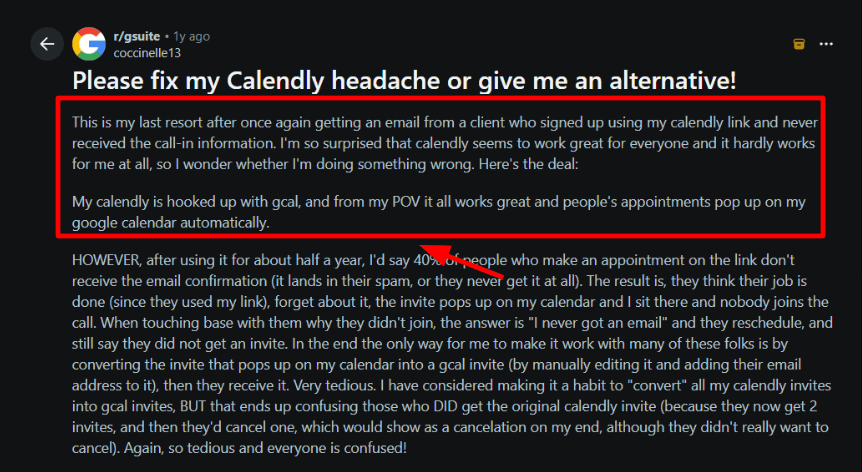
I always test this by booking meetings with different email providers and checking what the invite actually looks like. Delivery matters.
A Reddit review described invitees not receiving confirmations or call-in info, and it matched the failure mode I watch for.
Screenshot below so you can see the wording and symptoms.
- Calendar integration
Calendly works with Google Calendar and Microsoft calendars to check for conflicts and set up events. I saw that new iCloud calendar connections aren't supported during setup. If your team uses Apple Calendar, that could be important.
- Workflows
Automated reminders and follow-ups are what make Calendly more than just a booking link. I check workflows by making a fake meeting, moving it, canceling it, and making sure that the right emails go out in the right order. It's easy to see the practical value: fewer people not showing up and less manual chasing.
- Team routing
Round robin and routing flows help ensure meetings go to the right person. I test routing by checking time zones, rotation fairness, and what happens when someone is out of the office. It is also worth noting that Google Calendar now offers its own booking pages inside Calendar and Gmail. For some teams, that may cover basic needs.
Pros
- Easy to set up and easy to use with a team.
- A clean booking experience for guests.
- Checking for calendar conflicts works well every day.
- Works with tools that are often used in sales and hiring.
- You may easily share it through email, websites, and email signatures.
Cons
- It doesn't have more advanced business tools like client data, intake forms, point of sale, or memberships.
- Some Apple-first teams can't use new iCloud calendar connections since they aren't supported.
- For bigger teams, seat-based cost can go up quickly.
- It can be hard to find some admin and notification settings the first time.
- You might still need to keep an eye on deliverability for certain domains and invitees.
Pricing Plans
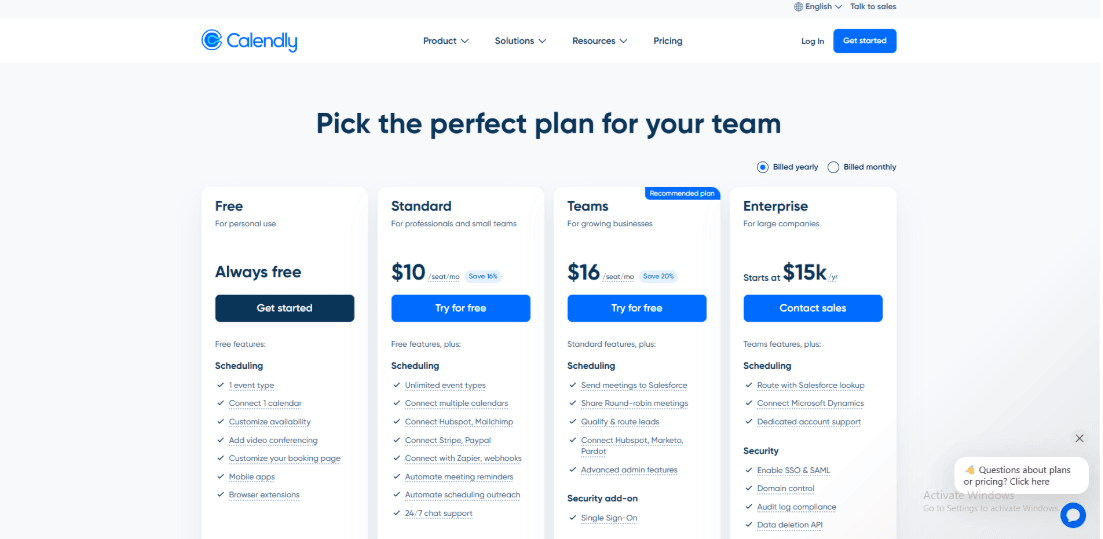
- There is a free plan for basic scheduling.
- Paid plans are per-seat basis, and there are Standard and Teams tiers, as well as Enterprise for bigger companies.
- For Standard, the yearly price is usually approximately $10 per seat per month, and for Teams, it's usually around $16 per seat per month. Enterprise plans start at a substantially higher price and are usually on a yearly basis.
When I'd choose Calendly
When I want goals to happen quickly and schedules to be reliable, I would use Calendly. It works well for groups that have a lot of the same kinds of meetings and want something that is easy to grasp and consistent. You might require a more specialized platform if you need more than just scheduling, including managing clients or keeping track of programs.
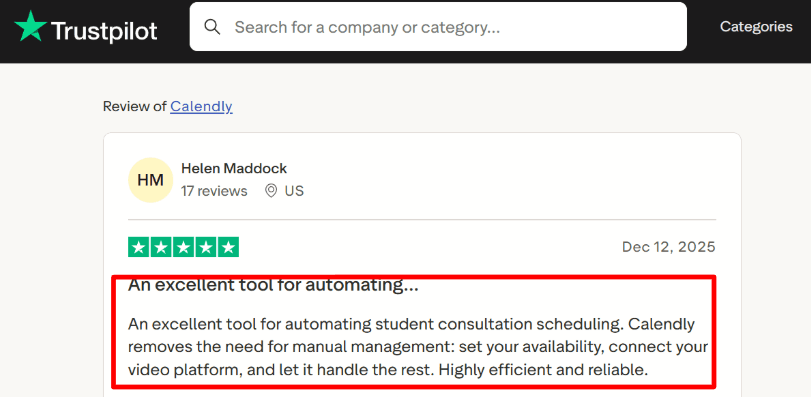
I also saw a Trustpilot review calling it highly efficient and reliable for student consultation scheduling.
Setmore
Setmore is one of those tools you open expecting a long setup, only you be done quicker than you planned. Add your services, connect your calendar, and share the link. It is easy to understand and use.
Best fit scenarios
- It works well for small service teams and people who work alone who want to get started quickly on a free plan.
- It makes sense for businesses that want clients to pay when they book and need a basic public booking page that doesn't take a long time to set up.
- It is invaluable for support teams that use Zendesk to manage tickets and want to set up appointments from within that system.
Features
- Booking Page
Setup was quick. I added services, set durations, and published a booking link I could share or embed on a site.
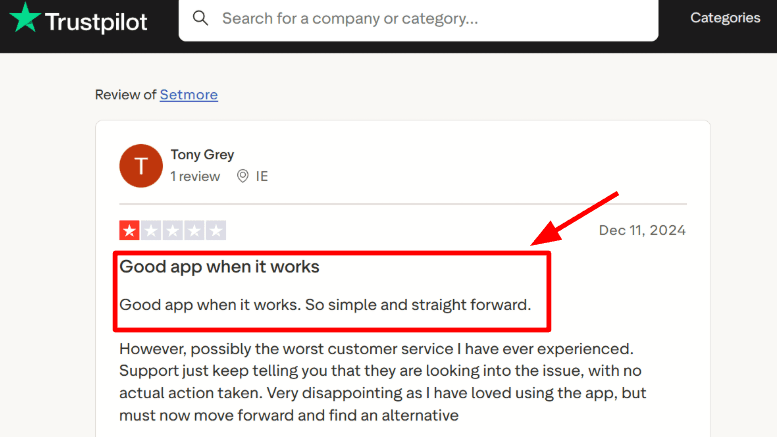
The real test comes after the first week. A Trustpilot review mentioned recurring issues over the past few weeks, while a release popup focused on a fresh look. Screenshot below so you can judge the risk.
- 24/7 Support
Both free and paid plans offer 24-hour human support. That matters once bookings are live and customers are waiting.
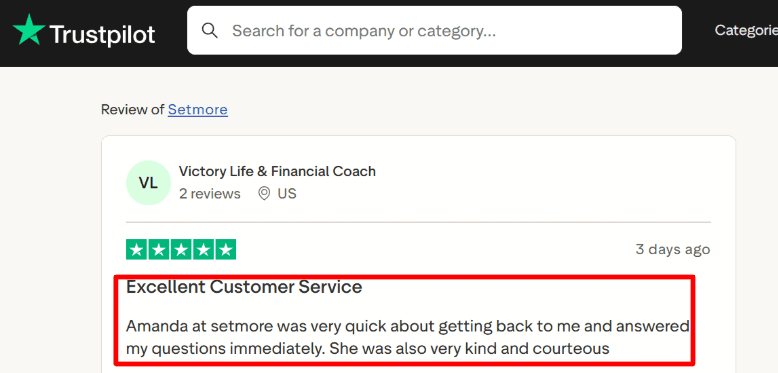
I always look for real examples of how support performs. This Trustpilot review praises quick, kind replies from Setmore support. Screenshot below.
- Calendar integration
The Pro plan includes two-way calendar sync. That keeps Setmore and Google Calendar aligned in real time. This is important if your main calendar already has meetings and personal events. Once connected, availability stays accurate.
- Payment integration
You may use Setmore with Stripe, Square, and PayPal. When customers book, you can collect payment. From what I've seen, asking for payment in advance reduces missed appointments. People usually come when they've already paid. One little thing that helps is to offer services only during a few clear time slots. Clients occasionally pick the wrong time slot when you give them too many comparable options, which forces them to reschedule.
- Helpdesk scheduling
If you run a support team, there is a Zendesk Marketplace app that lets agents schedule appointments inside Zendesk. That detail can change how a team works because agents no longer need to leave the ticket system to book time with a customer.
Pros
- The free plan is strong enough for real use. Small teams can start without paying right away.
- Strong booking channels like Google Business Profile bookings and social booking options.
- Payments work with common providers like Stripe, Square, and PayPal.
- Two-way sync helps reduce booking conflicts once you upgrade.
- Broad integrations with Zapier for long-tail workflows.
Cons
- If your business needs advanced routing, detailed sales pipelines, or strict enterprise controls, Setmore may feel limited.
- Standard plans are not positioned as HIPAA compliant in the terms, so healthcare teams should review compliance requirements carefully before using them for sensitive data.
- 2FA can only be enabled from desktop and web, which surprised me when I tried doing it from mobile.
- SMS reminders come with regional and fair-use constraints, so costs and limits can feel unclear in multi-country setups.
- Bookings from Google and similar channels depend on eligibility rules, so that results can differ by business category.
Pricing
- The free plan allows up to four users and includes a booking page and core scheduling features.
- Paid plans are billed per user, with monthly and annual options listed on the official pricing page.
- If you need unlimited appointments, two-way sync, and SMS reminders, you will likely move to a paid plan. Official pricing: Setmore pricing.
When I'd choose Setmore
Setmore is a good choice for service businesses that need a simple booking page, a way to schedule their teams, and a way to collect payments at the time of booking with little setup. It's great for people who work alone or in small groups who want to get started quickly and then add better calendar sync and messaging features later. Setmore is better as a secondary tool than the main system if strict compliance or enterprise-level control are the most important things.
Doodle
Doodle is a scheduling tool that helps organizations find a time that works for everyone. It helps you rapidly run basic polls to find out when people are free and pick a time. You can also link calendars to minimize scheduling conflicts, provide booking links for one-on-one sessions, and even use Stripe to collect payments for paid sessions. It works effectively when the primary purpose is to agree on a time with minimal setup.
Best fit scenarios
- When the real problem is getting a group to agree on a time.
- When you are in charge of setting up meetings for school, the community, or your own group, and no one needs training or accounts.
- When your team essentially uses email and calendars and only needs to agree on a time quickly.
Features
- Group polls
- I tested Doodle for cross-team scheduling. The vote on times flow is still effortless to use.
- You create a poll. People mark the times that work. You pick the winning slot.
- There is one operational risk. If you run many polls at the same time, two different projects can end up landing on the same winning time. That can cause overlap unless you are watching your calendar closely.
- I saw this in a Reddit review, and I'm dropping a screenshot below so you can judge it yourself.
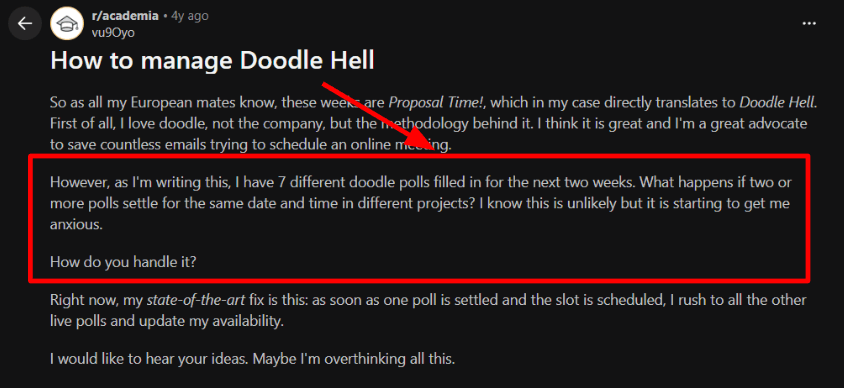
The thread highlights how multiple polls can collide on the same winning slot if you are not careful.
- Calendar integration
You can connect to Google or Office 365, so Doodle hides times when you are already busy. That reduces accidental conflicts during both polls and bookings. One setup detail to know. Doodle allows up to ten connected calendars, but shared or sub-calendars are limited. If you manage executive calendars or shared team calendars, you will want to plan that carefully.
- Booking page
You can also create a bookable link for one-on-one meetings.
This is helpful when you move between group coordination and individual calls during the same week.
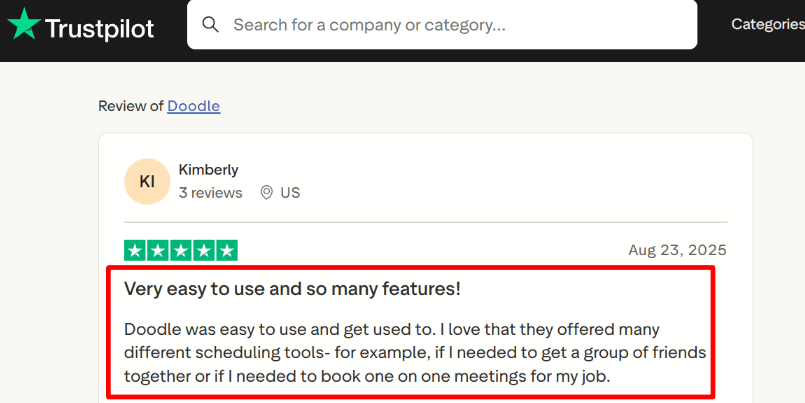
This matches a Trustpilot review I saw, which described it as easy for both group plans and work meetings. Screenshot below.
- Meeting tool integration
Doodle can attach video meeting links through its integrations. It covers standard tools like Zoom and Microsoft Teams. In most setups, this works without much effort. One thing to watch is company policy. Some organizations block Outlook add-ins. Even if Doodle supports it, your IT team may need to approve it first.
- Payment integration
Doodle can take payment through Stripe when someone books with you if you charge for your time. This is a good way to set up paid office hours or short consulting calls. The payment is made before the calendar invite is sent. Depending on your country and how your account is set up, Stripe may not be available. Before you build your process around this, you should make sure it's true.
Pros
- Fast group scheduling when everyone has opinions and busy calendars.
- Invitees often do not need accounts.
- Works well when you mix polls and 1 booking links.
- Calendar connections reduce accidental conflicts.
- Payments at booking are possible via Stripe.
Cons
- If you need one platform with intake forms, routing rules, multi-step workflows, and team assignment, Doodle can feel too narrow.
- Automatic reminders only work if you invite via Doodle's email invitation flow.
- Shared and sub-calendars are limited, which can be awkward for assistants.
- If you run lots of polls at once, overlap anxiety is real unless you manually watch your calendar.
- Some orgs may block Outlook add-ins so that rollout can require admin help.
Pricing
- Official plans are listed on Doodle's pricing page: Doodle pricing.
- Professional account pricing is $14.95 per month or $83.40 per year in Doodle's help pricing details.
- Team plan is $19.95 per user per month, or $8.95 per user per month billed annually with a 2-user minimum.
- Enterprise pricing is custom.
When to Choose Doodle
Choose Doodle when group coordination is your main challenge, and you need people to agree on a time quickly.
It fits teams that work mainly through email and calendar and want something simple.
If you sell time and want to collect payment through Stripe, it can support that as well.
Look elsewhere if you need advanced routing, approvals, or complex scheduling rules across large teams. You can also check out our interview scheduling software in our blog section.
Zoho Bookings
Zoho Bookings is an online solution for making appointments that works well with the rest of the Zoho ecosystem. It's for organizations that want bookings to flow directly into their CRM, workflows, and reports.
It's great for teams that need structure, clear rules, and visibility into what's happening in other departments. Zoho Bookings is designed for people who need to keep track of operations and marketing while also scheduling.
Best fit scenarios
- Your team already uses Zoho CRM or Bigin, and you want bookings to update the same client record automatically.
- You run multiple departments or locations and need clear permissions and structure.
- Your marketing team wants booking data connected to campaign tracking in GA4.
Features
- Workspaces Control
I set up workspaces as separate departments and locations. It worked well when different teams shared one brand. You can control who sees what and who can edit services. That helps prevent confusion as the team grows. At first, I had to spend a few minutes finding the right permission setting. After that, it made sense. What helped most was thinking of workspaces as internal team areas. Once I mapped them to how we actually operate, things became clearer. Services were easier to manage, and we stopped creating duplicates. A practical pattern that helped was treating workspaces like internal teams, not customer-facing categories. When I mapped workspaces to how we run operations, handoffs got cleaner and duplicate services dropped.
- Payment Integration
On the Premium plan, you can collect payment at the time of booking. You can require full or partial payment depending on the service.
If you plan to run retainers or custom billing logic, it is worth testing those scenarios early.
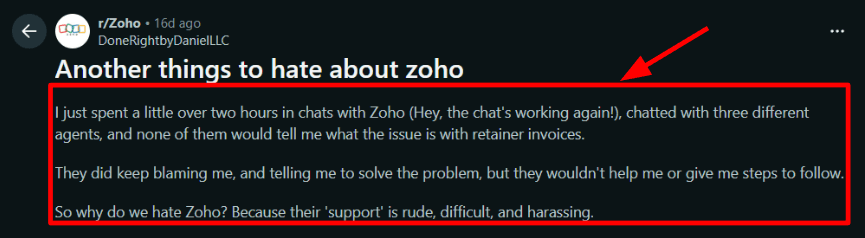
When I tested money flows and invoice-style logic, clarity in support became a priority fast.
I saw a similar pattern in a Reddit review about Zoho support around retainer invoices, and I am dropping that screenshot below for context.
- Workflow Automation
You can create workflows that send emails or SMS messages after someone books. You can also push booking data into Zoho CRM and trigger custom actions.
Once you set this up properly, it starts to feel like a small operating system.
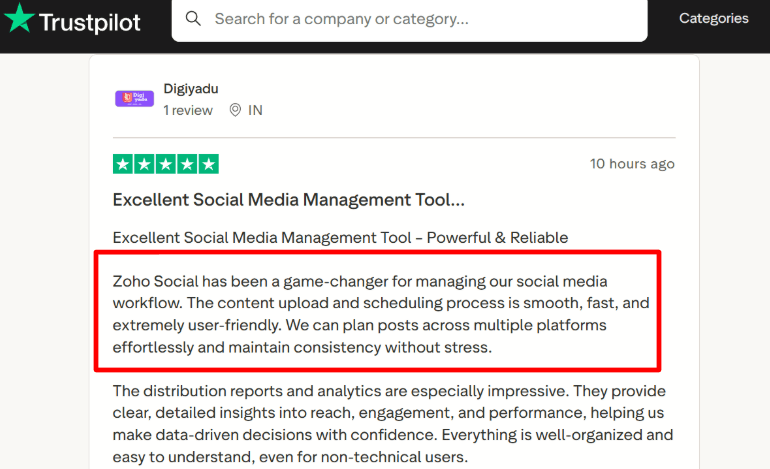
A Trustpilot review I saw for Zoho Social praised how smooth scheduling is, how clear the analytics feel, and how the organized flow shows up here too.
I am sharing the screenshot below because it reflects what you notice after a real setup, not just a demo.
- Meeting Tool Sync
You can connect video meeting tools, so links are created automatically for each booking. This keeps meetings consistent and avoids manual copy-and-paste steps. One thing I always test is whether the booking form sends all required fields to CRM. If even one important field is missing, someone ends up editing records manually later. If you want to go beyond Zoho apps, the Zapier integrations list connects to a wide range of tools, which is handy when bookings need to trigger real ops. One thing I always verify is whether the booking payload contains the exact fields my team needs downstream. If it does not, you end up doing manual edits inside CRM, and the whole CRM-connected promise collapses.
- GA4 Tracking
You can connect GA4 to track bookings as conversion events. This is helpful when marketing teams want to know which campaigns actually drive appointments. You can track drop-off points and measure which UTM links convert. GA4 integration is part of the Premium plan, so it should be included in the plan.
Pros
- It works especially well if you already use Zoho CRM or Bigin. Bookings can update the same client records without extra steps.
- Workspaces make multi-team scheduling cleaner than a single shared calendar page.
- Workflows plus custom functions can cover a lot of after-booking operations.
- Solid path for embedded booking pages on your site without rebuilding forms.
- GA4 support is useful when you care about campaign ROI, not just bookings.
Cons
- If you only need a basic 1 scheduling link, this can feel heavier than what most Best Calendar Scheduling Software lists recommend.
- GA4 integration is Premium-only, confirmed in the Zoho Help Center GA4 guide.
- Plan-gated payments and advanced controls mean that pricing decisions affect the core flow.
- If your team needs quick, personal help, the ecosystem-wide support stories are worth thinking about.
- When you first set up your admin account, some settings may not be where you think they should be. This is why you need a short checklist for new admins.
Pricing
- There is a free plan for simple setups.
- Basic and Premium plans are priced per user. Premium includes payments and analytics features.
- If you use Zoho One, access is generally aligned with the Premium tier.
- Exact monthly vs annual pricing shifts by billing choice, so always verify on the official Zoho pricing before publishing.
When I'd choose Zoho Bookings
Choose Zoho Bookings when you need multi-team scheduling with workspaces, and you want bookings to sync into Zoho CRM style workflows. It is also a strong pick if you care about paid appointments and attribution-ready campaign tracking. If your only goal is a fast, minimal 1
booking link, most best scheduling software roundups will include lighter tools that get you live quicker.SimplyBook.me
SimplyBook.me is an online booking system made just for service firms. It handles booking regulations, payments, and staff schedules in one location. If you run a team and need more than just a basic calendar connection, it lets you handle appointments like a real front desk.
Best fit scenarios
- Service firms with more than one employee, varied service lengths, and capacity constraints that are similar to how a real front desk works.
- Businesses that need deposits, gratuity, and more control over bookings embedded into the process.
- Teams who worry about higher security settings, including HIPAA mode, and know that this can change how integrations work.
Features
- Availability rules
You can set different working hours for each provider. You can add buffer time. You can control how many people can book each service. Once you start working with several staff members and services of different lengths, this becomes important. It starts to feel like you are managing a real schedule for a team, not just sharing a calendar link. When I test tools like this, I create fake bookings across several services and providers. If the system blocks overbooking without me stepping in, I know it is ready for real customers.
- Payment integration
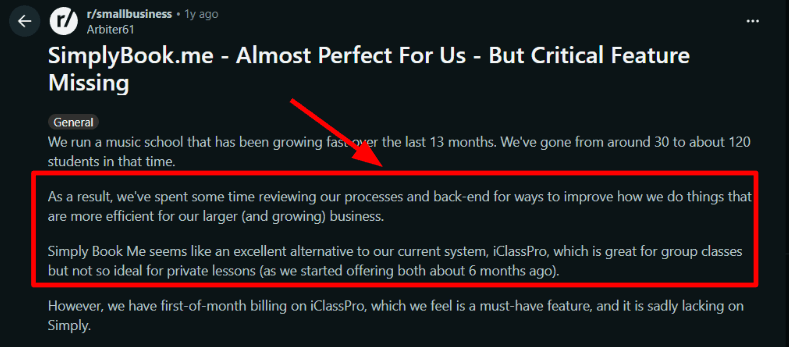
The platform has built-in ways to make payments, deposits, and tips. A client can book and pay at the same time. One thing to think about is fixed billing cycles. I saw a post on Reddit from a music school that was growing and needed automatic billing on the first of the month. Plan carefully before you commit if your business needs strict billing dates every month.
- Booking website
You can run it as a full booking website or embed it into your existing site. That helps when customers find you through search or social media.
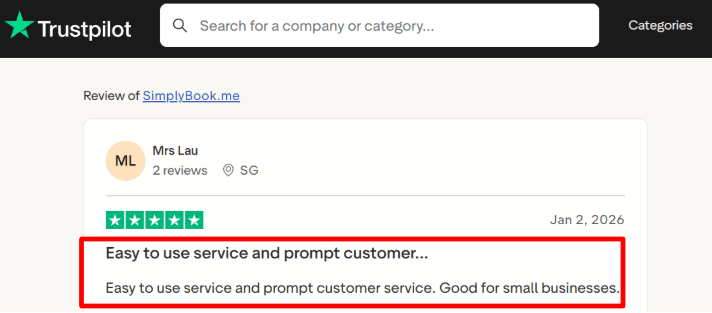
During setup, I found it straightforward. A Trustpilot review mentioned ease of use and responsive support, and that matched my experience.
- Workflow automation
You can automate confirmations, reminders, cancellations, and follow-ups. This reduces missed appointments and saves time. One thing I noticed is that certain security settings change how external automations behave. After adjusting those settings, I had to rethink how I connected other tools. Once everything was configured properly, daily operations ran smoothly.
- Security controls
There are options such as two-step login and HIPAA mode for more sensitive workflows. It is worth noting that SimplyBook.me has become part of the team. That kind of ownership change can influence long-term direction and support. Security choices are important. Enabling stricter modes can limit which integrations remain active. I treat that decision as something to plan for early rather than change later. Compared with generic calendar schedulers, the compliance angle is more explicit, but it can come at the cost of integration trade-offs.
Pros
- It handles real service operations well. Staff scheduling, payments, and capacity rules live in the same system.
- Strong plan structure from Free to Enterprise with clear limits.
- Good multi-provider support with roles and admin controls.
- Solid automation for reminders and post-appointment follow-ups.
- Responsive support experience aligns with what users report.
Cons
- It can feel heavy if you only need basic meeting scheduling.
- Fixed billing cycle needs may require workarounds.
- Enabling Google Authenticator can block Zapier connections according to their documentation.
- HIPAA mode comes with strict integration limits that can surprise teams.
- The modular feature system gives flexibility, but it also means more setup decisions.
Pricing
- There is a free plan with 50 bookings, one provider, and one custom feature.
- Paid plan starts at €9.9 per month billed monthly for Basic, then €29.9 per month for Standard, and €59.9 per month for Premium. Annual billing is cheaper on some tiers.
- 14-day trial includes most features, but some extras and messaging credits are separate. See details on the pricing page.
When I'd choose SimplyBook.me
If you run a service business with more than one provider and need payments or deposits, choose SimplyBook.me. It has capacity and buffer rules that match how things really work. It's a good fit when scheduling appointments, classes, and administrative tasks is more important than just scheduling meetings. If you only need simple meeting links and fixed-cycle billing, don't bother with it. If compliance is the most important thing, think about the security and HIPAA rules that apply to the integrations you use.
LeadAngel
LeadAngel is a scheduling and routing platform for sales teams that ensures leads are distributed fairly and that ownership rules are clear.
It does more than just let you arrange meetings on a calendar; it also links them directly to territory logic, account ownership, and workload constraints. For teams that have to deal with a lot of incoming work, it helps keep tasks balanced and easy to foresee.
Best fit scenarios
- I'd shortlist LeadAngel for revenue teams where scheduling is tied to routing, ownership, and fairness, not just finding an open time slot.
- It works effectively for B2B sales teams that need to make sure that leads and meetings are shared fairly. It also helps when reps think that meetings aren't being shared fairly. Basic round-robin methods often don't work well for sales operations teams with complex rules about who owns which regions and accounts. LeadAngel was made to handle that level of intricacy.
- It also works well when everyone in the team needs to be on the same page about account ownership, quotas, and scheduling. High-volume inbound teams can benefit, especially when it's critical to keep workloads balanced and stay within capacity restrictions.
- This application is meant to make things easier for your sales ops team if they have to talk about who got which lead.
- A G2 review I read praised how well the scheduling and routing worked in practice, especially for teams with a lot of structure.
A review I came across had something interesting to say about them:
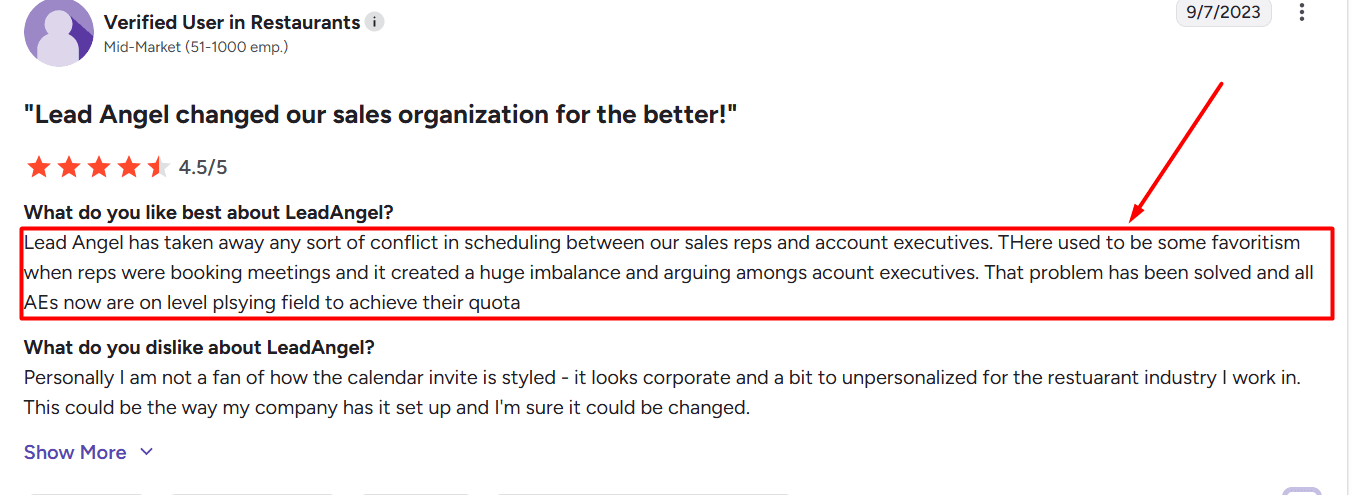
The review praises LeadAngel's scheduling features.
Features
- Intelligent routing logic
I tested this in multi-team sales environments where fairness and workload balance are critical. LeadAngel assigns meetings based on clear rules, including territory, ownership, capacity, and distribution logic. One thing to watch is the complexity of the rules. When too many exceptions pile up, teams can lose visibility into why assignments occur. I always review routing logs during setup to confirm the system clearly shows why a rep received a meeting. When configured properly, decisions feel consistent and predictable.
- Conflict-free scheduling
One of the biggest internal issues in sales teams is two reps believing they should have received the same meeting. LeadAngel prevents that by enforcing ownership and distribution rules at booking time. That reduces the need for sales ops to step in and resolve tension. I recommend setting clear limits per rep so busy days do not quietly overload a few individuals. When rules are clear and enforced automatically, team trust improves.
- Calendar integration
LeadAngel works with Google and Microsoft calendars to show real availability and keep people from booking too many appointments. It's important to think carefully about shared calendars and pooled availability when setting things up. From the start, executive teams and shared queues need to know who is in charge of what. When set up correctly, availability becomes organized and dependable.
- CRM-aware booking behavior
LeadAngel checks CRM data before confirming a meeting. That makes a big difference. I test scenarios such as an account with an owner, multiple reps qualifying, and cases where someone is near their capacity limit. The system handles these cases consistently. This level of predictability builds confidence across teams. The system resolves these cases predictably, which is critical for trust across teams.
- Meeting tool integration
It connects to popular video platforms and automatically adds conference details based on your calendar and CRM settings. In practice, I check bookings from email accounts that are both internal and external. IT settings can change how links to meetings are added. The goal is clear. Without having to follow up by hand, every invitation should have all the information it needs.
- Capacity and load controls
This is where LeadAngel really shines. It keeps track of daily and weekly assignment limits. It spreads the work evenly across account executives. If someone can't make it, it handles spillover. Without these limits, the workload becomes increasingly unbalanced over time. With them, distribution remains stable and meets quota expectations.
Pros
- Creates transparency across sales teams
- Handles complex routing logic reliably
- Reduces internal conflict and ops intervention
- Strong fit for quota-driven AE teams
Cons
- Too advanced for very small teams with simple scheduling needs
- Requires careful planning during setup
- Delivers the most value once volume or routing complexity increases
Pricing
LeadAngel offers two main plans structured around lead volume and routing complexity. Pricing is usually annual and scales based on usage. The Professional plan supports lead-to-account matching and structured routing for teams that need reliable automation. The Professional Plus plan supports higher volume environments and more advanced routing workflows. It adds broader automation and deeper scheduling control. For current plans and features, visit LeadAngel's official pricing site.
When I'd choose LeadAngel
LeadAngel is a good choice when you need to make sure that meeting distribution is clear, understandable, and fair across the whole sales team.
It makes sense for routing to take into account ownership, capacity limits, and quota balance without managers having to step in and manually rebalance assignments.
Conclusion
- Highest rated calendar scheduling app on G2: Lunacal is known for it brand-first scheduling pages, customizations, meeting reminders, routing, payment integration and workflow automation. It's rated 4.9/5 on G2, the highest among all tools compared. Paid plans start at $9/month.
- Best for fast one-on-one meeting links: Calendly — purpose-built for sales, recruiting, and customer calls with advanced team scheduling and analytics.
- Best for self-hosted customization: Cal.com — open-source scheduling stack for teams that want full control over their setup.
- Cheap option: Setmore — affordable scheduling for small service teams starting at $5/user/month.
- Best for group polls: Doodle — consensus-based scheduling when multiple people need to agree on a time.
- Best inside the Zoho ecosystem: Zoho Bookings — native integration with Zoho CRM, Mail, and the rest of the Zoho suite.
- Best for add-on heavy service flows: SimplyBook.me — classes, ops controls, and layered booking features for service businesses.
Methodology
- I ran this comparison the way I would if I were actually switching my own scheduling system and relying on it daily.
- Instead of using demo setups, I created real workflows in each tool and tested them on both desktop and mobile.
- I set up different event types, including a 30-minute meeting, a longer consult, and a paid booking, then tested booking, rescheduling, and cancellations end to end.
- I checked practical settings like buffers, notice periods, daily limits, and time zone handling by booking across devices and locations.
- I deliberately created conflicts by blocking time in connected calendars to see if double bookings were prevented and if events synced correctly.
- I tested automation by verifying what actually triggers, including bookings, reschedules, and cancellations, rather than relying on feature descriptions.
- For tools like Lunacal, I validated findings against user feedback on G2 and AppSumo reviews.
How I validated the findings
- I cross-checked my hands-on testing with real user feedback from platforms like G2.
- I compared this with more candid discussions on Reddit and Trustpilot to identify issues that appear after extended use.
- I used these insights to decide what to stress-test instead of taking marketing claims at face value.
- I reviewed known concerns such as Calendly deliverability issues, Setmore reliability complaints, and Doodle usability frustrations to see if they held up in testing.
- I checked security and compliance signals for advanced tools using sources like the NIST NVD CVE entry and the GitHub security advisory.
- I verified analytics-related claims through official documentation like the Zoho GA4 guide.
- I confirmed pricing using official pages at the time of writing, including Lunacal pricing, Cal.com pricing, Setmore pricing, Zoho pricing, and SimplyBook.me pricing.
FAQs
How do I pick the right calendar scheduling software for my business?
Start with your real booking process.
A good tool should make booking easy for customers and reduce manual work for your team. Before choosing one, test these things:
- how easy it is to book on mobile
- whether Google Calendar or Outlook sync works properly
- whether you can collect the client details you need
- whether payments, deposits, and reschedules work smoothly
- whether you can export your booking data later
If you run an appointment-based business, focus on staff scheduling, intake forms, payments, and reschedules. If your team mostly books meetings, focus on booking links, reminders, and team routing.
Which calendar scheduling software is a good fit for most businesses?
A few tools are worth comparing, depending on how you work.
- Lunacal is a strong fit when your booking page needs to build trust, explain your service, and collect payments
- Calendly works well for simple meeting scheduling and quick setup
- Cal.com is a good option for teams that want more control and deeper customization
If you run a service business with staff, services, and day-to-day operations, it is also worth looking at tools like Setmore, Zoho Bookings, and SimplyBook.me.
What should a good scheduling tool handle every day?
A solid tool should make daily scheduling feel simple.
It should help you:
- avoid double bookings
- send reminders automatically
- let people reschedule or cancel without back-and-forth
- collect the right details before the meeting or appointment
- handle payments if you charge for time
- support team scheduling if more than one person is taking bookings
If it creates extra admin work, it is probably the wrong tool.
What are the biggest mistakes people make when choosing scheduling software?
Many tools look good at first, then create problems once real bookings start coming in.
Watch for these issues:
- pricing goes up fast once you add team members or important features
- rescheduling feels confusing for customers
- calendar sync is slow or unreliable
- reminder emails or texts do not land properly
- support is slow when something breaks
A simple check is this: if the tool cannot handle cancellations, reschedules, and time zones properly, it will cause problems later.
What matters most if customers book from different countries?
If people book with you across the US, UK, Canada, Australia, or the EU, the small details matter a lot.
Check that the tool handles:
- time zones correctly
- date and time formats clearly
- the languages your customers need
- payment methods that work in each region
- privacy requirements such as GDPR in the EU
Before switching fully, do one real test booking for each region you serve. That usually shows problems early.
Summarize this content with AI


