

Introduction
Parent-teacher conference week can feel calm for five minutes, then the scheduling chaos starts. Choosing the right parent-teacher conference scheduling software determines how easily staff and families can book, reschedule, and manage meetings. With many appointments compressed into a short period, the right tool can significantly reduce back-and-forth communication.
I tested each option end to end by creating a conference schedule, configuring reminders, rescheduling appointments, and reviewing the admin experience. I also reviewed feedback on G2, Capterra, Trustpilot, and Reddit, focusing on multi-guardian access, sibling bookings, interpreter notes, and per-teacher slot limits.
Parent-Teacher Scheduling Software Comparison
Best fit by school setup
| School setup | Best tool | Why it fits | Starting price |
|---|---|---|---|
| Multi-teacher PTM with flexible scheduling | Lunacal | Calendar sync, rescheduling, forms, team routing | $9 |
| Simple school-wide PTM rollout | PTC Fast | Fast setup, no account booking, templates | $50 per semester |
| District-level conference management | PTC Wizard | Portal login, multi-student booking, buffers | $500 per year min |
| Small school using booking links | Calendly | Easy setup, reminders, strong integrations | $10 per user/month |
| Google Workspace schools | Google Calendar Appointment Scheduling | Native workflow, quick sharing, low setup | $7 per user/month |
| Microsoft 365 schools | Microsoft Bookings | Outlook sync, Teams integration | $6 per user/month |
| Basic signup-style scheduling | SignUpGenius | Simple slot-based signup, quick publish | $11.99/month |
Feature and pricing comparison
| Capability | Lunacal | PTC Fast | PTC Wizard | Calendly | Google Appointment Scheduling | Microsoft Bookings | SignUpGenius |
|---|---|---|---|---|---|---|---|
| G2 rating | 4.9 | No | 4.2 | 4.7 | 4.6 | 3.8 | 4.4 |
| Starting price | $9 | $50/semester | $500/year min | $10/user/month | $7/user/month | $6/user/month | $11.99/month |
| Calendar sync | Google, Outlook, Apple | No | Google, Outlook | Google, Outlook, Apple | Outlook | Partial | |
| Email reminders | Yes | Partial | Yes | Yes | Partial | Yes | Yes |
| SMS reminders | Yes | No | Yes | Yes | No | Limited | Partial |
| Paid bookings | Yes | No | No | Yes | Yes | No | Yes |
| Team scheduling | Yes | Yes | Yes | Yes | No | Yes | Yes |
| Round robin | Yes | No | No | Yes | No | No | No |
| Waitlist handling | Yes | No | Limited | No | No | No | No |
| Multi-student booking | Yes | No | Yes | No | No | No | No |
| Custom booking page | Yes | No | No | Yes | Limited | Limited | Yes |
| Intake forms | Yes | Basic | Basic | Yes | Limited | Yes | Yes |
| Best use case | Flexible PTM + automation | Fast simple PTM | District workflows | General scheduling | Google-native schools | Microsoft-native schools | Basic signup |
This article covers in-depth analysis of how we arrived at this conclusion.
Lunacal

Lunacal is popularly known for turning a booking page into a clean scheduling experience with extra context like content blocks and forms. For parent teacher conferences it can reduce back and forth and keep every meeting detail in one place.
Features
-
Calendar integration It connects with Google Outlook and Apple calendars so teacher availability stays accurate when plans change. When I tested setup the busy time sync was easy to understand and it reduced double booking risk.
This is one of the first things I check for school use because staff calendars are never static. -
Event templates You can create different conference formats like 5 minute quick check ins and 15 minute deep dives with clear rules. While setting up I noticed one gap that slows you down when you want several similar formats.
I also saw it mentioned in a G2 review. I am sharing a screenshot below. The point about missing duplication matches what I ran into when creating similar event types for multiple teachers.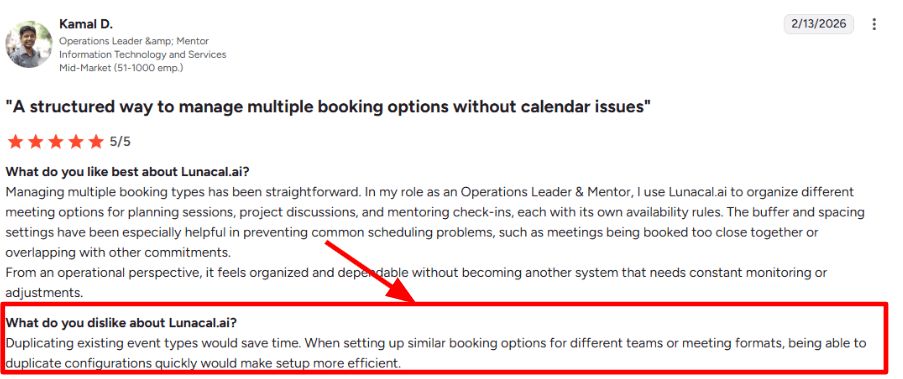
-
Reschedule flow Parents can reschedule without starting a long email thread and the system updates the calendar invite automatically. I tested this with a dummy booking and the change carried through cleanly.
Another G2 review called out rescheduling as a big win and I agree. You can scan the screenshot below and you will see why it matters during peak PTM weeks.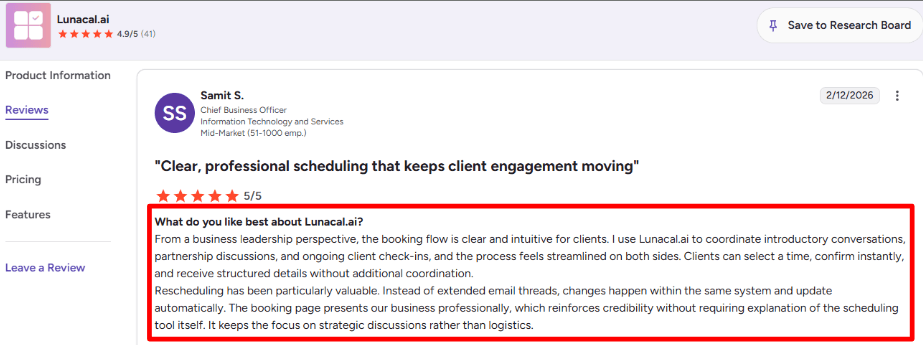
-
Booking questions Intake questions help teachers prepare before the call like student name class section and a short note on what the parent wants to discuss. I kept the form short and it still saved time because the context arrived before the meeting.
-
Automations and tracking Reminders reduce missed meetings, while UTM tracking shows which channels—such as WhatsApp, email, or the school portal—drive bookings.
Pros
-
Teachers and parents can complete the booking in a few taps and it keeps the confirmation details tidy. I found the flow simple to follow once the first event type was ready.
-
Rescheduling works smoothly and updates stay in sync with the calendar.
-
Booking questions add useful context without extra calls.
-
The booking page can carry school specific info like instructions and documents.
-
Team features support multiple teachers and shared schedules when needed.
Cons
-
If your school needs strict per class slot grids and fixed teacher schedules only then a PTM specific tool may fit better than Lunacal. Lunacal is flexible but it takes more setup choices.
-
Copying event setups is not smooth today so building many similar PTM formats takes longer.
-
Some advanced features may depend on plan level so you need to map needs early.
-
SMS and reminder costs can add planning work as explained in the SMS pricing help doc.
-
If many admins edit schedules at once you may want clear ownership rules to avoid confusion.
Pricing
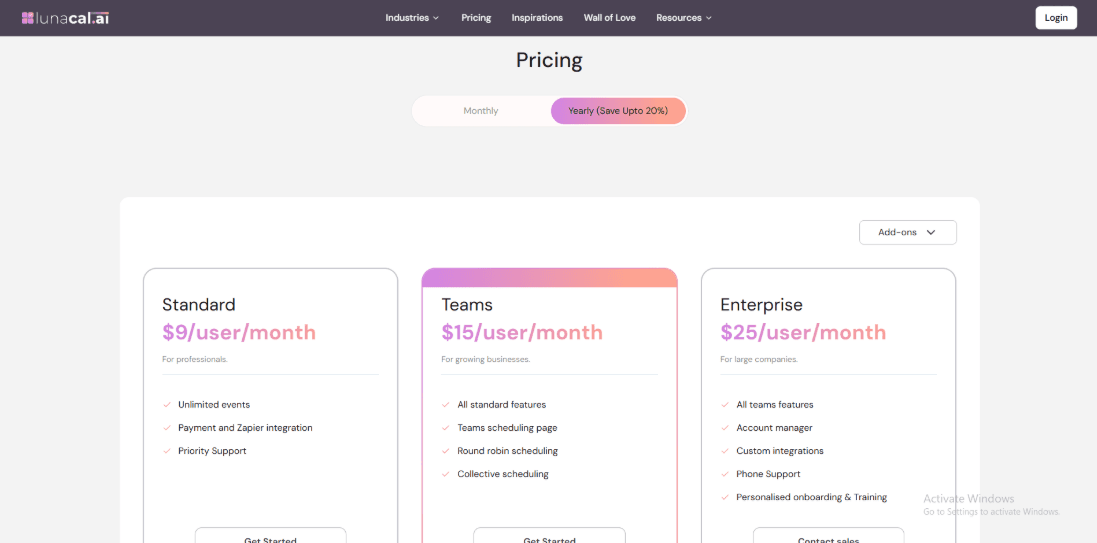
- Public pricing is per user per month and is split into Standard Teams and Enterprise tiers.
- Standard is listed at 9 per user per month and Teams at 15 per user per month.
- Enterprise is listed at 25 per user per month.
- The pricing page also states 0 percent commission on paid bookings and shows plan gated items like webhooks and team features.
When to Choose Lunacal
Choose Lunacal when you want PTM scheduling that stays synced with teacher calendars and lets parents self book and reschedule without email loops. It fits schools that run PTMs across many teachers and want one consistent flow with forms and reminders. Skip it if you need a rigid PTM only system with a fixed grid and minimal configuration choices.
PTC Wizard

PTC Wizard is known for online parent teacher conference scheduling for K 12 schools and districts. It is a good pick when you want parent self booking plus time buffers and portal style sign in that reduces admin work.
Features
-
Conference setup I set up a test event with multiple days and it was straightforward to open and close booking windows. You can load teachers and teams then publish a clean booking flow for families. Features
-
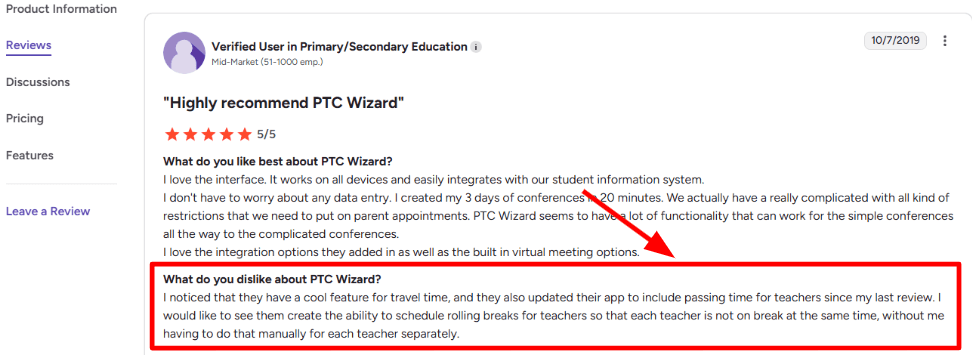
Passing and travel time Passing time and travel time buffers are built in so schedules stay realistic when rooms are far apart. I saw the same gap in a G2 review about rolling breaks that do not rotate by teacher. I am adding a screenshot below since it matches what I ran into when I tried to set staggered breaks.
-
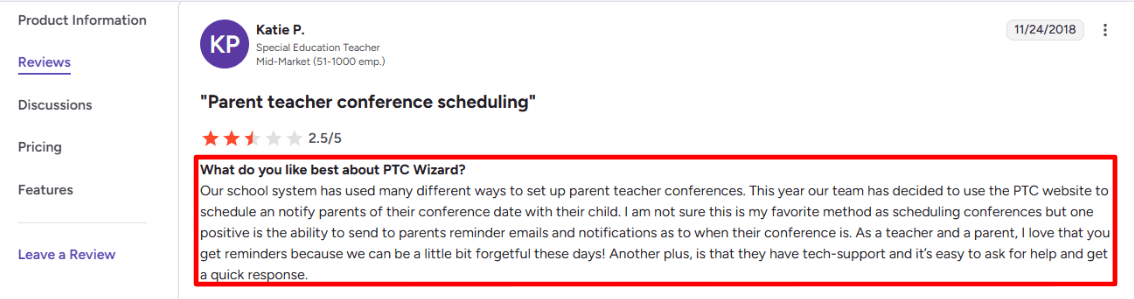
Reminder emails Confirmation and reminder emails are part of the flow and you can add a custom message from the school. One G2 review calls out reminders as the biggest win for forgetful parents and teachers. I am sharing that screenshot below too so you can scan the exact wording.
-
Meeting tool links It supports virtual meeting types and integrations like Zoom plus options like Google Meet and Teams. When I tested a virtual slot I liked that the join step can sit right next to the appointment on the schedule.
-
Portal sign in Some districts connect it to existing parent portal logins which changes adoption a lot in real life. That detail shows up in district instructions like Naperville203 where parents use their Campus Parent credentials. It also helps with multi child booking since families can schedule across teachers from one place.
Pros
- Parents can book for multiple children from one place and it reduces back and forth with the office. It also helps prevent double booking across teachers and buildings.
- Passing time and travel time buffers help keep the night on track.
- Virtual meeting options cover common setups like Zoom and Meet.
- SIS and SSO options can lower password reset chaos.
- Support response targets are clearly stated and easy to reference.
Cons
- If your district needs broader event management and deeper cross-school reporting, PTC Wizard may feel too narrow.
- Rolling breaks that rotate by teacher can require manual setup which gets tiring at scale.
- The annual minimum can be a lot for very small schools.
- Language support looks limited so multilingual communities may need extra planning.
- Support hours are tied to EST which can be awkward for some time zones.
Pricing
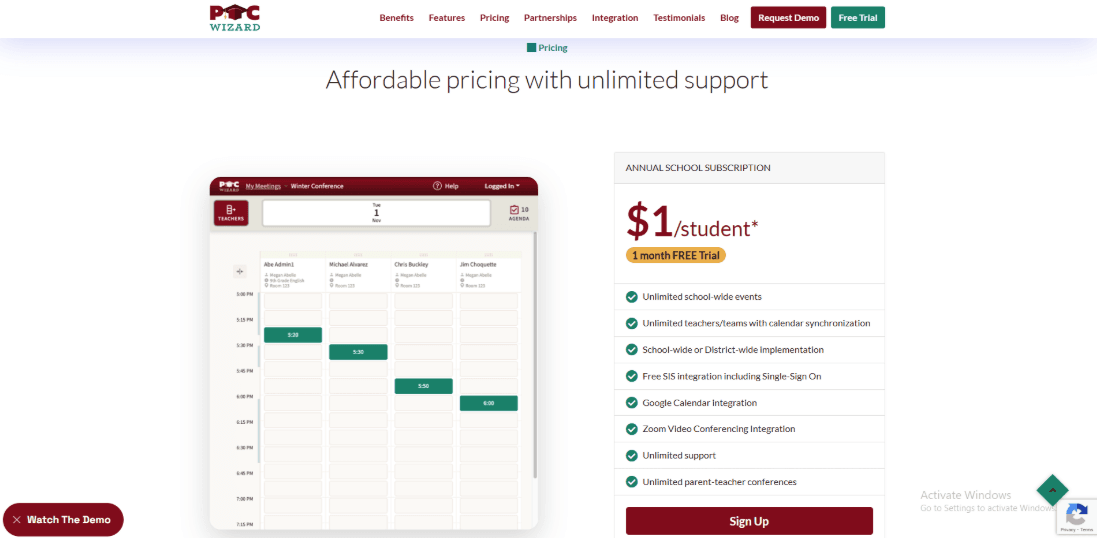
- Annual pricing is listed as $1 per student with a one month free trial and certain minimums.
- The helpdesk spells out a minimum of $500 and pricing in steps of 50 students which matters for budgeting.
- The subscription includes unlimited conferences and unlimited teachers plus SIS and SSO options and calendar and Zoom integration.
When to Choose PTC Wizard
Choose it for K 12 schools that run multi day conferences and want parent self scheduling with realistic buffers and virtual meeting support. It also fits districts that want portal based login and fewer manual confirmations. Skip it for very small setups that want a simple signup page and do not want portal sign in or per student budgeting.
PTC Fast
PTC Fast is known for quick parent sign ups and simple teacher access with very little setup overhead. It fits schools that want a clean scheduling flow that parents can finish fast and staff can manage without a big rollout.
Features
-
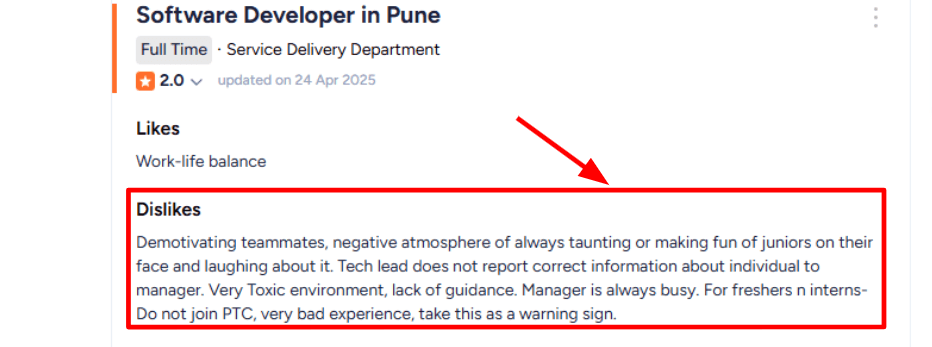
Fast support I looked at how they talk about support and the product docs set a clear expectation on response time and ongoing updates. https://www.ptcfast.com/features.html I also saw an Ambition Box employer review that described rough team culture and weak guidance at the company. I am sharing a screenshot below so you can judge the vendor risk if you need heavy handholding.
-
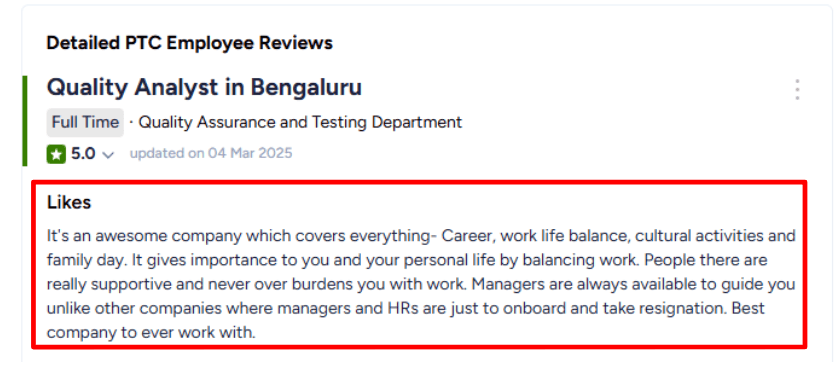
Template setup When I walked through the setup flow the template idea made it easy to copy one schedule across many teachers. https://www.ptcfast.com/features.html Another Ambition Box employer review had the opposite tone and talked about supportive managers and good guidance. I am adding that screenshot below too since it can matter when you run into edge cases during setup.
-
Meeting tool integration PTC Fast lets parents pick video or phone meeting types and you can plug in your preferred meeting tool like Zoom or Teams. https://www.ptcfast.com/features.html When I tested a sample setup the meeting details felt practical since the reminder emails can carry the meeting type and the location field can carry the link.
-
No account access Parents can book from any device without creating an account which removes a lot of friction on busy days. https://ptcfast.com/ One detail I noticed is the reservation flow can require an email step before time selection is locked in .
-
Privacy controls PTC Fast publishes a simple privacy stance and says it uses 256 bit encryption for data in transit. When I reviewed the sign up options the unique code approach looked useful for schools that want tighter access control during sign up windows.
Pros
- Very fast for parents and teachers to complete the flow with minimal training. The no account approach removes a common blocker on conference week.
- Setup can scale across many teachers using templates and copy tools
- Video and phone options work with common meeting tools
- Teacher rights levels can be kept simple or made more flexible
- Clear pricing that stays predictable for most schools
Cons
- If you need deep district-level integrations and automated rostering, a more integration-heavy platform may be a better fit.
- The email reservation step can confuse some parents because it adds an extra step before the time slot is confirmed.
- Some advanced settings take a bit of clicking to find the right checkbox
- Group billing reduces central admin visibility when teachers own accounts
- Remote meeting workflows can depend on how well staff place links and instructions
Pricing
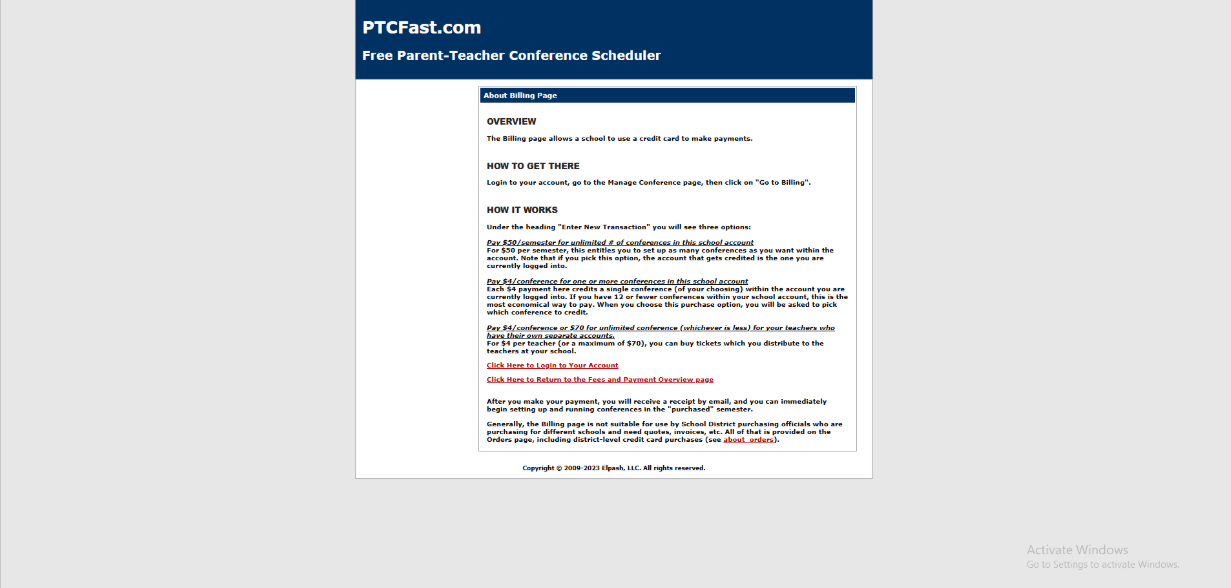
- Free Semester or Free Setup is offered for first time launch. https://www.ptcfast.com/features.html
- School Account is $50 per semester for unlimited teachers and parents or $4 per teacher whichever is less.
- Group Billing is $70 per semester for unlimited teachers and parents with teacher owned accounts. Individual teacher plans are $4 per semester. https://www.ptcfast.com/fees.html
When to Choose PTC Fast
Pick it when you want a fast conference sign up flow that most parents can finish in under a minute and teachers can access by link. It works well for schools that want predictable semester pricing and simple admin control. Skip it when your district needs deep roster sync and enterprise style integration management across many schools.
Calendly
Calendly is popularly known for simple scheduling links that parents can book from without long email threads. It is worth using when you want a setup that is quick for teachers and easy for families to understand.
Features
-
Availability rules I tested 10 minute and 15 minute slots with buffers and it handled back to back PTM blocks well. Once it is set the booking page stays consistent so parents see only the times you want to offer.
-
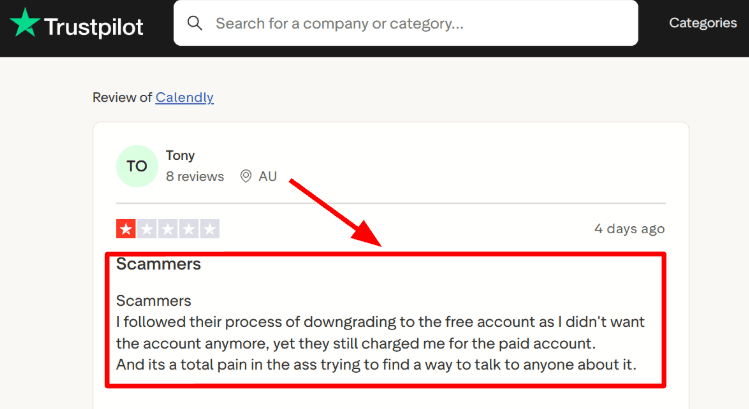
Plan controls I set up plan changes and seat access while testing and it was mostly straightforward for a small school team. I also saw a Trustpilot review where a downgrade still led to a charge. I am sharing a screenshot below so you can judge it and plan your process.
-
Calendar sync When I connected Google Calendar it picked up busy times and avoided double bookings in real use. One thing that slowed me down was an extra sign in step during setup and I had to retry once.
-
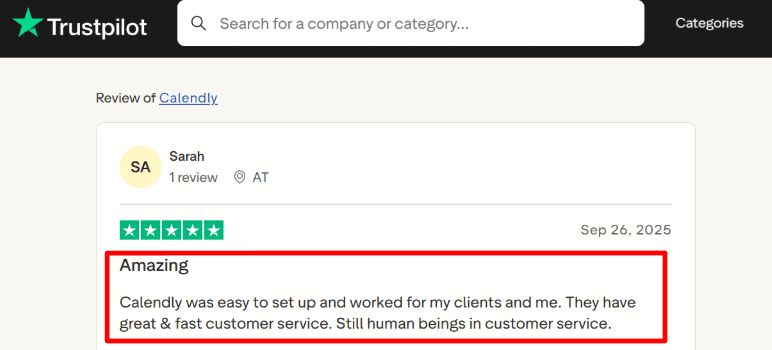
Automated reminders Workflows can send reminders and follow ups so parents show up prepared and teachers spend less time chasing. A Trustpilot review also said setup was easy and support replies were fast. I am adding that screenshot below so you can scan it.
-
Team scheduling You can run one link per teacher and also set up round robin style distribution for shared roles like counselors. For larger schools the DPF.gov listing is a useful detail to check during vendor review.
Pros
-
Fast to launch for a school that wants PTM scheduling live in a day or two. I could create a working link and share it quickly without heavy training.
-
Easy for parents to pick a slot
-
Strong calendar integrations for teachers
-
Flexible slot lengths and buffers for tight schedules
-
Solid reminders when you enable workflows
Cons
-
It can be a weak fit for districts that need roster sync and classroom mappings and a full PTM workflow in one system. In that case a parent teacher conference tool built for schools can reduce admin work.
-
Billing and seat changes need clear internal checks
-
Data storage location can matter for some school policies and it is documented.
-
Team setup takes time if every teacher wants their own link and rules
-
Advanced team routing features may require higher plans
Pricing
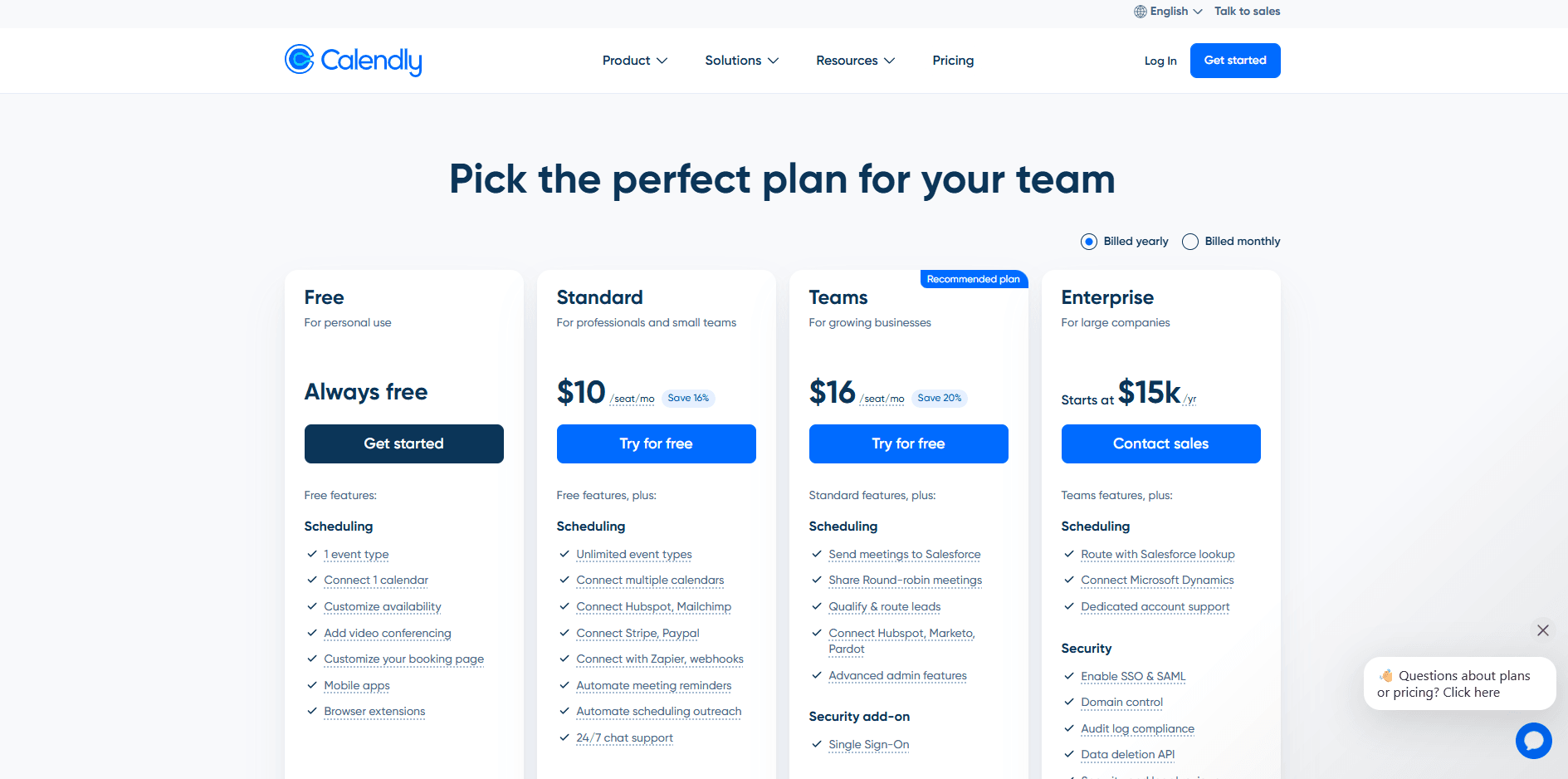
- Free plan exists and it works for basic scheduling and testing a single teacher setup.
- Standard is 10 dollars per seat per month on annual billing and Teams is 16 dollars per seat per month on annual billing.
- Enterprise starts at 15000 dollars per year and invoicing is positioned for larger purchases.
When to Choose Calendly
Choose it for a small to mid sized school that wants simple PTM booking links per teacher with clear time slots and reminders. Choose it when you already manage teacher calendars in Google or Outlook and you want fewer email threads with parents. Skip it for districts that need deep school system integrations and strict PTM workflows tied to rosters and classrooms. Skip it if your procurement needs a vendor to match a specific data residency requirement from day one.
Google Calendar Appointment Scheduling
Google Calendar Appointment Scheduling is best known for a simple booking page that lives inside Google Calendar. It helps schools and teachers share time slots fast so parents can book without long email threads.
Features
-
Calendar integration
Setup was quick for me since it sits inside Google Calendar and the bookings land on the right calendar. You can keep busy events private while still letting parents pick a time. I also saw a Reddit review mention setup can feel buggy at times. I am sharing a screenshot below so you can see the exact wording.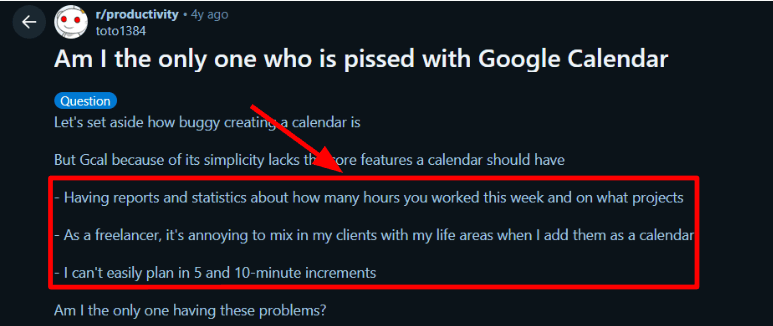
-
Short slot lengths
I tested quick meeting slots and the newer 5 to 14 minute durations are real. That detail is easy to miss but it matters for short check ins or buffer slots between conferences. Google Workspace Updates covers this change clearly on their update page for short durations. -
Email sharing flow
When I tried sending links to parents, the Gmail insert option saved steps since you can add the booking page link while writing the email. This is the kind of small thing that speeds up scheduling when you are doing dozens of invites. I will share a screenshot below from the Gmail flow so it is easy to copy.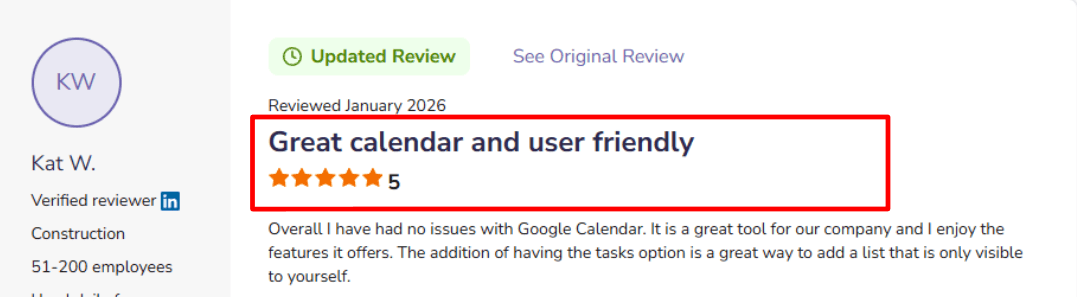
-
Email verification
For parent teacher conferences, spam bookings are rare but mistakes happen. There is an email verification option for guests without Google accounts so the booking is tied to a verified email. This is helpful when a school shares a link widely. -
Payment integration
Payments can be connected through Stripe if your school runs paid consultations or coaching add ons. I tested the setup and it was clear but one thing took me a minute to find. Refunds are handled in Stripe so the office workflow needs to be clear on who processes it.
Pros
- Easy to launch for schools already using Google Workspace and the booking link is ready fast. It reduces back and forth and keeps bookings on the teacher calendar.
- Fast setup inside Google Calendar
- Short slot lengths available
- Share from Gmail while writing
- Optional email verification
Cons
- If you need routing across many teachers with rules and central admin views, this may not fit best for parent teacher conference scheduling. Larger schools often want deeper coordination features.
- Booking pages are always public by link
- Create and edit is mainly web only
- Refunds need Stripe handling via the payments flow on Google Help Center
- Some people report the setup feels unstable at times
Pricing
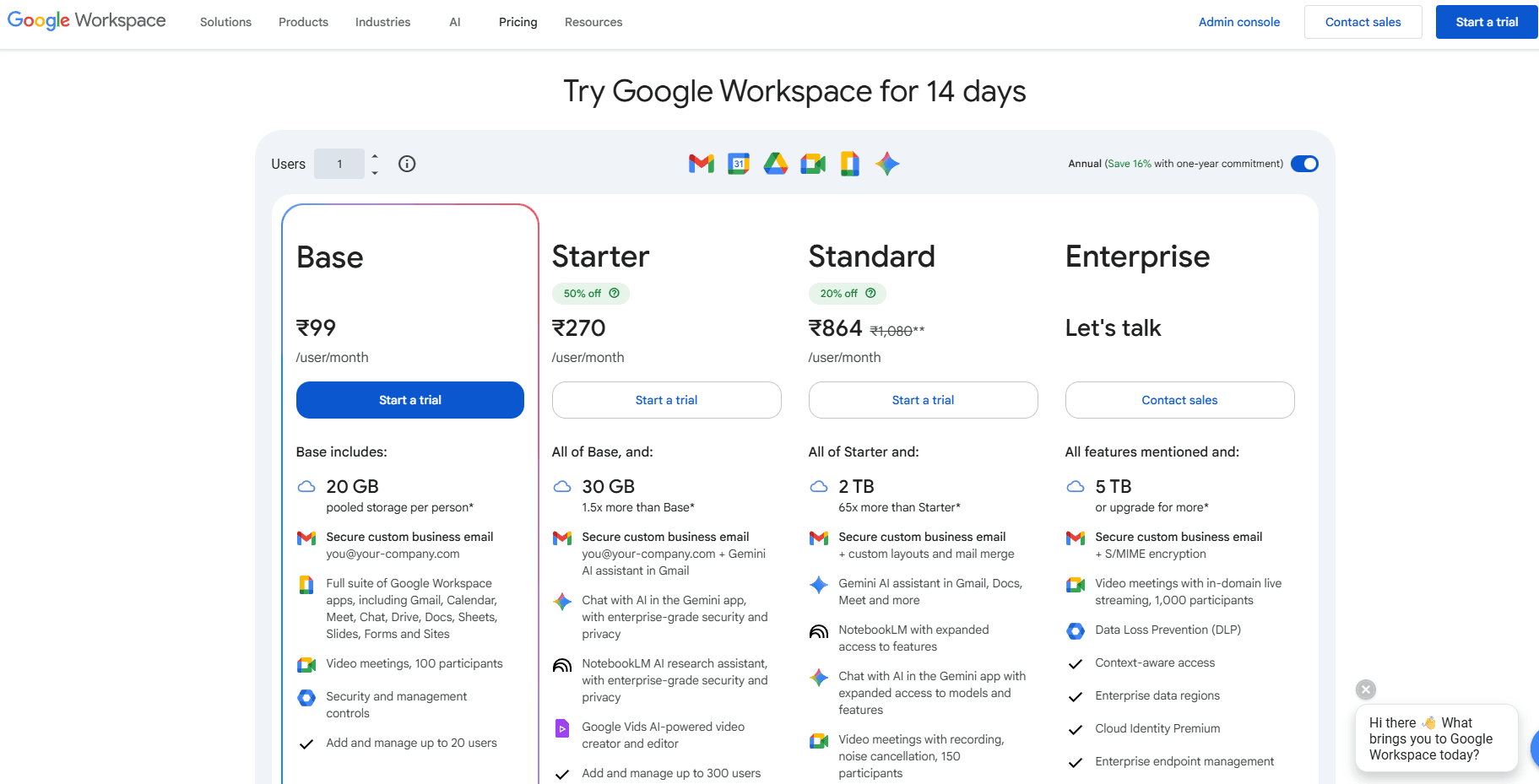
- Appointment scheduling exists across Google accounts and Google Workspace plans but many features are premium.
- Premium can include multiple booking pages, more reminders, payments, and co host support.
- Workspace pricing depends on country and plan level so schools should check the local Workspace pricing page before deciding.
When to Choose Google Calendar Appointment Scheduling
Choose it if your school already runs on Google Workspace and each teacher can share their own conference booking link. It works well for simple sign ups and steady weekly conference windows. Skip it if you need a central office to assign parents to teachers using rules or if you want detailed reporting across all conferences.
Microsoft Bookings
Microsoft Bookings is known for appointment scheduling that works closely with Microsoft 365 and Outlook calendars.
It can fit parent teacher conferences when your school already uses Outlook and Teams and wants a simple booking page fast.
Features
-
Calendar sync
I set up teacher services and it pulled availability from Outlook and blocked busy times. In my testing the sync usually worked but I did see a delay once after a change.
I also saw a similar issue in a Reddit review about missing Outlook sync and surprise cancellations.
I am sharing a screenshot below so you can judge it in context.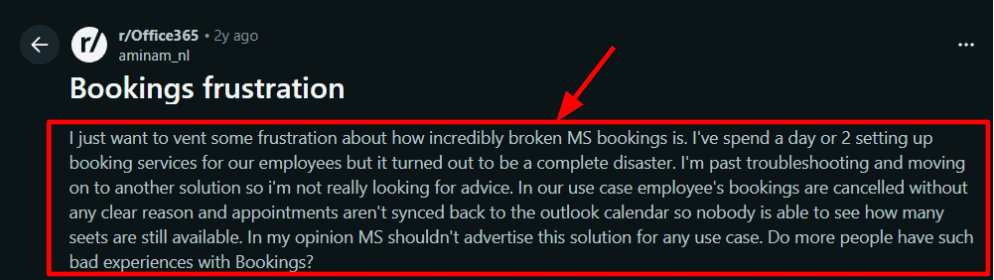
-
Teams meetings
Online conferences are easy to run because a Teams link can be added to the booking automatically. I tested this with a few bookings and the invites were clear for parents.
If your staff already lives in Teams then the workflow feels natural for scheduling and joining. -
Intake questions
You can ask for student name class section and what the parent wants to discuss before they pick a time. I like this for conferences because it reduces back and forth.
When I tested it the answers showed up with the appointment so the teacher had context before the call. -
Group sessions
Group services let one teacher host a slot for multiple attendees which can work for orientation style meetings. It is also useful for counselors who run small group check ins.
You will want to test capacity rules and calendar visibility so staff always knows how many seats are left. -
Reminders and access
Email confirmations and reminders are built in and help reduce no shows for busy conference weeks. SMS exists but it depends on Teams Premium and it is limited by region per Microsoft Learn. One setup detail took me longer than expected because some admin settings are spread across places. I also noticed a Trustpilot review praising Microsoft support for solving a tough setup problem.
I am adding that screenshot below so readers can see the full note.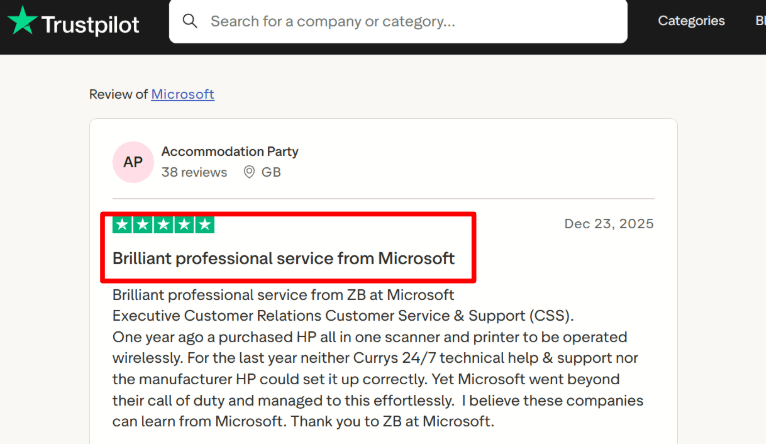
Pros
-
Works well when your school is already on Microsoft 365 and Outlook. Setup can be quick once you pick a service template.
The Teams and calendar flow is consistent for staff. -
Strong Outlook availability support for teachers with packed schedules
-
Built in intake questions help teachers prepare before the call
-
Shared booking pages support multiple staff members in one place
-
Group services can handle multi parent sessions for specific events
Cons
-
If you need advanced school conference logic like auto matching families across multiple students and strict time slot rules this may be hard to run with confidence.
In that scenario a dedicated parent teacher conference scheduling tool is usually safer. -
Some schools will want deeper third party integrations for SIS and messaging
-
SMS is limited by plan and region per Microsoft Learn.
-
External staff free busy visibility can be limited which affects shared coverage
-
Group booking edge cases need testing so seat counts stay accurate
Pricing
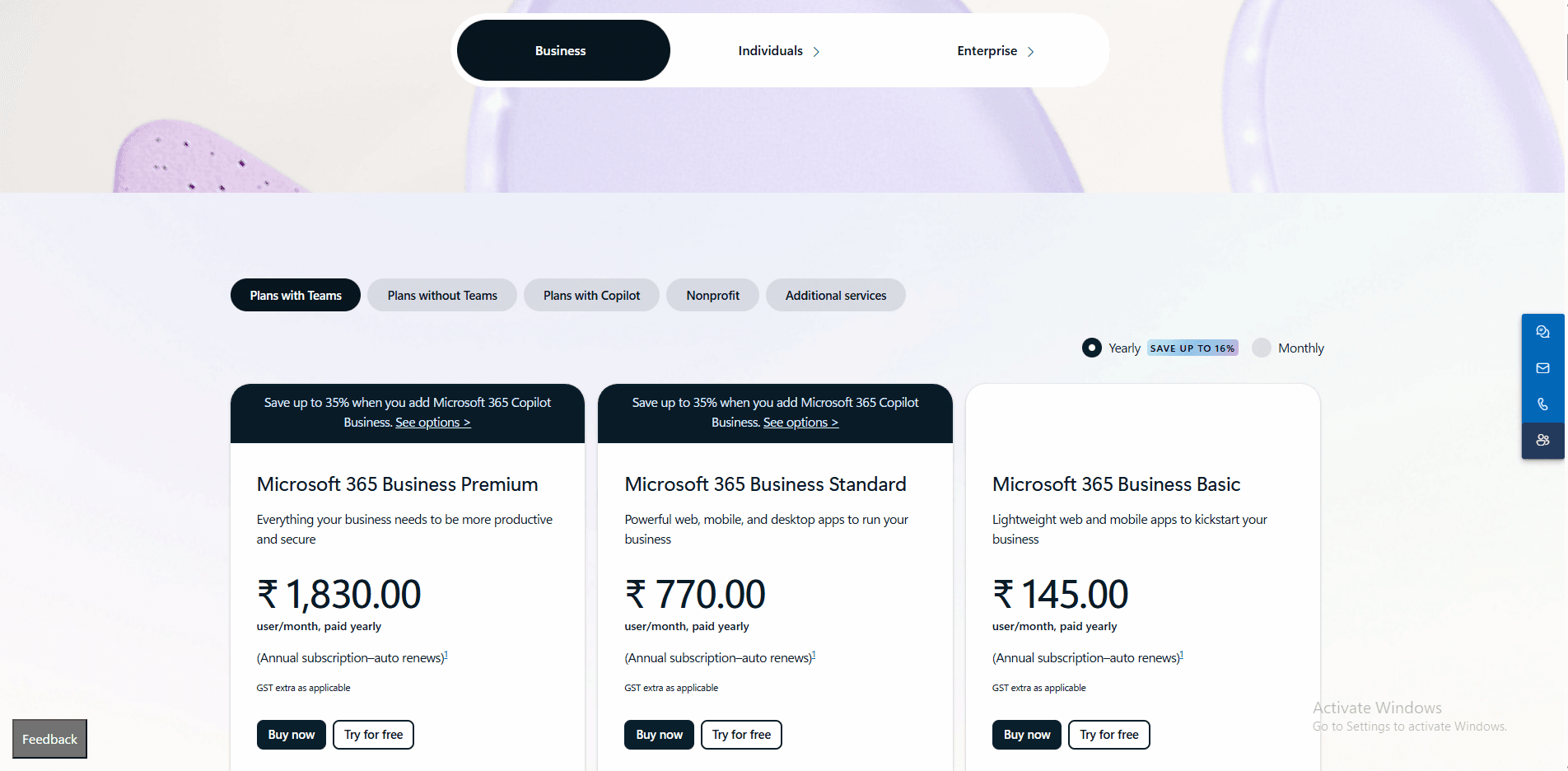
- Microsoft Bookings is usually included with many Microsoft 365 plans so it may already be paid for through your school license.
- Many schools use Microsoft 365 Business plans and pricing varies by country and contract terms.
- SMS notifications can require Teams Premium add on licensing in some setups so check what your tenant has before you promise SMS to parents.
When to Choose Microsoft Bookings
Choose it if your school uses Microsoft 365 and wants a simple parent teacher booking page tied to teacher Outlook calendars and Teams calls.
It fits schools that can keep the process simple and run conferences in standard time blocks with basic intake questions.
Skip it if you need strict family scheduling rules deep SIS integration or broad SMS coverage across many countries.
SignUpGenius
SignUpGenius is best known for online sign up sheets that help schools collect Parent Teacher Conference slots without email back and forth. It works well when you need a simple link parents can open and pick a time fast.
Features
-
Time slot signup When I tested this for a PTM style schedule I could create clean time slots with limits so two parents do not take the same slot. You can also add buffer gaps between slots if a teacher needs a break or catch up time.
I also saw a Trustpilot review where someone had to rebuild a signup multiple times because it showed on the calendar but failed to open. I am sharing a screenshot of that review below because it matches what can happen when a signup gets long.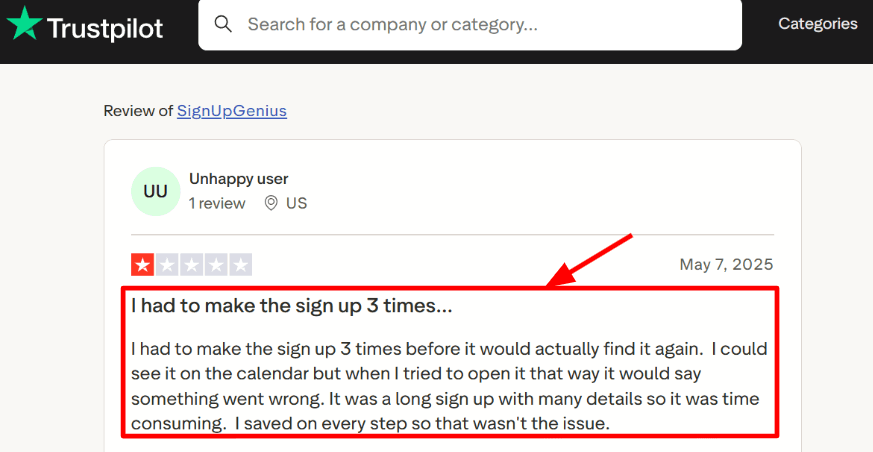
-
Duplicate signups Duplicating a signup matters a lot for schools because PTM setups repeat every term and the structure stays similar. I tested duplication on a template style signup and it saved real time since I did not need to rebuild each teacher schedule from scratch.
A Trustpilot review also says duplication started working better after updates and I have added that screenshot below so you can judge it in context.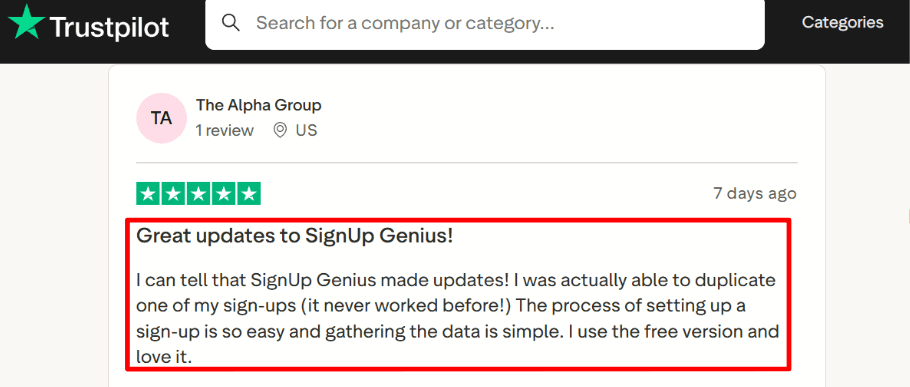
-
Signup questions You can add questions during signup so parents share basics like student name class section and any note for the teacher. This reduces surprises during the meeting and keeps the teacher list clean and searchable.
The only part that felt a bit odd was how easy it is to overdo this and make the flow longer than it needs to be. -
Auto reminders Email reminders help reduce missed PTM slots especially when bookings happen weeks ahead. There is also SMS reminders on some plans which is useful for parents who miss email.
SignUpGenius also highlights that it has handled very large usage at scale like 40M signups from SignUpGenius which hints that the reminder and delivery system is built for volume. -
Payment collection For schools that charge a small fee for optional add ons this can collect money during signup using Stripe powered payments. I would keep this optional for PTM because parents usually expect PTM booking to stay simple.
If you do use it the setup is straightforward but the payment account setup can be limiting for some regions.
Pros
- Fast to publish a PTM signup and share one link to parents. It keeps admin effort low and the flow is easy to explain in one message.
- Parents can usually book without creating an account.
- Slot limits and basic controls help prevent double booking.
- Reminders reduce missed meeting slots.
- Templates and duplication can save time once you have a working format.
Cons
- If you need automatic teacher-calendar sync and strict appointment rules, SignUpGenius may be too limited
- Free plan shows ads which can look messy for school communication.
- Long signups can feel heavy to manage end to end.
- Payment setup is not ideal for every region as noted in the payments setup on SignUpGenius.
- Getting the exact settings right can take a few test runs.
Pricing
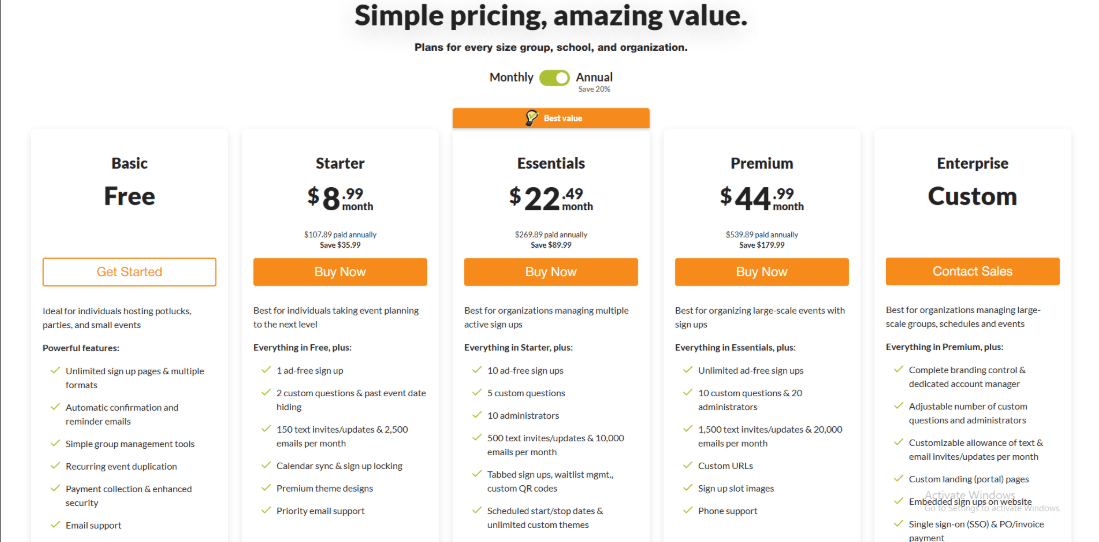
- Free plan is available and it is ad supported.
- Paid tiers are commonly listed as Silver Gold and Platinum with monthly pricing.
- Tickets and money tools can add per transaction fees on top of the plan.
- I would budget for a paid tier if you need fewer distractions and stronger admin controls for school use.
- If you only run PTM a few times a year start with free then upgrade only if the workflow feels too limited.
When to Choose SignUpGenius
Choose it for PTM scheduling when you want a simple signup link that parents can use without guidance and you mainly need time slots questions and reminders. It also fits schools that repeat the same PTM structure every term and want to duplicate and reuse it. Skip it if you need strict appointment scheduling with deeper calendar sync and advanced teacher availability logic across multiple calendars.
Conclusion
If you need a quick answer, the right tool depends on how structured your parent-teacher conference workflow is and how much coordination you need across teachers and families.
- Choose Lunacal if you want a flexible, modern scheduling system with strong calendar sync, rescheduling, and parent context collection
- Choose PTC Wizard if you run district-level conferences and need multi-student booking with portal-based access
- Choose PTC Fast if your priority is speed, simplicity, and getting parents booked with minimal friction
- Choose Calendly if you want a reliable, general-purpose scheduler that works well for smaller schools
- Choose Google Calendar Appointment Scheduling or Microsoft Bookings if your school already runs fully on those ecosystems
- Choose SignUpGenius if you only need basic time-slot signups without complex scheduling logic
In my testing, the biggest decision factors were calendar sync accuracy, how well the tool handles multi-teacher coordination, and how easy it is for parents to book and reschedule without admin help. Tools built specifically for schools handle coordination better, while general schedulers are easier to launch but need more manual setup.
Methodology
Sources
- I started with each tool’s official website to understand the core flow for schools, teachers, and families.
- I read the FAQ pages and help docs to learn how setup works, what can break, and what support looks like during peak season.
- I signed up for trials when available and checked pricing pages for limits that matter in schools, like staff seats, rooms, and reminders.
- I reviewed feedback on Trustpilot and G2 to spot patterns in reliability, ease of use, and support response times.
- I scanned Reddit and Quora threads to find unfiltered stories from parents, teachers, and school admins.
Test setup for each tool
- I created a sample school with multiple teachers, short conference windows, and realistic weekly availability.
- I added a parent-facing booking page and tested it on mobile and desktop with simple instructions.
- I configured notifications for email and text where available, using school friendly language and timing.
- I recorded setup time, number of clicks, and where the tool forced extra steps.
Common scenarios we tested
- Booking with multiple teachers for one student, including back to back scheduling.
- Rescheduling and cancellations, including no show handling and waitlist behavior.
- Time zone and daylight savings behavior for families who travel or live elsewhere.
- Staff scheduling needs like breaks, buffers, room limits, and admin visibility.
FAQs
Which is the best parent teacher conference scheduling software?
The best parent teacher conference scheduling software for most schools is Lunacal. On G2 it is rated 4.9/5 and handles customisable intake forms so parents can add notes upfront, team scheduling, round robin scheduling, plus security and GDPR controls. If you need a conference only workflow, PTC Wizard fits better.
How do you compare parent teacher conference scheduling software?
To compare parent teacher conference scheduling software, start with Lunacal, Calendly, and PTC Wizard.
- Lunacal fits schools that want a clean booking page per teacher or grade, strong intake forms for student name, class, and notes, plus team scheduling for departments.
- Calendly fits simpler conference setups with one to one meetings and staff already living inside Google or Outlook calendars.
- PTC Wizard fits school wide conference week logistics like teacher lists, room assignments, and per family limits. If your priority is a tight conference flow with minimal setup, check PTC Fast.
What student-data and localisation requirements should schools consider?
Country level student data and localization details that matter in parent teacher scheduling software include
- US: keep student fields minimal and follow district retention rules
- UK, Canada, Australia and EU: plan for GDPR access and deletion requests
- Language support: parent pages in German, French, Spanish
- Time and formatting: 12 hour and 24 hour clocks, week start, local holidays
- Consent: support multiple guardians per student
What features are essential in parent teacher scheduling software?
Essential features in parent teacher scheduling software are a teacher roster, slot limits per student, automatic timezone handling, easy rescheduling, and reminders parents actually see. Intake questions should capture language needs and accommodations. Reporting should show filled slots by teacher.
How should a school handle multiple guardians booking for one student?
PTC Wizard is the better fit when schools need multi-student booking and family-level scheduling.
Summarize this content with AI


