

Introduction
The best scheduling tools for freelancers are the ones that protect your calendar and help serious clients book without extra back-and-forth.
The freelance market is becoming increasingly competitive, making response speed and client experience more important. Upwork’s 2026 freelancing stats say 39% of all US workers freelance, which means more consultants, creators, coaches, designers, and solo service providers are competing on response speed and client experience.
For this guide, I tested each freelance scheduling software with real workflows: discovery calls, paid consultations, calendar conflicts, reschedules, payment collection, reminders, intake questions, and booking-page setup. I also checked G2, Capterra, Trustpilot, Reddit, and Quora to see where each tool holds up after first use.
Quick answer
The best scheduling tools for freelancers depend on how you work. Calendly is best for simple discovery calls, Lunacal is best for paid sessions and branded booking pages, HoneyBook is best for proposals and contracts, SavvyCal is best for booking with busy clients, SimplyBook.me is best for structured services, Zoho Bookings is best for Zoho users, and Cal.com is best for technical freelancers who want more control.
Best freelancer scheduling software by workflow
| Freelancer workflow | Best tools to test first | Why |
|---|---|---|
| Simple discovery calls | Calendly, SavvyCal | Fast setup, easy booking links, low friction |
| Paid consultations | Lunacal, SimplyBook.me | Payment collection, intake forms, booking control |
| Project proposals and contracts | HoneyBook | Scheduling, proposals, contracts, invoices, and payments |
| Busy clients with tight calendars | SavvyCal | Calendar overlay makes time selection faster |
| Multiple service types | Lunacal, SimplyBook.me, Cal.com | Better structure for different calls, services, and workflows |
| Technical or API-heavy setup | Cal.com | Routing, webhooks, APIs, and open-source flexibility |
| Existing Zoho users | Zoho Bookings | Fits Zoho CRM, Zoho Mail, and Zoho Books workflows |
Feature comparison across tools
| Capability | Lunacal | Calendly | HoneyBook | SavvyCal | SimplyBook.me | Zoho Bookings | Cal.com |
|---|---|---|---|---|---|---|---|
| G2 Rating | 4.9 | 4.7 | 4.4 | 4.8 | 4.4 | 3.9 | 4.6 |
| Starting Price | $9 | $10 | $29 | $12 | $13.90 | $6 | $12 |
| Calendar sync depth | Strong | Strong | Good | Strong | Good | Good | Strong |
| Reminders | Yes | Yes | Partial | Partial | Yes | Yes | Yes |
| Paid Bookings | Yes | Yes | Yes | No | Yes | Yes | Yes |
| Packages | Yes | No | Yes | No | Yes | Partial | No |
| Custom Domain | Yes | No | Partial | No | Yes | Yes | Yes |
| Team Scheduling | Yes | Yes | Yes | Yes | Yes | Yes | Yes |
| Round Robin | Yes | Yes | Yes | Yes | Partial | Yes | Yes |
| CRM/Workflow Depth | Medium | Low | High | Low | Medium | Medium | High |
| Booking Page Customization | High | Low | Medium | Low | High | Medium | Medium |
| API / Webhooks | Yes | Yes | Limited | Limited | Limited | Yes | Strong |
Deep-dive into individual apps
Lunacal
Lunacal is scheduling software for freelancers that helps them win more bookings with branded booking pages, payment collection, reminders, and workflow automation all in one place. When freelancers go looking for scheduling software, they will notice that Lunacal is rated 4.9 out of 5 on G2, making it one of the highest-rated choices in this category
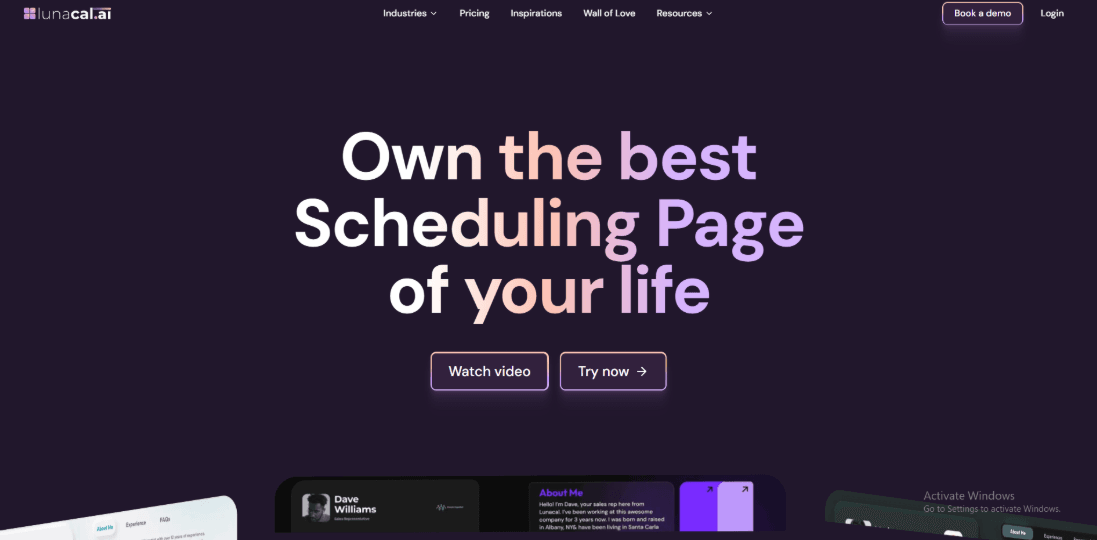
Build the best scheduling page of your life.
Features
-
Meeting tool integration: During setup I could choose the meeting location for each event, and the options included Google Meet, Zoom, Microsoft Teams, and FaceTime. Clients see the meeting location as part of the scheduling flow, which avoids those extra messages asking "where is the meeting link again?" Once the location is saved for an event type, it stays consistent for future bookings so I do not have to set it every time.
-
Booking page builder: One of the main features that stands out is the booking page itself. Instead of sending a simple calendar link that looks generic, you can build a full page around your session. You can add descriptions, videos, FAQs, testimonials, and documents right next to the calendar. This gives visitors much more context before booking, which means they show up more prepared. Many freelancers use this space to explain what happens in the session and who the service is actually for. Here is how you can set up different widgets:
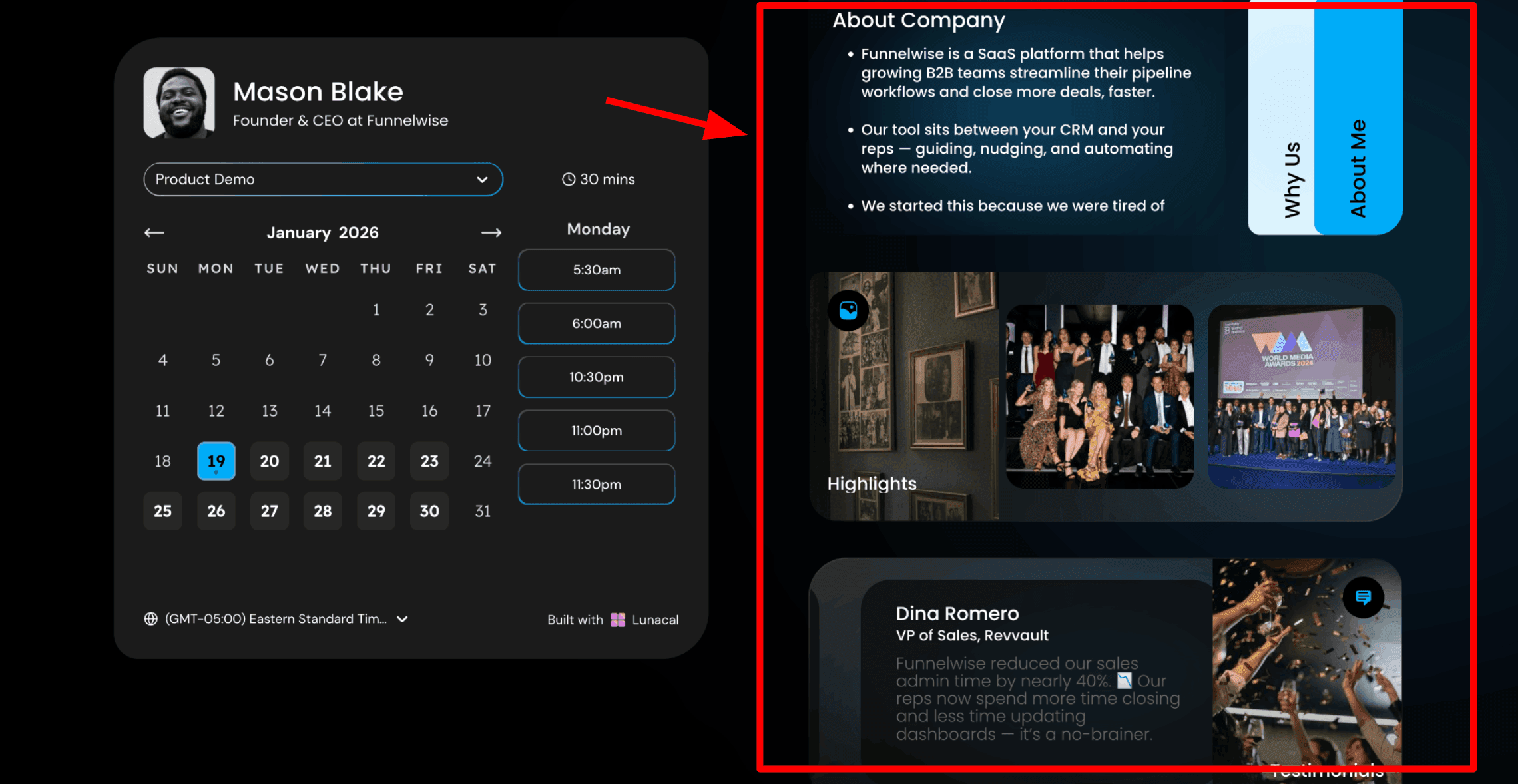
Booking page layout with content blocks placed next to the calendar.
- Team and domain setup: If you collaborate with a partner or a small team, you can move to team scheduling with round robin and collective options as you grow. While testing multiple brands with separate custom domains, I needed a second attempt to configure everything correctly. I saw the same kind of feedback in an Appsumo review, and I am sharing a screenshot below so you can see what I mean.
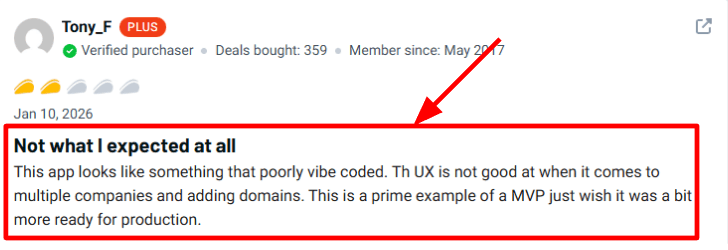
A user’s dissatisfaction with Lunacal
Here's a screenshot of how it looks in the actual flow:
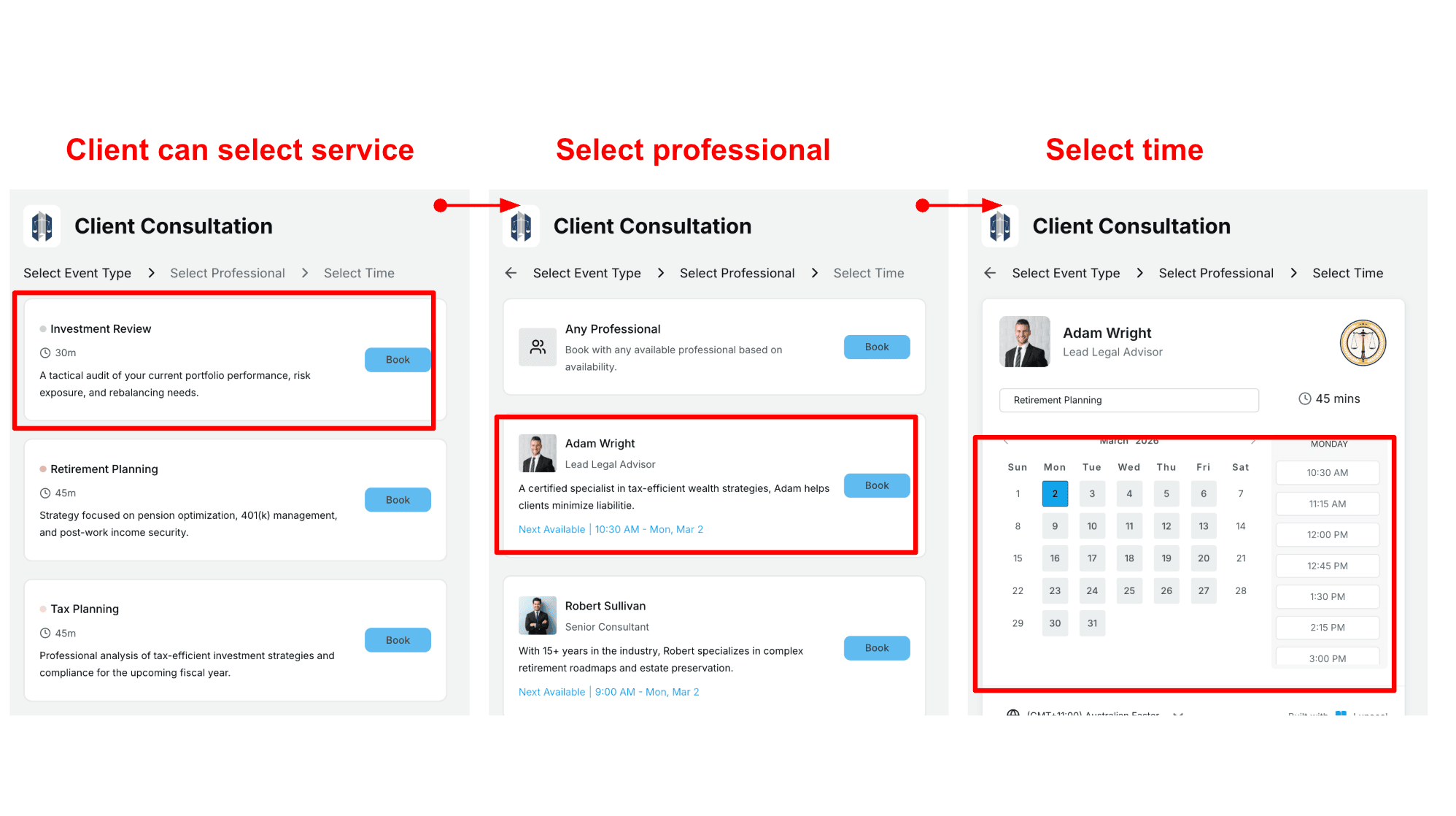
How team scheduling is created using a simple three-step setup.
-
Reschedule handling : The reschedule flow is one of the first things I test because freelancers deal with calendar changes all the time, and I wanted to see if it would break. The booking change stays inside the same system and updates the calendar details without extra coordination on my end. A G2 review mentioned that rescheduling was especially valuable, and that matches exactly what I noticed during my testing.
-
Payment integration: If you charge for intro calls, audit sessions, or packages, you can take payments as part of the booking flow. This also helps qualify serious buyers because the payment step sets expectations early and filters out people who are not committed. I would still test a full booking end to end once before you share it widely, just to make sure everything flows the way you expect. Here is how you set up paid events:
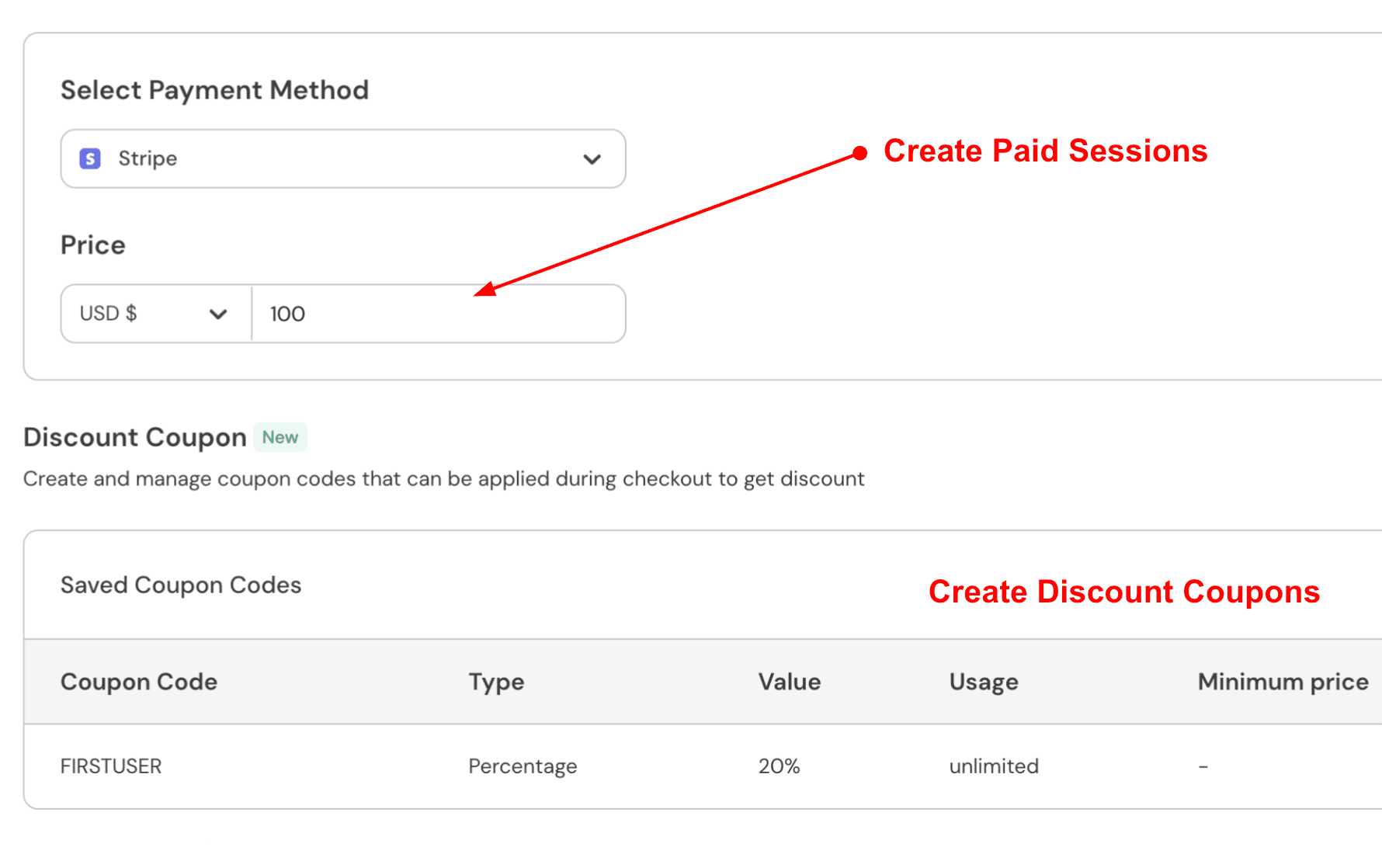
How to create a paid event in Lunacal.
Pros
-
High ratings show up across multiple platforms, and G2 lists Lunacal at 4.9 out of 5 with 41 reviews, which usually means the core flow works well for many people. It also helps when you need a quick external signal before you invest time in setup.
-
Strong support for freelancers who sell time and sessions since payments, packages, and intake questions all fit the workflow naturally.
-
Group bookings are available when you run small workshops or cohort sessions with multiple attendees.
-
Limits and buffer controls make it easier to protect your focus time and avoid back-to-back calls that leave you exhausted.
-
Webhooks and Zapier style automations reduce manual follow ups when you track leads and payments in other tools.
Cons
-
If all you need is a very simple meeting link for quick calls and you never collect payments or run structured intake, this category has simpler tools that can be easier to keep running. In that scenario, Lunacal can feel like extra setup work for limited gain.
-
Multi company and multi domain setups can take extra care, and some people report that the user experience feels rough in that area.
-
Flexible duration does not automatically change pricing, so you may need separate event types for different session lengths.
-
Team features are priced per user, so costs can climb when you add collaborators to your account.
Pricing
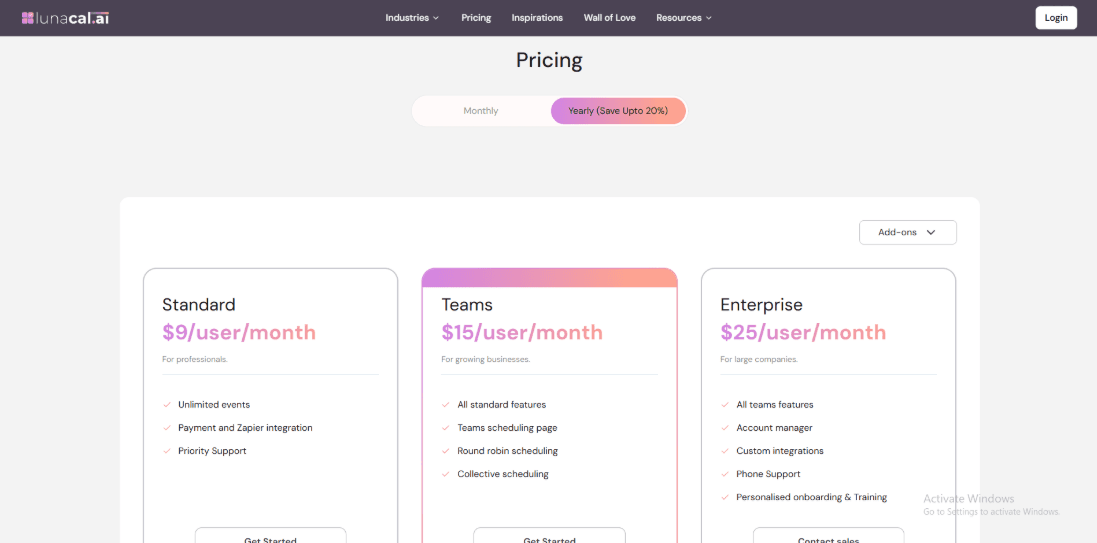
Check out the latest pricing of Lunacal in 2026.
-
Standard is $9 per user per month, and it includes unlimited events plus payments, Zapier integration, and priority support.
-
Teams is $15 per user per month and adds team scheduling pages, round robin, and collective scheduling features.
-
Enterprise is $25 per user per month and includes an account manager, custom integrations, phone support, and onboarding training.
When to Choose Lunacal
Lunacal makes sense if you are a freelancer who sells sessions or consult calls and wants booking plus payments plus a cleaner workflow for reschedules and follow-ups all in one place. It also fits well when you want intake questions and automation hooks for your CRM or spreadsheets. I would skip it if your work is only simple one-on-one calls and you prefer the lightest setup possible. Also pause if you run multiple brands with multiple domains and you need that to feel effortless on day one, because that area takes some extra care to get right.
Why Not to Choose Lunacal
I would skip Lunacal if you are a freelancer who just needs a dead simple calendar link and never collects payments or uses intake forms. A tool like Calendly will get you up and running in minutes with far less configuration. Also avoid it if you manage multiple companies or brands with separate domains, because that setup can be finicky and you might get frustrated. If your team is large and you need to duplicate many event types quickly, the current workflow for cloning takes more clicks than it should. For a solo freelancer with straightforward needs, Lunacal may feel like more tools than you actually need.
Calendly
Calendly is a well known scheduling software for freelancers who want clients to book meetings without the long email back and forth that wastes everyone's time. Clients open your booking link, see your available times, and choose what works for them. Then the meeting appears on your calendar automatically without you having to do anything else.
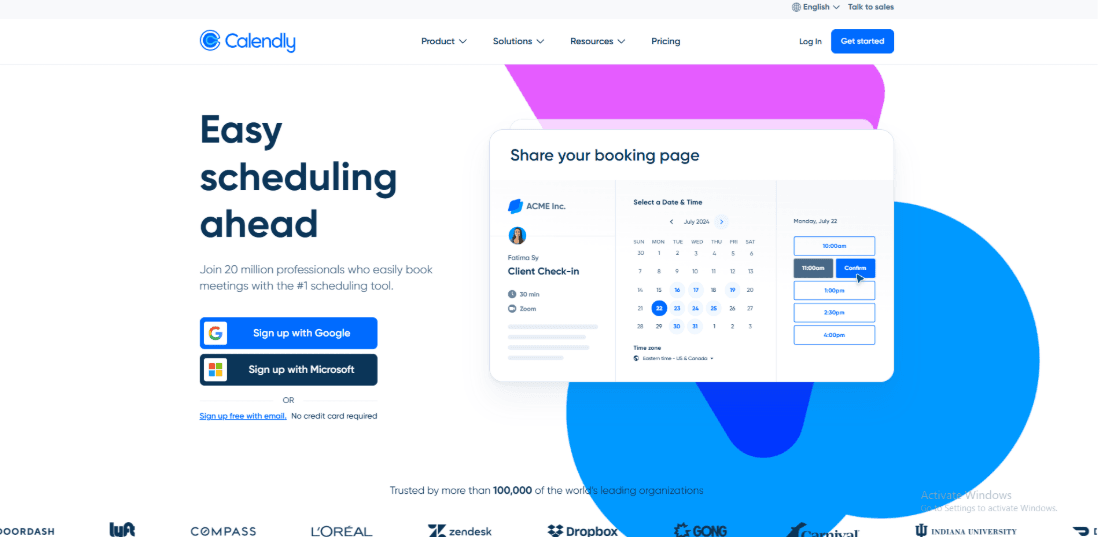
Simple scheduling page built for easy booking.
Features
- Availability rules: You can set daily limits, which makes this scheduling software for freelancers really helpful for protecting your focus time. Buffer time between meetings keeps your freelance scheduling software from filling every single gap in your day. It protects your focus time and keeps client calls from taking over your entire schedule. A short intro call can have one setup, and a paid consultation can have another. This lines up with what I saw in a Trustpilot review too. I am sharing a screenshot below because the daily caps were exactly what that reviewer praised.
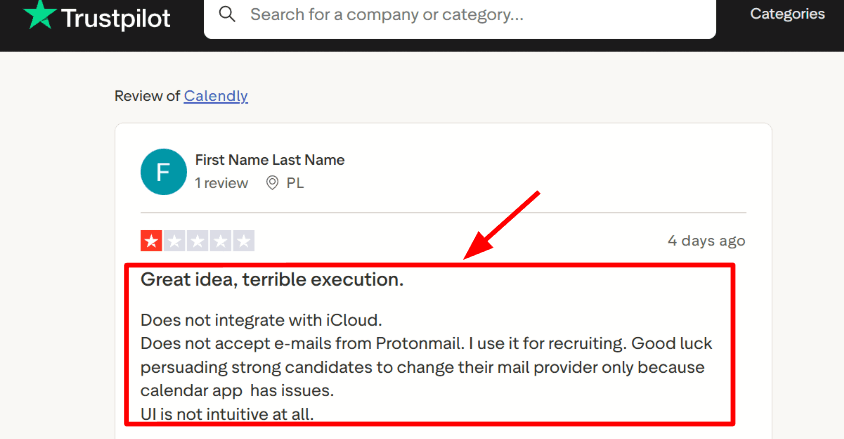
A Trustpilot reviewer’s complains about the poor execution of Calendly’s idea
- Calendar integration: Google Calendar sync is smooth, which is essential for reliable scheduling software for freelancers. It is wise to verify compatibility before committing if your setup relies heavily on Apple products or specialised email services, because certain providers have reportedly caused friction for some users. If your work is dependent on iCloud or a less common email system, make sure you test the whole process beforehand. It handles time zones well, so clients in different regions see availability in their own local time, which avoids confusion. I also came across a Trustpilot review that highlighted issues with iCloud and ProtonMail, so keep that in mind:
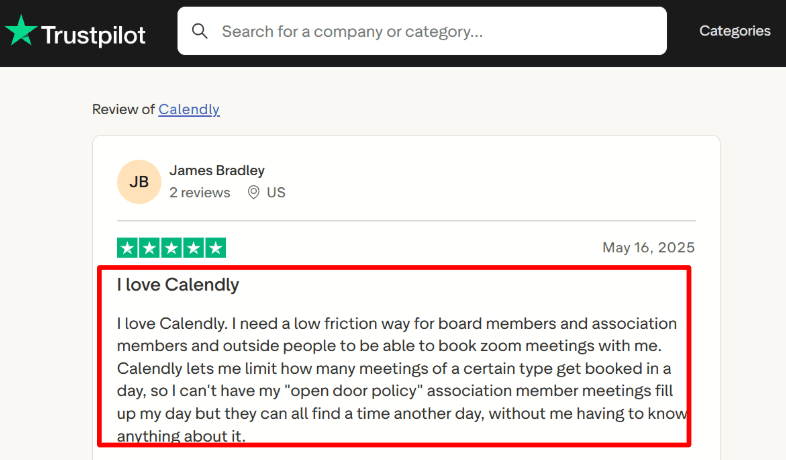
A positive Trustpilot review about Calendly.
-
Meeting tool integration: Adding Zoom was simple. Once connected, every booking included the meeting link automatically. That small detail saves time each week because you do not have to copy and paste links into calendar invites. If you use different tools for different clients, you can assign a specific video platform to each event type. It works well for recurring client sessions too.
-
Workflows and reminders: Automated reminders reduce no shows inside your freelance scheduling software workflow. This reduces missed calls and also reduces those last minute reschedule messages that throw off your day. You can customize the reminder text so it actually feels like your voice, not a generic robot. If you run a busy week with many calls, this kind of automation removes a surprising amount of admin work. SMS reminders are available on certain plans, so check your tier if that matters to your audience.
-
Admin and Data Handling: Calendly has higher level tools for admin access, routing, and audit controls if you operate with bigger clients or need internal controls. Generally for solo freelancers, the basic plan is enough. Their support documentation tells you where data is stored and how they handle foreign data transfers. If you work with clients in the EU or in regulated industries, check that information immediately in their Help Center before picking a plan.
Pros
-
You can create a booking link and start using it the same day with almost no setup time
-
Daily meeting limits help protect your deep work time from being eaten by back to back calls
-
Calendar conflict detection works reliably once you have it connected
-
Zoom and other meeting links attach automatically so you never forget them
-
Reminders reduce missed sessions and the follow up confusion that comes with no shows
-
It works well for one-on-one client calls and regular check ins
Cons
-
If you want your booking page to include testimonials, long descriptions, or sales content, you will feel limited by what Calendly offers
-
Some email and calendar provider combinations require extra testing, especially outside Google
-
Team features and stronger admin controls increase the price pretty quickly
-
Calendly’s US data-hosting arrangements may be a concern for some EU-based businesses, according to its Help Center.
-
The settings page can take a few passes before everything is configured exactly how you want it.
Pricing
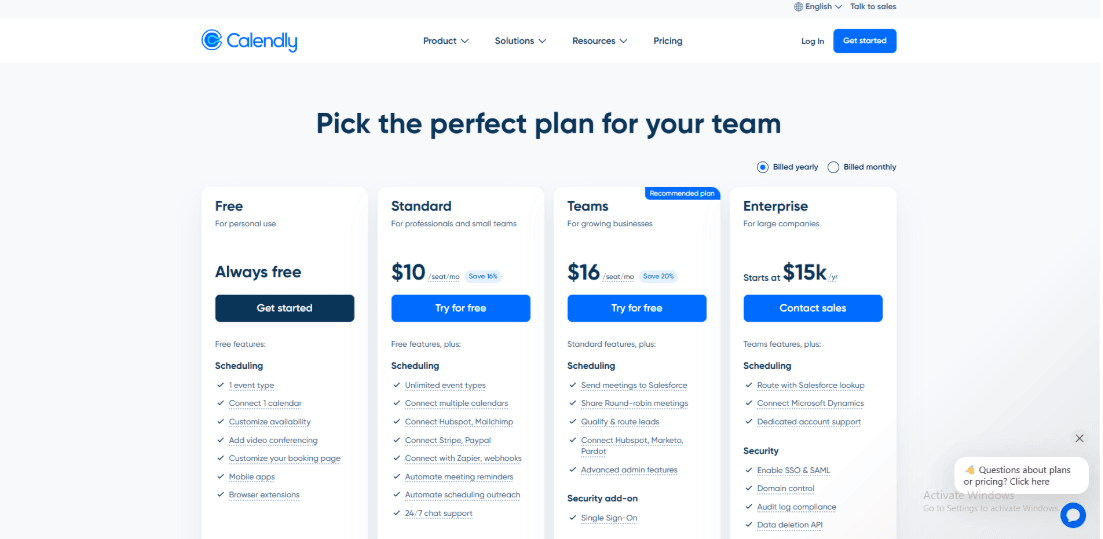
Check out the latest pricing of Calendly in 2026.
-
There is a free plan that works for a single basic booking link, with limits on event types and connected calendars
-
Standard is priced per seat and includes more event types, integrations, and automation
-
Teams adds routing and group scheduling features along with more admin control
-
Enterprise is built for larger organizations and includes advanced governance features
When to Choose Calendly
Calendly is an excellent pick if you want an easy way for clients to schedule time and receive a meeting link automatically without any manual work on your end. If your main goal is to make scheduling easier and keep your calendar organised, this is a great way to do that. If your booking page needs to explain your services in depth or build strong pre-call trust, you may want a tool that lets you add more content to the page. I would say do an actual test booking from a client's email address before making a decision, because you can tell if it fits your workflow with that one fast check.
Why Not to Choose Calendly
I would skip Calendly if your booking page needs to do more than just show available times. It does not let you add videos, testimonials, or detailed descriptions next to the calendar, so people book without much context about who you are or what the meeting actually covers. Also avoid it if you need a free plan with more than one event type, because the free tier is very limited. If you rely on iCloud or ProtonMail for your calendar and email, test that setup carefully before committing because some users have reported issues. For a freelancer who just needs a simple link, Calendly is great. For anyone who needs to sell their service before the call, it is not.
HoneyBook
HoneyBook is one of those tools that tries to do a lot more than just scheduling. It combines proposals and payments with freelance scheduling software features, so you can bring meetings, proposals, contracts, invoices, and payments into a single system without having to switch between five different tools. If most of your calls lead to sending a proposal and getting paid, this kind of setup can make your workflow feel much smoother and less scattered.
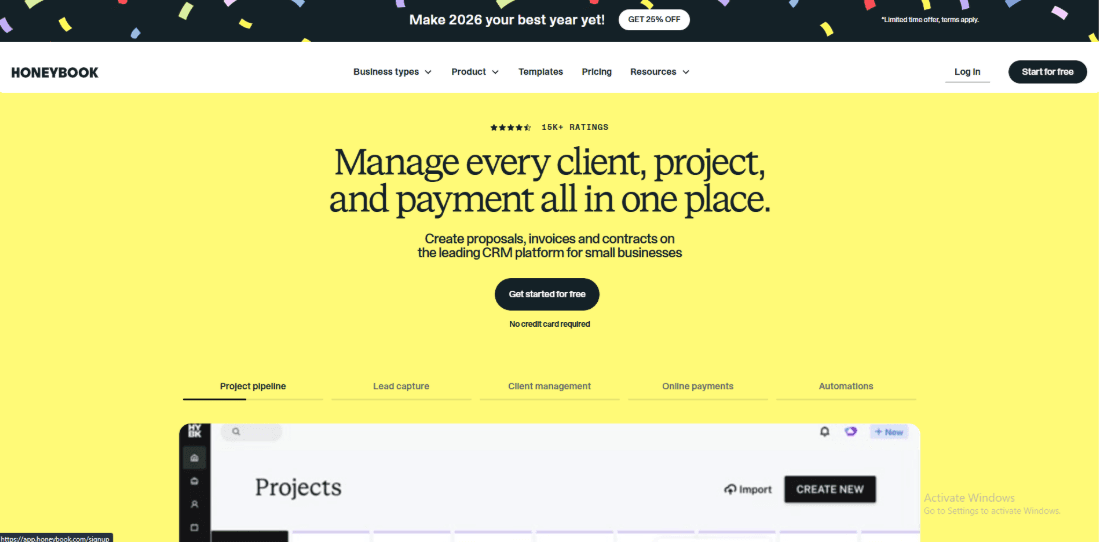
All-in-one client workflow from proposal to payment.
Features
- Payment integration: Payments run through Stripe Connect. I tested the flow from proposal to payment, and it worked exactly as I expected. A client can review the document, sign it, and pay all within the same process without being sent to three different links. HoneyBook also supports payment schedules, deposits, and recurring payments. I checked this end to end, and it is built on Stripe Connect, which matters for how payouts are handled and how payment steps are processed. I also noticed some edge cases around holds and refunds when testing payment flows, and I saw a similar warning in a Trustpilot review. I am sharing the screenshot below so people can clearly judge the scenario for themselves:
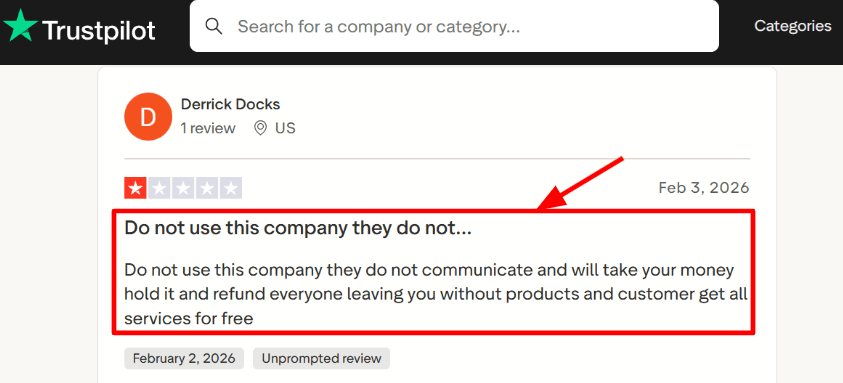
A Trustpilot reviewer describing a negative experience with HoneyBook
- Workflow automations: You can build simple automations that move a project forward when something happens. For example, when a proposal is signed, an invoice can be sent automatically. When a payment is completed, a follow up email can trigger. It took me some time to map my real workflow into the pipeline, and I have to admit that the first version I built was too simple. After adjusting stages and triggers a few times, it started to feel natural. A Trustpilot review said it took a few months to get comfortable, and then it had everything they needed. I get that feeling, and the screenshot below shows what they meant:
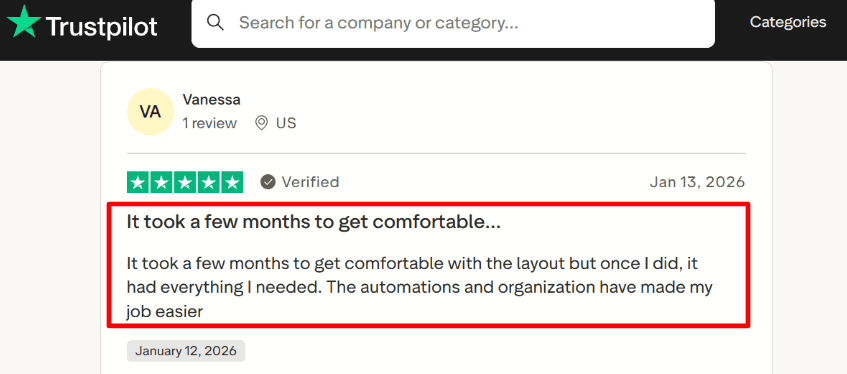
A positive experience with HoneyBook of a Trustpilot reviewer.
-
Client portal: Each client gets a portal where they can see proposals, invoices, files, and messages all in one place. Clients did not ask me where to find documents because everything was already in one spot. If you manage multiple projects at once, the portal helps keep communication organized. Each project stays separate, which keeps things clear on both sides without messages getting mixed up.
-
Availability and scheduler: HoneyBook includes a built-in scheduler. You can share a booking link and sync it with your calendar to avoid double booking. I tested it with a live calendar, and it handled time slots correctly once syncing was set up. One setting in the scheduler is easy to overlook on a first pass, so it is helpful to review the options carefully before sharing your link. For many freelancers, the scheduler works well for discovery calls and project check ins. If scheduling is only a small part of your business, this may be all you need.
-
Proposals and e-sign: You can create proposals, collect electronic signatures, and request payment all in one flow. When a call ends and a client is ready to move forward, you can quickly send the paperwork without starting from scratch. Templates make a huge difference here. After creating a few reusable templates, sending new proposals became much faster. You can also include service details, pricing tables, and payment schedules directly in the proposal so the client sees everything at once.
Pros
-
Everything stays connected from the meeting through the contract, invoice, and payment, which can save many hours over time
-
Automations help keep projects moving forward even when you are too busy to manually follow-up
-
The client portal keeps files, invoices, and messages organized in one place that clients can actually find
-
Templates make it easier to send consistent proposals and contracts without retyping everything
-
Payments and invoices live inside each project, which keeps your records cleaner and easier to find later
Cons
-
If you only need a simple booking link, this system may feel heavier than necessary. The setup takes real time, and there are many more settings to configure
-
It is mainly for the US and Canada according to HoneyBook policy, so global freelancers may hit limits or find that some features do not work
-
The pipeline and automation setup can take a while to reflect how you actually work, and you will likely need to tweak it
-
Some features are tied to higher plans, so your costs can increase as your needs grow
-
Payment issues, such as holds or refunds, can create stress if you are dealing with large client payments and something goes wrong
Pricing
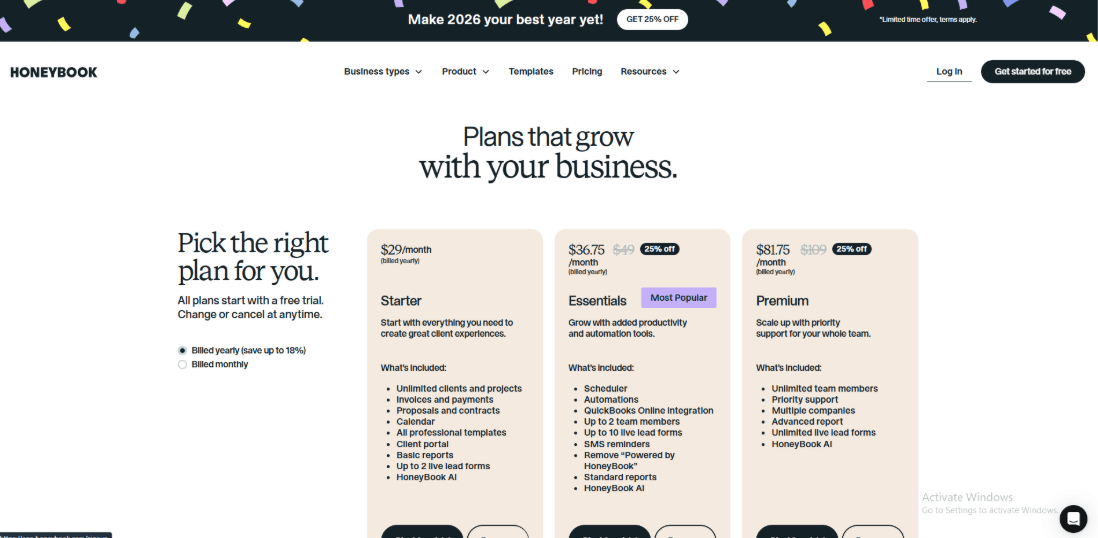
Check out the latest pricing of HoneyBook.
-
The Starter plan is $29 per month with annual billing. It includes proposals, contracts, invoices, payments, templates, the client portal, and basic reporting.
-
Essentials is $49 per month on an annual billing plan. It adds the scheduler, automations, SMS reminders, QuickBooks integration, and removes HoneyBook branding.
-
Premium is $109 per month on an annual billing plan. It includes unlimited team members, advanced reporting, and priority support. There is usually a short free trial available.
When to Choose HoneyBook
HoneyBook makes sense when your calls often lead to proposals and payments, not just a booked time slot. It works well for freelancers who manage multiple client projects and want contracts, payments, scheduling, and communication all in one place instead of scattered across different tools. It is a good fit for designers, photographers, coaches, consultants, and other service providers who do project based work where each client has a longer cycle. If you only need quick meeting scheduling with no paperwork involved, a lighter scheduling tool will be easier and faster to set up without all the extra features you will not use.
Why Not to Choose HoneyBook
I would skip HoneyBook if all you need is a simple booking link and you never send proposals, contracts, or invoices through the same system. The setup takes real time and the learning curve is steeper than a dedicated scheduler, so if you do not need the extra features, they will just get in your way. Also avoid it if your clients are outside the US and Canada, because the platform is primarily focused on North America and some features may not work as expected. If you are a freelancer who just wants to share a calendar link and be done, a tool like Calendly or a simpler scheduler will serve you better with far less configuration. For a freelancer who lives in proposals and payments, HoneyBook is worth the effort. For everyone else, it is overkill.
SavvyCal
SavvyCal focuses on speed, which makes it a really good scheduling software for freelancers who hate wasting time on back and forth emails. The standout feature is the calendar overlay and week view. It makes picking a meeting time feel quick and easy because the other person can see their availability right next to yours without switching between tabs.
Features
-
Calendar overlay: This is the feature that most people talk about when they mention SavvyCal. When someone opens your link, they can place their calendar on top of your availability, and they immediately see where the open gaps are. I tested this with a real client, and with the overlay we selected a time in a single step without any back and forth. It saves small pockets of time here and there, and those add up over weeks and months. This works exceptionally well when both calendars are already full and the open windows are very narrow.
-
Personalized links: You can create links that feel specific to the person or situation. You can adjust the title and small details to match the meeting's context, which is really helpful when you send links in an email or on LinkedIn. The booking flow also feels more guided than generic. If you work with different types of clients or projects, this keeps things organized on your end. A G2 review also noted how easy it was to implement and how the overlay helped them pick times faster. You can skim the screenshot below for that exact feedback:
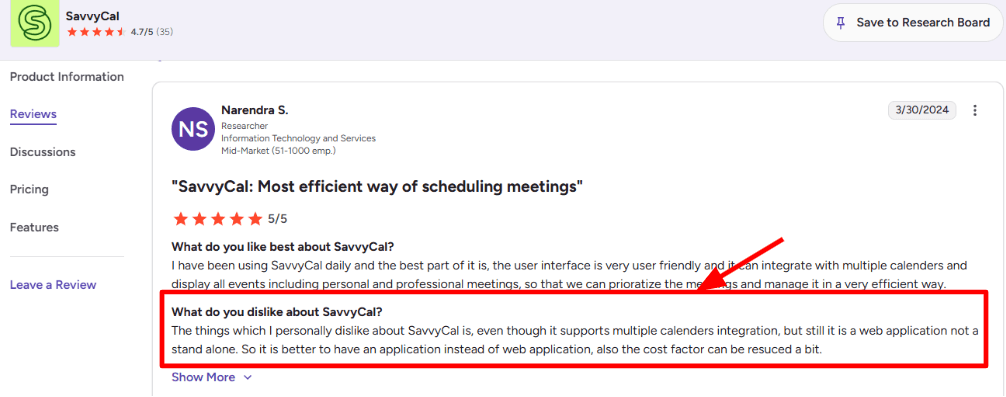
A mixed review about Savvycal.
-
Availability controls: You can set buffers between meetings so you are not rushing, limit the number of calls per day so you do not burn out, and block certain times for deep work. I used this to protect my focus hours and keep certain mornings free for myself. Once the rules are set correctly, your week feels much more structured. The first time I created a test link, I had to adjust my working hours and retest a few times, and it took me a few minutes to get everything aligned the way I wanted.
-
Calendar integration: SavvyCal connects with Google and Microsoft calendars. Busy times are blocked to prevent double bookings, and everything runs fully in the browser with no desktop app. Everything I tested synced correctly after setup. If you use multiple calendars, make sure you connect the right ones and double check your availability rules before sharing your link. I also saw this mentioned in a G2 review.
-
Payment integration: Stripe payments can turn a simple link into a paid freelancer booking system, which is useful for paid consults, audits, or intro sessions where you want to charge upfront. It also reduces the chance of someone booking and then disappearing because they have already paid. A detail many people miss is how tax handling can work through Stripe Tax in some setups, which is covered in the Stripe docs if you need that for your business.
Pros
-
The booking experience feels fast for the person choosing a time, which means fewer abandoned booking attempts
-
You get solid control over your week with buffers, daily limits, and time blocks
-
Personalized links help keep context clear for different clients and different types of conversations
-
Round robin options are available if you schedule as a small team
-
It works smoothly on mobile when you test it from a phone, no clunky experience
Cons
-
If you need proposals, invoicing, contracts, and a complete client portal all in the same tool, SavvyCal may feel too limited because it focuses only on scheduling
-
There is no desktop app, so everything runs in the web browser
-
It can take some testing to fine tune your working hours and rules before it feels right
-
Per user pricing can add up when you add collaborators to your account, so check the SavvyCal pricing page.
Pricing

Check out the pricing page of Savvycal.
-
The Basic plan costs $12 per user per month as of this writing. This covers the core scheduling links and the main booking experience.
-
The Premium plan is $20 per user per month and adds more advanced features.
When to Choose SavvyCal
SavvyCal is what I would recommend if you often book meetings with busy clients who have full calendars and you want them to lock in a time quickly without playing email tag. It is a good choice if you care about shaping your week with clear limits and structured availability that protects your focus time. It works well for consultants, freelancers, and small teams who want a smoother scheduling experience without adding a heavy system that does too much.
Why Not to Choose SavvyCal
I would skip SavvyCal if your business relies on detailed client management, billing workflows, and document handling all within a single platform. SavvyCal is focused on scheduling and does not include proposals, contracts, invoices, or a client portal. If you need those things, you will have to use separate tools anyway, so a more all in one platform like HoneyBook might make more sense. Also avoid it if you prefer a desktop app, because SavvyCal runs entirely in the browser. For a freelancer who just needs fast, clean scheduling and nothing else, SavvyCal is great. For anyone who needs more than that, it will feel incomplete.
SimplyBook.me
SimplyBook.me is a booking tool that takes a modular approach, meaning you can turn on optional features only when you actually need them. It works well for freelancers and small teams who want appointments, payments, and client details all in one place without being forced into a rigid setup. Many people consider it reliable scheduling software for freelancers because it can grow with your business without forcing you to switch tools later when your needs change.
Features
-
Availability rules: When I first set it up, defining working hours and booking limits was clear and straightforward. You can add buffer time between appointments so your schedule stays manageable, and you can also limit the number of bookings per day or during certain hours. The system only shows real open slots, which keeps the calendar clean and reduces reschedules. This helps you maintain your time when you have paid consultations or discovery calls. If your job extends beyond single freelance sessions, you can also handle more than one provider, service, and location as you grow.
-
Payment collection: SimplyBook.me supports payments and deposits. You can charge the full amount or ask for a partial payment at booking, which is useful for freelancers who sell fixed services, packages, or paid intro calls. The payment remains linked to the appointment, so you do not need to track it elsewhere in a spreadsheet. Depending on where you live, there are many payment gateways to choose from, so before you make a decision, check which ones are actually available in your country. I also saw a Trustpilot review where someone complained about unwanted emails even after unsubscribing, and I am sharing a screenshot below:
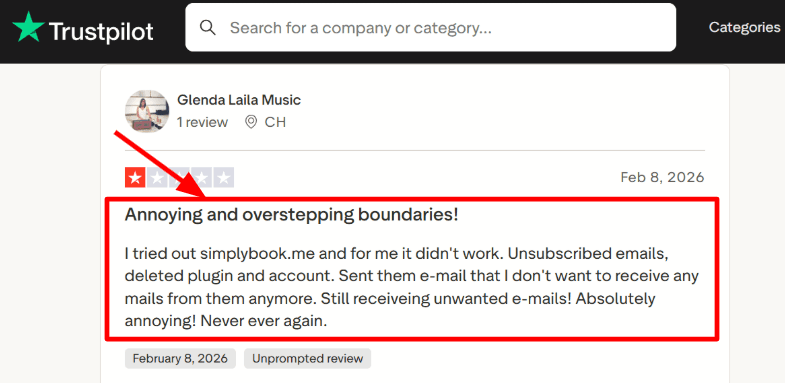
A user expressing their annoyance with SimplyBook.me
-
Meeting integration: SimplyBook.me includes an online meeting feature and supports video call setups. When someone books, the system can automatically generate the meeting link, which helps when you work with clients in different time zones. The meeting details stay consistent across confirmations and reminders. There are many optional settings tied to notifications and meeting behavior, so it works well once configured, though it does require some attention during setup to get everything right.
-
Client intake forms: You can ask questions during the booking process, which allows you to collect goals, project details, links, or background information before the call even starts. This saves time during the session because clients arrive prepared, and you can attach responses to the client profile for future reference. On higher tiers, SimplyBook.me lists selectable data locations such as the UK or the US. This can matter if you work with clients who care about where their data is stored.
-
Branded booking page: SimplyBook.me gives you a hosted booking website, and you can also embed it into your own site. This makes it easy to share one link across social profiles, email signatures, and landing pages. The page can be customized with your branding and service descriptions. Because there are many optional features available, it is possible to miss a setting that changes how clients experience the booking flow. A careful test booking from a separate email address is a really good idea before going live. I also read another Trustpilot review that calls it easy to use and professional, and I can see why for team based scheduling. The screenshot below shows that perspective so readers can compare it with the earlier complaint.
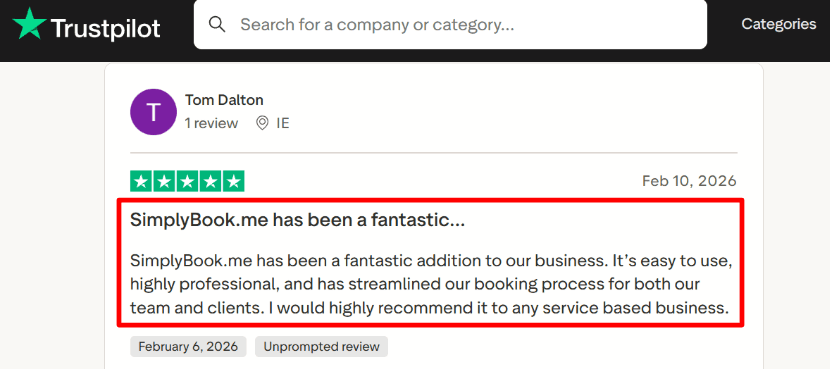
*A Trustpilot reviewer recommending SimplyBook.me. *
Pros
-
This is a good option for freelancers who need to arrange appointments, collect intake forms, and process payments all in one place
-
You can customize the booking funnel for your services in many different ways
-
Sharing is easy with the hosted booking page and the embed options for your website
-
As your team grows, it can work with more providers and services without switching tools
-
If you have stricter client requirements, costlier plans with data location options can help meet those needs
Cons
-
Setup takes real time because there are many features to review and decide on
-
Plan limits on bookings and providers may require upgrades as your volume increases
-
Some notification features such as WhatsApp run on credits, which adds an ongoing cost to your monthly bill
-
The interface can feel dense at first for someone who only needs a very simple scheduler
-
Some users report ongoing unwanted emails even after unsubscribing as mentioned in this Trustpilot feedback.
Pricing
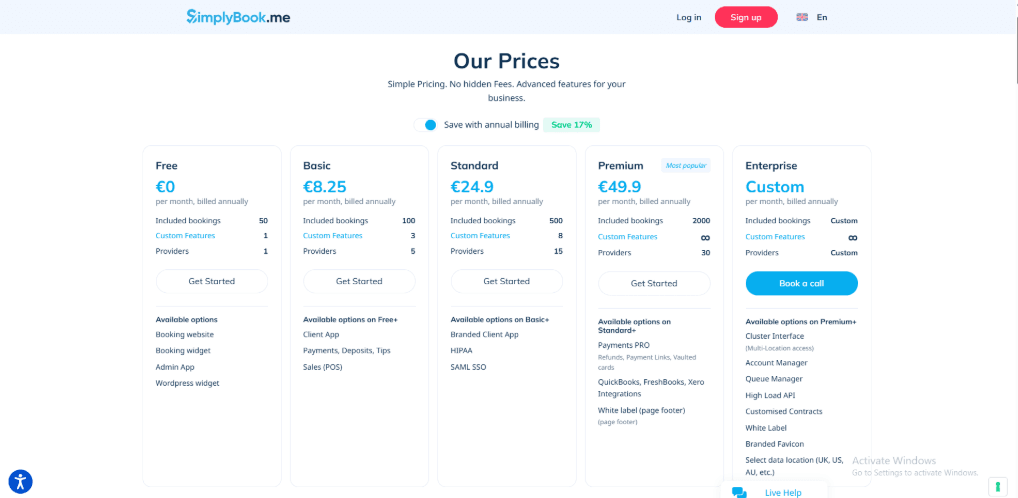
Check out the SimplyBook.me pricing page.
-
SimplyBook.me has a free plan with limits. It supports up to 50 bookings, 1 provider, and 1 custom feature, which is mainly useful for testing and not for running a real business.
-
Paid plans start around €11.9 per month on annual billing for the Basic tier. Higher tiers increase the number of bookings, providers, and custom features. Advanced features such as SSO and HIPAA related capabilities are available in higher plans.
-
Enterprise plans are custom priced and may include multi location support and selectable data location. Because pricing and limits can change, it is smart to confirm current details on the official website before publishing exact numbers.
When to Choose SimplyBook.me
SimplyBook.me makes sense if you sell structured services and want clients to book, pay, and complete intake questions all in one flow without sending them to three different links. It fits freelancers who want control over how the booking process works and expect to grow into multiple services or providers over time without having to switch tools. Overall, SimplyBook.me can serve as dependable scheduling software for freelancers who want a booking system that handles appointments, payments, and client details in one place.
Why Not to Choose SimplyBook.me
I would skip SimplyBook.me if you just need a very simple booking link with almost no setup. The modular approach means you have to spend time deciding what features to enable and how they work together, which can feel like overkill for basic needs. Also avoid it if you are on a tight budget and cannot afford add on costs for messaging or higher tier plans when you grow. If you want a clean, minimalist interface that does one thing well, SimplyBook.me will feel cluttered and overwhelming. For a freelancer who just wants to share a link and be done, a simpler tool like Calendly is a better fit. For someone who wants to build a structured booking system with room to grow, SimplyBook.me is worth the setup effort.
Zoho Bookings
Zoho Bookings is a good option for a scheduling tool for freelancers, and it is built to work closely with other Zoho apps. If you are a freelancer, you can use it to share a booking link, keep your calendar updated, and reduce back and forth emails. It works especially well when you already use Zoho tools for email, CRM, or invoicing because everything sits in the same account, which makes day to day work much smoother once it is set up.
Features
- Calendar integration: Connecting Google Calendar was simple in my test. Busy times synced correctly, and booking rules worked as expected. When moving into Microsoft calendars or Teams links though, the setup felt less clear. The integration screen does not always make it obvious whether everything is fully connected, so I had to double check. I also saw this mentioned in a G2 review and I am sharing a screenshot below:
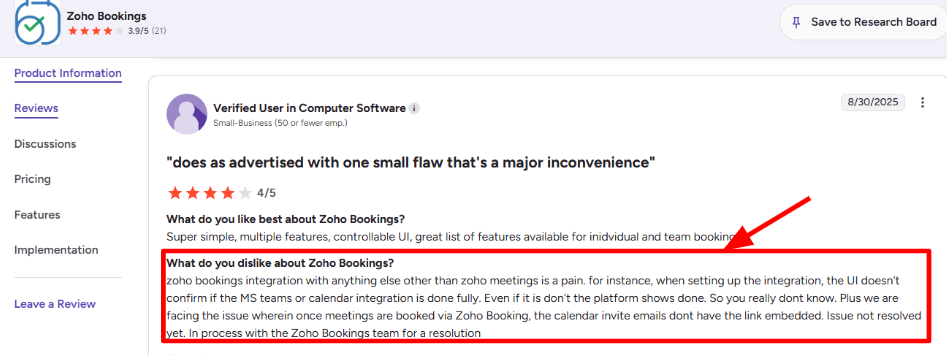
A mixed review by a Zoho user on G2
-
Availability rules: You can define working hours for different meeting types, and you can also add exceptions for holidays or special days. Timezone handling worked well in my testing. I booked from another device in a different time zone, and the time was displayed correctly on both ends. If your schedule changes often, you will need to maintain those overrides regularly. It is manageable, though it does require attention if your week is unpredictable. You can also limit the number of bookings per day and add buffer time between calls.
-
Booking page forms: You can add questions to the booking page, which helps collect project details before the meeting. For freelancers, this is really useful because you can filter out unclear requests and start the call with actual context instead of wasting time on basic questions. Most of the time, clients quickly figure out how to use the booking link because it seems familiar and simple to finish. You may also redirect people to a thank you page after they book, which is useful if you want to provide preparation notes or next steps. Reviewers on G2 often like how simple it is to share the link and let clients self book. I am adding a screenshot of that feedback below:
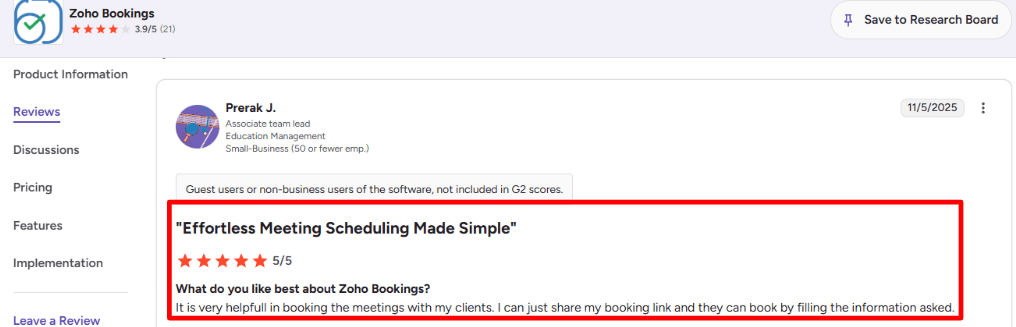
A Zoho user expressing how the software has helped their business.
-
Payment integration: If you charge for consultations, you can connect payment gateways and collect payment at the time of booking. This reduces no shows and prevents late invoice chasing. Payments are not available on every plan though, so check the limits before choosing a tier. It supports several regional payment options depending on your location.
-
Brand control: Zoho recently added custom CSSon their help page, which gives you more control over fonts, spacing, and styling if you care about brand consistency. This is useful for freelancers who want their booking page to look very similar to their website. On higher tiers, you can also utilise a custom domain, which makes you look more professional and trustworthy to clients.
Pros
-
It works smoothly if you already use other Zoho apps in your daily workflow
-
The booking link is easy to share and easy for clients to understand without confusion
-
Availability rules are flexible once you have them configured correctly
-
You can collect payments for paid calls and consultations
-
It supports small teams and lets you add staff members as you grow
-
Timezone handling works well for international clients in different regions
Cons
-
Setting up outside the Zoho ecosystem can take longer because it expects you to be inside their world
-
Some integrations feel less guided during configuration, so you may need to hunt for settings
-
Some users have noted that calendar invites do not always include meeting links, so before you use this for essential calls, you should test that flow thoroughly
-
Higher plans may be needed for features like WhatsApp reminders and deeper integrations
-
The UI offers many options, so it can feel overwhelming at first until you figure out where everything is located
Pricing
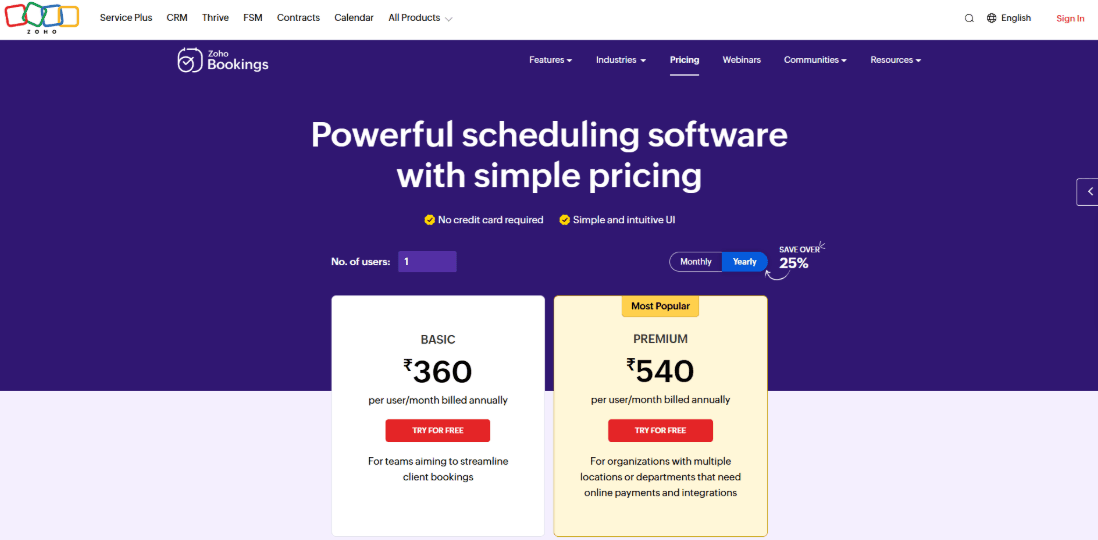
Check out the pricing page of Zoho.
-
Zoho Bookings offers a free plan, but it has limitations on features and usage.
-
The cost of paid plans depends on the number of users each month.
-
The actual price depends on where you live and when you pay. Most of the time, basic plans include solo scheduling, more calendars, and core integrations.
-
Higher tiers include more automation, more integrations, and better branding options.
When to Choose Zoho Bookings
Zoho Bookings makes sense if you already use Zoho CRM, Zoho Mail, or Zoho Books and want everything to live in one system without switching between accounts. It works well for freelancers who need structured intake questions and optional payment collection. It is also a practical choice for small teams planning to grow within the Zoho ecosystem. If your workflow depends heavily on third party apps outside of Zoho, you may want to test those connections carefully before committing.
Why Not to Choose Zoho Bookings
I would skip Zoho Bookings if you are not already using other Zoho products, because the setup can take longer and some integrations feel less guided outside their ecosystem. Also avoid it if you rely heavily on Microsoft calendars or Teams links, because the integration there felt less clear in my testing. If you need calendar invites to always include meeting links without fail, test that flow thoroughly before committing, because some users have reported issues. For a freelancer who just wants a simple booking link and does not use Zoho for anything else, a more standalone tool like Calendly will be easier to set up and maintain. Zoho Bookings is best for people already inside the Zoho world, not for everyone else.
Cal.com
Cal.com offers open source scheduling software for freelancers who want deeper control than what most mainstream tools provide. A lot of freelancers like it because it gives you more control than a basic booking link, but you do spend a bit more time setting things up. In return for that extra setup time, you also get more flexibility in how everything works
Features
-
Availability rules: You can create several event types with buffer time and minimum notice periods. The core scheduling features work reliably, and small rules can be layered without turning your calendar into a confusing jumble, which is a strong point. It may take a few attempts to achieve the exact slot layout you need for short calls versus longer sessions. Once configured properly though, the setup feels steady and predictable. A Trustpilot review said the service was slow and would freeze when something broke, so keep that in mind.
-
Calendar integration: It was easy to connect to Google Calendar, and busy hours were blocked off correctly. You do need to double check which calendars affect your availability and which ones just block conflicts if you use more than one. That setup is more important than it seems at first. Cal.com also works with Outlook and other services. Before you share your link with many people, it is a really good idea to run a few real booking tests from a separate email address.
-
Meeting tool integration: I tested adding a video meeting location, and it worked smoothly. One detail I appreciated is that their documentation explains how webhooks behave differently when you use Cal Video. That kind of small technical note can save you time later if you use automation. If you stick to a basic Zoom or Google Meet setup, the flow feels straightforward and easy to understand.
-
Routing forms: Routing forms can upgrade your basic freelance scheduling software into a smarter intake tool. You can ask a few questions and send people to the right event type or calendar based on their answers. For freelancers offering different services like consulting versus coaching, this can help keep things organized without sending everyone to the same link.
-
Workflow automation: I tested a simple workflow triggered after booking, and it handled reminders and follow-ups without needing extra tools. Another review on Trustpilot said that once you get the hang of the layout, it is straightforward to use. That fits with how I used it for the first hour. Webhooks and API access give you the opportunity to grow if you want to connect Cal.com to other systems. Just know that upgrades sometimes change how older integrations work, so test after updates. I also saw a Trustpilot post praising how easy it is to set up and manage, and I am adding a screenshot below:
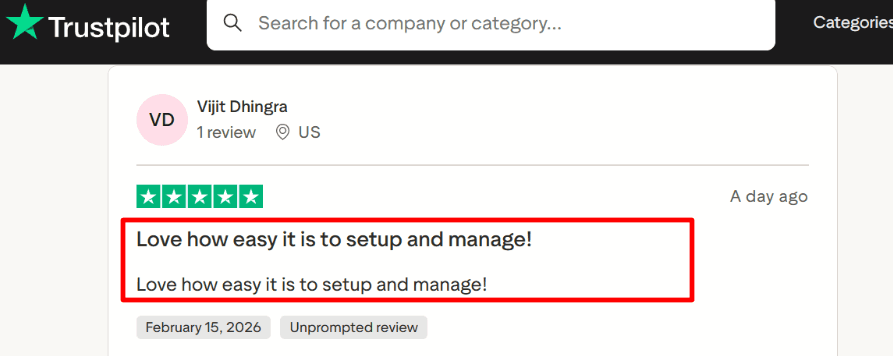
A Trustpilot reviewer praising Cal.com.
Pros
-
It works well if you want strong control over scheduling rules and routing for different call types
-
Freelancers with different call types can keep things structured without separate tools
-
Embeds work nicely if you want bookings inside your own website
-
It can support product style scheduling if you plan to build other tools around it
-
Security details are clearly documented, which helps if clients ask about data handling
-
Because it is open source, you can self host if you want deeper control, which also means you control updates and infrastructure
Cons
-
It can feel heavy if all you want is a quick meeting link with no configuration
-
Routing and workflow setups take real time to get right, not just a few minutes
-
API updates may require maintenance if you rely on custom integrations that could break
-
Self hosting adds technical responsibility that not every freelancer wants to take on
-
Some reviews mention uneven support experiences when something goes wrong
-
Performance can depend on your setup and usage level, especially for complex team environments
Pricing
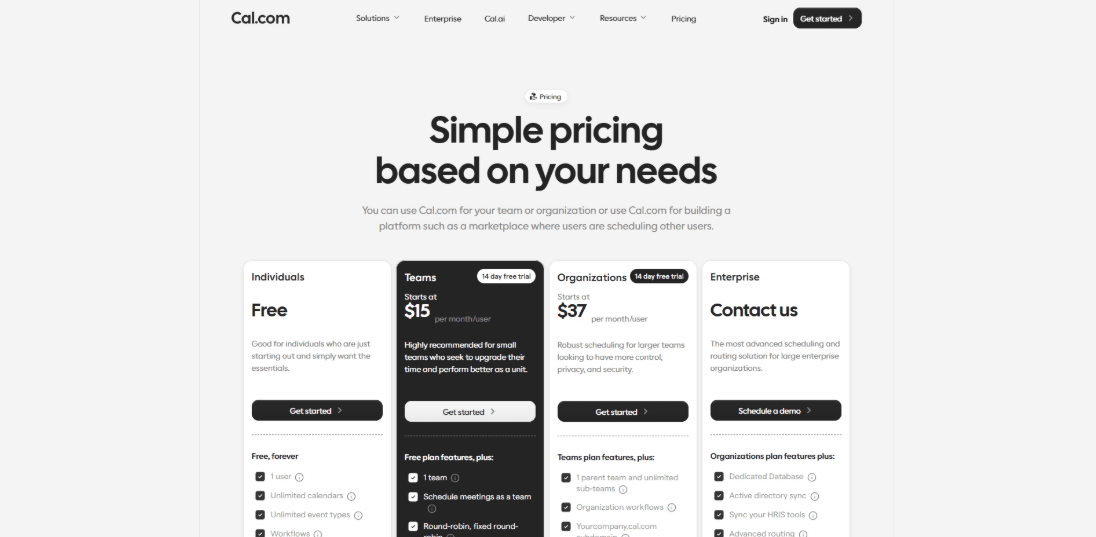
Check out Cal.com’s pricing page.
-
The Individual plan is free and only works for one person. It has basic scheduling features.
-
Teams costs $15 per person per month and includes features for scheduling and collaboration.
-
For bigger teams with more advanced demands, Organizations start at $37 per user per month.
-
The platform's prices vary based on the number of bookings you make and are aimed at businesses that want to add scheduling to their own product.
-
Prices and features can change, so it is always a good idea to look at the official page before making a decision
When to Choose Cal.com
Cal.com makes sense if you are a freelancer who wants more control over availability, routing, and automation than what simple tools offer. It works well if you value flexibility and might want to self host in the future. It also fits well if scheduling is part of a larger system you are building, like a productized service or a client portal. If you want the simplest possible setup with minimal configuration and fast hand holding support, this is probably not the right choice.
Why Not to Choose Cal.com
I would skip Cal.com if you just want a simple meeting link that works in five minutes with no configuration. The setup takes real time, and you will need to understand things like routing forms and workflow triggers to get the most out of it. Also avoid it if you do not want to deal with occasional maintenance or API updates that could affect how your integrations work. If you are not technically inclined or do not want to read documentation, Cal.com will feel frustrating. For a freelancer who wants to set it and forget it, a simpler tool like Calendly is a better fit. For someone who wants control and is willing to put in the setup time, Cal.com is worth the effort.
Best scheduling software for freelancers: Final Verdict
For most freelancers, Calendly is the safest simple scheduler, Lunacal is the strongest pick for paid sessions and branded booking pages, HoneyBook is best when scheduling is part of a full client workflow, and SavvyCal is best when booking speed matters most.
If you sell structured services, SimplyBook.me is a better fit. If you already use Zoho, Zoho Bookings keeps everything in one ecosystem. If you want routing, APIs, or self-hosting flexibility, Cal.com gives you the most control.
The right choice depends on how you make money. If every booking can become revenue, choose a tool that handles payments, intake, reminders, and client context. If you only need quick calls, choose the simplest scheduler your clients will actually use.
Methodology
To shortlist these tools, I reviewed each product as a solo consultant would setup speed, calendar sync, payment support, client intake, reminders, page customization, and pricing. I checked official websites, feature pages, screenshots, and public reviews, then prioritized tools that help freelancers look credible and reduce online booking friction.
FAQs
What is the best scheduling software for freelancers?
The best scheduling software depends on the freelancer’s workflow. Lunacal is a strong choice for paid sessions and branded booking pages, while Calendly is better suited to simple discovery calls.
For contract-heavy work that involves proposals and invoices, HoneyBook is a better fit.
What features should freelancers look for in scheduling software?
Freelancers should look for reliable calendar sync, buffers between calls, and time zone handling that prevents double bookings with international clients.
Intake forms should capture project scope and relevant links before the call starts. Payments or deposits help reduce no-shows. Reminders, easy rescheduling, and a clean booking page keep clients moving through the process without confusion.
How can freelancers reduce no-shows with meeting scheduler software?
Freelancers can reduce no-shows by taking deposits upfront, sending two reminders, and setting a clear cancellation window with a fee for late changes.
Tools like Lunacal and HoneyBook support payments on the booking page, automated reminders, and cancellation policies that clients see before they confirm.
What is the best free meeting scheduler for freelancers?
The best free meeting scheduler for freelancers depends on how many booking links and event types you need.
Calendly works well for one simple booking link with a single event type. Cal.com is strong if you want more control and do not mind a bit of setup. Zoho Bookings can work well if you already use other Zoho apps in your daily workflow.
Should freelancers use Calendly, HoneyBook, or Lunacal?
Use Calendly if you only need simple meeting scheduling with no paperwork attached.
Use HoneyBook if your scheduling process is part of a larger workflow that also includes proposals, contracts, invoices, and payment collection.
Use Lunacal if you sell paid sessions, packages, or want a branded booking page that explains your service and builds trust before someone clicks confirm.
Summarize this content with AI


