


Introduction
If your booking page is tied to sales calls, paid sessions, or client intake, one missed confirmation email is enough to make you nervous. I like the open scheduling feel of Cal.com, and I understand why technical teams choose it. I still reviewed Cal.com alternatives because Cal.com’s own status page has logged incidents like booking emails not being sent, and its GitHub security advisories show that critical issues can appear in a public-facing booking system.
I tested Lunacal, Calendly, Brevo Meetings, Doodle, and SavvyCal across the parts that matter most when switching from Cal.com: booking page experience, calendar sync, reminders, payments, team routing, and setup effort. I also checked public signals from G2, Trustpilot, Reddit, official docs, pricing pages, status pages, and help centers so the claims are easy to verify.
For the US and Canada, I paid close attention to payments and SMS or email reminders. For Germany, France, Spain, and the wider EU, I checked GDPR, localization, and public booking-page trust. Here is where each Cal.com alternative fits best.
Cal.com alternatives comparison
Best tools by use case
| Business need | Best tool | Why it fits |
|---|---|---|
| Branded booking pages | Lunacal | Supports branded pages with rich content, payments, and greater page control. |
| Simple team scheduling | Calendly | Reliable, fast setup, widely adopted across teams |
| CRM-led scheduling | Brevo Meetings | Native fit if email, CRM, and booking are in one system |
| Group scheduling polls | Doodle | Easiest way to coordinate multiple people quickly |
| Flexible scheduling links | SavvyCal | Lets recipients overlay calendars for easier booking |
Feature and pricing comparison
| Feature | Lunacal | Calendly | Brevo Meetings | Doodle | SavvyCal |
|---|---|---|---|---|---|
| G2 rating | 4.9 | 4.7 | 4.7 | 4.4 | 4.7 |
| Starting price | $9 | $10 | $9 | $6.95 | $12 |
| Free plan | Trial | Yes | Yes | Yes | Trial |
| Calendar sync | Yes | Yes | Partial | Yes | Yes |
| Email reminders | Yes | Yes | Partial | Partial | Partial |
| SMS reminders | Yes | Yes | No | No | No |
| Paid meetings | Yes | Yes | Yes | Yes | Yes |
| Booking page control | High | Medium | Low | Low | Medium |
| Team scheduling | Yes | Yes | Yes | Yes | Yes |
| Round robin | Yes | Yes | Partial | No | Yes |
| Routing forms | Basic | Advanced | Basic | No | Basic |
| Packages / credits | Yes | No | No | No | No |
| CRM integration | Limited | Strong | Native | Limited | Limited |
| Custom domain | Yes | Partial | No | No | Yes |
| GDPR compliance | Yes | Yes | Yes | Yes | Yes |
Lunacal

Lunacal is a Cal.com alternative that helps teams get more bookings with easier setup, branded booking pages, reminders, routing, and workflows. In Cal.com alternative comparisons, Lunacal is rated 4.9/5 on G2 and remains one of the highest-rated options.
Features
- Beautiful scheduling pages with rich content
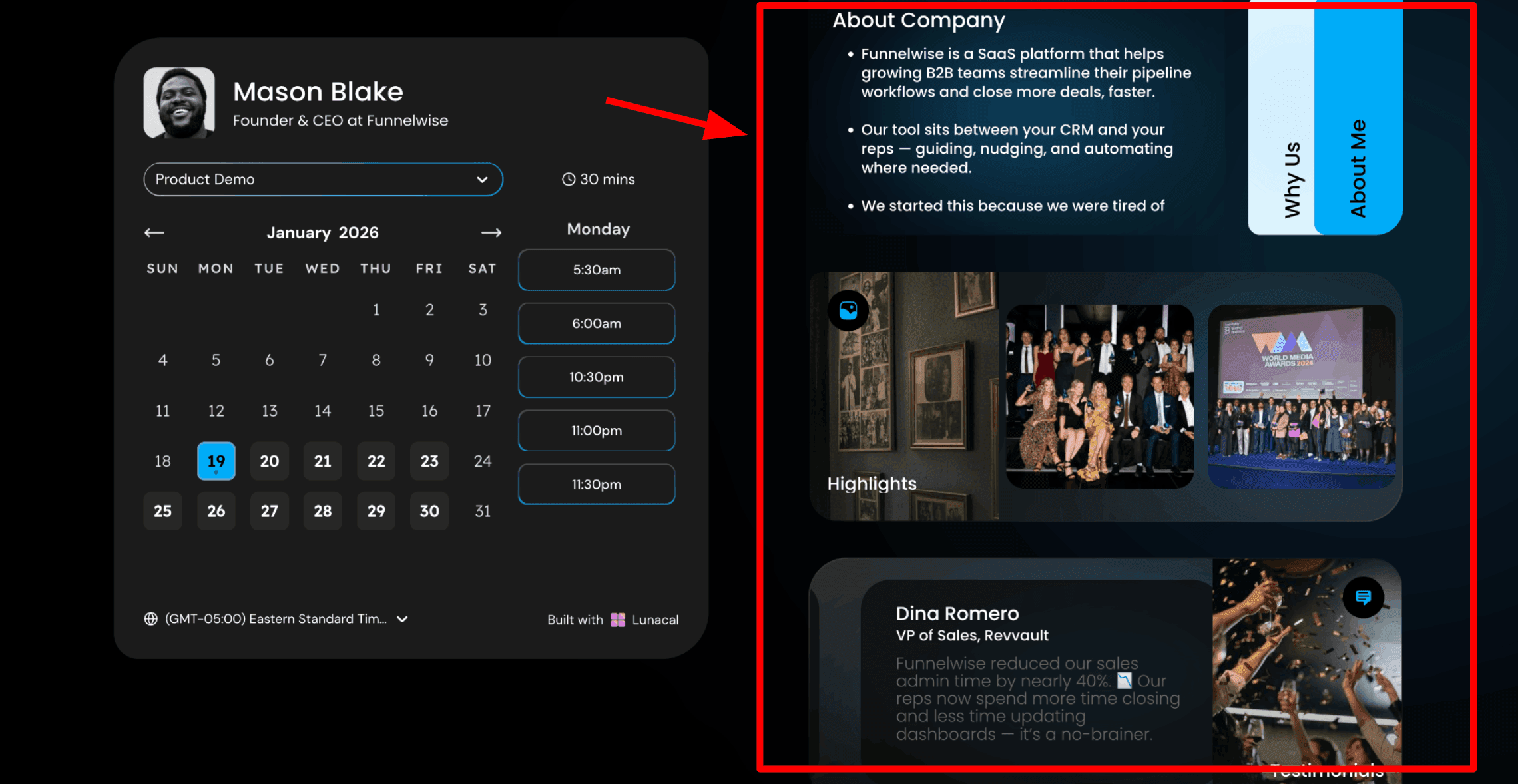
This is usually the first thing I show when someone is exploring Cal.com alternatives. Lunacal focuses on helping you create a booking page that actually builds trust before someone books. Instead of sending a plain calendar link, you can add content right next to the calendar so visitors understand who you are and what you offer while they pick a time. Here is a screenshot below:
- Drag and drop scheduling page editor
Lunacal gives you a simple editor where you can build your booking page using blocks. You can add text, testimonials, images, videos, documents, and forms without any technical setup. You log in and start building. That is what makes it appealing for people who want control without relying on developers. If I were setting this up for a management consultant, I would add a short explanation of what the first call covers, include a couple of testimonials from different industries, and attach a one-page document that explains their experience so serious prospects can review it before the call.
- Availability windows with date exceptions
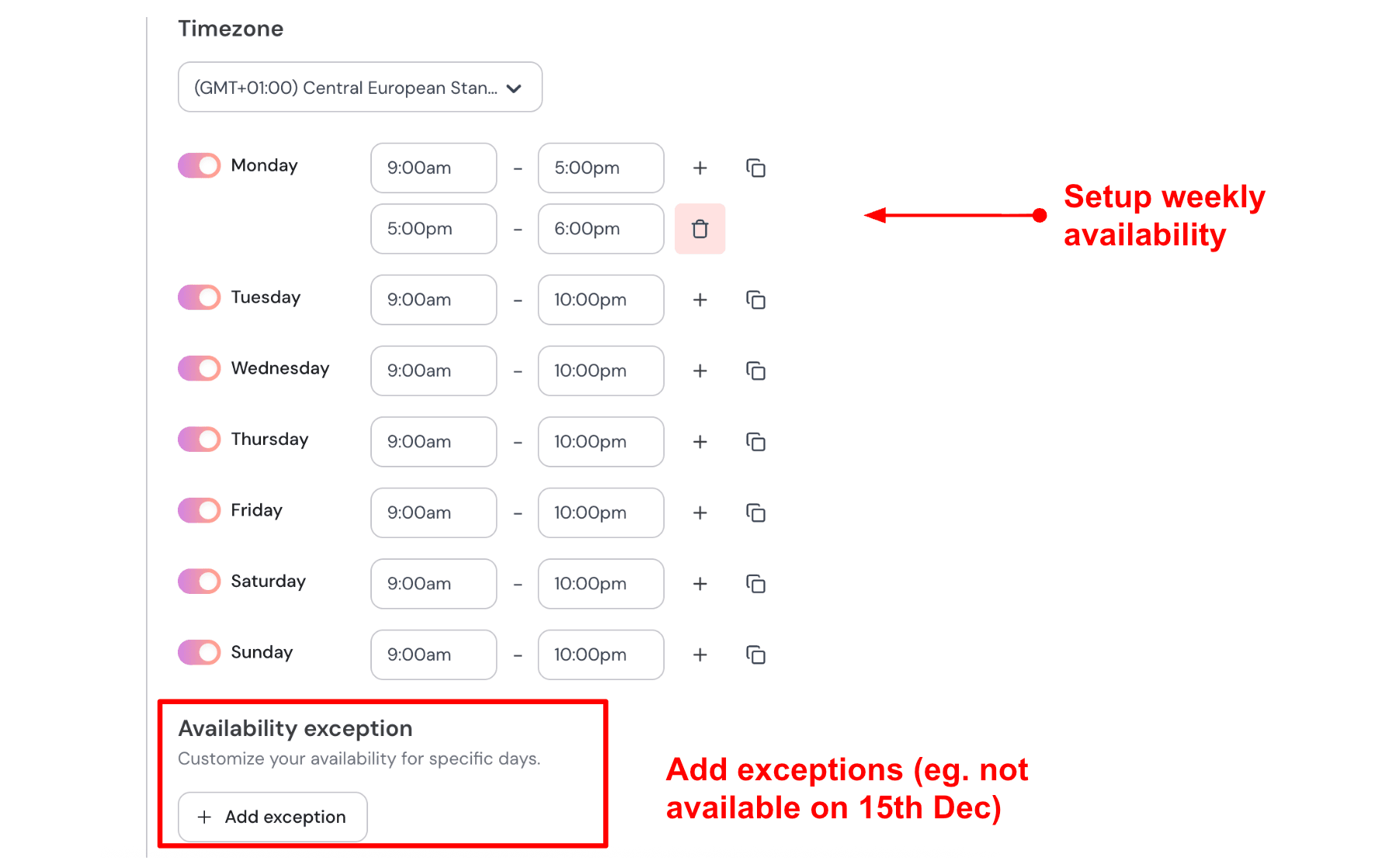
Once your page is ready, you set your availability. You choose your working hours for each day and block off specific dates when you are unavailable. This makes it easy to manage things like travel, events, or focused work time. If calls are only open from Monday to Wednesday between 10 AM and 4 PM, you set it once. If you are unavailable for a week, you add those dates and the system updates your booking page automatically. Here is how I set up my availability:
- Sync multiple calendars to prevent conflicts
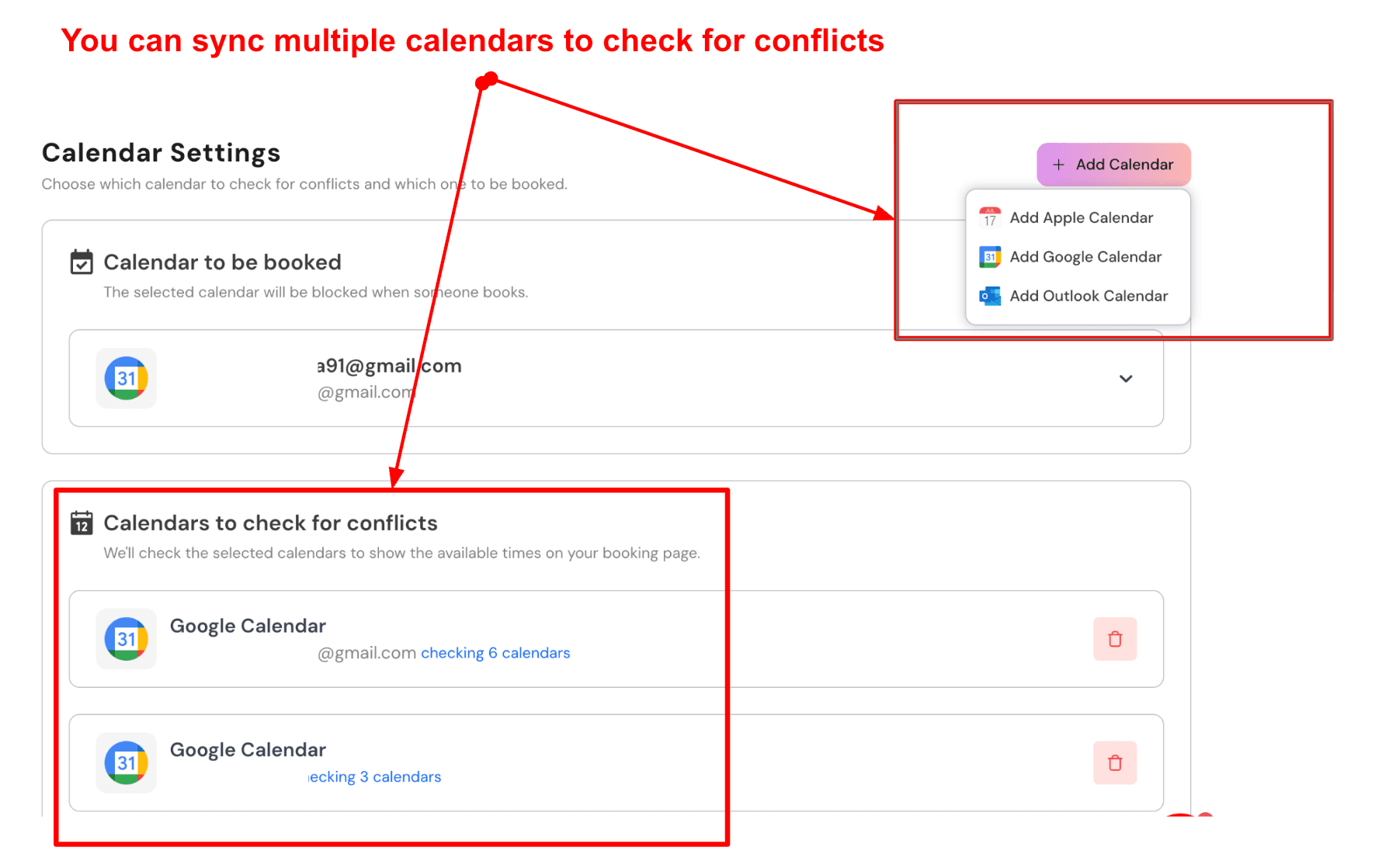
Lunacal lets you connect multiple calendars so your availability stays accurate. Bookings can go into your main calendar, while other calendars are checked in the background to avoid conflicts. This helps you stay organized without manually blocking time. For example, you might connect your work calendar, personal calendar, and a shared team calendar. If any of them has an event, that time will not appear as available for booking. Here is a screenshot of that:
- Custom pre-meeting intake questions
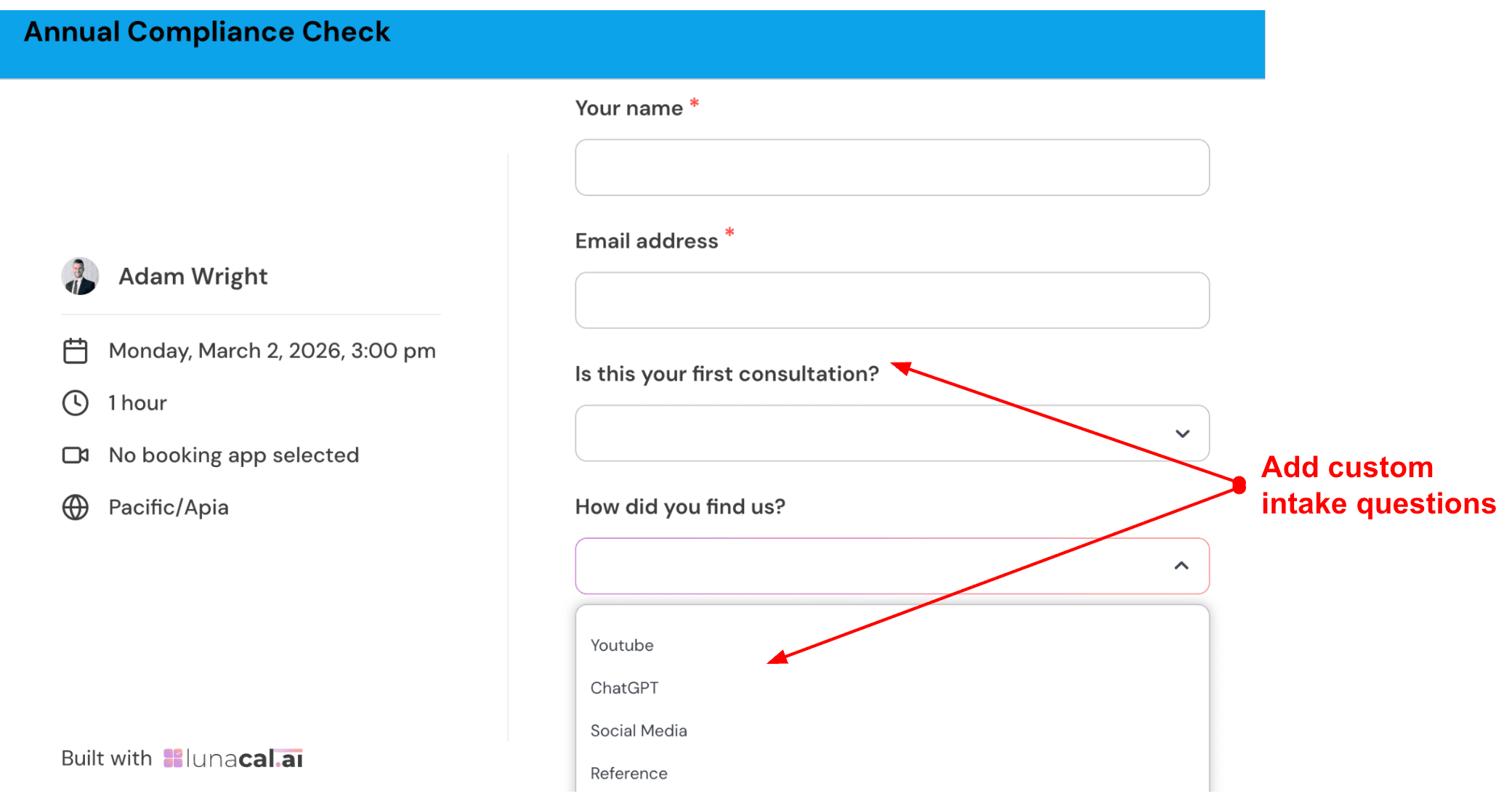
You can add questions to your booking form so people share details before the call. This saves time and helps you start the session with context. Instead of spending the first few minutes asking basic questions, you already know what they need. Check out the intake form I created:
- Discount codes built in
Lunacal lets you create coupon codes directly inside the platform. You can offer discounts for first-time clients, referrals, or special promotions without using extra tools. For example, you might create a code for a first session discount or a referral offer. Both can work on the same booking link, and you can track which ones are being used more often.
Pros
- Works well when your booking page needs explanation and context, not just time slots. It helps reduce basic questions before the call and makes conversations smoother from the start.
- Widgets help you create a clean, branded booking experience quickly without spending hours setting things up.
- Payments, coupons, and packages cover most needs for solo coaches or consultants who charge for sessions.
- Custom domains are easy to set up once your DNS is ready.
- Team scheduling features are available without needing technical setup or advanced configuration.
Cons
- Not the best choice if you specifically need self-hosting or full control over how the system runs.
- If you travel a lot and switch time zones often, you may run into a few edge cases that need checking.
- Some settings are not obvious on the first try and may take a bit of clicking around.
- If your workflow depends heavily on automation through webhooks, it may feel limited compared to some Cal.com alternatives.
- Advanced users may miss deeper routing logic and more complex setup options.
Pricing
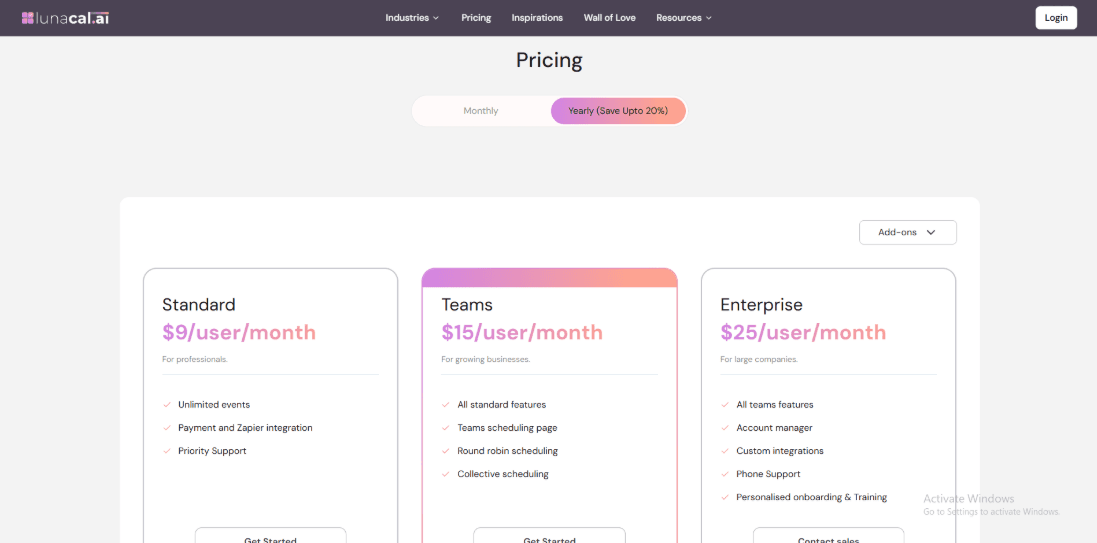
- Lunacal is priced per user per month, with yearly billing offering savings of up to 20 percent.
- Standard is $9 per user each month. Teams is $15 per user each month. Enterprise is $25 per user each month with added support and custom integrations.
- Full plan details and the feature grid are available on the official pricing page.
When to Choose Lunacal
Choose Lunacal when you want your booking page to feel like a small landing page with clear information, proof, and helpful content, and you want to set it up quickly. Choose Cal.com when you need more control over how everything works, including hosting, integrations, and deeper customization. If your main goal is to reduce back and forth across time zones, both tools can work. In most cases, the decision comes down to whether you care more about control or the experience of the booking page.
Calendly
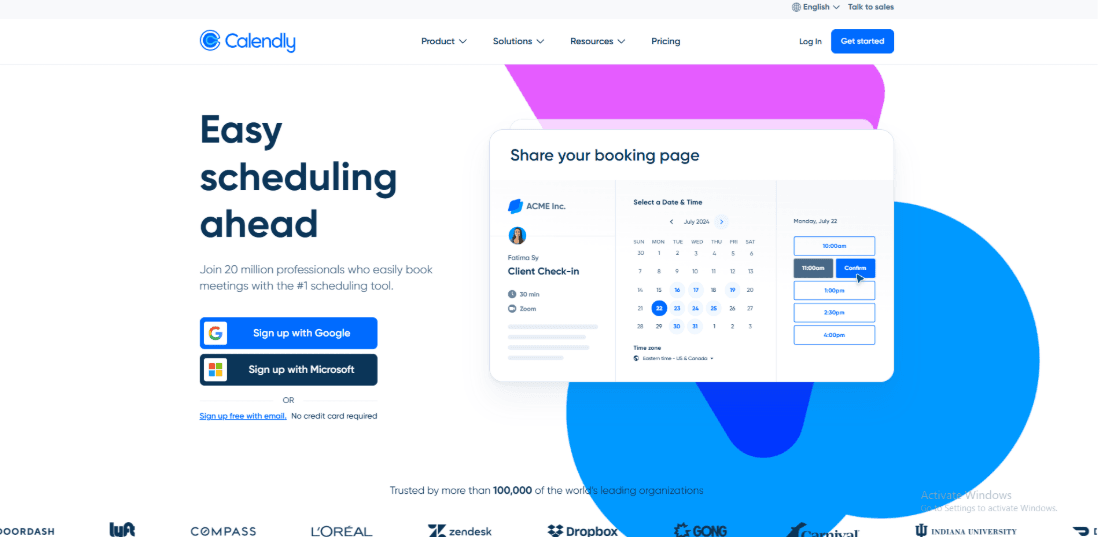
Calendly is known for simple and reliable scheduling. It works well out of the box and does not take much time to set up. For most teams, it is an easy way to start accepting bookings without dealing with technical setup. If you are exploring Cal.com alternatives, Calendly is often one of the first tools people try because of how quickly it works. If you’re considering Microsoft-native scheduling too, this Microsoft Bookings alternatives guide is a useful comparison.
Features
- Calendar Integration
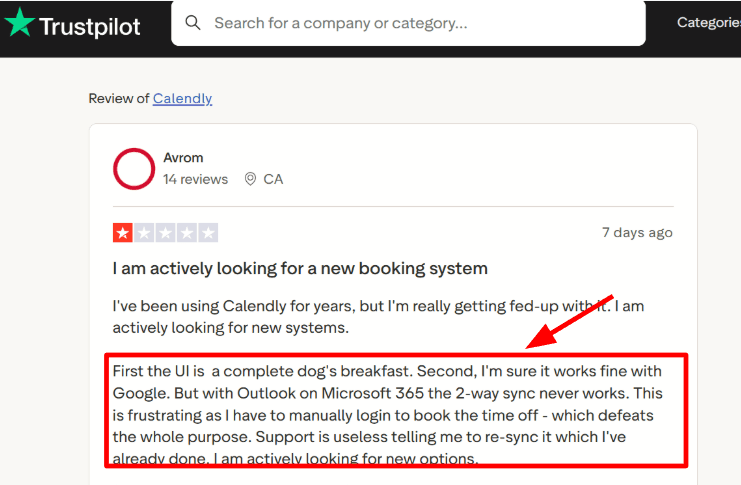
I tested it with Microsoft 365 and it handled the basics well. It checked for conflicts and added events when someone booked a slot. I also came across a Trustpilot review mentioning Outlook sync issues, which can happen in some setups. I recommend testing the full booking flow using your own Microsoft account before switching tools.
- Availability Controls
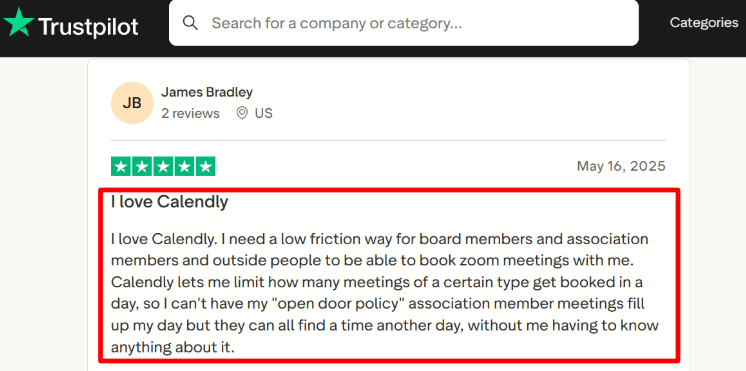
You can set limits on how many meetings you accept per day, week, or month. This works across different event types, which helps keep your schedule under control. I also saw a Trustpilot review where someone used these limits to avoid too many bookings in a day. It is a small feature, but it becomes very useful once your calendar fills up.
- Team Scheduling
Calendly includes round-robin and basic routing in paid plans. This helps teams distribute meetings without manual effort. It works well for sales teams or coaching teams where multiple people handle calls.
- Routing Forms
You can ask questions before someone books and use those answers to guide them to the right meeting. It also supports CRM connections like Salesforce on higher plans. The setup is fairly quick, though some edge cases may need a bit of testing to get right.
- Payments & Video
You can collect payments through Stripe or PayPal and automatically create meeting links using tools like Zoom. This keeps everything in one place and saves time. For paid sessions or consultations, this setup is simple and effective.
If you are a freelancer booking calls, this guide on meeting scheduler software for freelancers is made for you.
Pros
- Quick to set up and easy to use
- Helps you start booking meetings without much effort
- Good availability controls to manage your schedule
- Integrates with tools like Zoom, Stripe, and CRMs
- Works well for one-on-one meetings
- Admin features improve as your team grows
Cons
- Limited control if you want deep customization or self-hosting
- Calendar setup per event can feel restrictive in some cases
- Microsoft 365 sync may need careful testing in real setups
- Advanced features are only available in higher plans
- Custom workflows are not very flexible for complex use cases
Pricing
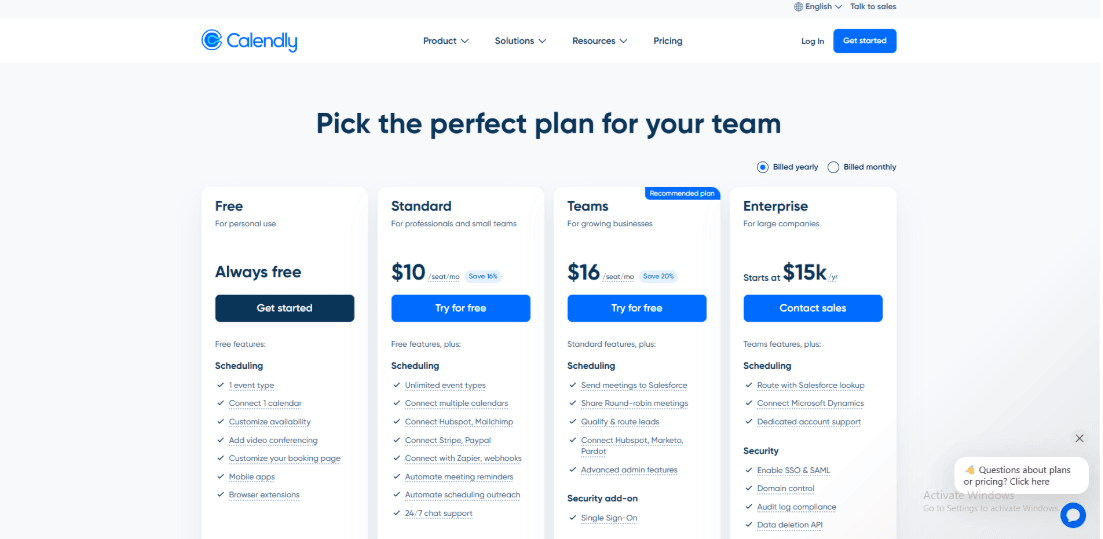
- Free plan includes 1 event type and 1 calendar connection
- Standard plan is $10 per user per month, billed annually
- Teams plan is $16 per user per month, billed annually
- Enterprise starts around $15,000 per year
When to Choose Calendly over Cal.com
Choose Calendly if you want something simple that works right away. It is a good fit for teams that want fast setup and reliable scheduling without technical work. It also works well if you depend on ready-made integrations and want everything to run smoothly from the start. If you are comparing Cal.com alternatives, Calendly fits teams that prefer ease of use over deep customization. Choose Cal.com if self-hosting is essential, Cal.com may remain the better fit., or plan to build scheduling into your own product. If your team uses Microsoft tools heavily, test calendar syncing carefully before deciding. If self-hosted scheduling is part of your plan, check Cal.com alternatives.
Brevo Meetings
Brevo Meetings is a simple scheduling tool that sits inside the larger Brevo platform. If you already use Brevo for emails or CRM, it feels quick to set up and easy to manage. It works well for basic booking needs and is often considered among Cal.com alternatives when you want something simpler and already connected to your existing tools.
Features
- Calendar sync
I connected Google and Outlook calendars, and it blocked time slots that were already booked. That part worked as expected. The only small issue was that finding the right settings took a bit of clicking, and I had to reconnect once. If you want something that works without much setup, Brevo also connects easily with Google Calendar workflows.
- Contact capture
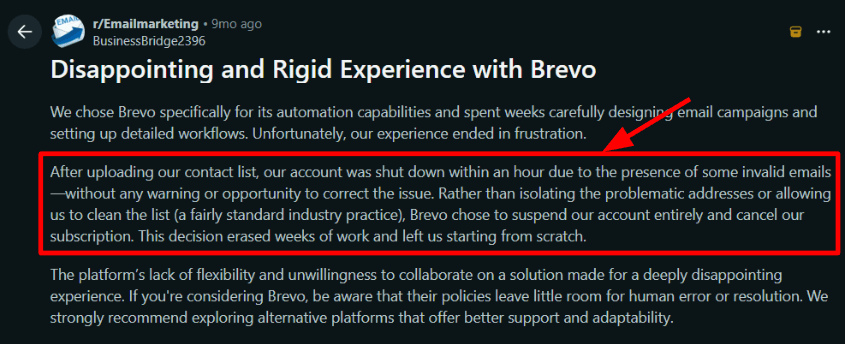
Every booking adds the person directly to your Brevo contact list, which makes follow-ups easier since everything stays in one place. I did come across a Reddit post about account shutdowns after list upload issues, so it is important to follow proper email rules and keep your contact lists clean. Since Brevo is built around CRM, you end up working within its system more closely than with some other Cal.com alternatives.
- Video options
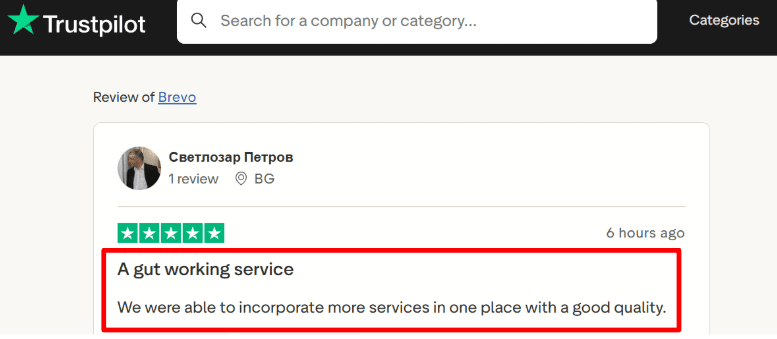
You can host meetings using Brevo’s own video tool or connect Zoom or Google Meet. You can choose this for each meeting type, which gives flexibility without adding complexity. It feels smooth during setup, and a Trustpilot review also described it as a solid all-in-one tool, which matches what I saw while testing.
- Payments via Stripe
You can collect payments during booking using Stripe. It supports simple use cases like paid calls or deposits. You can also add basic rules for cancellations or no-shows. For small consulting or coaching sessions, this setup is enough.
- Embeds and webhooks
You can add the booking page to your website as a button, popup, or a full embed. This makes it easy to use on landing pages. There are also webhook events for actions like booking, starting, or cancelling a meeting, which help with simple automation.
If you run a clinic, this guide on medical appointment scheduling software is a helpful shortlist.
Pros
- Fast setup if you already use Brevo
- Built-in video plus Zoom and Google Meet support
- Stripe payments available for paid sessions
- Easy embeds for websites and landing pages
- Webhooks available for simple automation
Cons
- May feel limited if you need deeper customization or advanced routing
- Some team features are only available in higher plans
- Round-robin meetings need to be shared separately
- A few features are still marked as coming soon
- Account rules can be strict, so list management needs care
Pricing
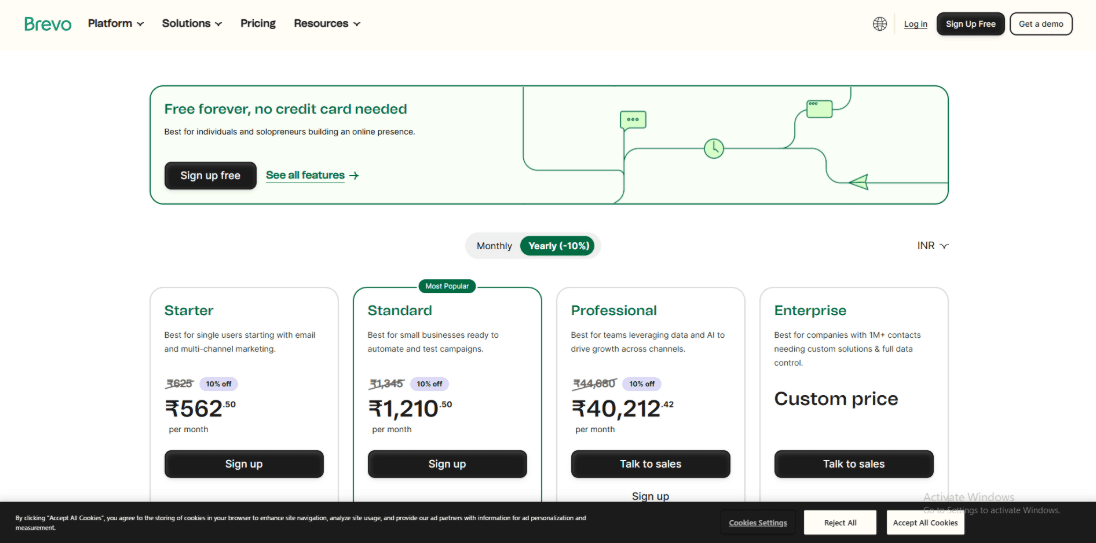
- Meetings is available for free within Brevo for basic use
- Advanced features may require higher Sales plans
- Pricing can change depending on the tools you use in Brevo
- Check full details on Breevo Meetings pricing page.
When to Choose Brevo Meetings over Cal.com
Choose Brevo Meetings if you want simple scheduling that connects directly with your CRM and email tools. It works well when your flow is book a call, meet, and follow up without extra setup. Among Cal.com alternatives, this is a good option if you prefer ease of use and already work inside the Brevo ecosystem.
Doodle
Doodle is widely used for quick group scheduling through polls. It works well when you need to find a common time without going back and forth over email. If you are exploring Cal.com alternatives, Doodle is often one of the simplest options for group coordination.
Features
- Group Polls
I tested this with a 6-person call, and it was still the fastest way to agree on a time. You create a poll, share it, and everyone picks what works for them. It is especially useful when people do not want to share their calendars. The whole process feels quick and easy to manage.
- Calendar Sync
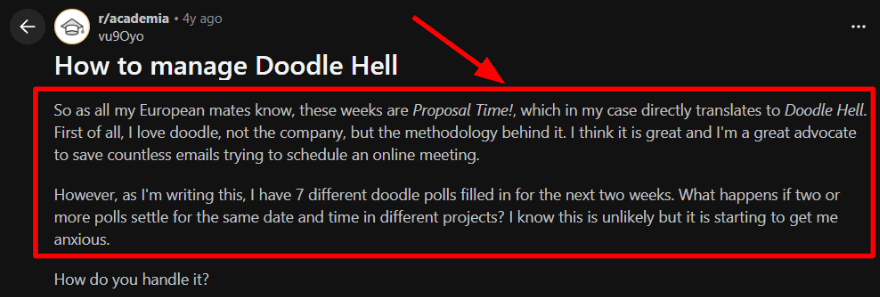
I connected Google Calendar, and it helped block obvious conflicts. That said, when you run multiple polls at the same time, you still need to keep an eye on overlaps. I saw the same issue mentioned in a Reddit thread about managing too many polls. I’ll share a screenshot below.
- Booking Page
Doodle also gives you a simple booking page for one-on-one meetings. I used it for a quick intro call and it worked fine. It took a bit of clicking to find the exact setting I needed, but once set up, it was easy to use.
- Payment Collection
You can collect payments through Stripe when someone books a session. This works well for paid consultations or deposits. The setup has a few steps, but after that, the flow runs smoothly.
- Meeting Integrations
Doodle can create meeting links with tools like Zoom and Microsoft Teams. This means you do not have to send links separately. It keeps everything in one place and saves time during scheduling.
If you want a recruiter-specific shortlist, check interview scheduling software recruiter.
Pros
- Great for group scheduling when people do not want to share their availability
- Easy to use, even for non-technical users
- Works well with common calendars and meeting tools
- Supports payments for paid bookings
- Support experience can be reliable, based on this Trustpilot review
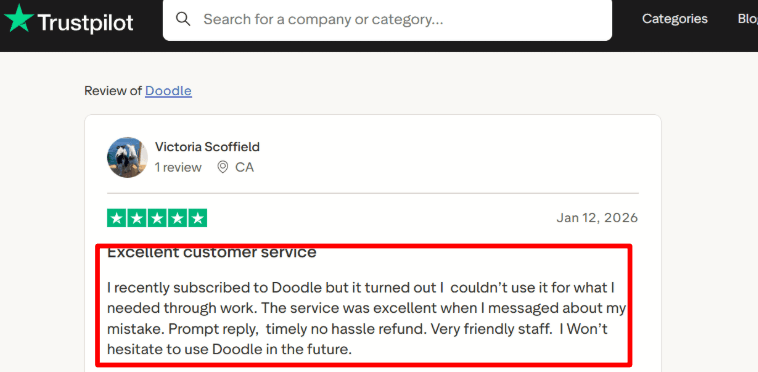
The screenshot is about a fast refund, which is a useful signal on Doodle support quality.
Cons
- Limited for advanced scheduling needs like routing or complex availability rules
- Fewer integrations compared to some Cal.com alternatives. See the official integrations list.
- Managing many polls at once can lead to accidental overlaps
- Not ideal if you need deep customization or developer features
- Team pricing can vary based on region and billing setup
Pricing
- Free plan available for basic polls and simple scheduling
- Paid plans unlock more booking controls, admin features, and payments
- Team pricing depends on billing cycle and region, so it is worth checking your exact setup
- Official pricing details live on Doodle pricing.
When to Choose Doodle
Choose Doodle when you need fast group scheduling and want people to vote on available times. It works well when availability is unclear or spread across many participants. Choose Cal.com when your workflow depends on structured scheduling, automation, or product-level integrations. If your main challenge is coordinating multiple people, Doodle is a simple and effective choice. If you are comparing tools in the space of Cal.com alternatives, it is one of the easiest to start with.
SavvyCal
SavvyCal is a scheduling tool designed to make booking meetings feel more collaborative and less one-sided. Its main differentiator is that invitees can overlay their own calendar on top of your availability, making it easier to compare schedules and select a suitable time.
Compared with Cal.com, SavvyCal is more focused on creating a polished booking experience than offering extensive open-source customization or self-hosting. It is particularly suitable for consultants, freelancers, sales professionals, recruiters, and small teams that regularly schedule external meetings.
Features
1. Calendar Overlay
SavvyCal allows invitees to place their calendar directly over the host’s available time slots.
Instead of switching between a booking page and their own calendar, invitees can immediately see where both schedules align. This reduces the effort involved in selecting a meeting time, particularly for people with busy calendars.
The feature is one of SavvyCal’s clearest differences from traditional scheduling tools.
2. Personalized Scheduling Links
Users can create personalized scheduling links for specific people or companies.
The recipient’s name can appear directly on the scheduling page, making the invitation feel more personal than a generic booking link. This can be useful for sales outreach, client onboarding, recruiting, interviews, and other situations where the booking experience should feel individually prepared.
SavvyCal also supports reusable links for regular meeting types.
3. Ranked Availability
SavvyCal lets users indicate which available times they prefer most.
You can make certain slots appear more desirable without completely blocking the other options. Invitees still have flexibility, but they are gently encouraged to choose times that work better for your schedule.
This is useful when you want to preserve availability while reducing meetings during inconvenient parts of the day.
4. Meeting Polls
SavvyCal includes meeting polls for finding a suitable time across multiple participants.
Participants can compare availability and indicate which proposed times work for them. This makes the feature useful for group meetings, interviews, project discussions, and other meetings involving several calendars.
It provides an alternative to exchanging multiple emails when no single booking link can accommodate everyone.
5. Team Scheduling
SavvyCal supports scheduling links involving multiple team members.
Teams can create collective meetings that require several people to be available, as well as distribute meetings among different hosts. This can help sales, customer success, recruiting, and consulting teams coordinate meetings without manually checking each person’s calendar.
However, businesses requiring highly advanced routing, complex workflows, or extensive administrative controls may find Cal.com more flexible.
6. Calendar and Video Conferencing Integrations
SavvyCal connects with commonly used calendar and video conferencing platforms.
Meeting availability is calculated using connected calendars, helping prevent double bookings. Video meeting details can also be added automatically when someone schedules a call.
This covers the core integrations required by most individual professionals and smaller teams.
7. Customizable Scheduling Pages
Users can adjust the appearance and information shown on their scheduling links.
This includes meeting descriptions, durations, availability, questions for invitees, and confirmation details. Personalized links also make the page feel more directly connected to the person receiving the invitation.
The customization is easier to manage than a self-hosted platform, although it does not provide the same level of technical control as Cal.com.
Pros of SavvyCal
- The calendar overlay makes it easier for invitees to compare schedules.
- Personalized links create a more thoughtful booking experience.
- Ranked availability encourages invitees to choose preferred meeting times.
- Meeting polls simplify scheduling across multiple participants.
- The interface is relatively straightforward for individuals and small teams.
- It requires less technical setup than an open-source scheduling platform.
- It works well for consultants, recruiters, sales professionals, and client-facing teams.
Cons of SavvyCal
- It is not open source and cannot be self-hosted like Cal.com.
- It offers less control for businesses that want to modify the underlying scheduling system.
- Advanced routing and highly complex team workflows may be more limited.
- It is primarily focused on meeting scheduling rather than broader appointment-based business management.
- Businesses that need extensive booking-page content, service management, or industry-specific workflows may require a different platform.
When to Choose SavvyCal Over Cal.com
Choose SavvyCal if the experience of the person booking the meeting is your main priority.
It is especially useful when you regularly send scheduling links to prospects, clients, candidates, or business partners and want those links to feel more personal. The calendar overlay and ranked availability features also make it easier to coordinate meetings without placing all the work on the invitee.
SavvyCal may be a better choice if you want a polished scheduling tool that works without technical setup, self-hosting, or extensive configuration.
Cal.com is likely to be the stronger option when open-source access, self-hosting, developer control, complex routing, or deeper customization is essential. SavvyCal is better suited to users who value simplicity, personalization, and a smoother external booking experience.
Conclusion
If you want a fast answer, the best Cal.com alternative depends on how you book and what part of the workflow matters most.
- Choose Lunacal if your priority is higher booking conversion with branded pages, payments, and packages
- Choose Calendly if you want a stable, no-friction scheduler for individuals or teams
- Choose Brevo Meetings if your booking flow is tightly connected to CRM and email automation
- Choose Doodle if your main problem is coordinating availability across multiple people
- Choose SavvyCal if you care about a smoother recipient experience and flexible scheduling links
From my evaluation, the decision usually comes down to three things: how much control you want over the booking experience, whether you need team routing or CRM workflows, and if you plan to monetize bookings through payments or packages. Tools like Lunacal and Calendly cover most business use cases, while Brevo Meetings, Doodle, and SavvyCal fit more specific workflows.
Methodology
I have worked with scheduling tools for years across solo setups and growing teams, so this evaluation is based on how these tools actually behave in day-to-day use, not just what they claim on feature pages. Every tool here was tested hands-on before being included.
How I researched the tools
- I started with each tool’s official website, pricing pages, FAQs, and help documentation to understand what they offer, where the limits are, and how things are supposed to work.
- I then reviewed user feedback on G2, Trustpilot, and Capterra to spot patterns around reliability, support, and billing. To balance that, I checked Reddit and Quora for more candid experiences and recurring issues people face after using these tools for a few weeks.
- I also looked at release notes and status pages where available, since ongoing reliability and updates matter just as much as features.
How I tested them in practice
- I tested each product using a clean Google Workspace setup, with one personal calendar and one shared team calendar to simulate real usage.
- For consistency, I created a standard 30-minute meeting and a 60-minute paid session (where supported), starting with default settings and then applying common adjustments.
- I tracked how long setup took, how many steps were involved, and whether anything felt confusing or blocked the booking flow.
What I specifically tested
- Core scheduling behavior like time zones, buffers, minimum notice, recurring availability, and booking limits.
- Team features including routing, round robin assignments, and intake forms to qualify bookings.
- Real booking scenarios such as handling calendar conflicts, reschedules, cancellations, reminders, and payment refunds where applicable.
FAQs
What is the best Cal.com alternative?
The best Cal.com alternative for client-facing booking is Lunacal.
It is rated 4.9/5 on G2 and works well when your booking page needs to do more than show available times. You can add testimonials, images, videos, intake forms, payments, packages, and team scheduling.
Calendly is a strong choice for simple scheduling at scale. Doodle is better when your main need is group polls. Brevo Meetings makes sense if your booking flow already sits inside Brevo CRM and email workflows.
Which Cal.com alternatives should I compare first?
The Cal.com alternatives I would compare first are Lunacal, Calendly, Brevo Meetings, Doodle, and SavvyCal.
Lunacal is best when the booking page needs to explain your service, collect intake details, and help more visitors book.
Calendly is best for clean booking links, team scheduling, and broad integrations.
Brevo Meetings works well if your contacts, emails, and booking follow-ups already run through Brevo.
Doodle is useful for group scheduling and meeting polls.
SavvyCal is a good fit when you want a polished link that feels easy for the person booking.
Which Cal.com alternative works best by country?
Country-specific needs can change which Cal.com alternative fits best.
For the US and Canada, check payment support, SMS or email reminder reliability, time zone handling, and unsubscribe controls.
For the UK and Australia, look at payment flows, client data handling, reminder consent, and clear booking policies.
For Germany, France, Spain, and the wider EU, GDPR compliance is a key requirement.
Also check localization details like 12-hour or 24-hour time, week start day, language support, taxes, and invoice fields.
What features matter most in a Cal.com alternative?
The most important features are reliable calendar sync, fast availability setup, reminders, payments, intake forms, and team routing.
If you run a team, test round robin, shared event types, permissions, and admin controls.
If you charge for calls or sessions, check Stripe, PayPal, deposits, coupons, refunds, and package support.
If your booking link is public on your website, LinkedIn, ads, or email signature, also check how much you can customize the booking page.
How do Calendly, SavvyCal, Cal.com, and Lunacal compare?
Calendly is the easiest choice for standard scheduling links and team booking.
SavvyCal is strong when you want a more recipient-friendly booking experience with overlay availability.
Cal.com is a good fit for builders and teams that want more control, customization, or self-hosting.
Lunacal is strongest when your booking page needs to sell the call, collect intake details, handle payments, support packages, and look more like part of your brand.
Summarize this content with AI