

Introduction
If your calendar has been doing the heavy lifting thanks to Clockwise, this is your cue to plan a switch. Clockwise has announced the product will no longer be available starting March 27, 2026: Clockwise’s shutdown update. That deadline makes the choice feel urgent if your week depends on focus time, flexible meetings, and team-wide rules. For this guide, I manually tested each alternative with real calendars and recurring meetings, then cross-checked what users report on G2, Capterra, and Reddit. I also dug into help docs, release notes, and admin and data settings to catch the edge cases people usually miss. You’ll get plenty of screenshots and direct links throughout, so you can verify everything as you read.
| Feature | Lunacal | Reclaim.ai | Motion | Calendly | Sunsama |
|---|---|---|---|---|---|
| Rating on G2 (out of 5) | 4.9 ★★★★★ | 4.8 ★★★★ | 4.2 ★★★★ | 4.7 ★★★★ | No |
| Starting Price of Paid Plans (USD) | $9 | $10 | $19 | $10 | $25 |
| Calendar Sync: Google, Outlook, Apple | Yes | Partial | Yes | Partial | Yes |
| SMS/Email Reminders | Yes | Partial | Partial | Yes | No |
| Paid meetings | Yes (Stripe, PayPal) | No | No | Yes (Stripe, PayPal) | No |
| Scheduling page Themes | Yes | Partial | Partial | Yes | No |
| Team Scheduling | Yes | Yes | Partial | Yes | No |
| Round Robin Scheduling | Yes | Yes | No | Yes | No |
| Multi-session Packages | Yes | No | No | No | No |
| Custom domain | Yes | No | No | No | No |
| GDPR | Yes | Yes | Yes | Yes | Yes |
| Best For | Not recommended for | G2 Rating | Pricing |
|---|---|---|---|
| Lunacal — booking-page conversion | Pure internal time-blocking | 4.9 ★★★★★ | Free Trial Paid Plan starts at $9/month |
| Reclaim.ai — focus time protection | Client-facing booking pages | 4.8 ★★★★ | Free Plan available Paid Plan starts at $10/month |
| Motion — task-driven daily planning | Teams needing round robin | 4.2 ★★★★ | Free Trial Paid Plan starts at $19/month |
| Sunsama — mindful daily planning | Automated team scheduling | No | Free Trial Paid Plan starts at $25/month |
Lunacal
Lunacal is a booking tool that focuses on how your scheduling page looks and feels to the person booking. Instead of sending a plain calendar link, you can share a page that explains your service, builds trust, and lets people book in the same place. I would consider it a Clockwise alternative when your goal is to turn visitors into booked meetings instead of managing your internal calendar.
Features
- Beautiful scheduling pages with rich content
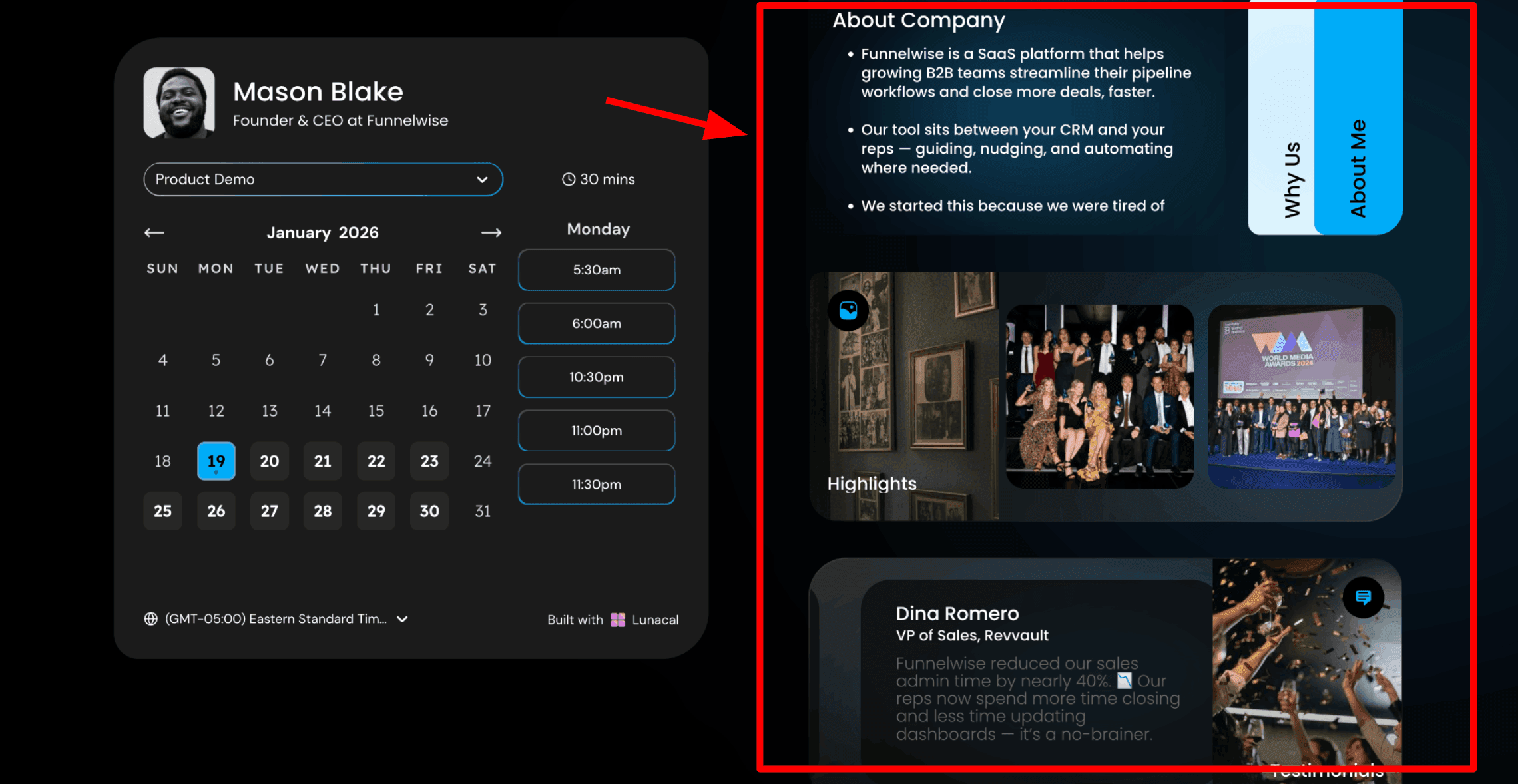
This is usually the first thing I show when someone is looking at Clockwise alternatives because it makes the difference very clear. Clockwise focuses on managing internal calendars and protecting focus time, while Lunacal focuses on what happens when someone outside your organisation books time with you. On Lunacal, the booking page includes your calendar and useful information about the session. You can explain what the meeting is about, who it is for, and what someone should expect. This extra context improves the quality of meetings. Here is a screenshot below:
- Drag and drop meeting page editor
Lunacal gives you a simple editor that lets you build your booking page by adding different content blocks. You can include text, testimonials, images, videos, documents, and forms. Everything can be updated at any time without needing technical help. This makes it easy to adjust your page as your work changes.
- External booking hours with date exceptions
You can control when people can book you. Set your available hours for each day and block specific dates when you are not available. This is useful for time off, events, or focused work days. If you are exploring Clockwise alternatives, Lunacal is well-suited for handling external bookings. For example, you can allow bookings Monday through Thursday from 10
AM to 4 PM and keep Fridays free. You can also block specific weeks, like holidays or offsite events, so your booking page updates automatically. Here is how I set up my availability: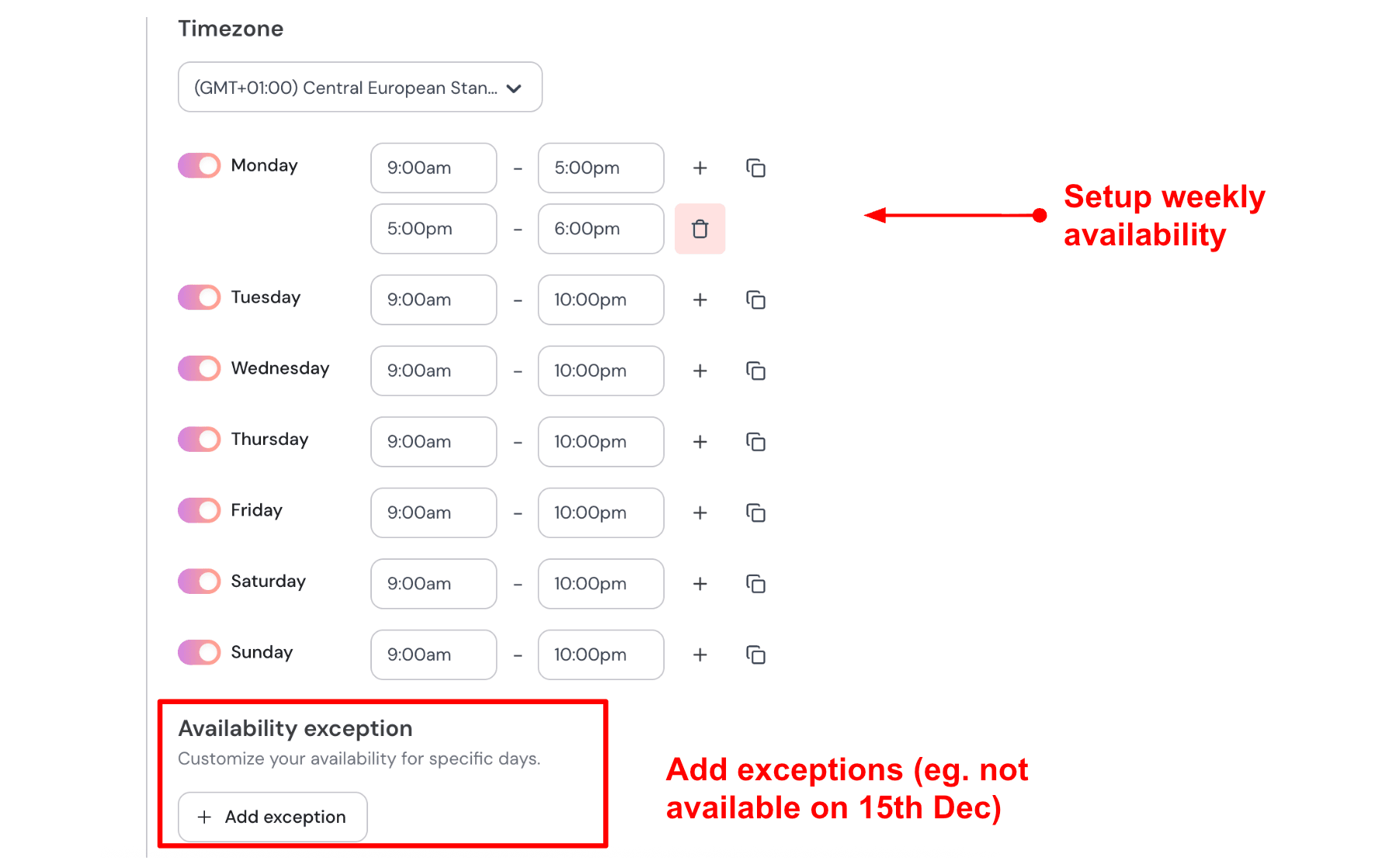
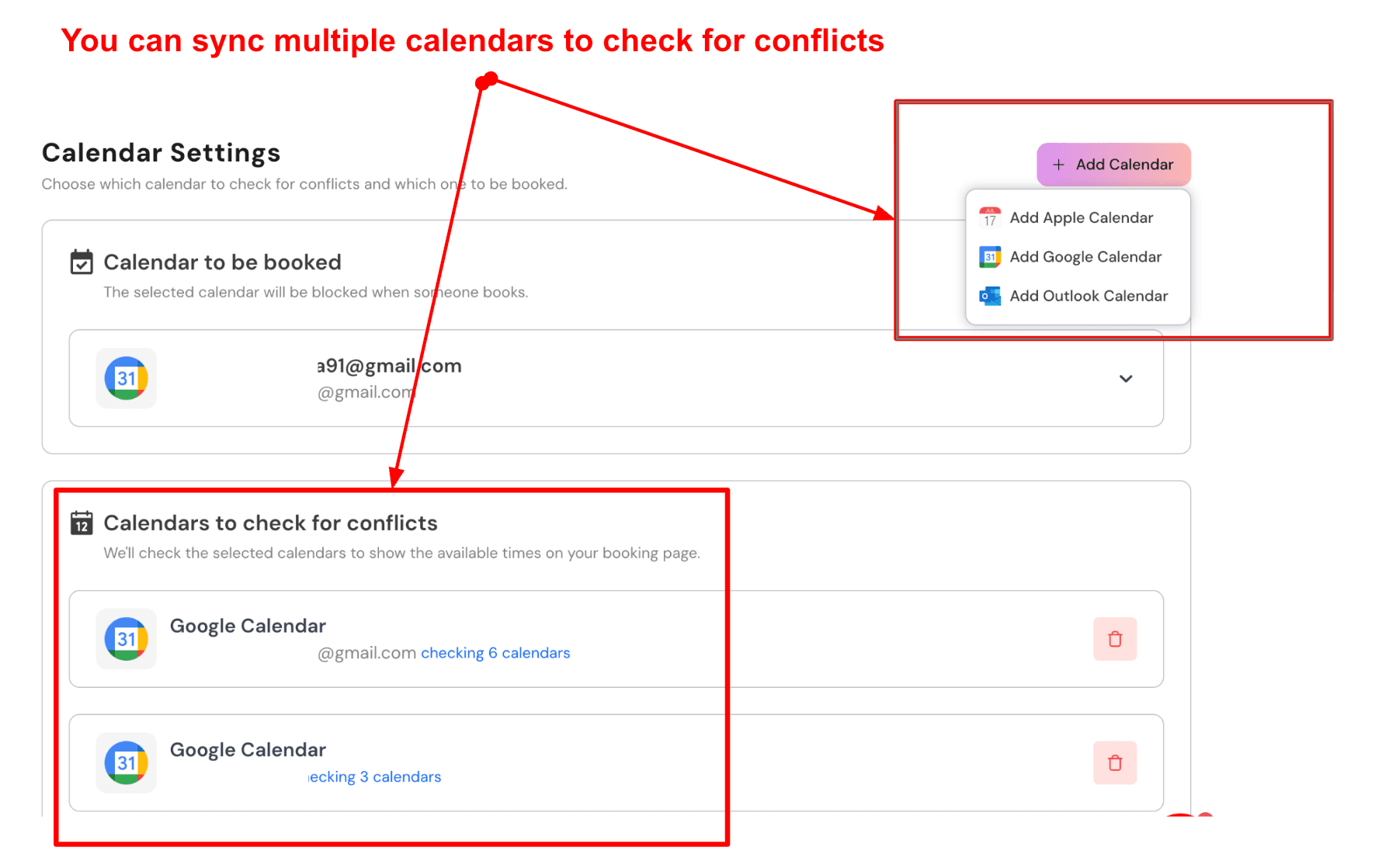
- Sync multiple calendars to prevent external booking conflicts
Lunacal can connect more than one calendar. Booked meetings go into your main calendar, while other connected calendars are checked in the background to avoid conflicts. This helps ensure that only truly available time slots are shown. Here is a screenshot of that:
- Custom pre-meeting intake questions
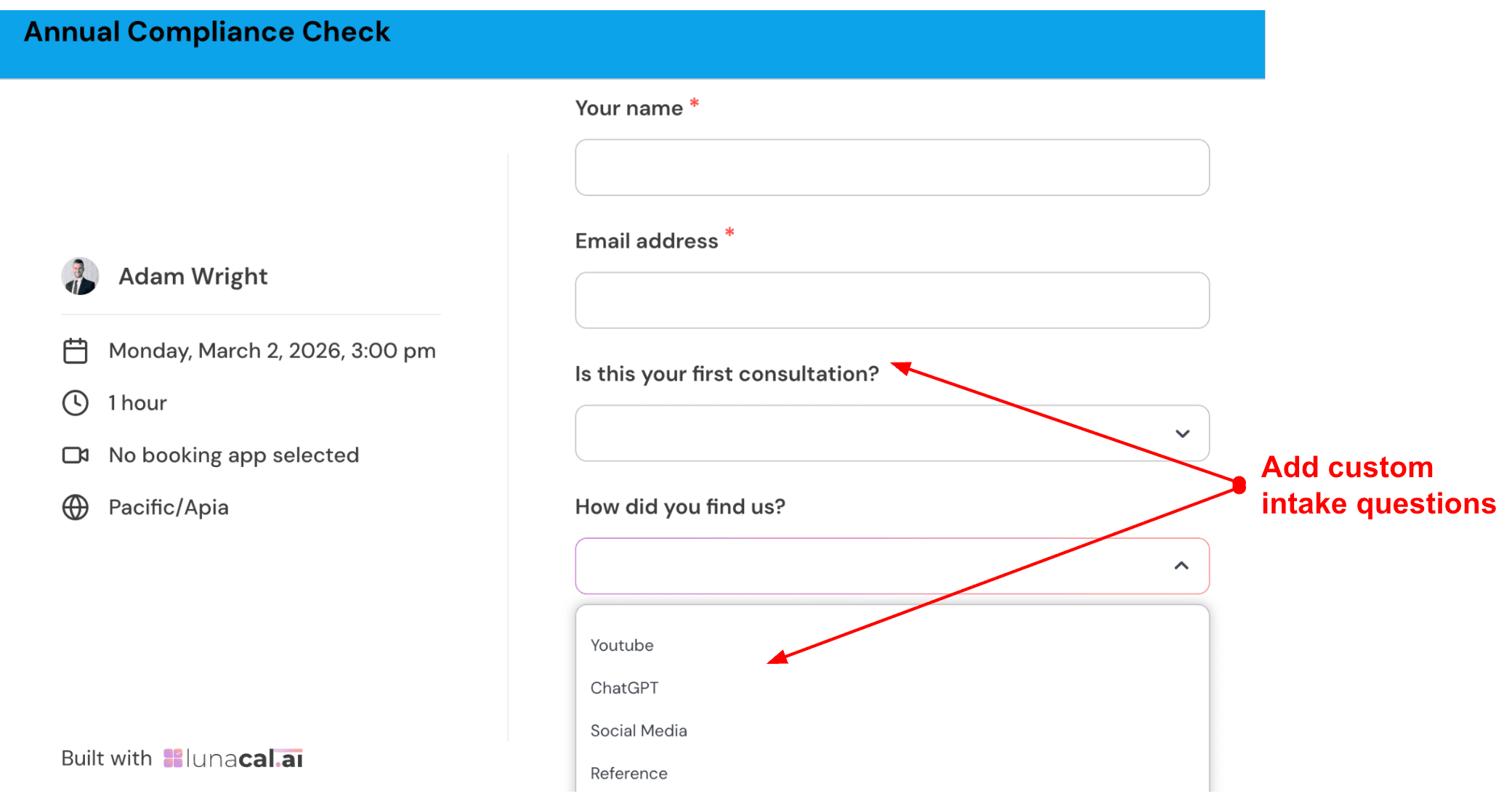
You can ask people a few questions before they book a meeting. This helps you prepare in advance and saves time during the call. Keeping it short works best. For example, for a product feedback session, you can ask what feature they use most, what they would like to improve, and how long they have been using the product. This gives you enough context to make the conversation more useful from the start. Check out the intake form I created:
- Team and round-robin external scheduling flow
Lunacal also supports team scheduling. People can choose a meeting type, pick a team member, or select the next available person. This helps distribute bookings across a team without manual coordination. It works well for handling incoming client or partner requests when multiple people are available to take calls.
Pros
- The booking experience feels smooth and easy for clients
- You can add content like testimonials, files, and details to the booking page
- Payments, packages, and reminders support paid use cases well
- Team scheduling options like round robin and collective booking are available
- Pricing is accessible for individuals and small teams
Cons
- It is not ideal if your main goal is internal calendar management or focus time planning
- Creating similar event types can take extra time
- Setup may take longer compared to very simple scheduling tools
- After importing from other tools, you may need to review durations and availability as noted in the Lunacal help doc on importing from Calendly
- Some users may want faster ways to edit multiple events at once
Pricing
- Based on the official Lunacal pricing page, plans start at $9 per user per month for Standard
- Teams plan is $15 per user per month
- Enterprise plan starts at $25 per user per month
- Annual billing reduces the overall cost
- Higher plans mainly add team features, support, and onboarding options
When to Choose Lunacal
Choose Lunacal when you want a booking page that helps people understand your offer before they book. It works well for payments, packages, team scheduling, and adding extra details to your page. Lunacal is a strong option for agencies, consultants, service businesses, recruiting teams, and sales teams that regularly book meetings with external parties.
Reclaim AI
Reclaim AI is known for turning tasks, habits, focus time, and meetings into actual blocks on your calendar. If you are exploring Clockwise alternatives, this is one of the tools that goes deeper into personal planning and protecting your week.
Features
- Task Scheduling
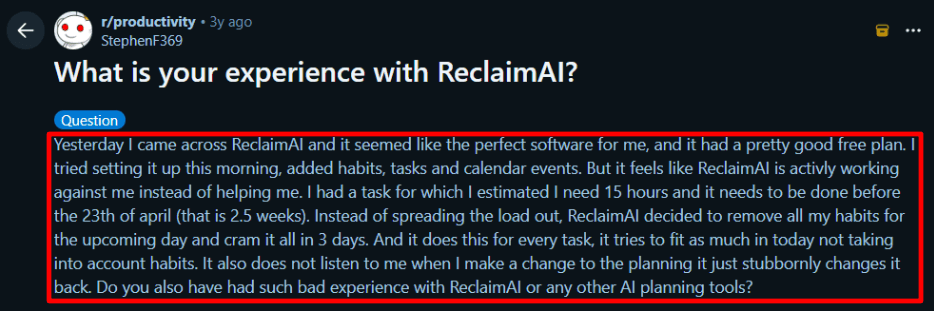
This is the first thing I noticed while testing. You add tasks with time estimates and deadlines, and Reclaim finds space for them on your calendar. It makes your work feel more real because it is not just a list anymore. I also came across a Reddit review that mentioned long tasks getting pushed into a short time window while habits moved around. I could see that happening early on before the settings are tuned properly.
- Calendar Integration
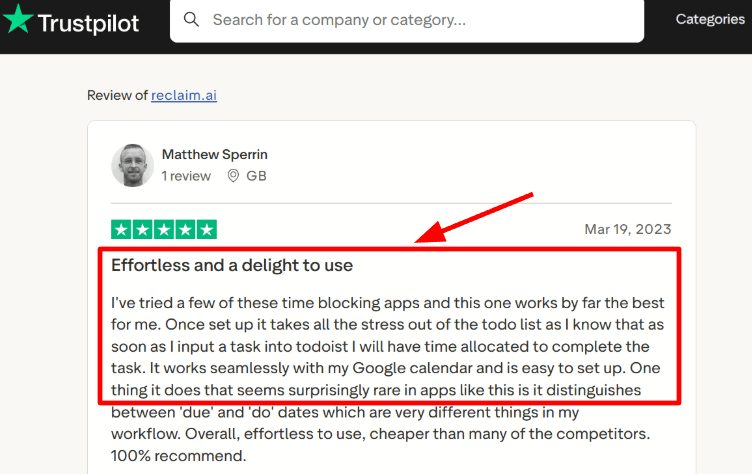
Setup with Google Calendar was smooth. Once everything synced, it became easier to understand how tasks, meetings, and habits all fit together. I also saw a Trustpilot review that mentioned how simple the setup felt and how useful the due date and do date system is. That matches what I experienced.
- Smart Meetings
Reclaim can move recurring meetings when needed instead of keeping them fixed forever. This worked well for internal calls that often need to shift. It takes a bit of setup, but once it is configured, it saves time during the week.
- Habits and Focus Time
You can block time for things like deep work, planning, breaks, or personal routines. The tool then protects that time across your week. When I added too many habits at once, the calendar started to feel crowded. After adjusting priorities and flexibility, it became easier to manage.
- Availability Links
Reclaim also lets you share booking links. The interesting part is how it creates space by adjusting lower priority blocks when needed. That makes your availability feel more flexible. One thing worth knowing is the GeekWire deal, since Dropbox acquired Reclaim. That can matter if you are comparing long term options among Clockwise alternatives.
Pros
- Brings tasks, habits, meetings, and focus time into one system
- Helps turn your calendar into a real plan for the week
- Google Calendar setup is quick and easy
- Due date and do date system is useful for planning ahead
- Smart Meetings help manage recurring calls
- Free plan is enough to test how it works
Cons
- Can feel heavy if you only want simple meeting optimization
- Tasks may sometimes cluster in ways that feel off at first
- Habits can move around more than expected before setup is refined
- Outlook users should test carefully since support came later
- Scheduling links are available but not the main focus
Pricing
- Lite plan is free with basic features and limits
- Starter costs $10 per seat per month annually or $12 monthly
- Business costs $15 per seat per month annually or $18 monthly
- Enterprise starts at $22 per seat per month annually with advanced features
When to Choose Reclaim AI
Choose Reclaim AI if you want your calendar to manage your work, not just show your meetings. It works well for people who plan their week in detail and want help deciding when tasks should happen. It is also a good option if you are looking at Clockwise alternatives and want something more focused on personal planning. Skip it if you prefer a lighter tool that only handles meeting scheduling without extra setup.
Motion
Motion is mainly known for auto planning your day by turning tasks and meetings into a working schedule. It fits people who want one place for calendar planning, task scheduling, and team work without constantly adjusting things by hand.
Features
- Calendar integration
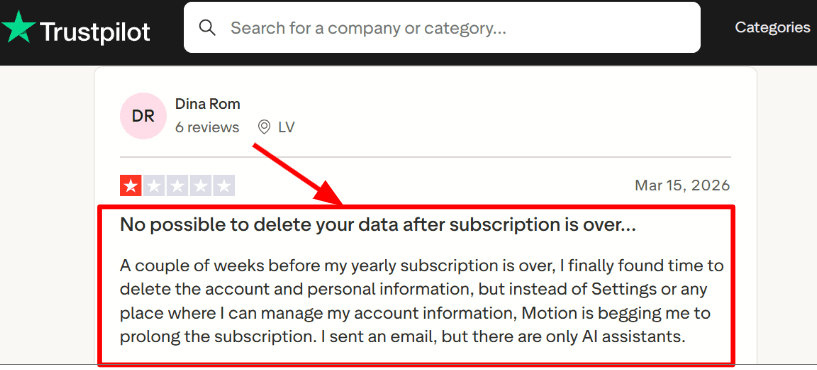
I found the calendar setup fairly smooth, especially when pulling existing meetings into one view and letting Motion plan around them. Later, when I explored account settings, I had to click around more than expected. I noticed a similar point in a Trustpilot review. I’m sharing that screenshot below.
- Auto scheduling
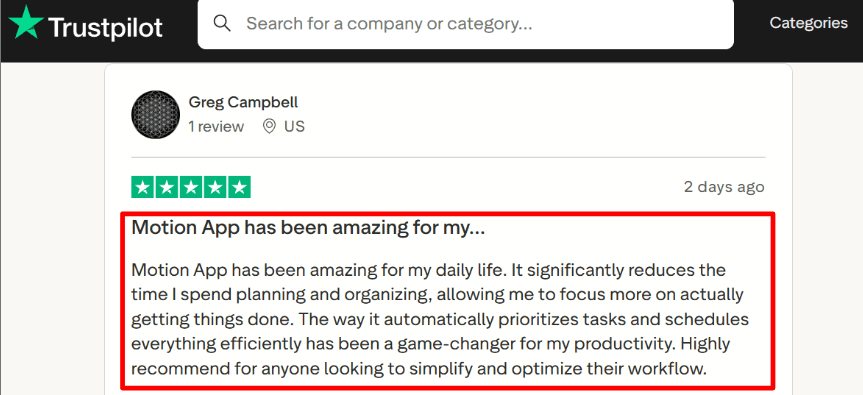
This is the main reason people try Motion. It takes your tasks, deadlines, and available time, then builds your schedule automatically. As things change, it keeps adjusting your day. In my testing, it worked well once everything was set up properly. A Trustpilot review mentioned it saved time in daily planning, and that matched what I saw while using it.
- Meeting tool integration
Motion supports Zoom, Google Meet, and Microsoft Teams. Meetings connect directly with your tasks and schedule, so everything stays in one place. I liked that notes and follow-up work sit close to the meeting, which makes it easier to stay organized after calls.
- Project planning
Motion also works as a simple project tool. You can create projects, break them into steps, and let the system adjust timelines based on your availability. It took a little time to understand how everything connects, but once it clicked, it felt reliable.
- Team capacity view
On higher plans, Motion shows team workload, delays, and timelines. This helps you see who has time and where work might slow down. It reflects how Motion is growing into a full work management tool, not just a scheduler.
Pros
- Saves planning time once tasks and deadlines are set properly
- Strong calendar sync across Google, Outlook, and iCloud
- Keeps tasks, meetings, and projects in one place
- Meeting notes and follow-ups are built in
- Team features help with workload visibility
Cons
- Can feel heavy if you only want simple scheduling
- Setup takes time before it feels smooth
- Pricing may feel high for solo users
- Mobile experience is limited compared to desktop
- Some settings take time to find
Pricing
- Starts at $19 per seat per month for Pro AI on annual billing
- Business AI plan starts at $29 per seat per month on annual billing
- Offers a 7 day free trial
- Pricing can vary based on billing and team size
When to Choose Motion
Choose Motion if you want one system to manage tasks, meetings, and projects together. It works well for founders, managers, and small teams with changing priorities. It can also be a strong option when looking at Clockwise alternatives that go beyond simple calendar adjustments. If your main need is basic scheduling or quick setup, lighter Clockwise alternatives may feel easier to start with.
Calendly
Calendly is known for simple booking links and easy meeting scheduling for both individuals and teams. It works well when you want reminders, routing, payments, and team scheduling in one place, especially if you are exploring Clockwise alternatives and need something focused on booking.
Features
- Calendar Integration
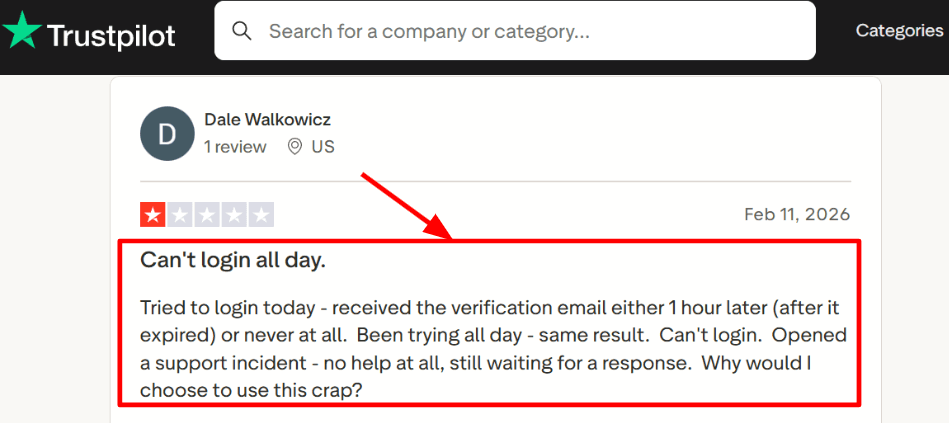
This is the first thing I set up, and it is still one of Calendly’s strongest parts. Once connected, it blocks busy times correctly and keeps the booking page clean for the person booking. I also saw a Trustpilot review where login emails were delayed or did not arrive, and I’m sharing that screenshot below because even a smooth booking flow depends on reliable access.
- Meeting Tool Integration
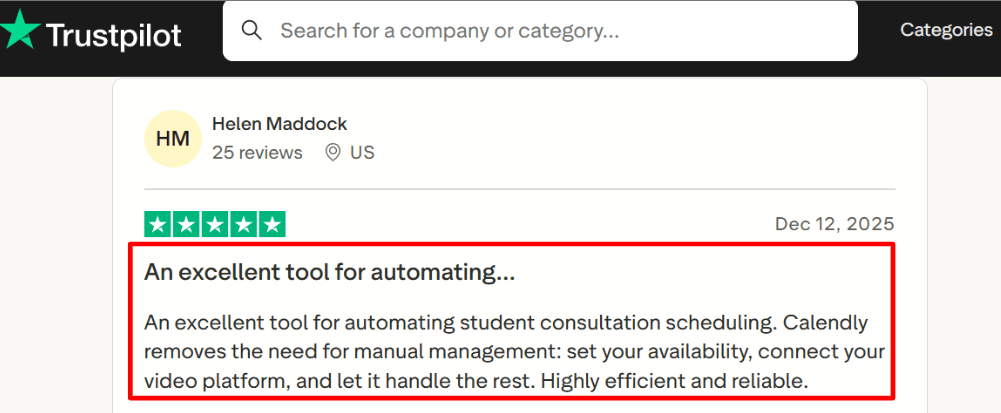
Connecting Zoom, Google Meet, or Teams is simple, and this is where the tool starts feeling useful right away. In testing, everything worked as expected once the setup was done. I could see why a Trustpilot reviewer found it helpful for student consultations after setting up availability and video links. Sharing that screenshot below as well since it reflects this use case clearly.
- Availability Rules
You can set your working hours, add buffer time between meetings, control how soon someone can book, and limit how many calls you take in a day. I liked this because it helps keep your schedule manageable. Some of the deeper settings took a bit of time to find during setup, but everything worked once configured.
- Routing Forms
Calendly can ask a few questions before booking and then send the person to the right meeting type or team member. This is useful when you have different types of calls or multiple people handling bookings, since it helps organize things early.
- Team Scheduling
It supports round robin scheduling, shared events, and team-based booking links. This makes it useful beyond solo use. A TechCrunch report mentioned a newer tool trying to compete with Calendly, which shows how widely it is used in this space.
Pros
- Easy to set up and start using for real bookings
- Strong availability controls for individuals and teams
- Routing and team scheduling features work well for different workflows
- Payments, reminders, and integrations reduce manual work
- Most people are already familiar with how Calendly works
Cons
- Not ideal if your main goal is calendar optimization in Clockwise alternatives comparisons
- Free plan becomes limited if you need more event types or calendars
- Some advanced settings take time to find during setup
- New iCloud connections are no longer supported, as the Calendly Help Center notes
- Booking page design is basic compared to some newer tools
Pricing
- Free plan includes 1 event type, 1 calendar connection, basic scheduling features, and meeting integrations
- Standard starts at $10 per seat per month on annual billing and adds more event types, reminders, workflows, payments, and integrations
- Teams starts at $16 per seat per month on annual billing
- Enterprise starts at $15,000 per year with advanced admin and security features
When to Choose Calendly
Choose Calendly if you want a simple and reliable way to manage bookings for sales calls, support, hiring, or paid sessions. It works well when you need reminders, routing, and integrations built into the booking process. It fits best when your focus is getting meetings scheduled without adding extra complexity.
Sunsama
Sunsama is known for daily planning, time blocking, and bringing work from different tools into one place. It works well if you want a calmer day, a clearer plan, and a task list that stays connected to your calendar.
Features
- Unified inbox
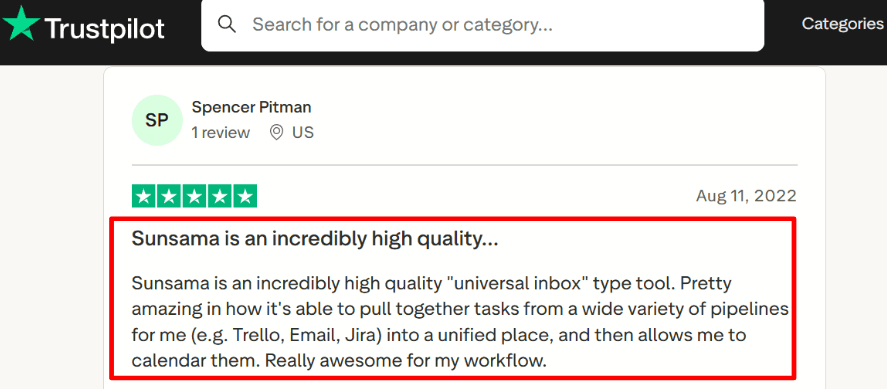
It pulls tasks and messages from tools like Trello, Jira, and email into one place, so you can plan your day without switching between apps. While testing, this was one of the first things that stood out because everything felt easier to manage in one view. I also noticed a similar experience mentioned in a Trustpilot review, and the screenshot below shows how that matches real usage.
- Calendar integration
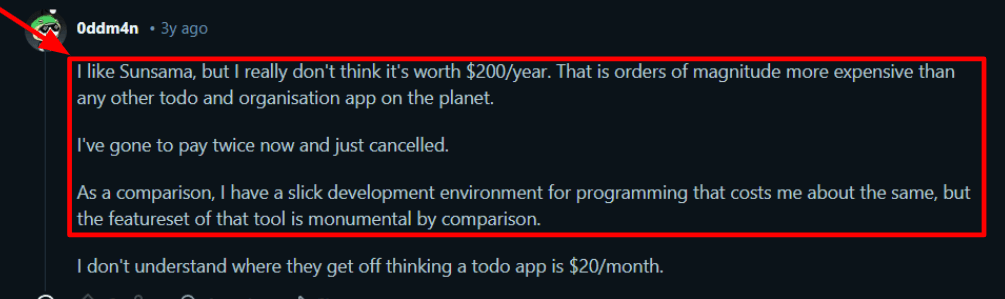
The calendar is at the center of how Sunsama works. You can pull tasks into your day and see exactly how much time your work will take. This makes it easier to plan realistically instead of overloading your schedule. When I spent more time adjusting tasks, it did feel slightly slower, which I also saw reflected in a Reddit review about pricing and expectations. The screenshot below gives more context.
- Daily planning ritual
Sunsama encourages you to plan your day step by step. You review tasks, decide what matters most, and estimate how long each task will take. While using it, this added structure helped on busy days and made it easier to stay focused without feeling lost in a long list.
- Timeboxing workflow
You can assign specific time slots to tasks directly on your calendar. Moving tasks around is simple, and it is easy to adjust plans during the day. This approach is one of the reasons Sunsama often shows up in discussions around Clockwise alternatives, especially for people who prefer manual control over their schedule.
- Weekly review
The weekly review gives you a clear look at what you completed and how your time was spent. It helps you reflect and plan better for the next week. This felt more useful for personal productivity and individual planning than for teams focused on meeting coordination.
Pros
- Gives clear structure to daily planning
- Pulls tasks from multiple tools into one place
- Timeboxing is simple and flexible
- Weekly review adds useful insight into your work
- Helps you see when your day is getting too full
Cons
- Not ideal if your main goal is team-wide calendar automation, which is where many Clockwise alternatives focus more
- Pricing can feel high for solo users
- Takes time to build a habit around daily planning
- Not designed as a full project management tool
- Some integrations depend on your setup
Pricing
- 14-day free trial available
- $25 per user per month on monthly billing
- $20 per user per month on annual billing
- Pricing is per user, so costs increase with team size
- Value depends on how consistently you use daily planning
When to Choose Sunsama
Choose Sunsama if you want a planning system built around your calendar and prefer to organize your day with intention. It works well for solo users, managers, and knowledge workers who want more clarity in their daily work. It is less suited for teams looking mainly for automated meeting coordination and scheduling control.
| Best For | G2 Rating | Pricing | Standout features | Red Flag | Payments | Team routing (round robin) | Classes/Packages |
|---|---|---|---|---|---|---|---|
| Lunacal — booking-page conversion | 4.9 ★★★★★ | Free Trial Paid Plan starts at $9/month | • Rich booking page content blocks • Packages, payments, and round robin | Team features rise on higher plans | Yes | Yes | Yes |
| Reclaim.ai — focus time protection | 4.8 ★★★★ | Free Plan available Paid Plan starts at $10/month | • AI focus time auto-defense • Smart scheduling links for teams | Weak fit for polished client booking | No | Yes | No |
| Motion — task-driven daily planning | 4.2 ★★★★ | Free Trial Paid Plan starts at $19/month | • AI auto-plans tasks and meetings • Custom booking pages and links | Expensive if you mainly need scheduling | No | No | No |
| Sunsama — mindful daily planning | No | Free Trial Paid Plan starts at $25/month | • Daily planning with calm workflow • Timeboxing across connected calendars | Not built for external scheduling flows | No | No | No |
Summarize this content with AI