

Introduction
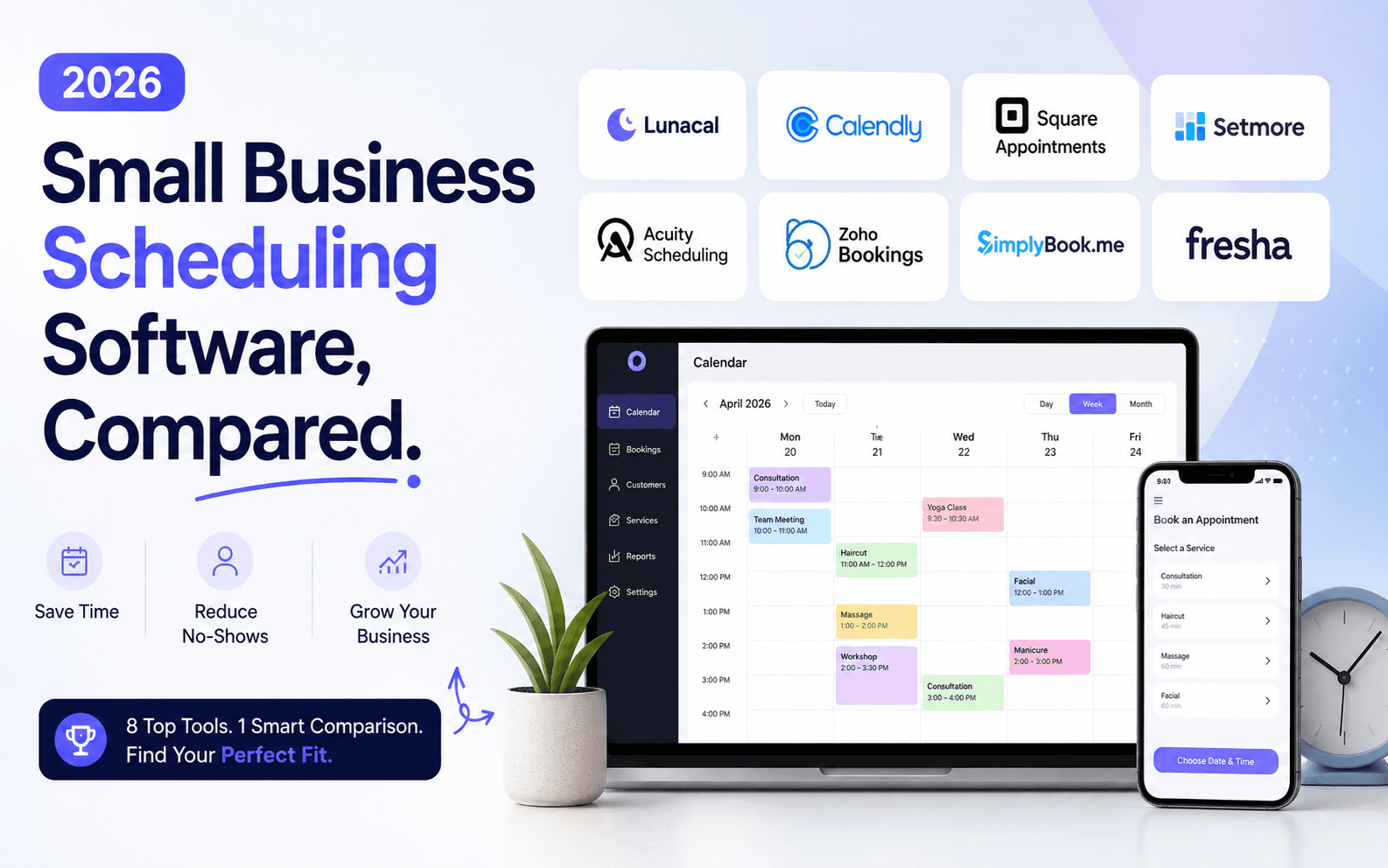
We compared popular scheduling tools used by small businesses, Lunacal, Calendly, Square Appointments, Setmore, and Acuity Scheduling, and scored each one on critical factors such as booking page experience, calendar sync, payment collection, team scheduling, automated reminders, integrations, and how easily it embeds into your existing website. Since this analysis was done in 2026, it's much fresher than more other blogs I've seen out there.
We also checked practical regional considerations, including time-zone handling, language support and privacy controls. Reviews from established software-review platforms were cross-referenced with our hands-on testing.
Our initial list was longer and also included scheduling software like Appointy, Tidycal, SimplyBook.me, and YouCanBookMe, but they didn't make the final cut.
Best Scheduling Software for Small Businesses: Quick Comparison
| Business type | Best-fit software | Why it stands out |
|---|---|---|
| Growing small business | Lunacal | Strong mix of branded booking pages, payments, reminders, team scheduling, and room to grow |
| Solo operator needing simple booking | Calendly | Fast to launch, familiar booking flow, and easy for customers to self-serve |
| Square-based local business | Square Appointments | Best fit when appointments, staff calendars, and payments already run through Square |
| Budget-focused small team | Setmore | Low starting price and free plan make it easy to adopt without much friction |
| Service business selling sessions | Acuity Scheduling | Better fit for intake forms, paid appointments, and multi-session offers |
Detailed Reviews of Scheduling Software for Small Businesses
| Feature | Lunacal | Calendly | Square Appointments | Setmore | Acuity Scheduling |
|---|---|---|---|---|---|
| G2 rating | 4.9/5 | 4.7/5 | 4.6/5 | 4.5/5 | 4.6/5 |
| Starting price | $9 | $10 | $49 | $5 | $16 |
| Best for | Branded high-conversion booking pages | Simple self-serve scheduling | Square-based local service teams | Budget-friendly small teams | Service businesses selling sessions |
| Calendar sync | Yes | Partial | Partial | Partial | Yes |
| SMS and email reminders | Yes | Yes | Yes | Yes | Yes |
| Paid meetings | Yes | Yes | Yes | Yes | Yes |
| Scheduling page themes | Yes | Partial | Yes | Yes | Yes |
| Team scheduling | Yes | Yes | Yes | Yes | Yes |
| Round robin | Yes | Yes | No | No | No |
| Multi-session packages | Yes | Partial | Yes | No | Yes |
| Custom domain | Yes | No | Partial | Partial | No |
| GDPR | Yes | Yes | Yes | Yes | Partial |
| Standout edge | Branding plus routing | Fast simple setup | Square ecosystem fit | Low-cost entry | Intake plus packages |
| Main trade-off | Smaller ecosystem | Weaker branding depth | Less suited for routing-heavy teams | Limited advanced workflows | Not built for team distribution |
Individual software deep-dive
Lunacal
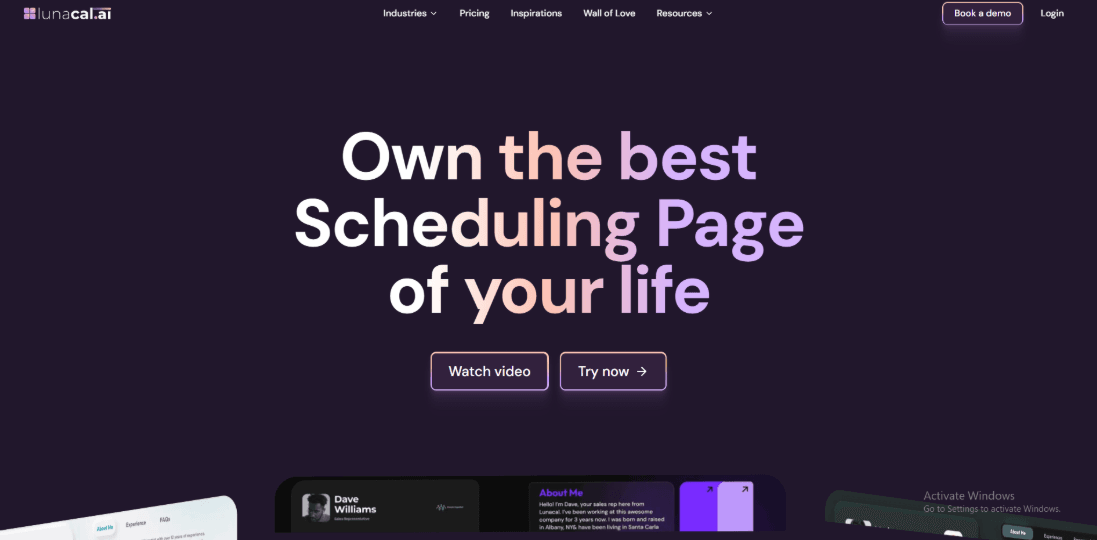
Lunacal is appointment booking software that helps businesses turn visitors into confirmed bookings by using rich, content-driven booking pages, built-in payments, reminders, and simple scheduling workflows. It is also rated 4.9/5 on G2, which places it among the top-rated tools in this category.
Features
- Beautiful scheduling pages with rich content
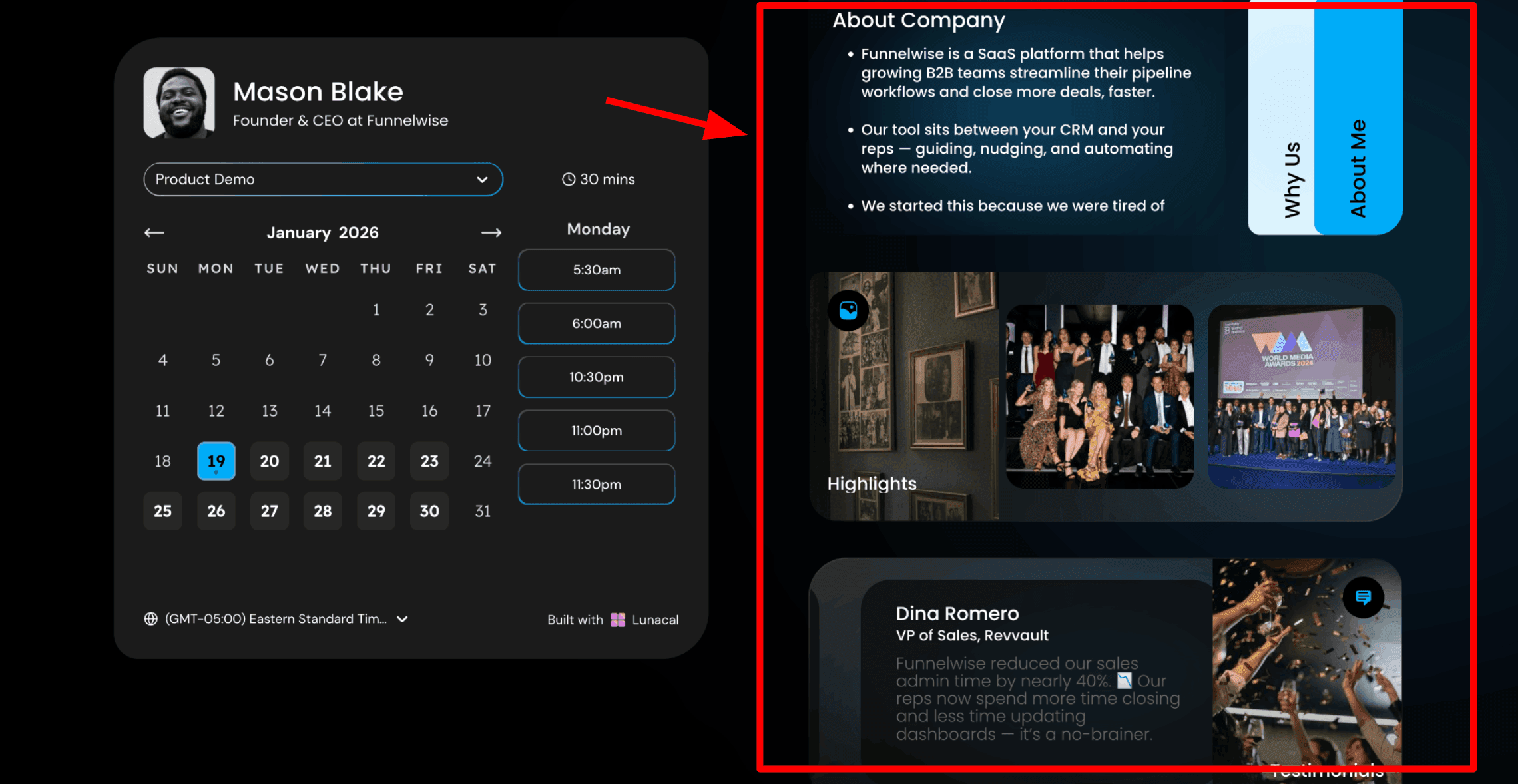
This is usually the first thing I show small business owners because it stands out immediately. Your booking page can include details about your business, your services, and your past work while the customer is picking a time. For small businesses, this plays a big role in building trust. You are helping someone understand who you are and what you offer before they book. A simple example is adding a short about section, a few photos of completed work, and one real customer review so people feel more comfortable choosing you. Here is a screenshot below:
- Drag and drop booking page editor
You build the page using a simple editor where you can add text, photos, videos, testimonials, and forms. You do not need a developer or outside help. Most small business owners can set this up in a few hours and update it anytime. This makes it easy to keep your page current. For example, a car detailing business can list packages, show before and after photos, and add a couple of customer reviews so new customers know what to expect.
- Business hours with date exceptions
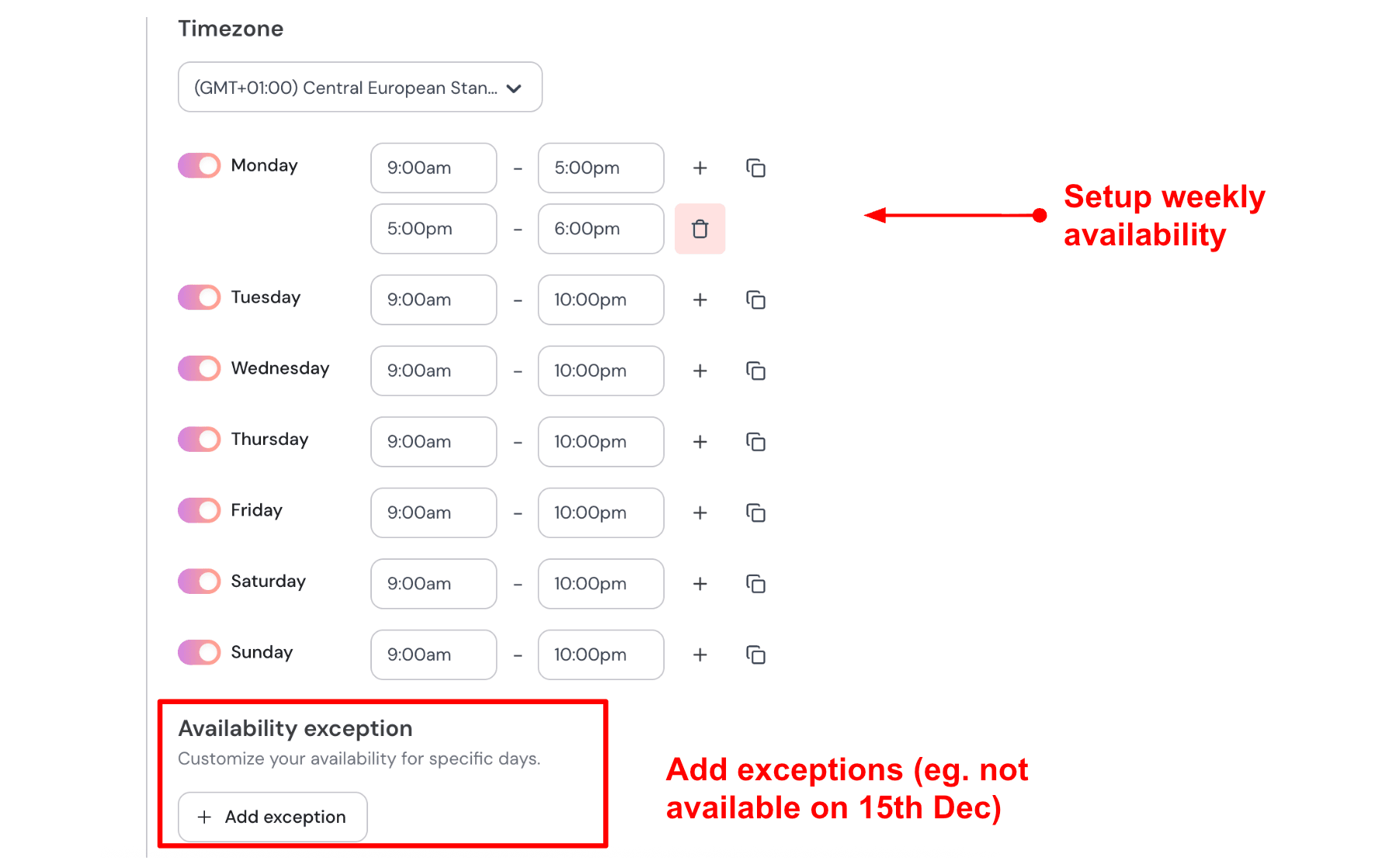
You can set your working hours once and also block specific dates when you are not available. This keeps your calendar accurate without needing constant updates. It helps a lot when your booking link is shared across places like Google or social media. For example, you can set your weekly schedule and then block out holidays or personal days, and the calendar updates automatically so customers only see real availability. Here is how I set up my availability:
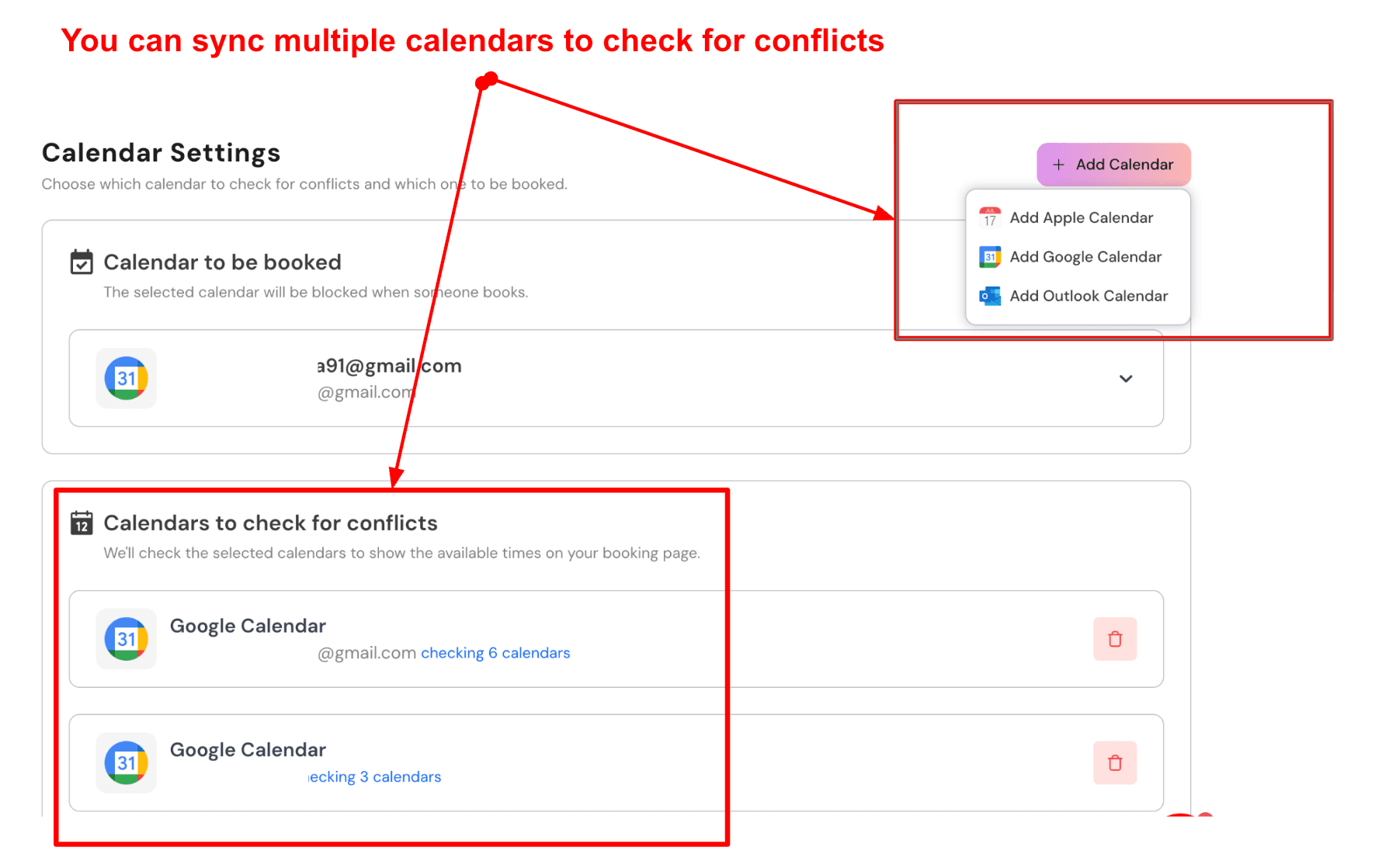
- Sync multiple calendars to avoid double bookings
Lunacal lets you connect more than one calendar. Confirmed bookings go into one calendar, while others are checked in the background to avoid conflicts. This works well for small business owners who manage both personal and work schedules. For example, if you have a personal appointment in another calendar, that time will not appear as available for customers. Here is a screenshot of that:
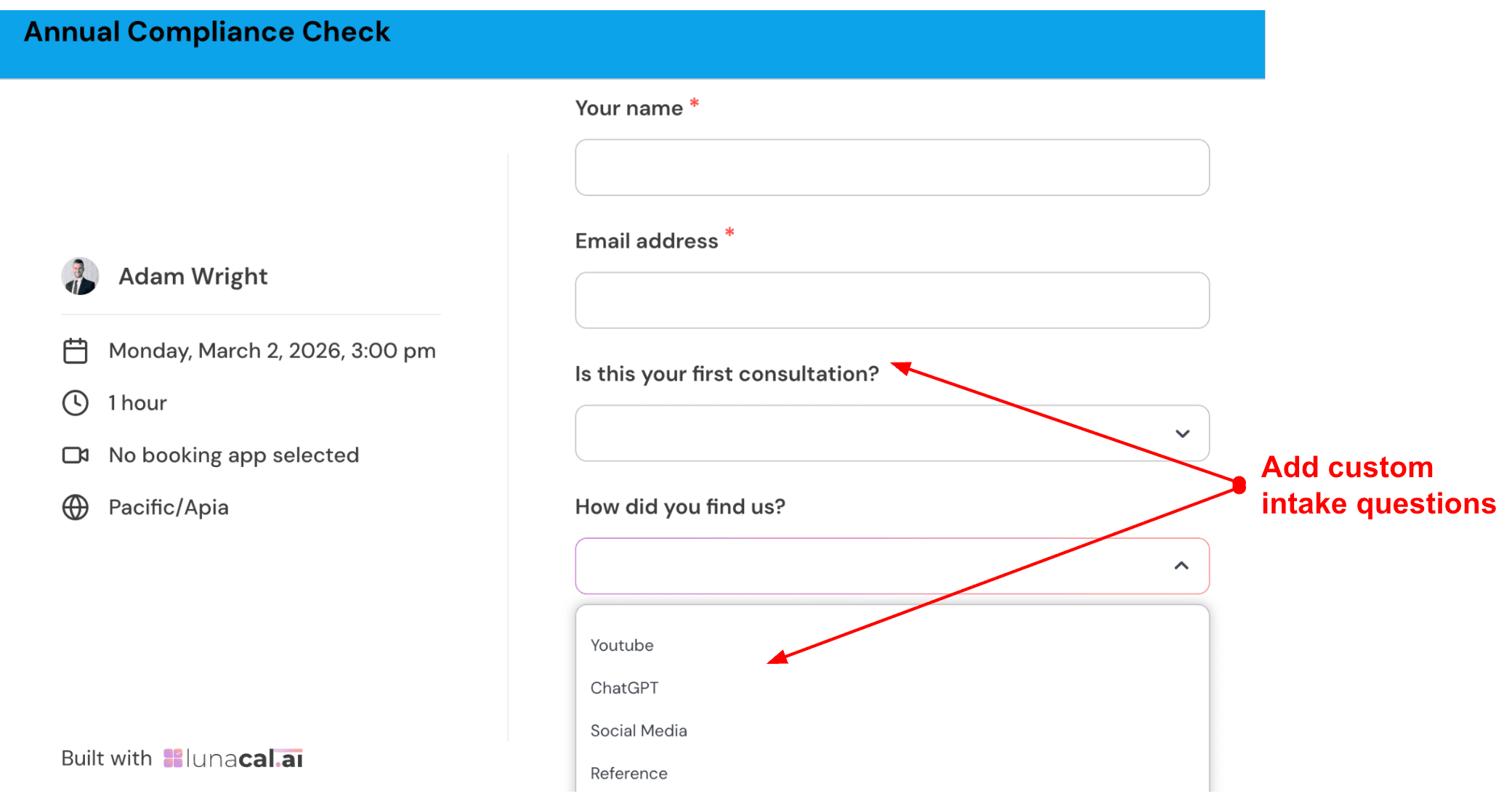
- Custom pre-booking questions
You can add a few simple questions before someone confirms a booking. This helps you get the information you need without extra calls or messages. Keeping it short works best. For example, a cleaning service might ask about property type, number of rooms, and any special requests so they can prepare in advance. Check out the intake form I created:
- Multi-service scheduling flow in Lunacal
Customers can choose a service, then pick a team member, and then select a time. You can also allow them to choose any available staff member to get the earliest slot. This becomes important as your business grows. It keeps everything organized without manual coordination. For example, a business with multiple services can let customers choose what they need and who they want to book with in one smooth flow.
Pros
- The booking page helps explain the service clearly before someone books
- Payments, coupons, and packages support paid sessions easily
- Team features like round robin and shared pages are useful as you grow
- Integrations like webhooks and CRM connections help fit into existing workflows
- Time zone and language support work well for clients in different regions
Cons
- It can feel like more setup than needed if you only want a simple booking link
- Creating similar event types takes extra time due to no duplication option
- The interface has more options to manage when handling teams or multiple services
- The Lunacal import help doc suggests reviewing key settings after import
- Some smaller teams may not use advanced features like routing or workspaces
Pricing
- Based on Lunacal official pricing, plans start at $9 per user per month for Standard
- Teams plan costs $15 per user per month and includes team scheduling features
- Enterprise plan starts at $25 per user per month with added support and integrations
- Annual billing can reduce the total cost
When to Choose Lunacal
Choose Lunacal when the booking page itself needs to help convert, payments or packages are part of the flow, or multiple people need routing and shared control.
Choose a simpler scheduling tool when you only need solo scheduling, internal meetings or a fast setup with minimal page customization.
Calendly
Calendly is widely known for making appointment booking easy for both the person sending the link and the person picking a time. It works well for a small business that wants a familiar scheduler, dependable calendar syncing, and fewer back-and-forth emails. It fits naturally into the way many people already think about scheduling software for small businesses, where simplicity and reliability matter most.
Features
- Availability Rules
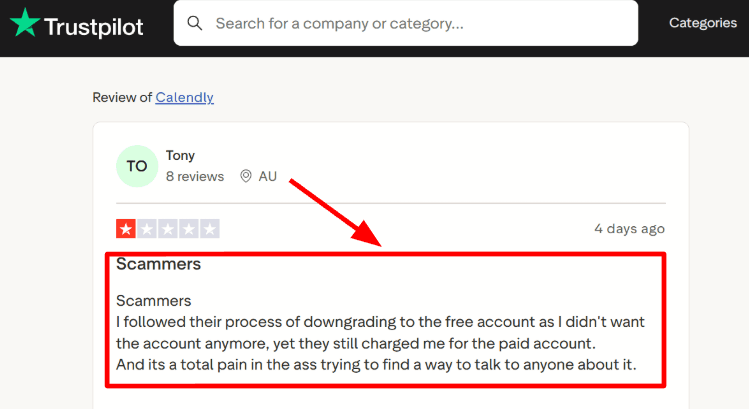
This was one of the first things I tested. I could set working hours, add buffers, limit how many meetings happen in a day, and keep personal calendar conflicts out of the way. For a small business, that matters because one messy afternoon can throw off the whole week. I could also see why a Trustpilot reviewer said it worked well for student consultations once availability was set and the video tool was connected. I’m sharing that screenshot below too because that part matched what I saw in testing.
- Meeting Tool Integration
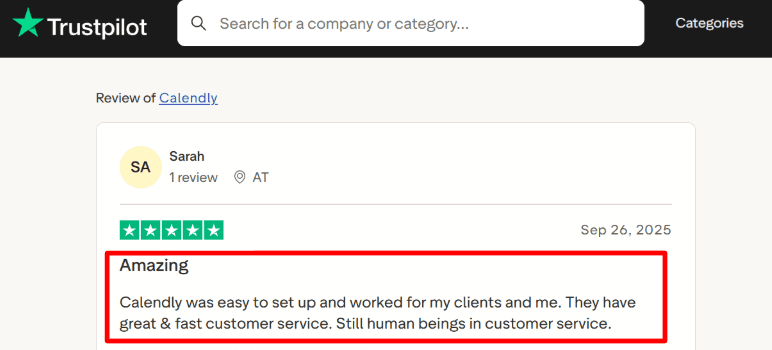
Calendly can create meeting links through Zoom, Google Meet, and Microsoft Teams as people book. That removes one more manual step and keeps confirmation emails cleaner. One place where I would still pause is account access. I came across a Trustpilot review mentioning late or missing verification emails, and I’m including that screenshot below because this kind of issue can slow things down when the calendar is part of daily operations.
- Calendar Integration
It connects with Google, Outlook, Office 365, and Exchange so booked time gets blocked properly and double-booking risk stays lower. While testing, this felt like the part Calendly has spent years getting right. For a small business owner handling client calls, internal meetings, and personal blocks, this is the feature that keeps the tool useful after setup day. It is one of the reasons Calendly is often considered among reliable scheduling software for small businesses.
- Team Scheduling
Calendly goes beyond one-person booking links. It supports round robin, collective meetings, and routing for teams, which is useful when leads or service requests need to reach the right person fast. That broader role is easy to miss if you only look at the homepage. Even TechCrunch framed Calendly as the benchmark newer scheduling products are trying to take on.
- Payment Collection
Paid plans can collect money through Stripe and PayPal at the time of booking. I tested this as a service-business use case and it makes sense for consults, coaching calls, workshops, and paid intro sessions. It also helps filter out low-intent bookings. One thing I noticed is that you have to pay attention to plan limits and setup details before assuming every payment flow will work the way you want.
Pros
- It is very easy to understand at the basic level
- You can get a booking flow live quickly without much effort
- Calendar syncing felt dependable during setup and test bookings
- Team features like round robin and routing support business growth
- Meeting reminders and follow-ups help reduce missed appointments
- Payments, embeds, and integrations make it useful for everyday small business use
Cons
- The booking page feels simple and may not explain much to the person booking
- The free plan is limited, so many useful features need a paid plan
- Deeper admin and routing settings take a bit more time to understand
- Apple-first users should check Calendly help for iCloud connection details
- Per-seat pricing can increase costs as your team grows
Pricing
- Free plan available with one event type and one calendar
- Standard starts at $10 per seat per month billed yearly
- Teams starts at $16 per seat per month billed yearly
- Enterprise starts at $15,000 per year for larger organizations
When to Choose Calendly
Choose Calendly if your small business wants a familiar scheduler that is easy to roll out, handles calendar syncing well, and lets you add reminders, payments, and team booking over time. It works especially well if your business already uses Zoom, Google Meet, or Microsoft tools. It continues to be a strong option in the broader space of scheduling software for small businesses.
Square Appointments
Square Appointments is best known for helping small service businesses handle bookings and payments in one place. If you already use Square for payments, it feels like a natural extension for managing appointments without adding more tools. As a scheduling software for small businesses, it focuses on keeping things simple and connected.
Features
- Payment integration
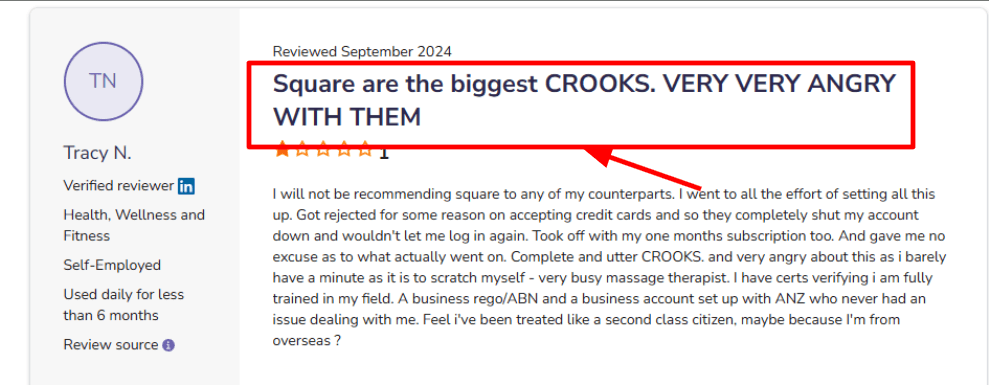
Setup was quick after linking my Square account and creating a few services. Payments happen during the booking process, which is one of the main reasons people choose it. In testing, I could see how cancellation and no-show policies help reduce last minute drop-offs. I also came across a rough Software Advice review where a therapist mentioned their card acceptance was rejected and access was cut off, and I’m sharing that screenshot below.
- Availability rules
You can set working hours, breaks, and buffer time so your schedule stays realistic. It works well for everyday service routines. I did take a bit of time to find where a couple of settings were located, since the layout felt slightly different from what I expected.
- Customer booking site
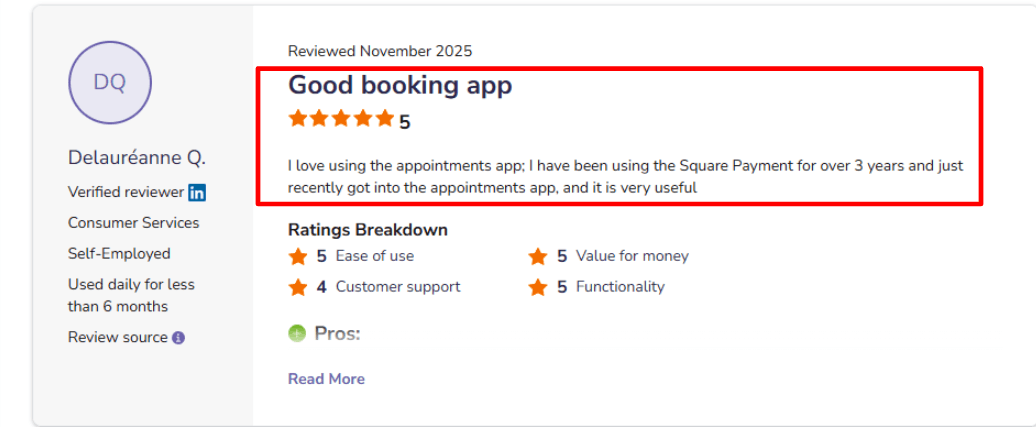
Square gives you a booking page that you can share with clients. They can choose a service, pick a time, and confirm on their own. A Software Advice user mentioned it felt very useful after already using Square Payments for years, which matched my experience during setup. I’ll add that screenshot below so readers can check it themselves.
- Reminders and no-show controls
Automatic confirmations and reminders help cut down manual follow-ups. You can connect these with your cancellation policies so clients know what to expect. For many small businesses, this quietly helps protect revenue over time.
- Reporting and scheduling ops
You get a calendar view to manage daily bookings along with basic reports. If you want a forward view, Square has mentioned a Future Bookings report in its product updates, which helps when planning staff schedules ahead.
Pros
- If you already use Square, setup feels familiar and quick, which reduces switching between tools during the day
- Online booking page is simple for customers
- Built-in reminders reduce manual follow-ups
- Waitlist and no-show policies help manage capacity
- Good starting point for solo users with a free plan
Cons
- If you only need basic scheduling without payments, this can feel heavier than needed for a scheduling software for small businesses
- Some advanced features are only available on paid plans
- Mobile and web experience can feel slightly inconsistent in some cases
- Some users report account and card acceptance issues, including one Software Advice review mentioned above.
- Limited flexibility for complex setups like managing multiple rooms per booking
Pricing
- Free plan available for solo professionals with basic needs
- Plus plan is usually around $49 per month for teams and added features
- Premium plan is designed for larger or more complex setups
- Costs can increase as you add staff or need more features
- Always check the latest details on Square’s pricing page before deciding
When to Choose Square Appointments
Choose it if you run a service business and want booking and payments in one system. It works well for teams that need a shared calendar and simple client booking. As a scheduling software for small businesses, it fits businesses that already use Square and want to keep everything in one place. It may not be the best fit if you need advanced resource scheduling or prefer to keep scheduling separate from your payment system.
Setmore
Setmore is known for its strong free plan and a simple booking page. It works well when you want customers to book on their own, get reminders, and pay if needed without spending too much time on setup. For many people, it fits as a practical scheduling software for small businesses.
Features
- Booking Page
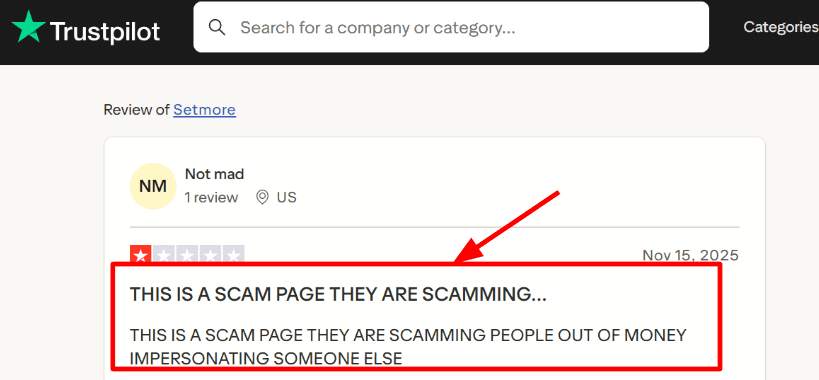
I set up a service list, added durations, and had a live booking link ready quickly. It works well for small businesses that want fewer calls and fewer back and forth emails. One thing I noticed while testing is you may want to add clear branding and a short note on your page to avoid confusion. I also saw a harsh Trustpilot review claiming it felt like a scam page, and I am sharing a screenshot of that below so you can judge the context.
- Availability Rules
You can set working hours, breaks, buffer time, and days off so the calendar only shows bookable slots. This works well for real schedules, especially when your day is not fixed. I did run into a small issue where a setting did not save the first time, so it is worth double checking everything before you share your booking link.
- Calendar Sync
On paid plans, you get two way calendar sync so bookings and blocked times stay updated on both sides. If you already use Google Calendar or Outlook daily, this helps reduce double bookings. Setmore also supports Reserve with Google and is available in more than 80 countries, which is easy to miss if you only look at pricing. Setmore also supports Reserve with Google, helping customers book through Google Search and Maps
- Payment Integrations
You can connect payment tools like Stripe, Square, PayPal, and LawPay, then collect payment during booking for services that need deposits or full payment. This helps filter serious bookings and reduces last minute cancellations. If you sell sessions, it is worth testing the full flow once, including refunds and rescheduling.
- Team Scheduling
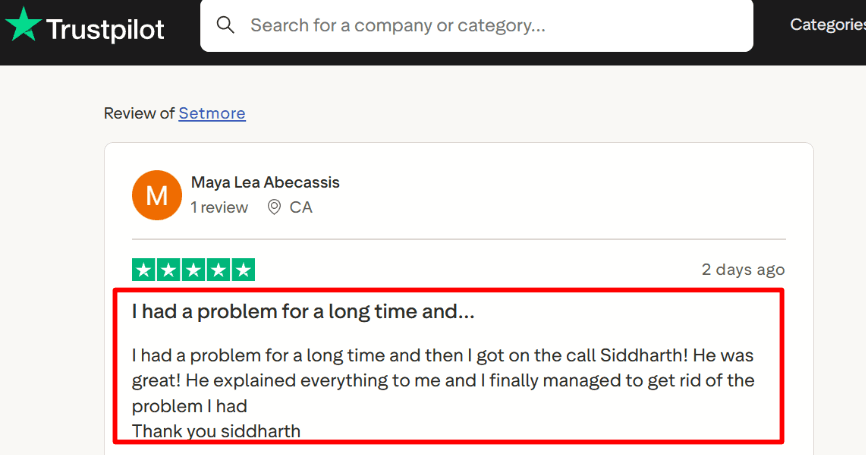
You can add staff, assign services, and let customers choose a specific person or go with the first available option. This works well for small teams with shared services and different working hours. I also saw a Trustpilot review where a user mentioned support helped fix a time zone issue, and I am including the screenshot below so you can see how they described it.
Pros
- The free plan is useful for basic appointment booking and you can start without paying
- Setup is simple and the booking flow is easy for customers
- Unlimited users on the Pro plan can support growing teams
- Payment integrations support deposits and paid sessions
- Reserve with Google helps with local bookings from search and maps
Cons
- If you need deeper sales workflows, reporting, or CRM features, it may feel limited compared to more advanced tools
- Some users report calendar sync and timezone issues, so testing your setup is important
- SMS reminders are only available on paid plans
- For healthcare use, you may need their separate healthcare offering
- API access and advanced customization are tied to Pro, API access and advanced customization are not included in every plan.
Pricing
- Free plan is $0 and includes booking page, email confirmations, and payment support
- Free plan supports up to 4 users and has a monthly appointment cap
- Pro is $12 per user per month on monthly billing
- Pro is $5 per user per month on annual billing
- Pro includes SMS reminders, recurring bookings, and two way calendar sync
- Live Receptionist add on starts from $99 per month for US based use
When to Choose Setmore
Choose Setmore if you run a small service business and want a simple booking link, clear availability rules, reminders, and optional payments. It also works well if you want multiple staff members managed in one system without a complex setup. If your business depends on advanced workflows, heavy customization, or strict compliance needs, you may want to look at other scheduling software for small businesses that offer deeper features.
Acuity Scheduling
Acuity Scheduling is known for a smooth booking experience that works well for service businesses. It fits when you want scheduling, payments, and client details handled in one place. It is often considered a practical scheduling software for small businesses that need structure without a complex setup.
Features
- Booking Page
I set up a public booking page in a few minutes and it was easy to place on a website. Clients can book, reschedule, or cancel based on the rules you choose, which helps reduce back and forth emails.
- Support Workflow
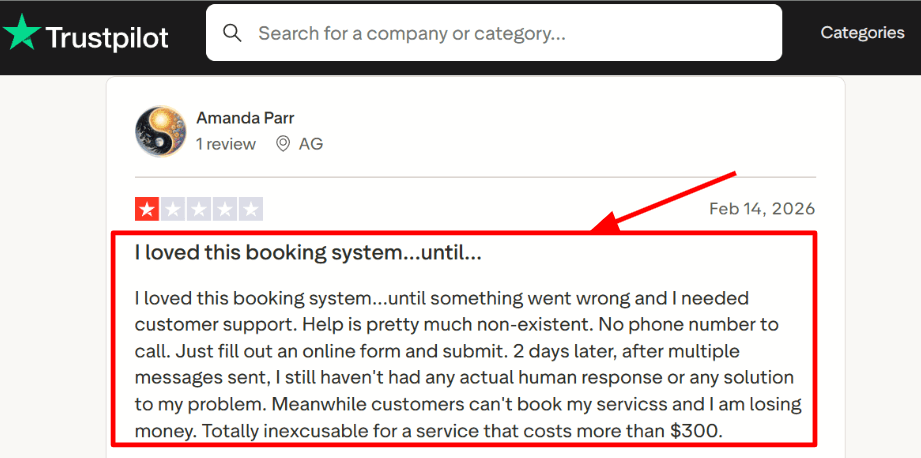
When I tested a small setup issue, I kept looking for live help and ended up using a form. I noticed the same concern in a Trustpilot review, and the screenshot below shows that experience.
- Calendar Sync
It connects with Google Calendar, Outlook, and iCloud so your availability updates automatically. During testing, it handled conflicts well when I tried to book the same time twice.
- Payment Collection
You can accept payments through Stripe, Square, or PayPal. You can charge the full amount or take a deposit during booking, which helps reduce no shows and makes the process feel more solid.
- Client Controls
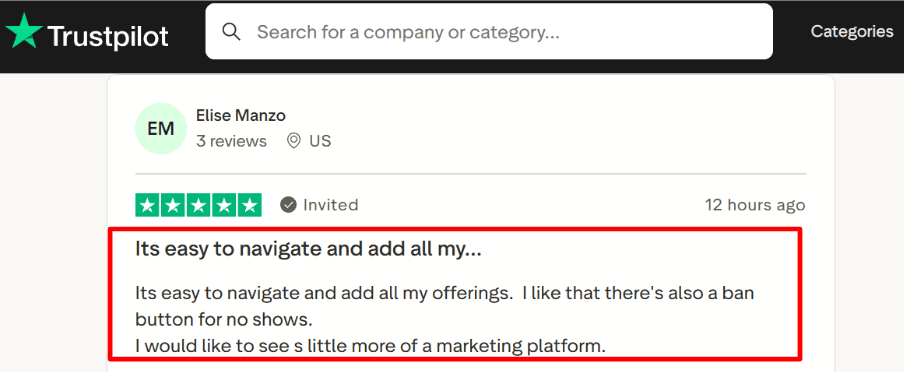
You can add intake forms, store client details, and block repeat no shows if needed. A Trustpilot reviewer mentioned it was easy to add services and liked the option to block certain users. The screenshot below reflects that feedback.
Pros
- Reliable booking flow for small teams with links and embeds that are quick to go live
- Calendar sync works well for everyday scheduling
- Payments and deposits help reduce drop offs during booking
- Intake forms keep client information organized before sessions
- Works well for recurring services using packages and subscriptions
Cons
- No free plan, which can feel limiting at the start
- Support can feel slow when issues come up during work hours
- SMS reminders have country limits based on the Acuity help page on SMS reminder availability varies by country.
- Costs can increase as you add more staff calendars
- You may still need separate tools for marketing needs
Pricing
- 7 day free trial available
- Starter plan around 20 per month
- Standard plan around 34 per month
- Premium plan around 61 per month
- Annual billing usually lowers the monthly cost
- Enterprise pricing is custom
- SMS reminders are mostly included in higher plans
When to Choose Acuity Scheduling
Choose it if you run a service business and want a booking page clients can use easily. Choose it if you want scheduling, payments, and deposits in one flow. Choose it if intake forms are important for your sessions. Skip it if you need a free plan for a longer time. Skip it if your team depends on fast live support. Acuity works well as scheduling software for small businesses that want a reliable system without spending too much time setting things up.
Conclusion
From testing and comparing these tools in real scenarios, the choice becomes clear once you focus on how your business actually books and manages appointments.
- Lunacal is the strongest fit if your booking page needs to convert visitors into customers while handling payments, packages, and team routing in one flow
- Calendly works best when you want a fast, reliable scheduling link with minimal setup and familiar UX
- Square Appointments makes the most sense if your payments, POS, and scheduling already run on Square
- Setmore is a practical choice for small teams that want a free or low-cost system with basic booking and reminders
- Acuity Scheduling fits service businesses that rely on structured bookings, intake forms, and multi-session packages
If your workflow depends on conversion, payments, and multi-service flows, Lunacal stands out. If you care more about speed and simplicity, Calendly is the safer pick. For in-person service businesses tied to payments, Square Appointments is the most aligned.
Methodology
How we selected the best software for small businesses.
Several weeks were spent researching and hands-on testing scheduling tools built for small businesses. The goal was straightforward — find tools that are practical, affordable and easy to use without any technical support.
Sources
- Official websites, help documentation and FAQ sections were reviewed for each tool. Trials were taken to verify what each platform actually delivers beyond its marketing page.
- Review platforms like G2, Trustpilot and Capterra were studied to understand long-term user ratings and recurring complaints from paying customers.
- Communities on Reddit and Quora provided unfiltered feedback from real users — including day-to-day frustrations that rarely appear in formal reviews.
Test Setup
- Each tool was evaluated under a small business setup with fewer than 10 team members across different roles and working schedules.
- Free trials and free plans were used wherever available. For tools that required a paid subscription to access core features, those plans were tested to assess full functionality.
Common Scenarios We Tested
- Creating and managing client appointments across multiple staff members and availability windows.
- Setting up automated reminders and handling last-minute cancellations or reschedules without manual effort.
- Checking mobile usability and how well each tool connects with calendars, payment systems and other everyday business apps.
FAQs
What is the best scheduling software for small businesses?
The best scheduling software options for small businesses include Lunacal, Calendly, Square Appointments, Setmore and Acuity Scheduling.
Does scheduling software work differently depending on where your business is located?
Yes, location matters more than most people realize. Here are a few things to keep in mind:
- US and Canada: Look for tools with SMS reminders and Stripe or PayPal payment support, which clients expect
- UK and Australia: Check time zone handling carefully, especially for remote or hybrid service businesses
- EU (including German, French, and Spanish markets): GDPR compliance is non-negotiable. Make sure your tool handles data consent properly and stores data within approved regions
- Multi-language support becomes critical if your client base speaks French, Spanish, or German
What features should you actually look for in scheduling software for a small business?
Good scheduling software for small businesses should have reliable calendar integrations, automated reminders, and intake forms so you stop chasing clients for basic info. Payment collection before appointments is a big one. Round-robin scheduling helps if you have a small team sharing bookings.
What tools and apps does Lunacal connect with?
Lunacal integrates with Google Calendar, Outlook, Apple Calendar, Google Meet, Microsoft Teams, FaceTime, and SMS reminders. It also connects with payment tools like Stripe and PayPal, and CRMs including HubSpot and Pipedrive, covering most of what a small business actually uses day to day.
Summarize this content with AI


