

Introduction
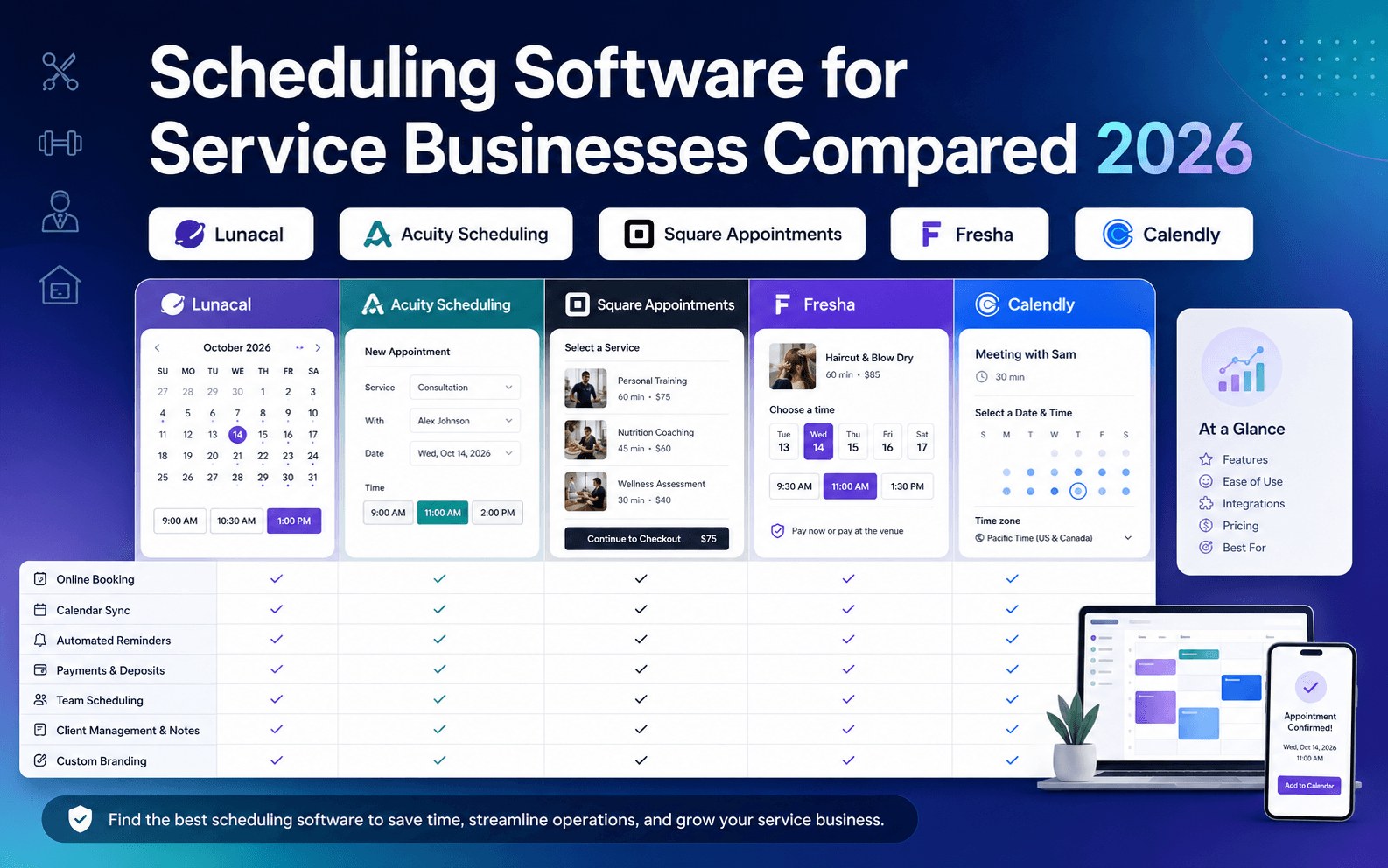
The best scheduling software for services businesses include include Acuity Scheduling, Lunacal, Calendly, Fresha and Square Appointments, depending on the use-case.
While most scheduling apps may appear to be identical on the surface level, they all differ in the following aspects: booking page, calendar reliability, payment methods, and team scheduling. According to a 2026 Zoho survey, 41% of SMBs struggle with back-and-forth scheduling, 29% experience increased no-show rates, and 29% encounter double booking issues.
All tools in this article were personally tested and compared to the claims made by their creators. This includes compliance with GDPR for UK businesses, German companies, and others from other EU states which follow more strict requirements regarding personal data protection. This also concerns the limitations for payments and messaging in India, Australia, and Southeast Asia where Stripe, PayPal, or SMS services are unavailable.
The comparison below is based on both personal tests and official documentation as well as typical complaints in public user reviews. For those who select a scheduling software or app for a service-based workflow, this guide will make sure that you won't fall into the trap of an incomplete solution.
Best Scheduling Software for Service Businesses
The value of scheduling software technology is evident even in home service providers. A survey carried out by Harris Williams in the first quarter of 2026 involving over 1,000 U.S. consumers reported that about 66% of them find advanced technology extremely or very important. Let's have a quick look at this comparison table:
Quick fit by different types of service businesses
| Business Type | Best Tool | Why it fits |
|---|---|---|
| Solo service provider | Acuity Scheduling | Simple setup, packages, payments in one flow |
| Small team services | Lunacal | Strong booking pages, team routing, payments |
| POS-driven local business | Square Appointments | Built-in payments, checkout, staff scheduling |
| Salon or spa | Fresha | Marketplace discovery, repeat bookings, POS |
| Consultants and calls | Calendly | Clean scheduling links, routing, time zones |
| Multi-service booking | Lunacal | Flexible flows, multi-service, team availability |
Feature and pricing comparison
| Feature | Lunacal | Calendly | Square Appointments | Acuity Scheduling | Fresha |
|---|---|---|---|---|---|
| G2 Rating | 4.9 | 4.7 | 4.6 | 4.6 | 4.2 |
| Starting Price | $9 | $10 | $49 | $16 | $14.95 |
| Calendar Sync | Google, Outlook, Apple | Google, Outlook | Google, Outlook, Apple | Google, Outlook, Apple | |
| Payments | Yes | Yes | Yes | Yes | Yes |
| Scheduling Page | Advanced | Basic | Standard | Standard | Limited |
| Team Scheduling | Yes | Yes | Yes | Yes | Yes |
| Round Robin | Yes | Yes | No | Yes | No |
| Packages | Yes | Partial | Yes | Yes | Yes |
| Custom Domain | Yes | No | Partial | Partial | No |
| POS Integration | No | No | Yes | No | Yes |
| Marketplace | No | No | No | No | Yes |
Deep-dive into individual booking tools
Lunacal
Lunacal is mostly known for richer booking pages and team-friendly scheduling for service businesses. Compared with generic scheduling software for service businesses, it offers more flexibility for payments, proof, routing, and localized booking in a single flow.
Features
- Beautiful scheduling pages with rich content
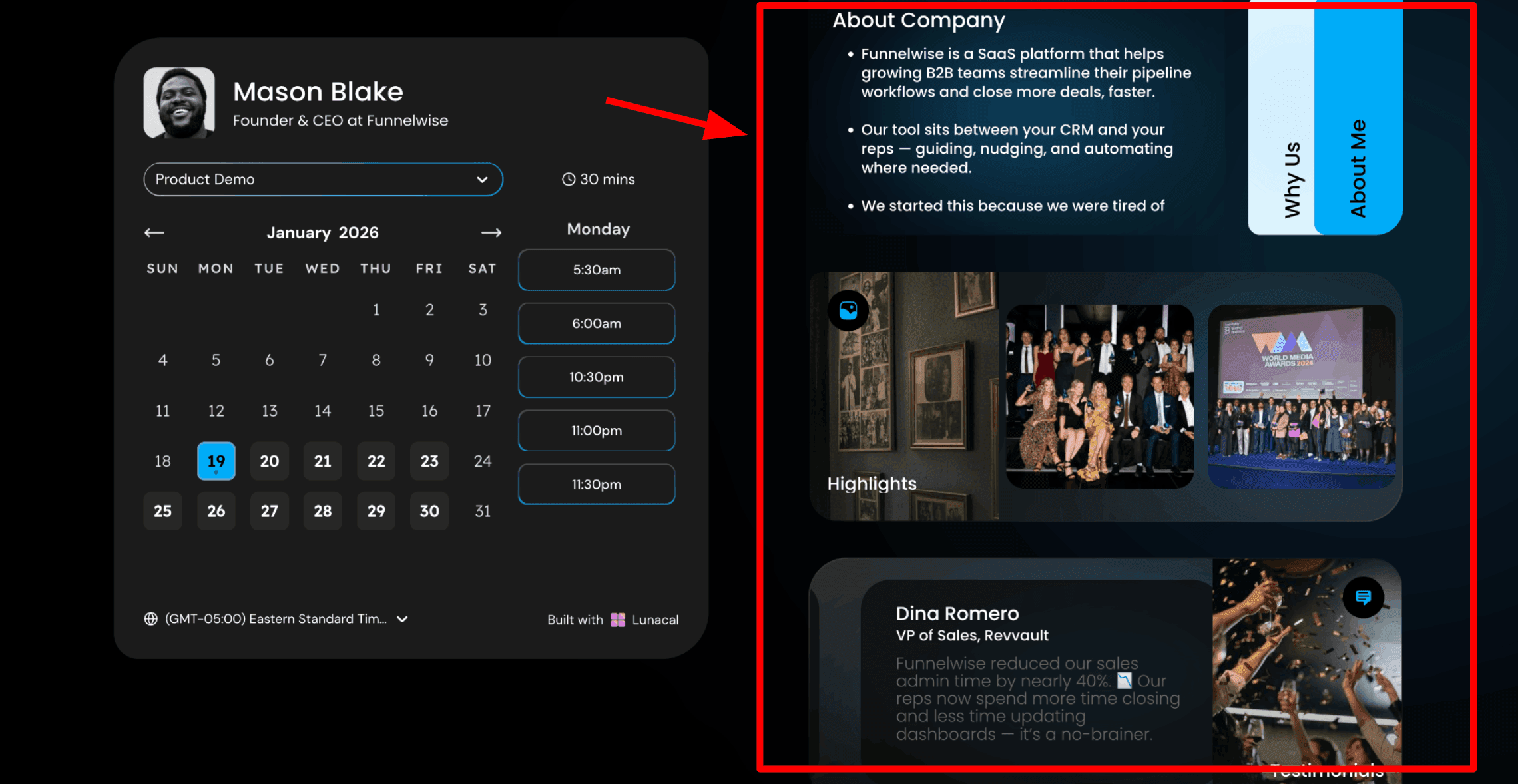
This is usually the first thing I point out because it directly improves how clients perceive your business. This is because booking frictions can affect conversion rates significantly. As reported by the 2026 Self-Care Client Report of Boulevard, conducted on over 2,000 customers from the U.S., 67% of Generation Z shoppers abandoned a salon or spa due to difficulty in booking their appointment. In Lunacal, the booking page includes space for content alongside the calendar, so potential clients can learn about your service, team, and past work before selecting a time. For service businesses, this page often becomes the first real interaction someone has with your brand. Adding a short About section, a few highlights with real job photos, and one strong customer review gives people enough confidence to move forward without hesitation. This approach works especially well compared to most generic scheduling software for service business tools, where the page feels empty and transactional. Here is a screenshot below:
- Drag and drop service booking page editor
This is where everything gets built. Lunacal provides a simple editor that lets you add blocks such as text, testimonials, images, videos, service lists, pricing, and intake forms without needing technical help. For service businesses, this matters because updates happen often. You might introduce a new service, adjust pricing, or highlight recent work. Being able to make those changes yourself keeps things efficient. A mobile car detailing page, for example, can include package details, a couple of reviews tied to those packages, and a before-and-after gallery so clients can quickly understand the quality of work before booking.
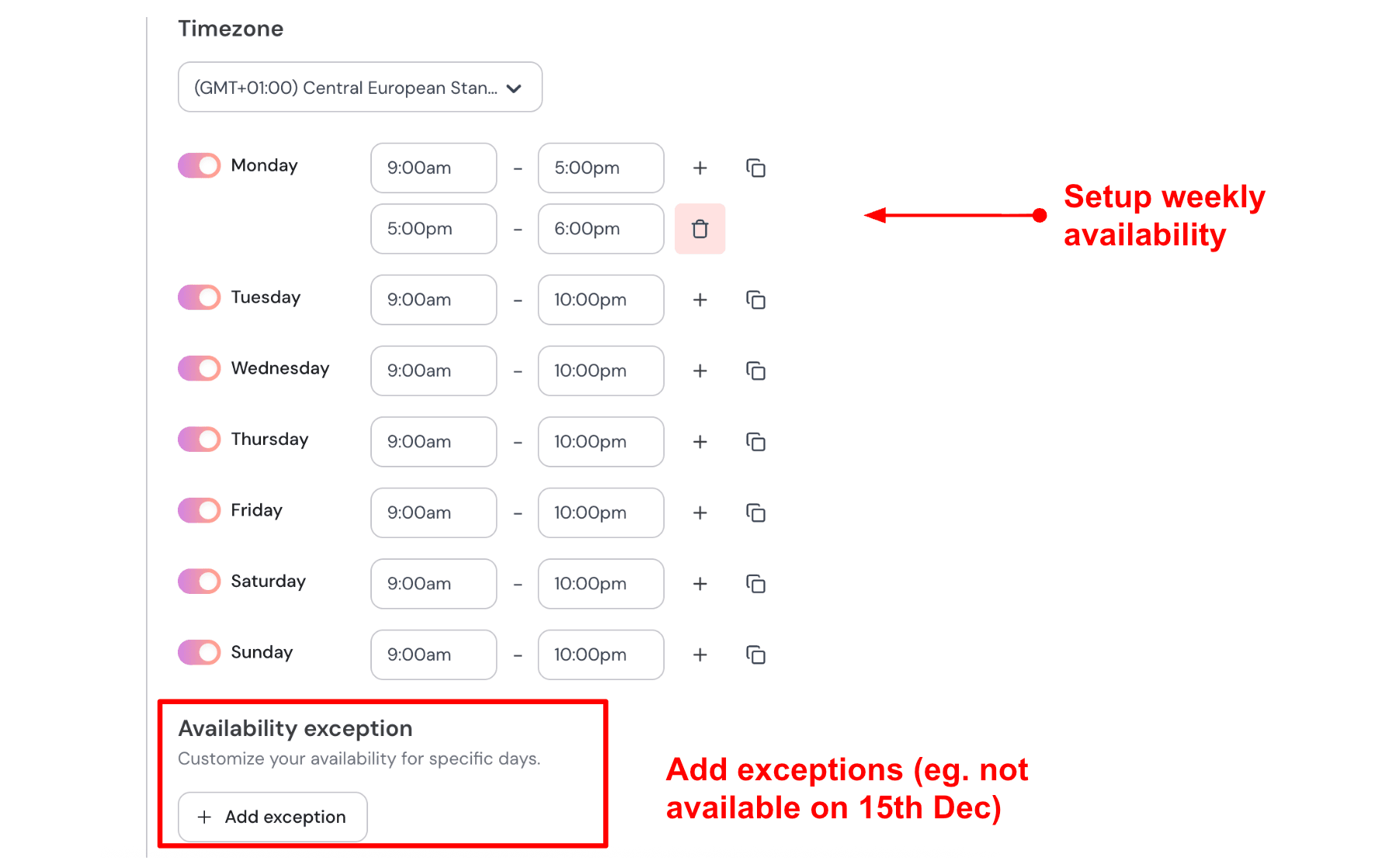
- Service hours with date exceptions
After setting up the page, you define when clients can book your services. You set your regular working hours and then add specific date exceptions for holidays, training days, or reduced availability. This keeps your booking link accurate everywhere it is shared, whether on your website or social profiles. Clients see only valid time slots, which reduces confusion and cuts down on back-and-forth communication. Here is how I set up my availability:
- Sync multiple calendars to prevent double bookings
Lunacal connects multiple calendars so your availability stays accurate across all booking channels. Confirmed bookings are added to a single main calendar, while others are quietly checked before showing open slots. This is especially useful for service businesses that handle bookings via phone, text, and online links simultaneously. If a team member is already assigned to a job, that time slot will not appear as available to new clients. It helps avoid scheduling conflicts and keeps your operations running reliably without constant manual checks.
- Custom pre-service intake questions
You can add a few questions to the booking form so clients provide key details before confirming their appointment. This replaces the need for a separate call just to gather basic information. It also helps your team arrive prepared for the job. Keeping it focused works best, usually two or three questions that directly impact how you plan the service. For example, a pest control business can ask about the type of issue, property type, and a short description so the technician knows what to expect before arriving. This creates a smoother experience for both sides.
- Multi-staff and multi-service booking flow
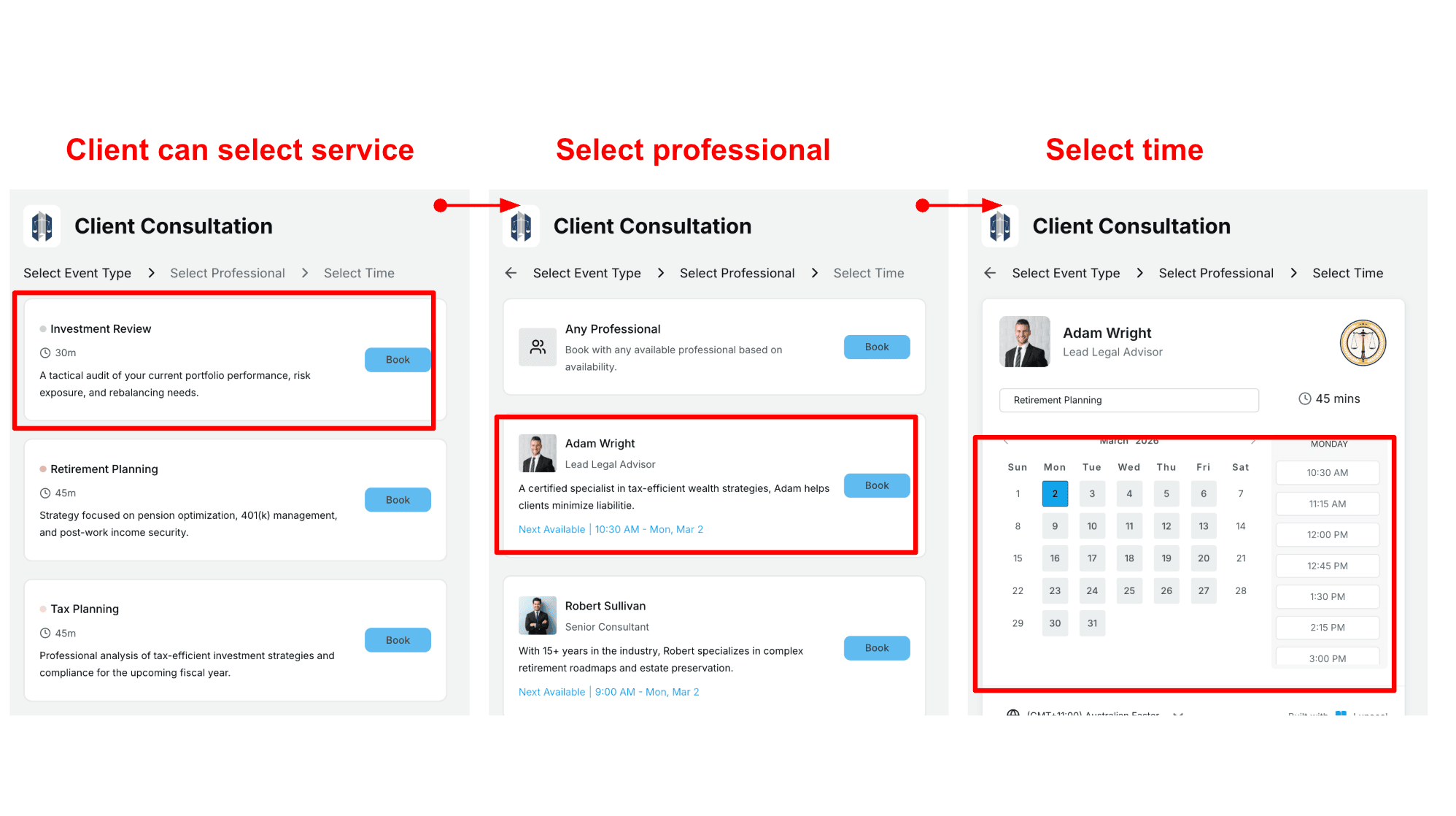
Clients can choose the service type they need and then select a specific team member or choose the next available option. This works well as your business grows and you start managing multiple staff members. Returning clients can book the same person they prefer, while new clients can simply pick the earliest available slot. It keeps scheduling balanced across your team without requiring manual coordination. Service categories like Standard Clean, Deep Clean, or End of Tenancy Clean can be clearly structured so clients know exactly what they are booking. Here is how to set up the scheduling flow:
Pros
- The booking page can carry real decision-making context before someone picks a slot
- Payments, packages, and reminders sit inside the same booking flow
- Team routing works well for round robin and shared scheduling needs
- Timezone handling and language support help with global use
- The starting price is still approachable for solo operators and small teams
Cons
- May feel heavy for simple solo booking needs
- The G2 review page suggests duplicating similar event types is still something to watch if setup speed matters
- Per-user pricing can increase as the team grows
- Advanced setups can take extra time to configure
- The richer client-facing page may be more than some teams need
Pricing
- On the official Lunacal pricing page, Standard starts at $9 per user per month, Teams at $15, and Enterprise at $25
- Annual billing is shown with savings up to 20 percent
- Standard covers core scheduling and payment integration
- Teams adds round robin and collective scheduling
- Enterprise includes custom integrations, onboarding help, and phone support
When to Choose Lunacal
Choose Lunacal when the booking page needs to support conversion, paid sessions or packages are part of the offer, clients book across time zones, or leads need to be routed across a small team. It also works well when the booking experience needs to convey more business context rather than just a simple calendar link.
Calendly
Calendly is a scheduling platform designed to simplify meeting booking. It removes the need for back-and-forth emails by letting people pick a time based on your real-time availability. At its core, Calendly connects to your calendar, shows open slots, and automatically confirms meetings. It is widely used by consultants, freelancers, sales teams, and service providers who rely on scheduled calls to run their workflow.
Features
- Availability rules
Calendly is widely used for booking links that reduce back and forth and keep availability accurate across calendars. I chose it because the setup is quick and the booking flow feels clean when shared with clients. During testing, buffers and minimum notice were the first settings I adjusted since they directly impact how your day is structured and help avoid awkward time gaps.
- Calendar integration
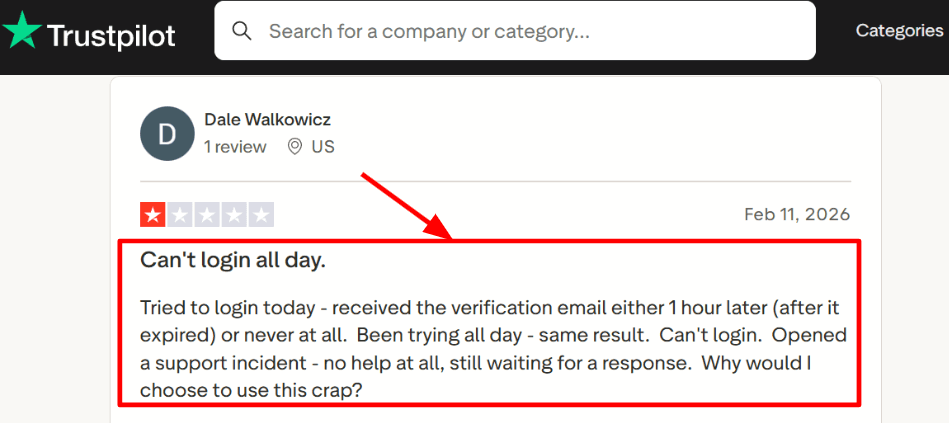
Connecting Google or Microsoft calendars is straightforward and usually takes only a few minutes. Once connected, busy slots are blocked automatically, which helps prevent double bookings. While testing, I noticed a small issue with access flow delays. I also came across a similar login email delay mentioned in a Trustpilot review, and I’m including the screenshot below so you can review it yourself.
- Routing forms
Routing forms are useful when you offer multiple services or have multiple team members handling calls. You can ask a few questions upfront and direct leads to the right event type or team member based on their responses. This feature often gets overlooked early on, but once configured properly, it improves the quality of booked calls and helps filter better-fit leads.
- Meeting tool integration
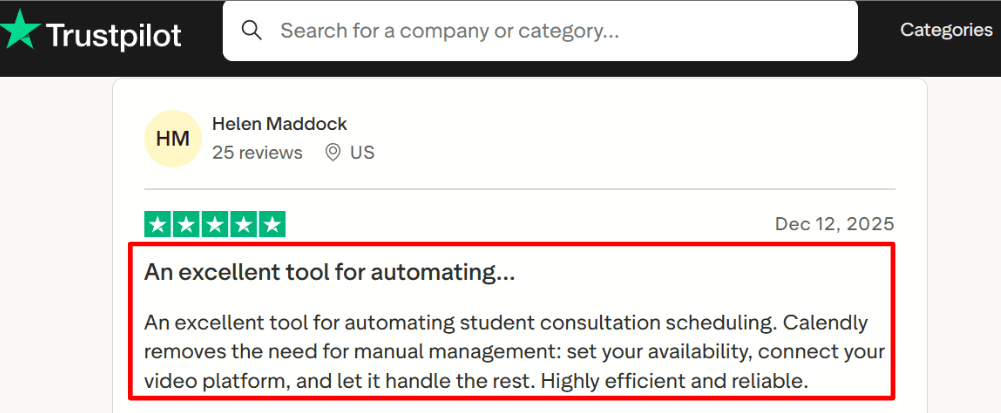
Calendly supports integrations with tools like Zoom and Google Meet, so each booking automatically includes a meeting link. I tested this with a basic consultation setup, and it worked smoothly after the initial connection. A Trustpilot review also highlighted its efficiency for student consultations, and I’ve added that screenshot below for context.
- Team scheduling
For teams, round robin scheduling distributes meetings across members based on availability. This is helpful when inbound requests vary and you want quicker response times without assigning bookings manually.
Pros
- Quick setup for service businesses that need simple booking links and calendar-based availability
- Availability controls like buffers and minimum notice help protect your schedule
- Routing forms improve lead quality when configured properly
- Round robin works well for small and mid-size teams
- Automatic meeting links through integrations save manual effort
Cons
- It may feel limited if you need full workflow management like dispatch, estimates, or technician coordination. A dedicated scheduling software for service business may handle those needs better
- Seat-based pricing increases as your team grows
- Some flows rely on email delivery, and users have reported occasional delays
- iCloud calendar sync has had limitations, especially for newer connections
- Advanced routing and admin features are often restricted to higher-tier plans
Pricing
- Free plan available with basic scheduling features
- Standard plan around 10 per seat per month when billed yearly, higher when billed monthly
- Teams plan around 16 per seat per month when billed yearly, higher when billed monthly
- Enterprise plan with custom pricing, usually annual contracts
- PayPal support available outside the US for international payments
When to Choose Calendly
Choose Calendly if your workflow relies on consults, demos, discovery calls, onboarding sessions, or regular check-ins and you want a simple system that stays aligned with your calendar. It works well when you need routing or round robin without building custom processes. If your operations depend heavily on field scheduling, dispatch, or end-to-end job management, a scheduling software for service business will be a better fit.
Square Appointments
Square Appointments is widely used by service businesses that want bookings and payments in one place. Online bookings have changed customer footprints completely. According to the 2026 Local Economy Report published by Square, 29% of Americans would be more inclined to patronize local businesses if they can make online bookings. If you are looking for scheduling software for service business operations that connects directly with checkout, it is a practical option to consider.
Features
- Payment integration
When I set it up, linking services to payments felt smooth. Booking and checkout stay connected, which reduces extra steps. It also supports cancellation and no-show fees, so you can manage your time better without adding more tools. One thing I noticed is that account approvals can affect your ability to take card payments, which can impact your day if they happen unexpectedly.
- Online booking page
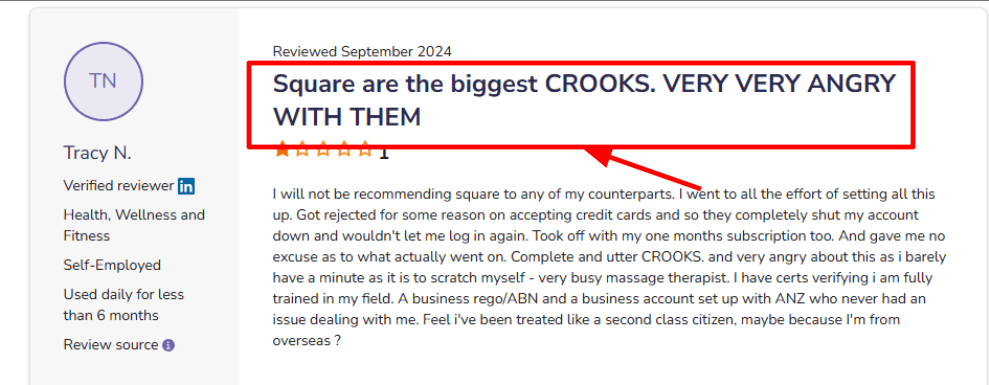
The booking page is simple and easy for customers to use. You can share it as a link anywhere, and people can book without calling. When I tested it as a customer, selecting a service, time, and staff member felt quick and clear. I also saw a Software Advice review that describes an account being shut down due to card acceptance issues. I’m adding a screenshot of that review below so you can check the details yourself.
- Calendar control
The calendar is the main screen you will use daily. It works well for moving bookings, checking availability, and managing your schedule. There is also a mobile drag-and-drop rescheduling feature mentioned in Square Community updates, which becomes useful when your schedule fills up. Switching between views and settings to locate certain controls can take a bit of time.
- Team scheduling
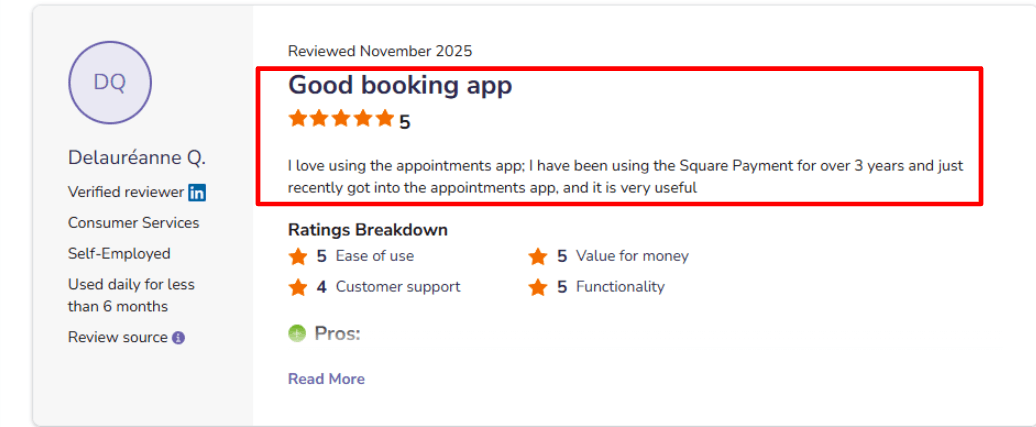
For teams, the multi-staff booking setup helps distribute appointments more evenly. Customers can choose the right staff member, which keeps workloads balanced. It works well for small teams where you want to avoid overbooking one person. A Software Advice review also highlights how useful it feels when paired with Square Payments. I’m sharing a screenshot of that positive review below as well.
- Waitlist and utilization
The waitlist feature helps fill last-minute gaps caused by cancellations. It is useful in day-to-day operations where empty slots can cost you revenue. Square has also mentioned a Future Bookings report in its community updates, which helps you track upcoming appointments and plan ahead instead of guessing. Here’s the Square Community update on the Future Bookings report.
Pros
- Setup is quick if you already use Square for payments
- Booking and checkout stay connected in one flow
- Easy online booking link for customers
- Helpful multi-staff scheduling for small teams
- Waitlist helps reduce unused time
- Supports cancellation and no-show fees
Cons
- Payment account approvals can interrupt operations
- Some users report account access issues tied to payments
- Calendar settings may take time to locate
- Advanced features depend on higher pricing tiers
- Limited flexibility for complex setups like multiple rooms
Pricing
- Free plan available for solo users
- Paid plans start at $49 per month for teams
- Higher tiers include more controls and reporting
- Total cost depends on team size and added features
When to Choose Square Appointments
Choose it if you want scheduling and payments in one place, especially if you already use Square. It works well for solo operators and small teams that want a simple booking system with reminders and basic team management. It also fits well as scheduling software for service businesses that do not require complex resource management.
Skip it if you want scheduling that stays independent from payment account approvals, or if your business requires more advanced resource management like multiple rooms per booking.
Acuity Scheduling
Acuity Scheduling is widely used as scheduling software for service business owners who want a clean booking page that clients can use on their own. It includes payments and reminders in one place, which helps reduce back-and-forth messages and ensures bookings land on your calendar with the right details.
- Payment setup
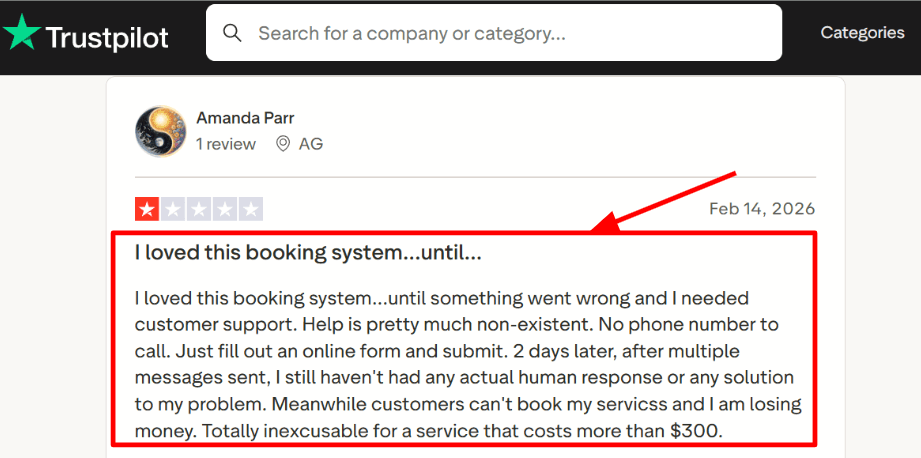
I tested it with Stripe and PayPal, and the flow felt simple for paid sessions and deposits. You can also sell packages and gift certificates, which works well for repeat services. I came across a Trustpilot review where someone got locked out after making a small edit and their booking page showed a trial message. Screenshot below.
- Calendar sync
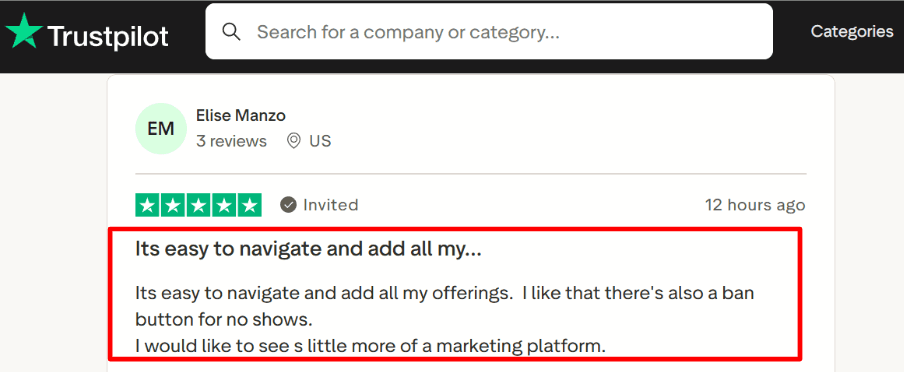
Calendar connections are a major reason people choose Acuity. Apple Calendar sync gets mentioned often. I also saw a Trustpilot review calling it reliable for daily use, and the user stayed with it because it handled more of their needs. Sharing that screenshot below for context.
- Availability rules
You can set working hours for each calendar and control buffers and notice periods to prevent clients from booking too close to your schedule. While setting this up, I had to explore the menus a bit to find an option tucked deeper, which slowed things down briefly.
- Team calendars
If you have staff, you can create multiple calendars and allow clients to choose a person or location while booking. The number of calendars depends on your plan, so it helps to map your team structure early.
- SMS reminders
Email automations come built in, and SMS reminders are available on higher plans. Coverage includes many countries but not all, so it is worth checking the SMS destinations list in the Acuity Help Center before depending on it for international clients.
Pros
- Payments, packages, and reminders are managed in one place, which suits a scheduling software for a service business setup that needs fewer tools.
- Setup felt straightforward after connecting a payment provider and running a test booking.
- Reliable calendar sync, including Apple Calendar support.
- Reserve with Google helps bring bookings from Search and Maps.
- Flexible plans that work for solo users and growing teams.
- SMS reminders can help reduce no-shows when supported in your region.
Cons
- If your workflow depends on bundled plans through Squarespace, account or plan changes can disrupt bookings.
- SMS reminders are not available during the trial, so you cannot fully test that feature early.
- Some countries are not supported for SMS, which may require backup channels like email or WhatsApp. country list Acuity Help Center
- Advanced features like removing branding and HIPAA BAA are only available on higher plans.
- Setting up staff and resources takes planning for more complex businesses.
Pricing
- Starter is around 20 per month with monthly billing and supports one calendar for solo use.
- Standard is around 34 per month and includes SMS reminders and selling packages or subscriptions.
- Premium is around 61 per month and adds more calendars along with features like removing branding and HIPAA BAA.
- Annual billing offers savings compared to monthly plans, and enterprise options are available for larger teams.
When to Choose Acuity Scheduling
Choose Acuity if you run a service business that needs client self-booking, payments, reminders, and reliable calendar syncing in one system. It works well for solo operators and small teams looking for a stable booking page with built-in selling tools. It may not be the best fit if your business requires guaranteed uptime for critical booking flows or depends heavily on SMS in regions with limited support.
Fresha
Fresha is best known for salon and spa booking plus marketplace discovery where new clients can find you and book. Compared to a typical scheduling software for service business, it fits well when you want booking, checkout, and client retention working together in one place.
Features
- Team permissions
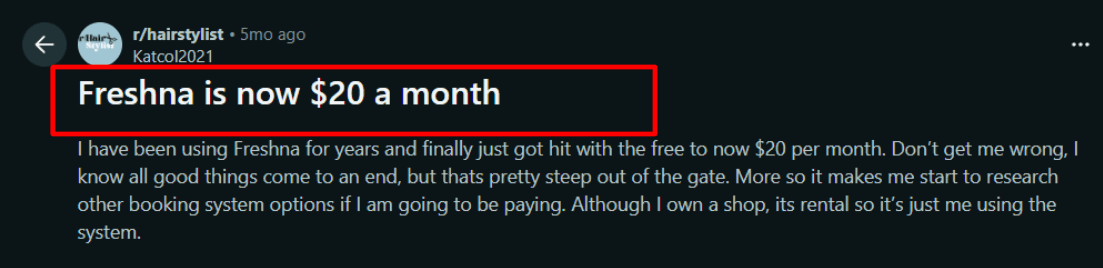
When I set up staff access, it felt reliable for everyday operations and basic control. I also tested help flows since support becomes part of the product once your team is live. While comparing tools, I saw a Reddit review about Fresha where in-app support chats went sideways, and I’m sharing a screenshot below since it reflects the kind of risk owners talk about at scale.
- Service menu setup
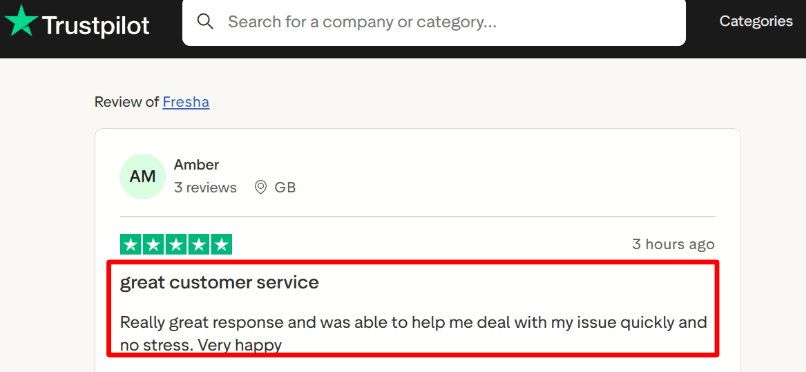
Adding services and durations was quick, and I liked how it encourages a clean menu so clients can book faster. A Trustpilot review about Fresha mentions that the system feels easy even for non-technical owners, and my setup experience matched that. I’m adding that screenshot below so readers can understand the context.
- Availability rules
You can shape booking availability using working hours, time blocks, and booking rules so clients only see valid slots. I had a moment where an online booking setting affected more than I expected, so I went back to check the help docs. If you’re coming from a scheduling software for service business, expect more controls tied directly to how online booking behaves.
- Marketplace listing
Fresha can send discovery bookings through its marketplace, which can help fill your calendar. It also affects unit economics because marketplace-driven first-time clients can incur additional fees, so I carefully tested listing settings. This is one of the main reasons teams choose Fresha over a general tool.
- Client messaging
Automated confirmations and reminders are built in, and the messaging balance should be monitored after launch. One detail worth noting is a Twilio press release that reported a 41.3% read rate for appointment RCS messages and a 6% increase in confirmations for Fresha. That pushed me to test the timing and channel settings for reminders more closely than usual.
Pros
- Strong fit for salons, spas, and wellness businesses that want software with a marketplace channel
- Setup is quick enough to get live without a long implementation
- POS-style checkout flow connected to appointments
- Solid client records that support repeat visits and retail add-ons
- Works well for multi-location teams
Cons
- Marketplace model can feel heavy when margins are tight
- The Fresha Help Center marketplace new client fee can impact cost per new customer
- Some useful capabilities sit behind add-ons
- Messaging costs can increase after the free allowance
- Certain booking settings can affect more than expected early on
Pricing
- Pricing is based on bookable team members, with options for independent professionals and teams
- Marketplace new client fees may apply when someone books through discovery
- Messaging and add-ons can increase total cost over time
- The clearest reference is the official Fresha pricing page.
When to Choose Fresha
Choose Fresha when you run a salon, spa, barber shop, or wellness business and want booking, checkout, and client retention in one system. It works well when marketplace discovery is part of your growth plan and you are comfortable modeling the fee impact. A general scheduling software for service business can make more sense when you want predictable costs or need workflows that apply across many industries.
Conclusion
If you need to choose quickly, focus on how your business actually runs day to day rather than feature lists.
- Lunacal works best when your booking page needs to convert visitors into paying clients and you manage multiple services or team members
- Calendly is the simplest option for call-based workflows, especially for consultants or teams handling inbound meetings
- Square Appointments is the right fit when payments, checkout, and in-person service operations are tightly connected
- Acuity Scheduling suits solo operators or small teams that rely on packages, repeat bookings, and client self-scheduling
- Fresha stands out for salons and spas where marketplace discovery and repeat visits drive growth
The deciding factors usually come down to whether you need POS integration, marketplace exposure, team scheduling depth, or a high-conversion booking experience. Pick based on the workflow you rely on most, not the longest feature list.
Methodology
Sources
- Reviewed official websites, pricing pages, feature pages, and product updates for each scheduling app to understand what they offer in real use. FAQs and help docs were checked to confirm how scheduling rules, routing, and integrations actually work. We checked booking creation, rescheduling, cancellations, reminders and calendar-conflict handling where these features were supported.
Test setup
- Set up each tool with a simple workflow: one personal booking link, one team event, and one paid session. Connected Google Calendar and tested availability rules such as buffers, minimum notice, and working hours.
- Configured routing forms, time zone handling, and meeting links. Payments were tested where available using standard booking flows. Email confirmations and reminders were also verified.
Common scenarios we tested
- A user books a meeting across time zones, receives confirmation, and reschedules once. Cancellation flow and notification accuracy were checked in each case.
- A team setup where meetings are distributed across members using round robin or routing rules. Changes in availability and calendar conflicts were introduced to see how each tool responds.
- Automation checks included booking created, rescheduled, and cancelled events. Integration triggers and webhook reliability were reviewed where supported.
Summarize this content with AI


