

Introduction
What are the top-rated scheduling software options with calendar integration?
In 2026, the strongest scheduling software options reviewed here include Lunacal, Cal.com, Calendly, YouCanBookMe, SimplyBook.me, and Acuity Scheduling. Choosing the right calendar scheduling software takes more than evaluating scheduling pages and their monthly pricing. The right tool depends on the kind of scheduling you handle, how much flexibility do you need over availability, and whether your booking page needs to simply collect meetings or actively help convert them.
For this guide, my team and I compared 10 widely used tools. Six are reviewed in depth—Lunacal, Cal.com, Calendly, YouCanBookMe, SimplyBook.me, and Acuity Scheduling—while Setmore, Doodle, Zoho Bookings, and LeadAngel are included in the comparison tables.
Our initial shortlist also had Acuity Scheduling, Square Appointments, Appointy, Appointlet, Microsoft Bookings, and YouCanBookMe. They were left out because they felt limited for broader scheduling needs or did not hold up as strongly across feature depth and user feedback. This article also covers country-specific nuances (eg. GDPR compliance in EU, language requirements in France, Germany, Spain, Brazil, Italy, etc., 12-hour time settings in US, Canada, Australia, etc.)
Calendar Scheduling Software Compared
Calendar scheduling software comparison table by use case
| Scenario | Best tool | G2 rating | Paid plan starts at |
|---|---|---|---|
| Brand-first booking pages that drive higher bookings | Lunacal | 4.9 | $9/month |
| Self-hosted scheduling stack for teams that want deep customization | Cal.com | 4.6 | $15/user/month |
| Fast one-on-one meeting links for sales, recruiting, and customer calls | Calendly | 4.7 | $10/month |
| Budget-friendly scheduling for small service teams | Setmore | 4.5 | $5/user/month (annual) |
| Group scheduling polls when you need consensus on a time | Doodle | 4.4 | $6.95/month |
| Scheduling that fits best inside the Zoho ecosystem | Zoho Bookings | 3.9 | $6/user/month (annual) |
| Add-on heavy service booking flows, including classes and operational controls | SimplyBook.me | 4.4 | $9.90/month |
| Inbound meeting distribution where routing, ownership, and capacity caps must stay fair | LeadAngel | 4.5 | Custom pricing |
Detailed table with feature-by-feature comparison
| Feature | Lunacal | Cal.com | Calendly | Setmore | Doodle | Zoho Bookings | SimplyBook.me | LeadAngel |
|---|---|---|---|---|---|---|---|---|
| Rating on G2 (out of 5) | 4.9 ★★★★★ | 4.6 ★★★★☆ | 4.7 ★★★★☆ | 4.5 ★★★★☆ | 4.4 ★★★★☆ | 3.9 ★★★☆☆ | 4.4 ★★★★☆ | 4.5 ★★★★☆ |
| Starting Price of Paid Plans (USD) | $9 | $15/user | $10 | $5/user (annual) | $6.95 | $6/user (annual) | $9.90 | Custom Pricing |
| Calendar Sync: Google, Outlook, Apple | Yes (Google, Outlook, Apple) | Yes (Google, Outlook, iCloud) | Partial (Google/Outlook; iCloud existing only) | Partial (Google/Outlook; Apple 1-way) | Yes (Google/Outlook, iCloud) | Partial (Zoho/Google/Outlook) | Partial (Google, Outlook) | Partial (Google, Outlook) |
| SMS/Email Reminders | Yes | Yes | Partial | Yes | Partial | Yes | Yes | Partial |
| Paid meetings | Yes (Stripe, PayPal) | Yes (Stripe) | Yes (Stripe) | Yes (Square/Stripe/PayPal) | Yes (Stripe) | Yes | Yes | No |
| Scheduling page Themes | Yes | Yes | Partial | Partial | Partial | Yes | Yes | No |
| Team Scheduling | Yes | Yes | Yes | Yes | Partial | Yes | Yes | Yes |
| Round Robin Scheduling | Yes | Yes | Yes | Partial (auto-assign "any team member") | No | Yes | No | Yes |
| Multi-session Packages | Yes | No | No | No | No | Partial (series/group bookings) | Yes | No |
| Custom domain | Yes | Partial (self-host/subdomain) | Partial | No | No | Yes | Yes | No |
| GDPR | Yes | Partial | Yes | No | Yes | Yes | Yes | Yes |
In-depth reviews of six scheduling tools
Lunacal
I have tested a lot of scheduling tools that claim to work with Google Calendar and Google Meet, but Lunacal caught my attention because it tries to do something different. It is not just about finding a time and sending a link. The booking page itself becomes a place where someone can learn about you before they even click confirm. That matters because a prepared client shows up differently than someone who booked blindly. Compared to a typical online appointment scheduler that just drops a calendar and a Meet link, Lunacal feels better suited for teams that want to build trust and reduce the back and forth that usually happens before a call. It also has a 4.9/5 on G2, which places it among the top-rated tools in this category.
Features
- Scheduling pages with rich content
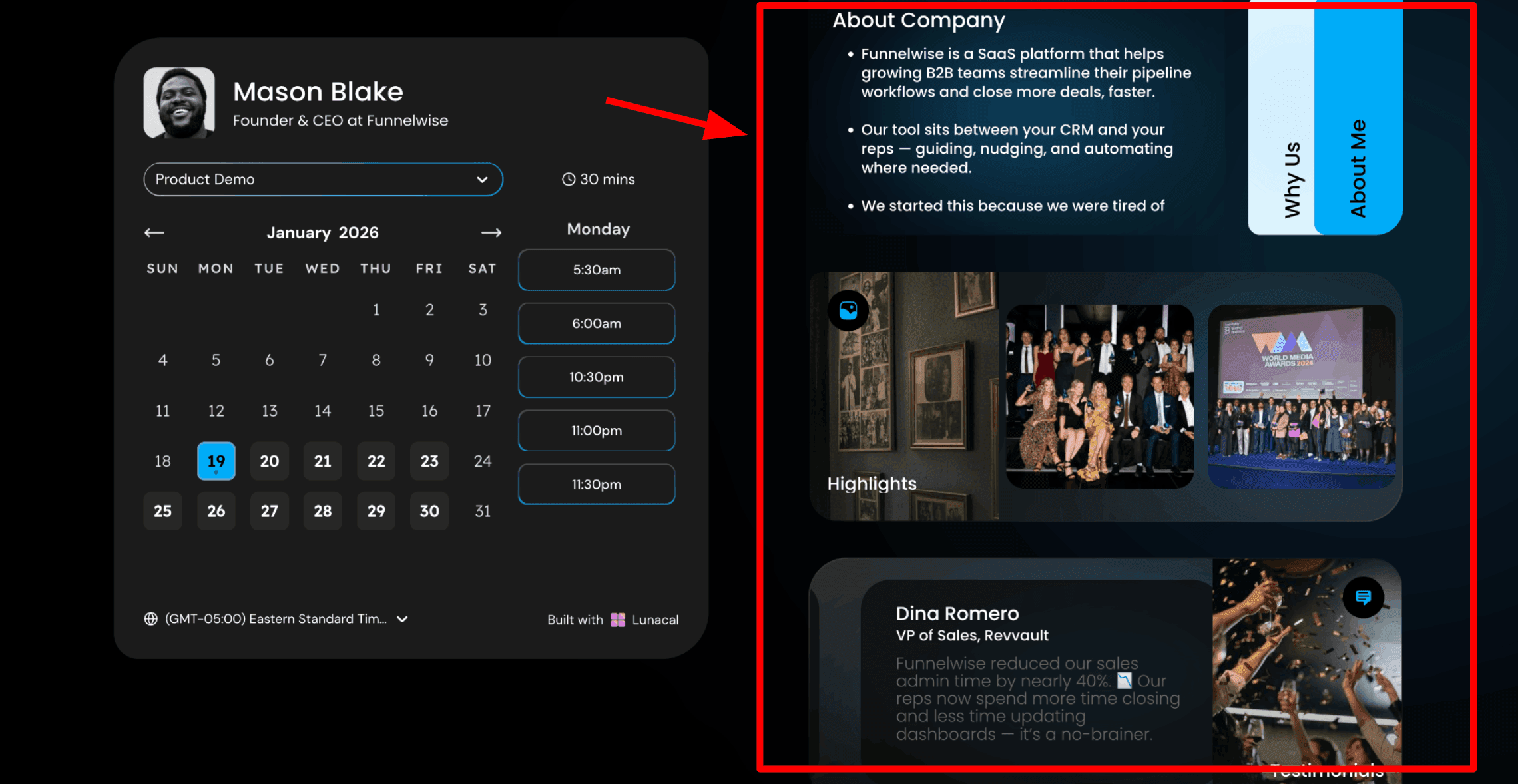
This is the first thing that stood out to me because it changes what happens between someone receiving your Google Meet link and actually showing up ready for the call. With Lunacal, your booking page feels like a simple mini website where people can learn about you before choosing a time. You can add content right next to the calendar, like your bio, a short video, or answers to common questions. The Google Meet link is still generated automatically, but the page provides context before they book. This works well if you want an online appointment scheduler with Google Meet and Google Calendar that also helps people feel more prepared before the call. A Software Suggest review agrees with my experience as well. Here is a screenshot below:

- Drag and drop meeting page editor
This is how you build the page. Lunacal gives you a simple editor where you can add blocks like text, images, videos, testimonials, documents, and intake forms without any coding. You do not need to use another tool or know any code. You create the full booking experience in one place, connect Google Meet, and share a single link. If you are used to sending a plain calendar link, this setup helps make the booking experience feel much more complete. For a SaaS demo, I would add a short explanation of what the 30 minute demo covers and who it is for, then a couple of customer quotes, followed by a short product video so people already have some understanding before joining the Google Meet call.
- Booking availability with calendar-aware date exceptions
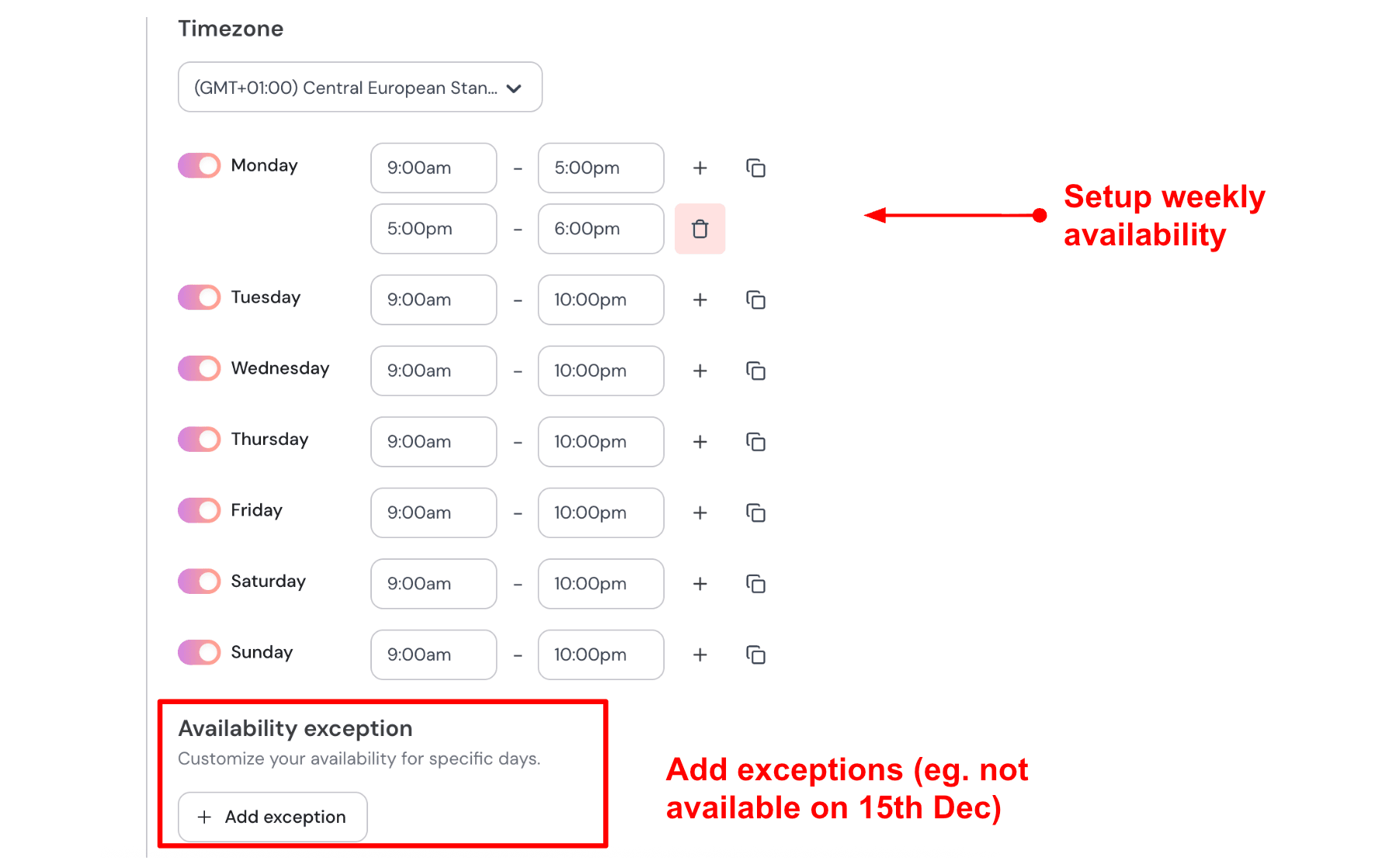
Once your page is ready, you set your available hours and define any days when bookings should be closed, like holidays, travel days, or focused work time. Lunacal connects to your Google Calendar, so your availability stays up to date automatically. If you block time in your Google Calendar, it shows up as unavailable on your booking page. If you add a date exception in Lunacal, your availability stays consistent across both. If I take calls only on Tuesdays through Thursdays between 9am and 4pm, I set that once. If I take time off or attend an event, I add those days as exceptions and the booking page updates without any extra work. Here is how I set up my availability:
- Calendar sync to prevent conflicts
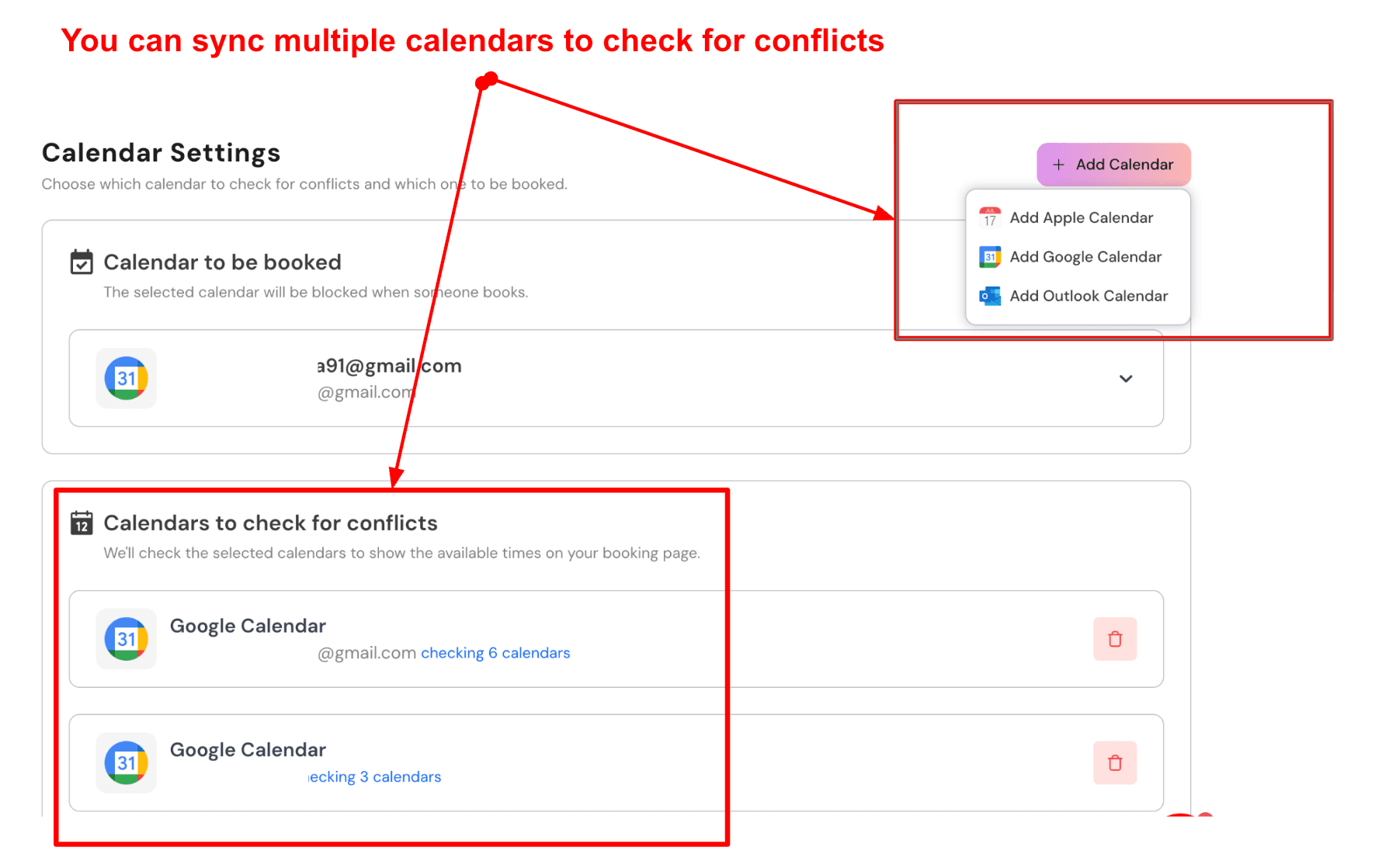
Lunacal connects with your Google Calendar and can also check other calendars before showing available time slots. Every booking is automatically added to your Google Calendar, with the Google Meet link included right in the event. This means you never need to create events manually or worry about double bookings. It works well as an online appointment scheduler with Google Meet and Google Calendar because everything stays in sync and updates in real time. I send all bookings to my main Google Calendar, where the meeting link is created automatically. I also connect my personal calendar, so any private commitments like a doctor's appointment are accounted for. If I already have something scheduled, that time simply does not show up as available. Here is a screenshot of that sync setup:
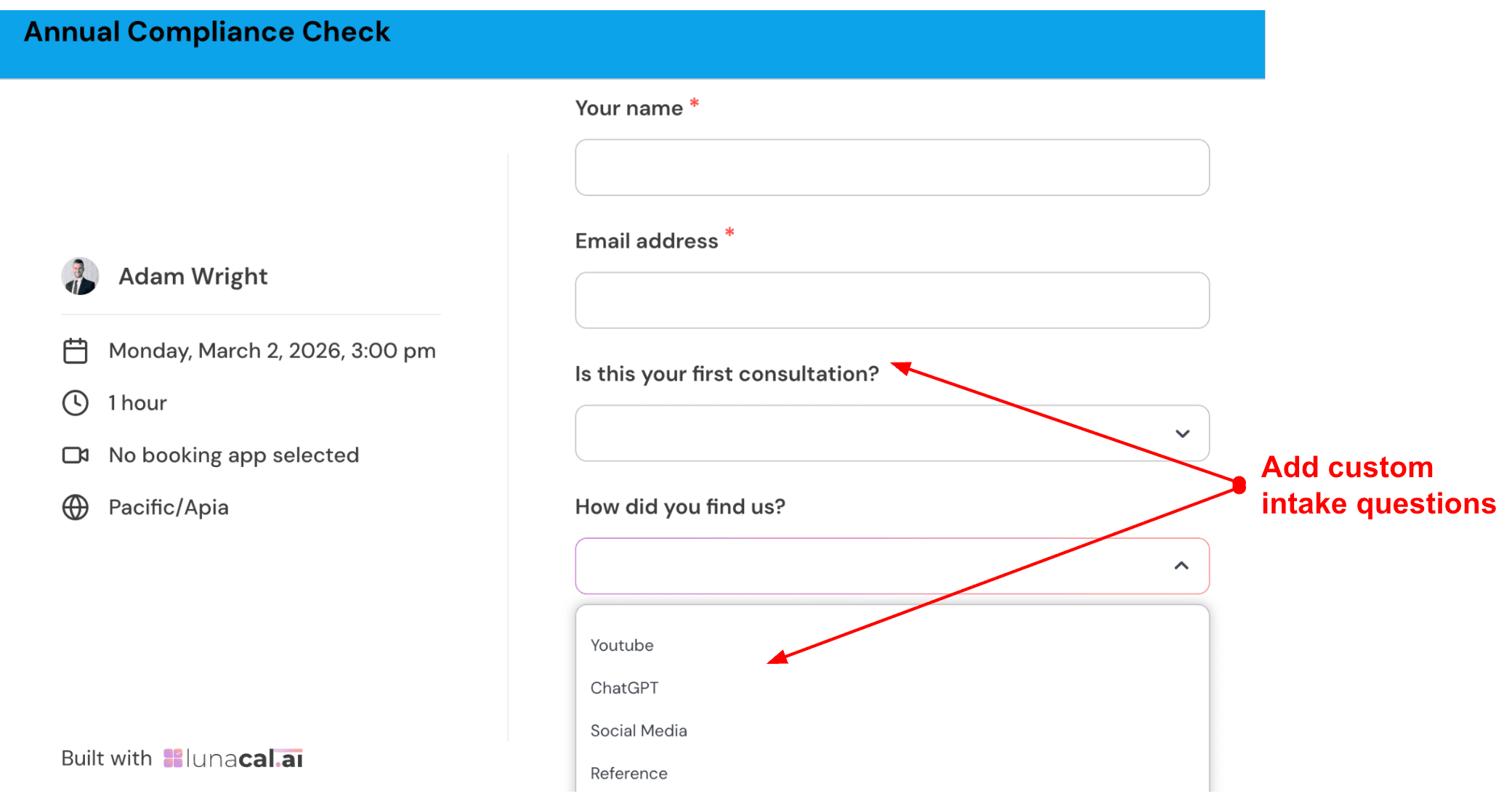
- Pre-meeting intake questions
You can add a few questions that people answer before they confirm their booking. For a discovery call, I might ask what their biggest challenge is right now or what specific outcome they are hoping for. This helps me understand their needs before the call even starts and saves time because I do not have to ask basic questions at the beginning of the meeting. Keeping it short works best so people actually complete it without getting annoyed. Here is where you add those questions:
- Team scheduling with automatic meeting links
If you work with a team, people can choose a meeting type, select a specific team member, and book a time that works for everyone. Each booking automatically includes a Google Meet link for that session. You can also let people book with any available team member using round robin, which helps fill open slots faster. This keeps everything organized without manual coordination and ensures every meeting has the correct link attached.
Pros
- The booking page gives clear context before the meeting, which helps clients feel more prepared and reduces the usual back and forth before a call
- Google Calendar conflict checking works well across multiple calendars, so I never double book myself
- Google Meet links are added automatically to every booking
- Rescheduling stays inside the same workflow without breaking the link
- Paid bookings and packages support revenue focused use cases like consultations or paid sessions
Cons
- Lunacal may feel like extra setup if you only need a very simple booking link without any of the content features
- I also found that creating similar event types takes more manual effort than I would like
- Some settings took me a while to find during my initial setup
- Teams with many meeting types may want faster duplication options
- For basic scheduling needs, the whole platform can feel like more than necessary
Pricing
- On the official pricing page, Standard starts at $9 per user per month, Teams at $15, and Enterprise at $25
- Annual billing can reduce the cost by up to 20 per cent
- Standard fits solo users, Teams works for shared scheduling, and Enterprise is suited for advanced needs
When to Choose Lunacal
Lunacal makes sense when your booking page needs to explain the session clearly and help clients feel confident before they ever pick a time. It works well for teams that want Google Calendar and Google Meet integration, payment collection, structured booking pages, and a smoother client experience where people show up prepared. It is especially useful when your booking flow shapes how you present your service, not just when you schedule time.
Why Not to Choose Lunacal
I would skip Lunacal if you just need a very basic calendar link with no frills. A simpler tool like Calendly or a plain Google Calendar appointment slot would do the job faster and with less setup. Also avoid it if your team needs to duplicate event types frequently, because the current workflow for cloning and tweaking takes more clicks than it should. If you are a high volume team with many different meeting types, the lack of a fast duplication option can get annoying. For a solo user who just wants to share a link and be done, Lunacal may feel like overkill.
Cal.com
Cal.com is one of the easiest and fastest ways to set up a Google-based scheduling workflow, in my experience. It comes with all the features and capabilities that can supercharge your Google Calendar-based scheduling. The best part? With Cal.com, you can integrate Stripe to accept payments for your appointments. This helps with revenue operations and also dramatically decreases the risk of no-shows.
All of this is possible to use completely free and takes just a few minutes to set up. The process involves setting up your booking page with Cal.com and connecting your Google Calendar account to your Cal.com backend. The next step is to install the Google Meet extension into your Cal.com account from its app store, and you're done.
Features
1. Two-way Google Calendar integration
Calendar integrations are very smooth when you use Cal.com because they're handled by little apps available in Cal.com's own app store. This makes the setup process much easier and streamlined for people without tech experience. It hardly takes a minute to connect your Google Calendar with Cal.com, and once done, all your events and appointments will automatically get added to your Google Calendar.
In fact, even if you add any personal event directly into your Google Calendar, it will reflect by blocking your availability in that time slot on your Cal.com booking page. This is the two-way sync feature that's offered by Cal.com, and it's one of the best features of Cal.com in my experience.
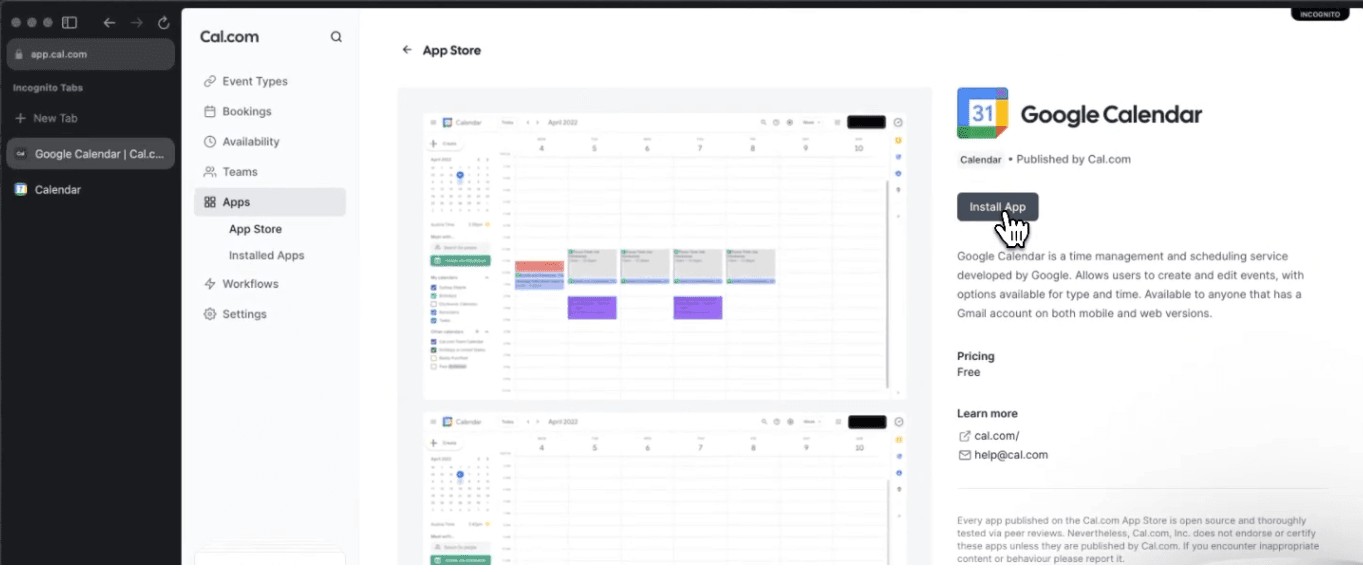
[A simple way to add calendars to your Cal.com account]
2. Automatic Google Meet link generation
Once you have your Google Calendar integrated, instinctively, you'd feel like switching on the Google Meet link generation for every meeting setting from your calendar, right? That's what you may have to do for a lot of scheduling tools, but not Cal.com. With Cal.com, it can handle your entire Google Meet link generation process, and what's more? It'll send that meeting link automatically to the attendees without any manual intervention. I really found this feature useful and easy to use, and my sentiments were also shared in a G2 review I found talking about Cal.com. Take a look.
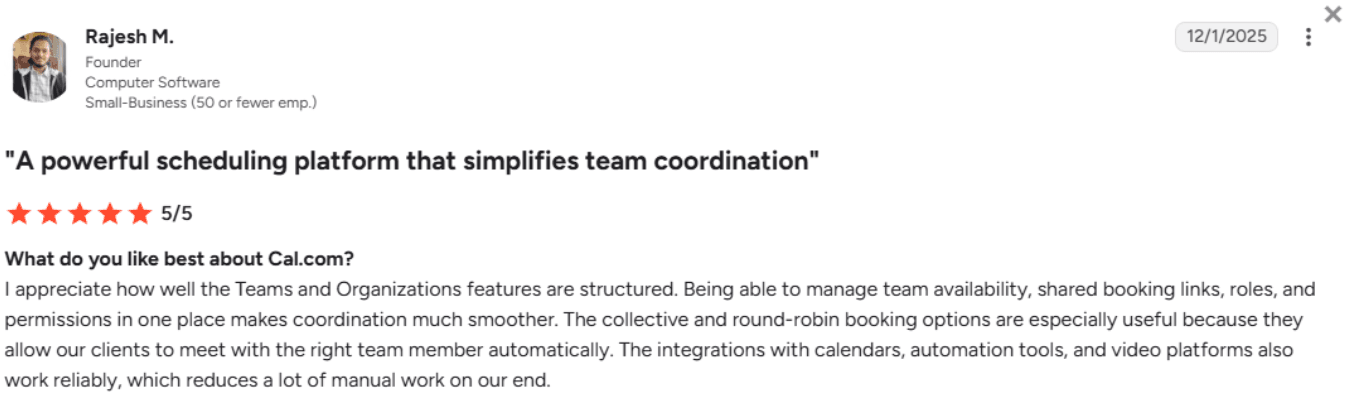
[G2 review noting the reliability of Cal.com]
3. Unlimited calendar support
While it offers native-level integration with the Google ecosystem of apps, that's not what you'll be limited to when you use Cal.com. Even on its free plan, Cal.com supports unlimited calendar additions to your account. This ensures your availability is always accurate and you don't end up with accidental double bookings when you don't want to. Also, having access to multiple calendars ensures that you don't have to use a different scheduler for each calendar app. Centralizing all your calendars in one platform has been of big help in my experience of setting up a booking page, so points to Cal.com here.
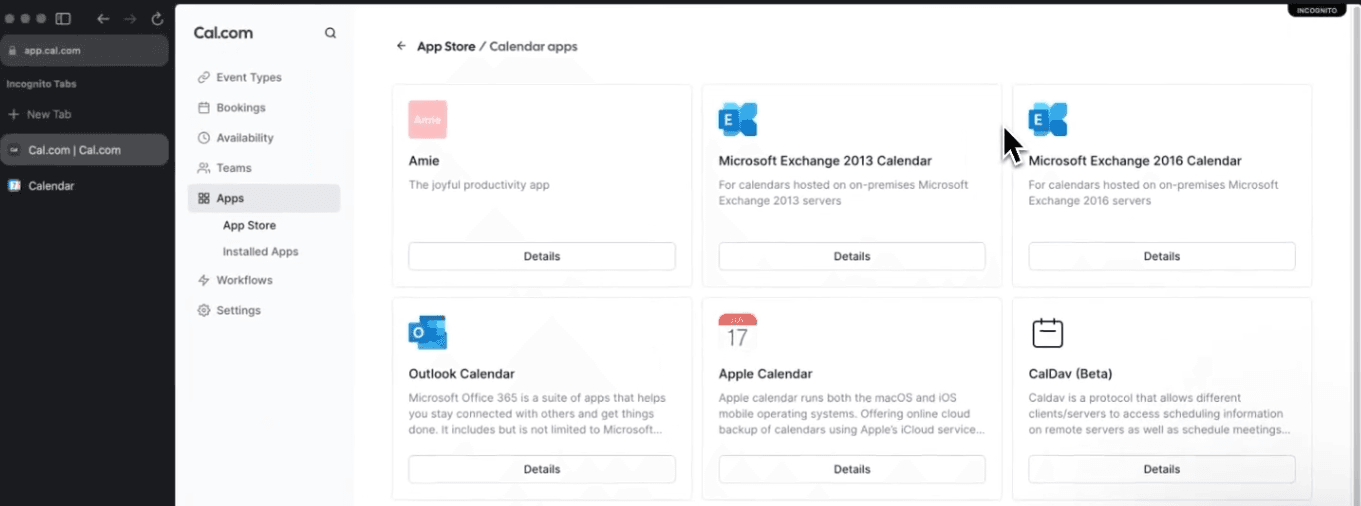
[This image shows several calendar apps that Cal.com supports]
4. Payment integration on the free plan
This one is a big one for me because most scheduling platforms do not let you integrate payment gateways into your booking flow until you are a paid customer to them, but not Cal.com. Its open-source roots are a big reason why Cal.com offers this incredible feature for free. As mentioned, Cal.com allows users to integrate with Stripe and PayPal to accept payments before an appointment. This dramatically helps reduce the number of no-shows for appointments and also helps streamline revenue operations. For me, this was a standout feature, and there are more people who agree with me on this, like this G2 review.
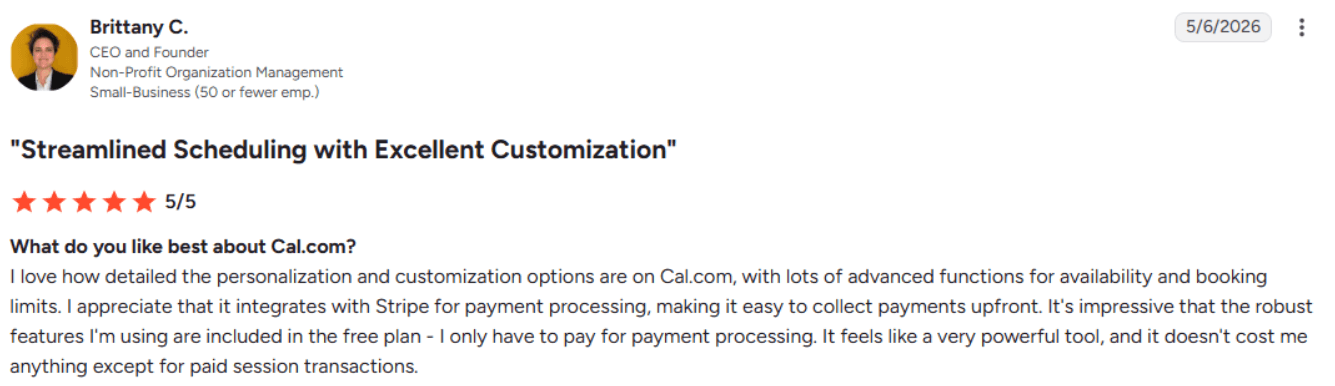
[G2 review lauding Cal.com's Stripe integration option on its Free plan]
5. Complete control over your availability
One of the main problems I have found with scheduling tools is limited control over availability. Cal.com lets you set buffers, daily meeting limits and other rules that protect your working time.”
Pros
- Two-way Google Calendar integration to avoid double bookings
- Allows automated Google Meet link generation and sending to attendees
- Supports payment integration with Stripe and PayPal, even on the free plan
- Two-way integration with CRMs like Salesforce and HubSpot
- Robust free plan with unlimited calendar and event type support
Cons
- May require some tech experience to use the advanced features
- Team routing features require a paid plan
- No longer allows everyone to self-host
Pricing
- The free plan is free forever for individuals with unlimited calendar and event type support
- Teams plan starts at $12 per user per month, billed yearly
- Organizations plan starts at $28 per user per month, billed annually
- The enterprise plan has a custom quote-based pricing
When to Choose Cal.com
Cal.com is one of the most feature-packed, modern, and powerful scheduling solutions out there. If you use the Google Workspace as your primary ecosystem, you'll get a lot of benefits from using Cal.com. It integrates well with the Google Workspace suite of apps, i.e., Google Calendar and Google Meet, and offers extensive customization options. In fact, all the key features mentioned here are available on the free plan itself. This makes Cal.com a strong option for users who want a flexible scheduling system that works closely with Google Calendar and Google Meet
Why Not to Choose Cal.com
I would skip Cal.com if you want the simplest possible setup and do not need advanced customisation. Some of its deeper features require more technical familiarity, and self-hosting is not available to every user. For a straightforward one-person booking link, a simpler tool may be faster to configure.
Calendly
Calendly is probably the most well known tool in this space for a reason. It is the fastest way I have found to connect Google Calendar, generate Google Meet links, and share a simple booking link without spending hours on configuration. If your main goal is to get a working setup quickly and you do not need a lot of bells and whistles, Calendly does that job really well. It works great as scheduling software with Google Meet and Google Calendar, especially when you want everything to connect smoothly from the start and not think about it again.
Features
- Calendar integration
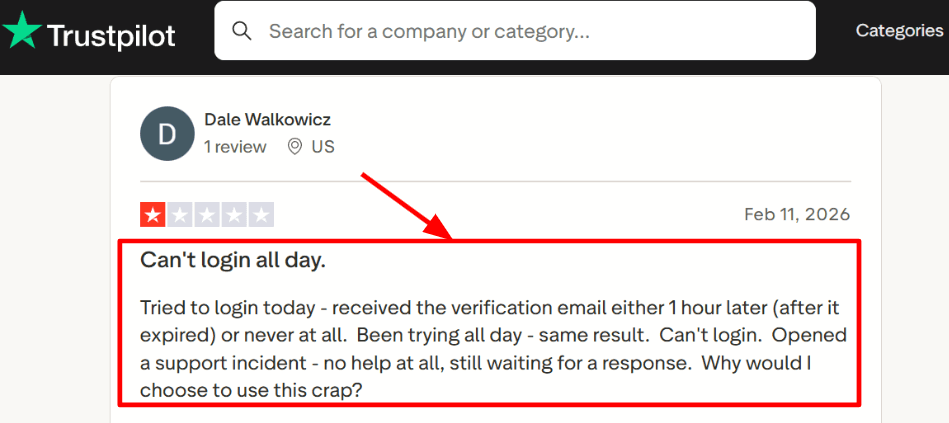
When I tested Calendly, connecting Google Calendar was quick and worked exactly as I expected. It checks your busy times, avoids double bookings, and keeps everything organized without me having to do anything manual. I also came across a Trustpilot review that mentioned login delays and access issues, which can matter if your bookings depend on fast access. I am sharing a screenshot below so you can see that context for yourself:
- Meeting tool integration
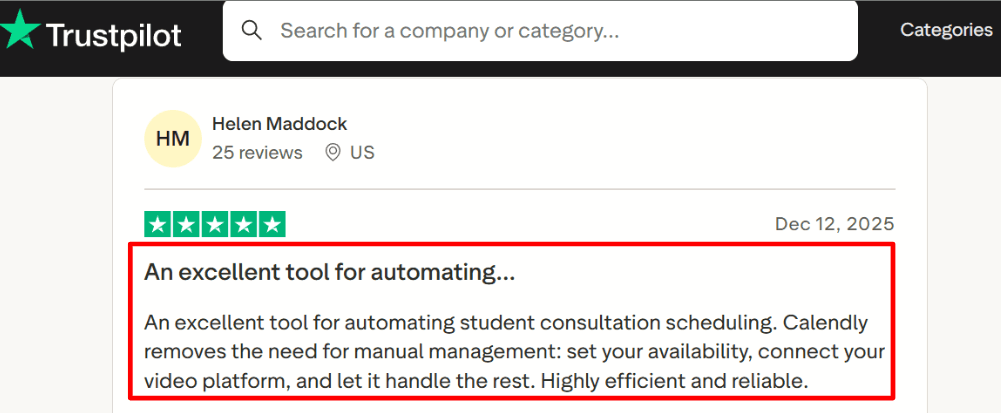
Setting up Google Meet felt straightforward. Once connected, meeting links are added automatically after someone books, which saves time and avoids the usual back and forth of sending links manually. This is where Calendly works well as scheduling software with Google Meet and Google Calendar, especially for recurring sessions or consultation calls where you do not want to think about the link every time. I saw a similar experience mentioned in another Trustpilot review, and I am including that screenshot below as well.
- Availability controls
You can set your working hours, add buffer time between meetings so you are not rushing, control how soon someone can book without allowing same day bookings, and limit how many meetings you take in a day. While testing, I liked the level of control once everything was set up, although I will admit that a few settings took me some clicking around to find. They are there, just not always where you expect them.
- Payment integration
Calendly supports Stripe and PayPal on paid plans, so you can collect payment before confirming a session. This works really well for consultants, coaches, and service providers who charge per session and do not want to chase invoices. I also noticed from the Zapier analysis that Calendly becomes more useful when you add booking rules and payments on top of your calendar, not just when you are sharing a free link.
- Team scheduling
Calendly supports team features like round robin booking, group meetings, and routing forms on higher plans. In my testing, this felt more useful for teams handling leads, support, or hiring rather than a very small setup with only one booking link. It is one of those areas where the tool has more depth than it first appears when you just look at the free plan.
Pros
- Easy to set up with Google Calendar and Google Meet, I was live in minutes
- Flexible availability settings that can handle real world schedules with buffers and limits
- Team features like round robin and shared meetings for when you grow
- Supports payments through Stripe and PayPal so you can charge for sessions
- Works with many tools for CRM and automation through their integrations
Cons
- Not ideal if you want a detailed or content heavy booking page that tells a story
- The free plan is very limited if you need more than one event type
- Some features that you might want are only available on higher paid plans
- iCloud calendar support has limitations according to Calendly Help Center
- A few settings are not easy to find at first and took me extra clicks
Pricing
- Free plan with one event type and basic features
- Standard starts at $10 per user per month billed yearly
- Teams starts at $16 per user per month billed yearly
- Enterprise pricing starts at $15,000 per year for large organizations
- Paid plans unlock more features like workflows, payments, and team tools
When to Choose Calendly
Calendly is what I would recommend if you want a simple and reliable way to manage bookings with Google Calendar and automatic Google Meet links without a lot of setup time. It works well for solo professionals, consultants, educators, and small teams that need a clean scheduling system that can grow with them over time. If you need a lot of customization on the booking page or a guided experience where people learn about you before booking, you may want to look at other options like Lunacal.
Why Not to Choose Calendly
I would skip Calendly if your booking page needs to do more than just show available times. It does not let you add videos, testimonials, or detailed descriptions next to the calendar, so people book without much context about who you are or what the meeting covers. Also avoid it if you need a free plan with more than one event type, because the free tier is very limited. If your team has complex routing needs or you want deep customization of the booking experience, Calendly will start to feel restrictive pretty quickly. For a solo user with simple needs, it is great. For anyone needing more, it is not.
YouCanBookMe
YouCanBookMe is one of those tools that Google Calendar heavy users tend to love because it gives you strong control over availability, buffers, forms, reminders, and team bookings without making things overly complicated. It works really well as scheduling software with Google Meet and Google Calendar, especially if you are the kind of person who wants to fine tune exactly how your availability works rather than just accepting a simple out of the box setup.
Features
- Calendar integration
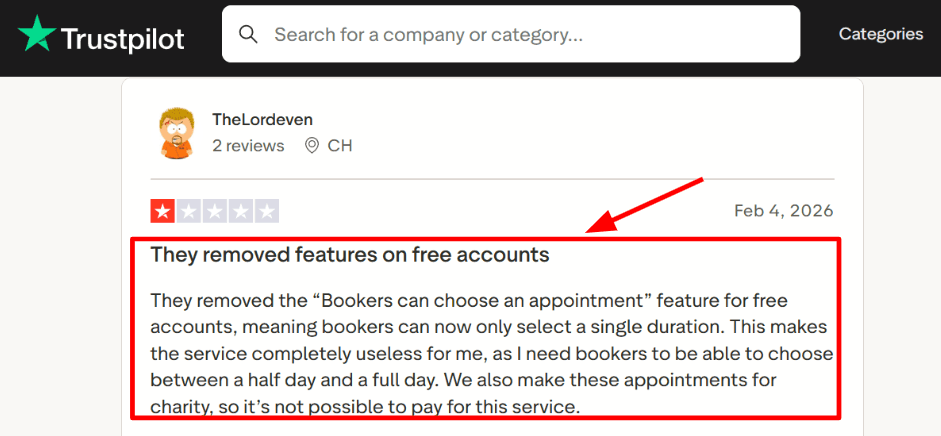
When I tested it, connecting Google Calendar was simple and quick. It clearly checks for conflicts before showing available time slots, so you avoid double bookings without having to think about it. This is especially helpful if you manage more than one calendar or switch between personal and work schedules. I also noticed one limitation mentioned in a Trustpilot review screenshot I am sharing below. The free plan now has tighter control over how appointment choices are shown, which can matter if you offer different session lengths like 30 minute consultations versus 60 minute deep dives:
- Meeting tool integration
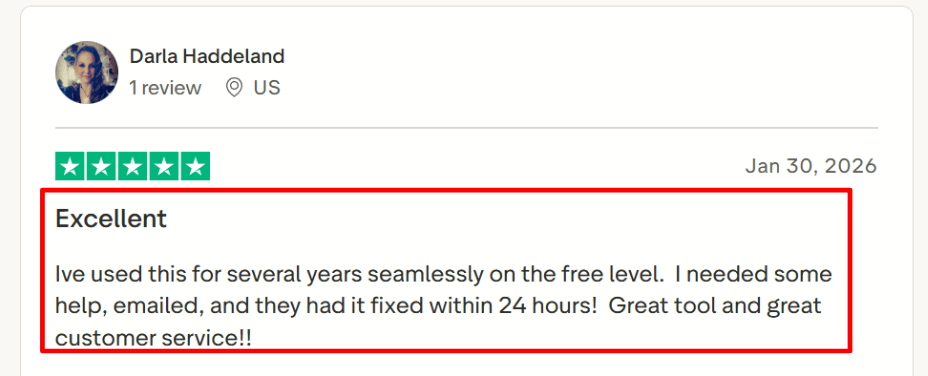
Google Meet integration is one of the main reasons to consider YouCanBookMe. Once someone books a session, the meeting link is created automatically and added right into the invite. This removes extra steps and reduces the small setup mistakes that can happen when you manually add links. I tested this with regular one on one calls and it worked smoothly every time. I also saw a long term Trustpilot review that mentioned time savings for small teams and therapists, which matched what I experienced in daily use:
- Availability controls
This is one of the strongest parts of the tool in my opinion. You can set buffer time between calls so you are not rushing, control how much notice is required before someone can book, and manage time zones easily without doing manual conversions. You can also create different rules for different schedules. It helps shape your calendar in a way that matches how you actually work, not just how a generic scheduler thinks you should work. I will admit that some of the deeper settings took me a bit of time to find at first, but once I got them set up, they gave me a lot of control.
- Team scheduling
YouCanBookMe supports round robin booking, shared team pages, and mutual availability where everyone needs to be free. This makes it really useful when multiple people handle bookings from one link, like a sales team or a support desk. I found this especially helpful when more than one calendar was involved and I needed to make sure everyone was available. The official support docs explain team setup in detail, which is useful if you want more control over how bookings are assigned across your team.
- Payment integration
You can collect payments using Stripe, including deposits and mobile wallet options. This makes it suitable for both free and paid sessions. It works well for simple pricing setups where you charge a flat rate per session. If you offer different session types, I found that planning your pricing clearly ahead of time helps the booking flow feel smooth for clients without confusion.
Pros
- Works well as scheduling software with Google Meet and Google Calendar for daily use
- Easy to connect and manage availability across multiple calendars
- Strong controls for buffer time, notice periods, and time zones
- Useful team booking features for shared workflows and round robin
- Supports payments for consultations and services through Stripe
- Customizable booking pages that work well for small business use
Cons
- The free plan can feel limited if you offer multiple session lengths
- Advanced setup takes a bit of time to fully understand and configure
- Recurring bookings are limited, as noted in the official support article
- No dedicated mobile app, so you have to use a browser on your phone
- Not ideal for healthcare use cases that need strict compliance like HIPAA
Pricing
- Free plan is available
- Individual plan starts at $9 per month
- Professional plan at $13 per month
- Teams plan at $18 per user per month
- Enterprise pricing is available on request
- Discounts are available for annual and two year billing
When to Choose YouCanBookMe
YouCanBookMe is what I would recommend if you use Google Calendar and Google Meet daily and want more control over exactly how your bookings work. It fits small businesses, consultants, therapists, and service teams that need flexible scheduling, payment collection, and team booking options all in one place. If you just need a very simple link with no configuration, it may be more than you need.
Why Not to Choose YouCanBookMe
I would skip YouCanBookMe if you are looking for a dead simple booking link with almost no setup. The free plan has limitations that can get annoying if you offer different session lengths or need more than basic functionality. Also avoid it if you need a dedicated mobile app for managing bookings on the go, because they do not have one. If your team does not need advanced availability controls like buffers and notice periods, a simpler tool like Calendly might be a better fit. For healthcare use cases that require strict compliance documentation, this is not the right choice.
SimplyBook.me
SimplyBook.me is one of those tools that takes a different approach. Instead of giving you everything at once, you turn on only the features you actually need. That makes it flexible, but it also means you have to spend some time deciding what to enable. It works well if you want control over how bookings, payments, reminders, and add ons are set up without building anything from scratch. It can also fit nicely if you are looking for scheduling software with Google Meet and Google Calendar support, especially when your daily workflow depends on both.
Features
- Calendar integration
When I set it up, the first thing I checked was calendar sync so my availability stays accurate. It works well with Google Calendar and keeps bookings in line with your real schedule without me having to manually update anything. If you already rely on your calendar daily, this setup feels pretty natural. One thing I noticed is that some settings are spread across different modules, so you may need to double check a few places before everything feels clear and connected.
- Meeting tool integration
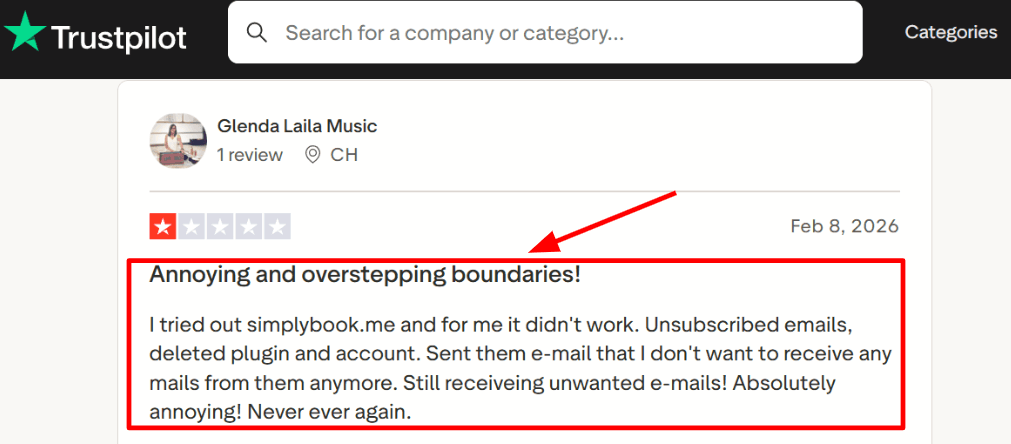
In my test, booking details flowed into the confirmation process, but Google Meet setup required more checking than tools that automatically generate a unique link for every booking.. I tested the full process from booking to confirmation email to see exactly what the client receives on their end. That helped me catch small gaps early before any real customers used it. I also noticed a Trustpilot review about unwanted follow up emails even after unsubscribing and deleting the account, and I am adding a screenshot below so readers can judge that risk for themselves:
- Payment integration
Payments are handled through modules, so you enable what you need and connect it to your services. I tested this by setting up both paid and free bookings to see how each behaves. It worked as expected, but I noticed that some features depend on others. For example, payments may need to be active before you can use gift cards or coupons. These dependencies are explained in SimplyBook.me's help center, but it is something to keep in mind during setup.
- Packages and memberships
If you sell sessions in bundles like a 6 pack of consultations or a monthly membership, this is one of the stronger parts of the tool. I tested a basic package with limited uses and an expiry date, and it handled it well. There is also an option for clients to buy extra bookings without changing the main setup. This makes it easier to manage different types of clients without rebuilding your whole system.
- Security and compliance
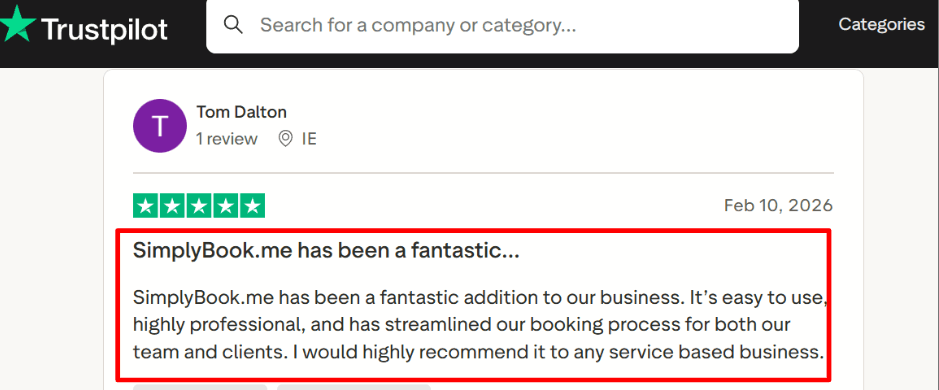
SimplyBook.me provides a DPA and shares details about its security practices, including references to ISO 27001. This helps when you need basic documentation for client trust or internal checks, especially if you work with larger companies that ask for these things. I also saw a positive Trustpilot review mentioning smoother booking for teams and clients, and I am sharing that screenshot below because it matches how the system feels once everything is set up correctly.
Pros
- Flexible setup with modules so you can shape the system based on your actual needs
- Strong options for packages, memberships, coupons, and gift cards
- Multiple ways to share booking like widgets and booking pages
- Add ons available for scaling bookings and messaging as you grow
- Good documentation for security and compliance if you need that
Cons
- Can feel complex if you only need a simple setup with Google Calendar and Google Meet
- Some features depend on others being enabled, which can make setup take longer
- Messaging add ons like SMS can increase your monthly cost depending on usage
- Booking limits in lower plans may require upgrades as your business grows
- Some users report unwanted emails even after unsubscribing and deleting accounts
Pricing
- Free plan is available with booking limits and limited custom features
- Paid plans increase based on bookings, number of providers, and enabled features
- Higher plans unlock more features and remove usage limits
- Extra costs for add ons like SMS, WhatsApp, and AI credits
When to Choose SimplyBook.me
SimplyBook.me makes sense if you want a flexible system where you can control exactly how bookings, payments, and packages work without being forced into a one size fits all setup. It is a good fit for service businesses and teams that need structure and customization. It also works well if you are looking for scheduling software with Google Meet and Google Calendar that can grow with you over time.
Why Not to Choose SimplyBook.me
I would skip SimplyBook.me if you just want a very simple booking link with almost no setup. The modular approach means you have to spend time deciding what features to enable and how they work together, which can feel like overkill for basic needs. Also avoid it if you are on a tight budget and cannot afford the add on costs for messaging or higher tier plans. If you need recurring meetings or complex recurring billing, test that carefully before committing because the setup for those features is not as straightforward as it could be. For a solo user who just wants to share a link and be done, this tool will feel too heavy.
Acuity Scheduling
Acuity Scheduling is a tool that helps service businesses take bookings through a clean scheduling page while handling payments, reminders, and client details all in one place. If you want an online appointment scheduler with Google Meet and Google Calendar, this setup works well once everything is connected properly, but I did find that getting the Google Meet behavior consistent took a few extra steps compared to tools that are built around it from the ground up.
Features
- Calendar sync
When I connected Google Calendar, new bookings showed up quickly and blocked time slots as expected. It felt reliable during my testing without any weird sync delays or missed events. Google Calendar sync was reliable, but Google Meet link creation required additional configuration and should be tested from booking through confirmation before launch. 2. Client booking flow
The booking page is easy to share or embed on a website, and clients can reschedule or cancel within the rules you set. When I tried to contact support during testing though, I only found a form, which took extra time and felt frustrating when I had a quick question.
- Payment collection
Payments work with Stripe, Square, and PayPal, so you can charge upfront, take deposits, or save cards during booking. I tested a paid session from start to finish and the flow felt simple and clear, like a normal checkout process that clients would not find confusing.
- Intake forms
You can collect client details before the session using intake forms and store that information for later. This helped reduce back and forth, especially with new clients who had a lot of questions, and made repeat sessions much easier to manage because I already had their information.
- No show controls
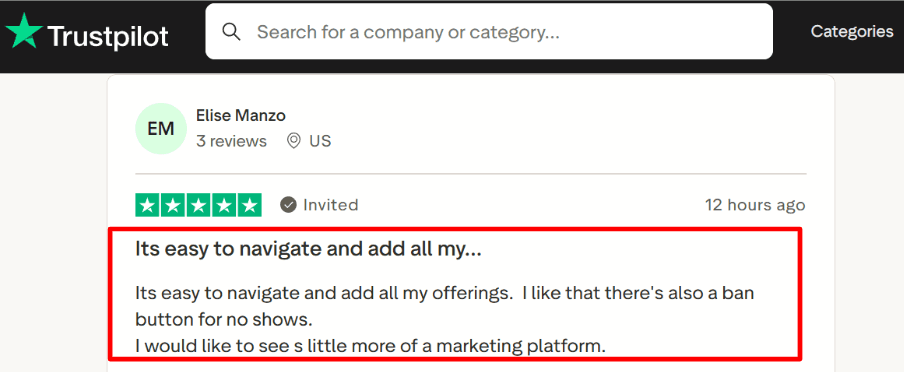
There is a simple way to block repeat no shows, along with policies and reminders to keep things organised. Another Trustpilot review mentioned the ban option and ease of use, which matched what I saw during testing. I am adding that screenshot below as well. A small note from Squarespace Support is that Acuity is often listed under Squarespace Scheduling in help docs, which makes it easier to find answers if you get stuck:
Pros
- Reliable booking flow once everything is set up, and it runs smoothly day to day without surprises
- Strong Google Calendar sync that helps avoid double bookings across multiple calendars
- Supports common payment options used by most service businesses like Stripe, Square, and PayPal
- Intake forms help collect useful details before sessions so you are not wasting call time on basic questions
- Packages and subscriptions work well for repeat bookings and ongoing client relationships
Cons
- Setting up consistent Google Meet behavior can take extra steps compared to tools built around it from the start
- Support can feel slow to reach when you need quick help, with only a form available
- SMS reminders depend on location, as listed in Acuity Help, so check your region before relying on them
- Limited built in marketing features compared to more modern platforms
- Team features and scaling often require higher plans, which increases cost
Pricing
- 7-day free trial to test booking, reminders, and payments
- Paid plans are usually around 20 per month for Starter, 34 per month for Standard, and 61 per month for Premium
- Annual billing may reduce the monthly cost
- Enterprise pricing is custom for larger setups
When to Choose Acuity Scheduling
Acuity Scheduling makes sense if you want an online appointment scheduler with Google Meet and Google Calendar that also supports payments, intake forms, and repeat bookings. It works well for solo users and small teams who need a simple system that can run without constant changes. It also fits service businesses that want a clean scheduler embedded on their website that looks professional.
Why Not to Choose Acuity Scheduling
I would skip Acuity Scheduling if your setup depends heavily on Google Meet working perfectly with minimal setup, because getting it right takes more effort than with other tools. Also avoid it if fast support access is critical for your business, since you cannot just call someone when something breaks. If you need modern marketing features or a branded booking page that sells your service, Acuity will feel dated compared to Lunacal. For teams that need easy SMS reminders, check if your region is supported first because that can be a dealbreaker.
Conclusion
If you want a quick decision, this really comes down to how you actually use scheduling with Google Calendar and Google Meet on a daily basis.
Choose Lunacal if your booking page needs to do more than just show time slots and should actually help convert people before they even pick a time. Choose Calendly if you want a reliable, no friction scheduler that works out of the box for individuals or small teams without a lot of setup. Choose Cal.com if you want a highly customisable scheduling system with strong Google Calendar and Google Meet support. Choose YouCanBookMe if your workflow is deeply tied to Google Calendar and you want more control over availability rules like buffers and notice periods. Choose Acuity Scheduling if you sell sessions, packages, or need structured client booking flows with payments and intake forms. Choose SimplyBook.me if you run a service business with high booking volume, memberships, or operational complexity that needs a modular setup.
The main decision factors here are the booking page experience, payment and package handling, and how tightly the tool works with Google Calendar and Google Meet. Tools like Calendly and YouCanBookMe focus on clean scheduling, while Lunacal, Acuity, and SimplyBook.me go deeper into conversion, payments, and business workflows.
Methodology
I completed hands-on testing for the six tools reviewed in depth and used official documentation and public user feedback to compare the four tools included only in the tables. For the hands-on tests, I focused on setup, calendar sync, Google Meet link generation, rescheduling, cancellations, reminders and availability controls
How I gathered insights
I went through each tool's official website, help docs, and FAQ sections to understand what they claim to offer and how those features are supposed to work in theory. Then I signed up and tested every tool myself, focusing on setup time, Google Calendar sync reliability, and how smoothly Google Meet links are generated during the booking process. I also reviewed user feedback on platforms like G2, Trustpilot, and Capterra to see how these tools perform over time, not just during first use. Finally, I checked Reddit and Quora to find more candid experiences, including common issues, workarounds, and the things that never show up in polished marketing reviews.
How I tested Google Calendar + Meet workflows
Each tool was connected to a live Google account with Google Calendar enabled, and Google Meet was set as the default meeting option wherever possible. I booked meetings from the client side to see exactly what the experience looks like, including how calendar events are created and whether Meet links are added correctly without me having to do anything manually.
Real-world scenarios I tested
I scheduled different types of bookings including one on one calls, group sessions, and back to back meetings to see how flexible each tool is under pressure. I tested rescheduling and cancellations to check if calendar updates happen correctly and without confusing the attendee. I also reviewed reminder and notification settings to confirm that both the host and the attendee receive accurate details, especially the Google Meet link and the correct timing.
FAQs
What is the best appointment scheduling software with Google Calendar and Google Meet integration?
The strongest options reviewed here are Lunacal, Cal.com, Calendly, YouCanBookMe, SimplyBook.me and Acuity Scheduling. The best choice depends on whether you prioritise booking-page customisation, simple setup, availability controls, payments or service-business workflows.
What platforms and tools does Lunacal connect with for appointment scheduling?
Lunacal integrates with Google Calendar, Google Meet, Outlook, Microsoft Teams, Apple Calendar, FaceTime, PayPal, Stripe, HubSpot, Pipedrive, and SMS reminders. Most teams can slot it into their existing setup without rebuilding workflows or adopting new tools that do not fit their stack.
Does Google Calendar have its own scheduling tool?
Yes. Google Calendar has Appointment Schedule, which lets you create a booking page, set your availability, and let others book time directly on your calendar. It is useful for simple scheduling, but third party tools like Lunacal or Calendly are usually better if you need payments, packages, routing, or branded booking pages that look like your website.
Which scheduling software automatically creates Google Meet links?
Lunacal, Calendly, YouCanBookMe, and Google Calendar Appointment Schedule can all automatically create Google Meet links when bookings are set up correctly. Acuity Scheduling and SimplyBook.me can also support Google Meet workflows, but the setup may take more checking and testing to get right.
What is the best free scheduling software for Google Calendar?
Google Calendar Appointment Schedule is the most direct free or native option for basic booking pages. Calendly and YouCanBookMe also have free or low cost options, but the limits on what you can do vary by plan, so check those carefully before committing.
Summarize this content with AI


