


Introduction
SavvyCal works well for many people, but the cracks show up when your schedule gets busy, your team grows, or clients book across time zones. Microsoft’s Work Trend Index has highlighted the rise of after-hours meetings and a longer workday, which makes scheduling quality more important than it used to be.
For this guide, I tested each SavvyCal alternative through the workflows that usually expose friction first: booking, rescheduling, cancellations, calendar sync, reminders, and time zone handling. I also looked at the details that shape day-to-day use, like setup speed, branding flexibility, team scheduling, payments, and how the booking page holds up in real workflows.
Where needed, I cross-checked product claims against official documentation, pricing pages, release notes, and user feedback on G2, Trustpilot, and support threads. This guide gives you a clear shortlist of the best SavvyCal alternatives, why someone usually switches, and which option is likely to fit fastest based on your workflow.
Best SavvyCal alternatives compared
SavvyCal Alternatives Comparison Table by Use Case
| Use case | Best tool (G2 rating) | Why it’s a fit |
|---|---|---|
| Best overall SavvyCal alternative | Lunacal (4.9/5) | Best when you want polished booking pages, strong customization, reminders, payments, and a more trust-building client experience |
| Best for simple scheduling links at scale | Calendly (4.7/5) | A strong fit for teams that want familiar workflows, broad adoption, and quick rollout across many users |
| Best for developer control and flexibility | Cal.com (4.6/5) | Works well for technical teams that want deeper customization, API-friendly workflows, and more control over setup |
| Best for service appointments with payments | Acuity Scheduling (4.7/5) | A better fit for appointment-led businesses that need payments, packages, and client booking flows in one place |
| Best for customizable solo and small-team booking pages | YouCanBookMe (4.7/5) | Good for users who want flexible booking settings without needing a heavy sales or routing system |
| Best for group availability and scheduling polls | Doodle (4.4/5) | Best when the main problem is finding a time that works for multiple people rather than running branded booking pages |
| Best for inbound lead routing and sales handoff | Chili Piper (4.6/5) | Better suited for revenue teams that need to qualify leads and route them to the right rep instantly |
SavvyCal Alternatives Feature Comparison Table
| Feature | Lunacal | Calendly | Cal.com | Acuity Scheduling | YouCanBookMe | Doodle | Chili Piper |
|---|---|---|---|---|---|---|---|
| Rating on G2 (out of 5) | 4.9 ★★★★★ | 4.7 ★★★★☆ | 4.6 ★★★★☆ | 4.7 ★★★★☆ | 4.7 ★★★★☆ | 4.4 ★★★★☆ | 4.6 ★★★★☆ |
| Starting price of paid plans (USD) | $9 | $10 | $12 | $16 | $7.20 | $6.95 | $30/user/month + platform fee |
| Calendar sync: Google, Outlook, Apple | Yes | Partial | Yes | Yes | Yes | Yes | Partial |
| SMS/email reminders | Yes | Yes | Yes | Yes | Yes | Partial | Partial |
| Paid meetings | Yes (Stripe, PayPal) | Yes | Partial | Yes | Partial | Partial | No |
| Scheduling page themes | Yes | Yes | Yes | Yes | Yes | Partial | Partial |
| Team scheduling | Yes | Yes | Yes | Yes | Yes | Partial | Yes |
| Round robin scheduling | Yes | Yes | Yes | Partial | Yes | No | Yes |
| Multi-session packages | Yes | No | No | Yes | No | No | No |
| Custom domain | Yes | No | Partial | Partial | No | No | No |
| GDPR | Yes | Yes | Yes | Yes | Yes | Yes | Yes |
In-depth Review of SavvyCal Alternatives
Lunacal
Lunacal is popularly known for booking pages that feel like a mini website, with rich content next to the calendar. Use it when you want the booking step to build trust and handle details like reminders, payments, and team flows.
Features
-
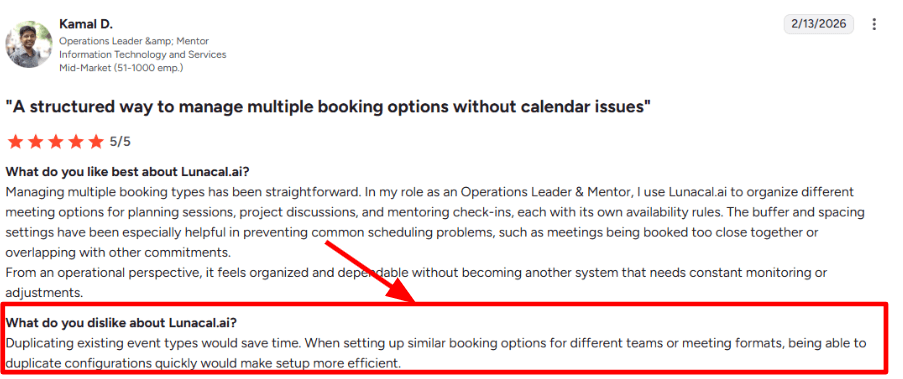
Event Types I could create multiple meeting types fast, then tweak duration, questions, and rules for each use case. When I set up similar options for different teams, I wanted a quick duplicate option and did extra manual work. I also saw the same note in a G2 review, and I am sharing a screenshot below.
-
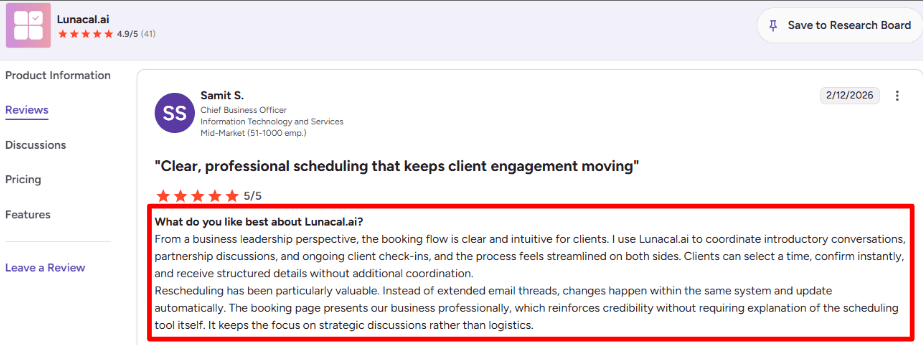
Reschedule Links When I tested rescheduling, the changes stayed inside the same flow and updates were clean on both sides. A G2 reviewer described the client flow as clear and said reschedules avoid long email threads. I have added a screenshot below so you can scan it.
-
Booking Page Widgets The booking page editor let me add proof and context like testimonials, files, and media around the calendar. This is useful when the invitee needs a little more confidence before they pick a time.
-
Calendar Sync Connecting calendars is a core setup step and it is meant to prevent double booking across accounts. One detail I noticed is the Google Marketplace listing shows 7K plus installs and an update date of June 19 2025, which signals steady maintenance.
-
Payment Integration I set up Stripe and PayPal so invitees can pay while booking, which fits paid consults and session packages. It also supports coupons, so I could test a discounted intro call flow without extra steps.
Pros
-
The booking page can carry context like proof, files, and media, which reduces back and forth. In my setup tests, this made the first call feel more prepared.
-
Rescheduling stays inside the system and reduces email coordination.
-
Calendar connections are built in for conflict checks and time zone handling.
-
Payments through Stripe and PayPal work inside the booking flow.
-
Team features like routing and shared workflows support multi member scheduling.
Cons
-
If you mainly want a lightweight personal scheduling link with fast availability sharing, Savvycal will feel closer to the job. Lunacal feels heavier when the goal is simple one to one scheduling.
-
Setting up many similar events can take longer since duplicating event types is not as quick as I expected.
-
Some advanced items appear plan gated in the Lunacal pricing comparison.
-
The booking page editor can take time to learn when you want a very specific layout.
-
Seat based pricing can add up for larger teams over time.
Pricing
- Standard is $9 per user per month and covers core scheduling plus rich booking pages, reminders, and basic integrations.
- Teams is $15 per user per month and adds team features like routing and shared workflows for coordinated scheduling.
- Enterprise is $25 per user per month for larger teams, with annual billing shown as up to 20 percent savings on the pricing page.
When to Choose Lunacal
Choose Lunacal when your booking page needs to do more than pick a time, like building trust, sharing proof, and collecting payment. It fits service businesses, agencies, and sales teams that want structured flows, routing, and reminders. If your main need is simple personal scheduling and fast availability sharing, Savvycal will be a smoother fit.
Calendly
Calendly is popularly known for simple scheduling links that remove back and forth over email. Use it when you want a dependable booking flow that connects to your calendar and meeting tools.
Features
-
Availability rules
I set working hours, buffers, and minimum notice so people stop grabbing awkward last minute slots. It also helped me cap how many meetings could land in a day so my calendar stayed sane. This is one of the first things I test because it affects every booking. -
Login and access
On paper, sign in and account access should be invisible. While testing, I also saw a Trustpilot review that described delayed verification emails and getting locked out for a day.
I am sharing a screenshot below because it matched what I wondered about during setup if email delivery slows down.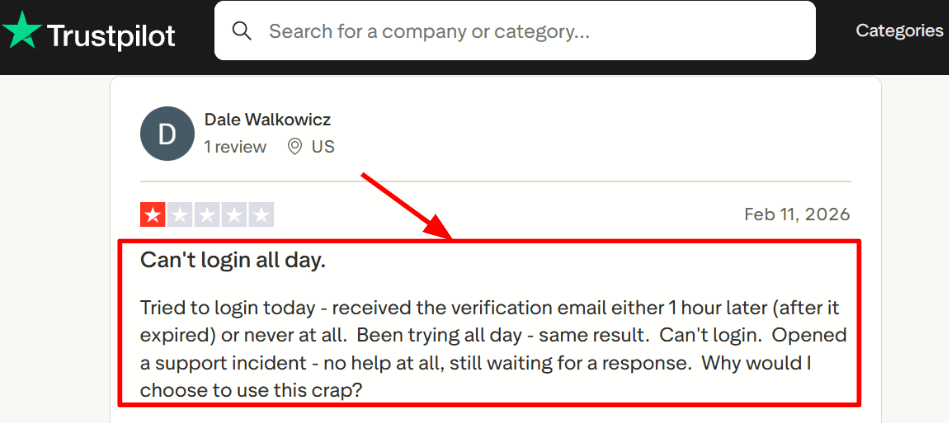
-
Meeting tool integration
Connecting Zoom or Google Meet is quick once permissions are sorted, and meetings get created with the right link automatically. A Trustpilot reviewer talked about using it for student consultations and how it cut manual coordination a lot, and I can see why. I am adding that screenshot below so readers can judge the context.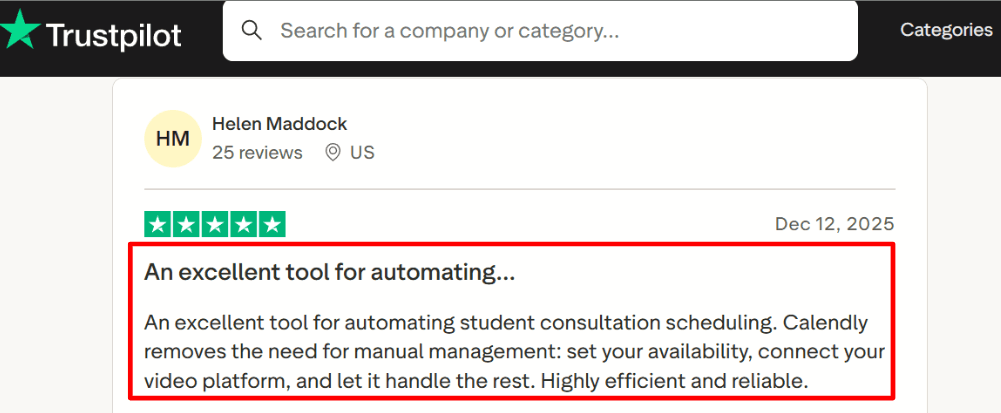
-
Team routing
For sales or support teams, round robin and routing forms can send the right person to the right meeting type based on answers. I like this when the first booking needs a bit of qualification, like region, company size, or topic. It takes some tuning to get the routing logic clean, but it is powerful once it is set. -
Reliability signals
Calendly publishes a public status history, including a resolved site availability incident dated January 12, 2026 on Calendly Status. That kind of timestamped detail is useful when you are evaluating operational risk, since it is easier to discuss with stakeholders using concrete dates. Here is the relevant history Calendly Status.
Pros
-
Quick to share a clean booking link and get meetings booked fast without extra steps.
Setup felt straightforward once my calendar connection was approved. -
Strong team features for routing and round robin.
Works well when multiple people can take the same type of meeting. -
Solid time zone handling for people booking from different places.
-
Useful reminders and workflows to reduce no shows.
-
Good security and compliance story for larger buyers.
Cons
-
If your main priority is a more polished, preference first scheduling style like SavvyCal, Calendly can feel a bit utilitarian in the invitee experience.
-
Seat based pricing can add up for growing teams.
-
Some advanced routing and admin controls tend to sit behind higher plans.
-
iCloud calendar sync has been a known limitation, and new iCloud connections were ended per an iCloud thread Calendly Community.
-
The email based login flow can become a real blocker on a bad day if verification emails arrive late.
Pricing
- Free plan is fine for basic scheduling, usually with tighter limits like one event type and one connected calendar.
- Standard is shown as 10 per seat per month when billed yearly on the Calendly pricing page.
- Teams is shown as 16 per seat per month when billed yearly.
- Enterprise is positioned as an annual contract, listed as starting at 15k per year on the same page.
When to Choose Calendly
Choose Calendly when you need reliable scheduling links, calendar and meeting tool connections, and team routing that can scale across a sales or support team. It also fits well when compliance and admin controls matter.
Skip it if the main goal is a more preference based, invitee friendly flow that SavvyCal is known for, or if your setup depends on iCloud calendar sync.
Cal.com
Cal.com is widely known for being open scheduling infrastructure with deep developer options. People pick it when they want strong team scheduling plus the option to self host or embed scheduling inside a product.
Features
-
Availability Rules
I could set buffers, notice periods, and booking limits per event type, which helped prevent rushed back to back calls. When I tested it across a few event types, the settings felt detailed enough for real teams, especially once you start mixing different meeting lengths. -
Team Scheduling
Round robin and collective scheduling are built in, so it works well when multiple people can take the same type of meeting. While setting this up, I did notice support expectations matter. I saw a similar concern in a Trustpilot review about slow replies
I am sharing a screenshot of that below so you can sanity check the context.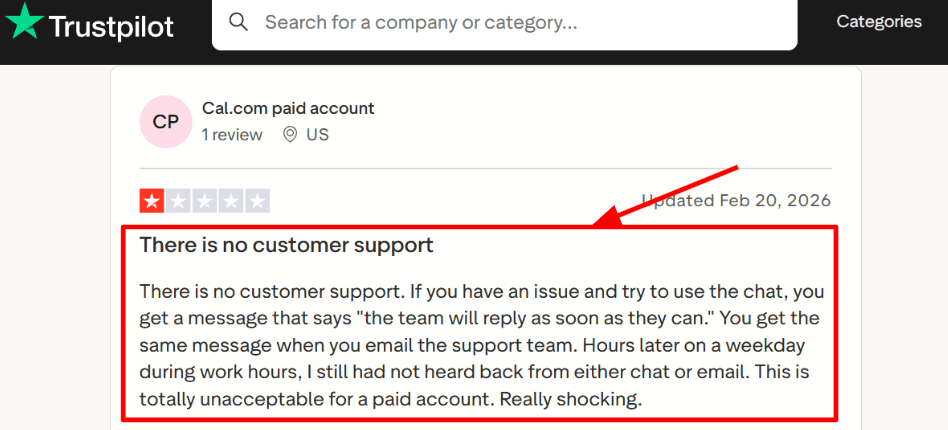
-
Routing Forms
Routing forms let you ask a couple of questions and send the booking to the right person based on the answers. This is the kind of setup I like testing with sales and recruiting flows because it reduces manual triage, and Organizations adds routing by custom variables for more control. -
Calendar Integration
It connects to calendars and uses them to prevent double bookings, which is table stakes for scheduling. In my testing, the core calendar flow worked fine, but the setup can take a few steps if you also want delegation and team rules configured cleanly.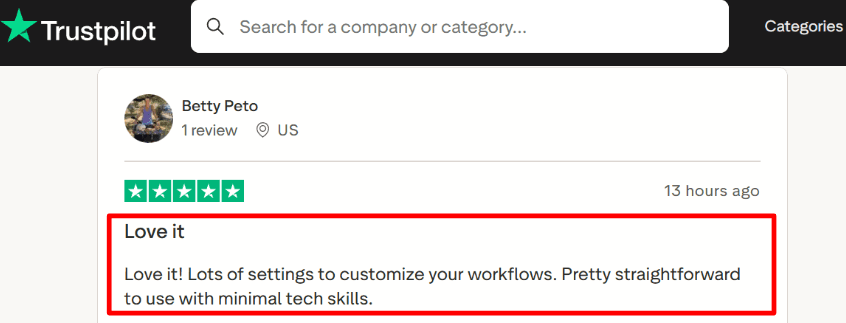
-
Embed and API
If you want scheduling inside your own app, Cal.com leans hard into embeds, webhooks, and OAuth. One detail worth noting is the OAuth app flow includes an approval step described in the Cal.com docs, which affects how quickly you can go live with your integration. You can see that in the Cal.com docs on OAuth.
Pros
- Strong fit when you need embeds, APIs, or self hosting, and SavvyCal is more of a polished scheduling layer. This is often the deciding factor for product teams.
- Free plan is genuinely usable for individuals with unlimited event types.
- Team modes like round robin and collective are available without heavy workarounds.
- Routing forms are helpful for sales, hiring, and support flows.
- SSO and SCIM exist on higher plans for org level governance.
Cons
- If your main goal is fast, concierge style scheduling for 1 to 1 meetings, SavvyCal usually fits that scenario better. Cal.com can feel like extra setup for a simpler need.
- Self hosting adds real operational work, especially background jobs and upkeep.
- Some areas in the platform docs are marked as changing, like the deprecated atom noted on the payment form.
- Plan gating can push teams toward Organizations for governance features.
- I ran into a moment during setup where I expected quicker help on a paid account, then realized response time can be inconsistent, which matches what some Trustpilot feedback hints at.
Pricing
- Individuals plan is Free and includes unlimited event types and many integrations.
- Teams is priced per user, with lower rates shown for yearly billing on the official pricing page.
- Organizations costs more per user and adds SSO, SCIM, permissions, and compliance checks like SOC 2 and HIPAA positioning.
- Enterprise is custom priced and focuses on SLA, onboarding, and dedicated support paths.
When to Choose cal.com
Pick Cal.com if you want scheduling that can live inside your product, or if you need team scheduling plus routing forms and admin controls. It also makes sense if self hosting or EU hosting options matter for your setup. If you mainly want a smooth, quick scheduling experience for external guests with minimal configuration, SavvyCal is usually the easier path.
Trustpilot also has mixed signals on support speed and ease of use. One Trustpilot reviewer flagged slow responses, and another called it straightforward with lots of workflow settings
I am adding screenshots below so readers can look at the exact wording.
Acuity Scheduling
Acuity Scheduling is best known for appointment style booking pages where customers pick a service, pick a time, and pay if needed. It is a practical fit when you want scheduling, reminders, and billing to live in one place.
Features
-
Availability rules
I set up service hours, buffers, and daily limits, then ran a few test bookings to see where it breaks. It handles real calendar life well, like last minute blocks and time gaps, once you dial in the rules.
I did notice that if something goes wrong mid week, you really want fast help. I saw the same concern on Trustpilot in a support review.
I am sharing a screenshot below so you can see the exact context.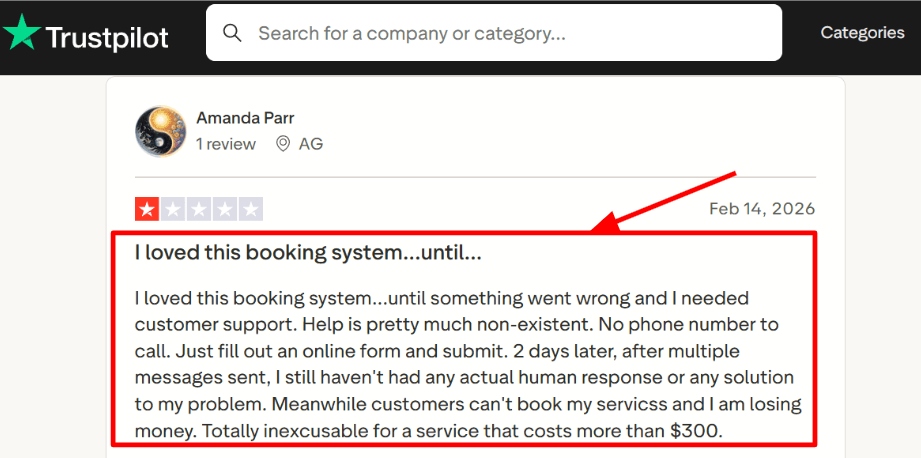
-
Client controls
Adding offerings felt quick, and it was easy to keep services organized once I had a few different appointment types. A Trustpilot review also calls out how simple it is to navigate and add offerings, and I agree after testing the setup.
The same review mentions a ban button for repeat no shows. I found the client control ideas useful, even though I still wanted a bit more built in marketing depth.
I will share a screenshot below so you can scan what that user said.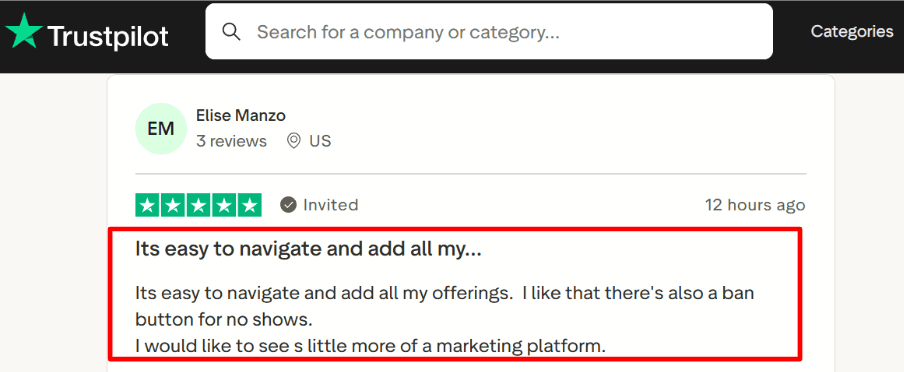
-
Calendar integration
Connecting Google Calendar is one of the first steps I would do, since it is the main guardrail against double booking. After I linked my calendar, test bookings showed up quickly and conflicts were handled the way you would expect.
One small detail that comes up in real teams is naming and vendor clarity for docs and approvals. Squarespace files it under Squarespace Scheduling on Squarespace Support https://support.squarespace.com/hc/en-us/categories/360002203512-Acuity-Scheduling and that can help when procurement asks what you are actually buying. -
Payments and packages
Payments through Stripe, Square, or PayPal can be turned on per appointment type, which makes it easy to charge at booking or take a deposit. I tested a paid booking flow and the basics were smooth, including confirmation emails.
Packages and subscriptions are handy when you sell sessions in bundles or monthly routines. The setup is a little spread out across screens, so I had to click around more than I expected. -
Meeting tool integration
If your appointments are virtual, connecting a meeting tool keeps the workflow clean since links get created automatically. In testing, this reduced the manual step of creating a call link and pasting it into reminders.
This is especially useful for consults and remote services where clients need a single message that includes the time, link, and any prep notes.
Pros
- It covers the full appointment flow for service businesses, including booking, reminders, and getting paid. After setup, the day to day admin work stays low.
- Calendar sync reduces double booking risk once you connect Google Calendar or another calendar.
- Intake style data collection and client records help you keep context for repeat sessions.
- Packages and subscriptions fit recurring services and multi session programs.
- Booking page embeds well on websites and works fine as a standalone link too.
Cons
- If your main need is polished one on one scheduling links for sales style meetings, with lightweight coordination and time zone convenience, SavvyCal usually fits better. Acuity can feel like more setup than you want for that workflow.
- Support is mainly ticket based, and the Trustpilot feedback suggests response time can be a real risk.
- No free plan, so you decide after the trial.
- International SMS coverage can be uneven, see Acuity Help https://help.acuityscheduling.com/hc/articles/35086777275917.
- Some useful branding and advanced settings often sit on higher tiers, so costs can rise as you scale.
Pricing
- Acuity offers a 7 day free trial, which is enough to run a full setup and a few real test bookings.
- Paid plans are commonly listed around 20, 34, and 61 per month depending on tier, with enterprise pricing available for larger needs.
- Many sources describe an annual billing discount, so the real monthly equivalent may drop if you pay yearly.
When to Choose Acuity Scheduling
Choose it when you sell appointments as a service and want scheduling, reminders, and payments in one flow. It fits solo operators and small teams that need client details, packages, and a clean booking page.
Skip it when you mainly want fast meeting coordination links for professional scheduling, where the lighter SavvyCal style workflow is the priority.
YouCanBookMe
YouCanBookMe is mainly known for customizable booking pages and solid calendar syncing. It makes sense when you want a branded booking flow that still handles the scheduling basics reliably.
-
Calendar integration When I connected Google Calendar, the availability stayed in sync quickly and it reduced double booking risks in my tests. You can also connect multiple calendars depending on plan, which matters if you split personal and work calendars.
I did notice a few settings that take a minute to find the first time, especially when you want very specific rules around what counts as available. -
Booking page control You can tweak branding, embed the page on your site, and shape the booking form so you collect the right info upfront. This is one of the areas where setup feels practical because the changes are visible right away.
I also saw the same concern in a Trustpilot review about free plan limits changing. I am sharing a screenshot below so you can judge the impact in context.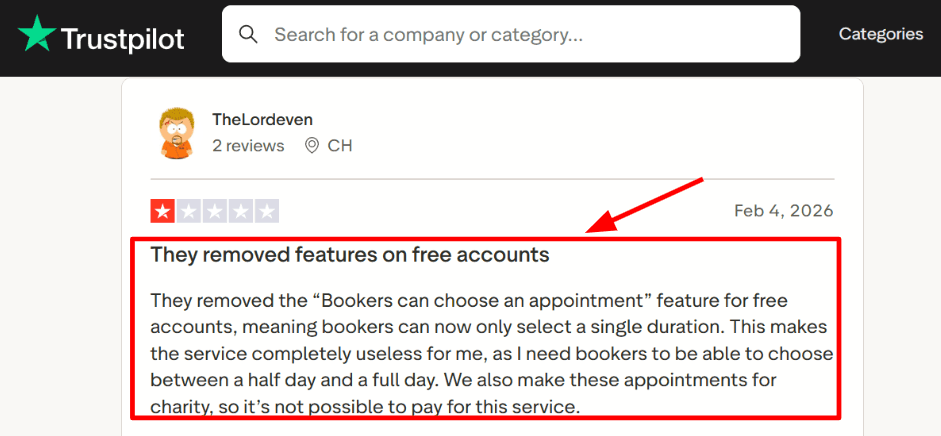
-
Payment integration Stripe payments are supported, so you can take money at booking time for consults or paid sessions. If you rely on payments, one nuance that matters is the platform takes a documented commission on payments, which shows up only when you read the help docs. See the Stripe FAQ on Support youcanbookme. https://support.youcanbook.me/hc/en-us/articles/17321863710743-Integrate-Stripe-to-take-payments-for-your-bookings
That detail can change the math for high volume bookings. -
Meeting polls Meeting polls help when multiple people need to agree on a time, like interviews or small group calls. I tried it for a multi attendee flow and it was smoother than collecting times over email.
If your scheduling is mostly one to one, you may not use this every day, but it is handy when you need it. -
Messaging and reminders Email reminders are part of the core flow, and there is also an SMS option that they position as a dedicated business line feature. In my testing, this felt useful for no show reduction, especially for service style bookings.
I get why some long time users call it dependable, and I saw a similar sentiment in a Trustpilot review. I am including that screenshot below so readers can scan the exact wording.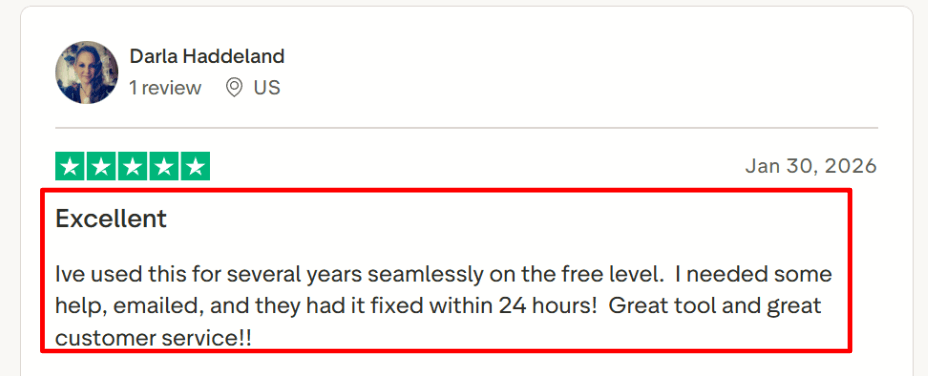
Pros
- Reliable day to day scheduling once you finish setup, and it saves real time in back and forth. It also feels stable for recurring use cases.
- Strong booking page customization for a tool in this price range
- Meeting polls help with multi person coordination
- Stripe payments are available for paid sessions
- HubSpot integration exists on higher plans for CRM workflows
Cons
- If your main reason for switching from SavvyCal is polished scheduling links and lightweight scheduling, YouCanBookMe can feel heavier than you need. It is better when you want more booking flow control.
- Payments include a platform commission on top of Stripe fees
- Free plan changes can break specific booking setups
- Some settings are buried and take time to locate the first time
- Refund handling has limits in the payments flow, as noted in the payments FAQ https://support.youcanbook.me/hc/en-us/articles/17321863710743-Integrate-Stripe-to-take-payments-for-your-bookings
Pricing
- Free plan is available with unlimited bookings and one calendar connection, good for basic single flow setups.
- Paid plans start around 9 dollars per month for an individual, then increase with more calendars, booking pages, and team features.
- A 14 day free trial is listed for trying paid features before committing.
- Teams pricing goes higher and includes unlimited team members, which matters if multiple people share scheduling.
When to Choose YouCanBookMe
Choose it if you want a customizable booking page, reliable calendar syncing, and optional payments in one tool. It also fits teams that need shared booking pages or occasional meeting polls.
Skip it if your needs are mainly premium scheduling links and lightweight link sharing, since SavvyCal can feel simpler for that style of scheduling.
Doodle
Doodle is best known for group polls that help people pick a meeting time fast. Use it when you want to collect availability from many people without a long email thread.
Features
-
Group polls
I set up a poll in a couple of minutes and shared one link in Slack and email. People could vote without needing a new account, which helped response rates.
I did notice the Free experience can feel noisy for some people. I saw the same vibe in a Trustpilot review and I am adding a screenshot below.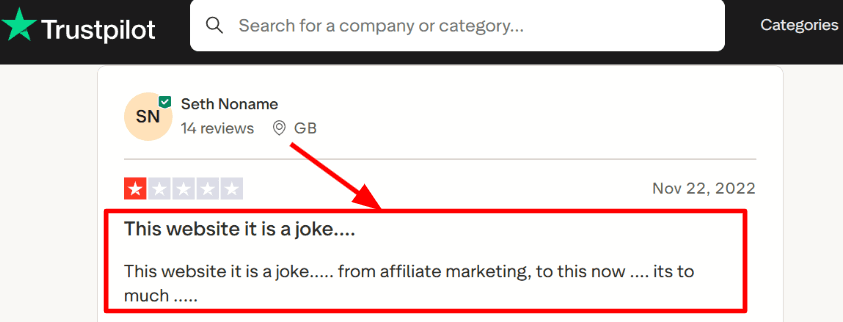
-
Calendar integration
Once I connected my calendar, Doodle started avoiding my busy times when I created new options. This keeps you from offering slots you already booked, which matters when polls get shared widely.
While researching, I ran into a Trustpilot post praising Doddle for parcel pickup tech. It seems like a different brand, so I would not treat it as evidence about Doodle. I am still sharing the screenshot below since others may bump into the same confusion.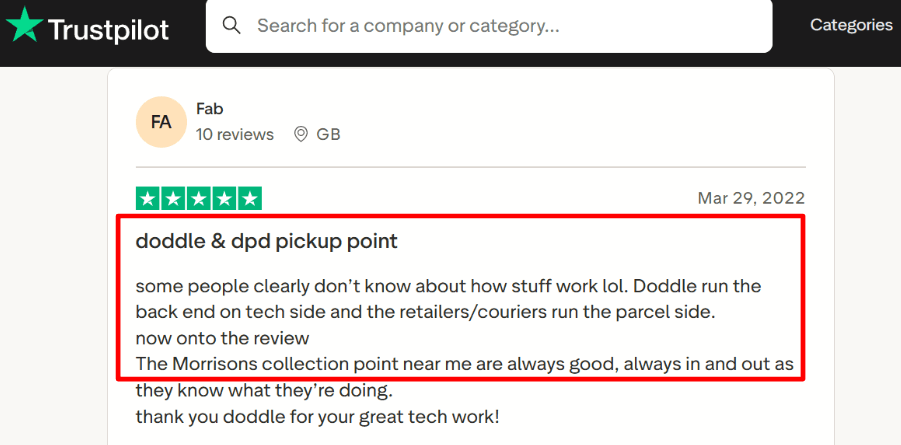
-
Vote on behalf
When someone replies in a chat with their availability, you can enter their votes for them. In practice this is handy for exec assistants and large internal groups.
This is also where things felt a bit odd during testing. It is powerful, though it can blur who actually submitted what if you are not careful. -
Booking rules
The Booking Page side supports real scheduling rules like buffers, minimum notice, and daily booking limits. I like this when I need guardrails around my day and fewer surprise meetings.
It is more basic than a dedicated scheduling link tool, so I usually treat it as a simple booking layer next to polls. -
Stripe payments
Doodle supports Stripe payments for paid bookings. If you charge for office hours, consulting, or interviews with a fee, this reduces back and forth on payment steps.
One deeper thing I track is product direction and ownership signals. Doodle had a CEO appointment announcement from TX Group that points to ongoing investment and expansion.
Pros
- Great for group scheduling when you need a quick decision and one link people can vote on. It is the cleanest way I have tested to stop email ping pong.
- Large polls can handle a lot of participants, which fits town halls and stakeholder scheduling.
- Calendar connection reduces the risk of offering times you already have booked.
- Vote on behalf helps when people respond outside the poll link.
- Booking rules like buffers and notice make it safer for real workdays.
Cons
- For premium one to one scheduling links with a polished sharing flow and fine grained availability sharing, SavvyCal usually fits better. Doodle can feel like extra steps when you only need one recipient to pick a time.
- The Free plan experience can feel cluttered, especially when you share links with external guests.
- Some teams will want stronger enterprise controls like SSO and SCIM, which pushes you into higher tiers.
- If you use the AI helper, follow the AI guidance and avoid putting sensitive data into prompts.
- Polls can create ambiguity if people vote loosely and you need a firm RSVP culture.
Pricing
- Free plan exists and is enough to test polls and basic scheduling.
- Pro is listed at USD 14.95 per month, or USD 83.40 per year which works out to USD 6.95 per month on annual billing.
- Team is listed at USD 19.95 per user per month, or USD 107.40 per user per year which works out to USD 8.95 per user per month on annual billing.
- Enterprise is custom priced.
When to Choose Doodle
Choose Doodle when you schedule groups often, run internal stakeholder meetings, or need a poll first workflow. It also fits simple booking pages where buffers and minimum notice matter. Skip it when your whole workflow is premium one to one scheduling links and availability sharing for individual recipients.
Chili Piper
Chili Piper is popularly known for inbound lead routing and instant meeting booking for revenue teams. You use it when you want a form fill or handoff to turn into a scheduled meeting fast, with rules you can control.
Features
-
Calendar integration
I connected calendars and tested real scheduling flows, then checked how it behaves when a rep calendar is missing. A recent update mentions a global calendar connection path that still lets internal bookers see free busy for assignees, which can save a lot of broken booking moments on busy teams. The details are easy to miss unless you read the Chili Piper Help Center updates like this one from Chili Piper Help Center. January 27th 2026 -
Routing rules
This is the heart of the tool. You can route based on form fields, CRM fields, territories, ownership, and more, then immediately show times to book. When I was testing, the logic felt powerful, and also easy to mess up if a small condition is wrong. I also saw the same theme in a G2 review. I am sharing a screenshot of that review below so you can sanity check the wording.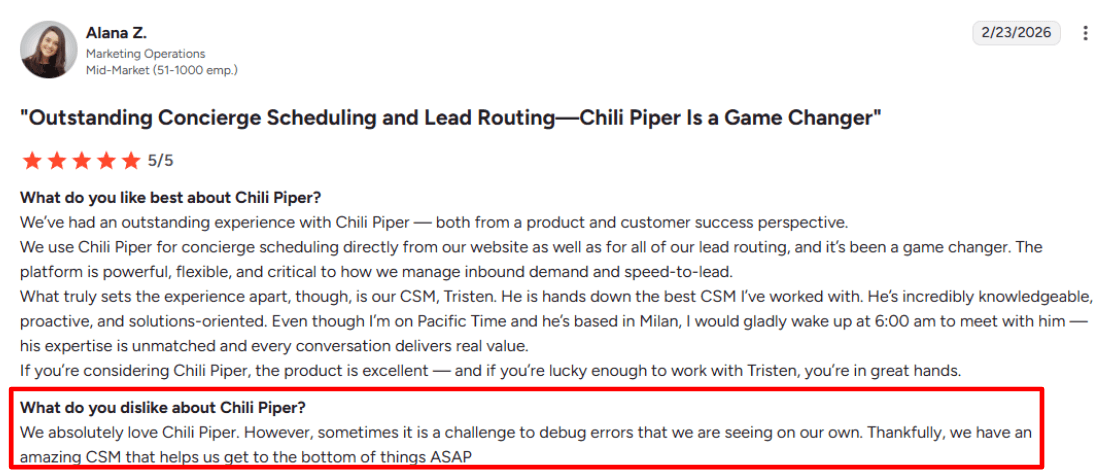
-
Meeting governance
You can set meeting limits so one person does not get flooded, and you can enforce guardrails on how booking works. I like this for teams where one overbooked calendar can break your entire pipeline flow. When I set this up, I had to be very deliberate about what counts as a meeting and what time window the limits apply to. -
Spam protection
There is a Spam Checker feature that aims to spot fake meetings and pass signals into Salesforce. I like that it treats spam as a workflow problem, not a one time cleanup. I tested a few junk submissions and it helped, though you still need someone to review edge cases. A recent product update also calls out spam score being written to Salesforce, which is useful for downstream ops rules. February 10th 2026 product update from Chili Piper Help Center -
Team handoff scheduling
Handoff style scheduling is built for SDR to AE flows where one person books on behalf of another. In day to day use, this can remove a lot of waiting, especially when you are trying to schedule quickly after qualification. I agree with a G2 review that support matters here because routing setups can get complicated.
I am dropping a screenshot of that second G2 review below so you can see the exact context.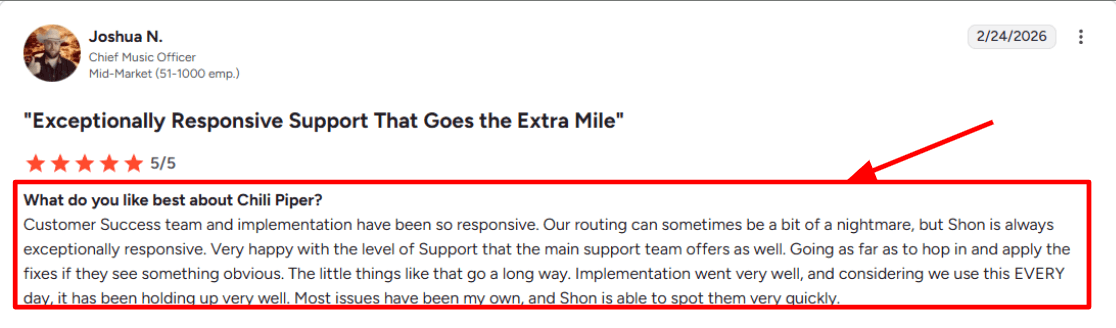
Pros
-
Support and onboarding stand out when routing logic gets dense, which matters for a tool like this. I saw this echoed in G2 feedback about responsive Customer Success and help applying fixes.
-
Strong fit for inbound conversion flows where you want qualify, route, and book in one motion.
-
Deep routing control for territories, ownership, and CRM based decisions.
-
Meeting limits help keep calendars healthy during spikes.
-
Useful spam controls that can feed signals into Salesforce workflows.
Cons
-
If your main need is a clean, personal scheduling link experience like SavvyCal style scheduling, Chili Piper can feel like extra machinery for a simple use case. It is built for ops heavy routing and that can be more than you want.
-
Debugging your own routing issues can take time, especially early on.
-
Admin setup requires careful QA, small rule mistakes can ripple.
-
Some of the best capabilities depend on CRM and permission hygiene.
-
Frequent product surface changes mean admins should keep up with updates like the router builder changes in this Chili Piper Help Center post. December 23rd 2025
Pricing
- Chili Piper uses module based pricing, usually per user per month, and some modules include a monthly platform fee that scales with inbound lead volume. The pricing page shows separate modules like Concierge, Distro, Handoff, ChiliCal, and Chat with different per user prices and platform fees depending on volume. For budgeting, I treat it as an ops platform cost that rises with usage rather than a flat scheduling tool bill. Chili Piper pricing page
When to Choose Chili Piper
Choose it if you run inbound with forms, need routing by rules, and care about fast handoffs between roles like SDR and AE. It fits teams who can invest in setup and want tight control over who gets which meeting. If you mainly want a polished personal scheduling link experience and lightweight coordination, SavvyCal alternatives will usually feel simpler.
Key Takeaways
- Lunacal: Best for high-trust booking pages with payments, packages, and team routing in one place.
- Calendly: Best for simple booking links that are easy to roll out across teams.
- Cal.com: Best for teams that want a developer-friendly scheduling setup with deeper control.
- Acuity Scheduling: Best for service businesses that need appointments, payments, and classes.
- YouCanBookMe: Best for businesses that want highly customizable booking rules and forms.
- Doodle: Best for group availability polling and simple meeting coordination.
- Chili Piper: Best for inbound lead routing and instant booking for sales teams.
Methodology
Evaluating scheduling tools takes more than reading a few reviews. I spent several weeks testing each SavvyCal alternative hands-on, going through real workflows to understand where each tool helps and where it falls short.
Sources
- Official websites, FAQ pages and help documentation were reviewed to understand each tool's stated features and positioning.
- Took free trials of every tool included in this list and used them in live scheduling scenarios.
- Review platforms like G2, Trustpilot and Capterra were studied to identify patterns in user satisfaction and complaints.
- Communities on Reddit and Quora gave unfiltered feedback from real users, including recurring frustrations that formal reviews tend to skip.
Test Setup
- Each tool was tested using a personal calendar connected to Google Calendar, with availability rules and buffer times configured.
- Booking pages were set up for one-on-one meetings, group sessions and multi-host scenarios.
Common Scenarios We Tested
- Sending scheduling links to external contacts and measuring how smooth the booking experience felt for someone unfamiliar with the tool.
- Testing timezone detection, calendar conflict handling and confirmation email quality.
- Checking how quickly the interface could be set up without reading documentation.
FAQs
What is the best SavvyCal alternative in 2025 2026?
The best SavvyCal alternatives are Lunacal, Calendly, Cal.com, and Acuity Scheduling. Lunacal stands out as one of the highest-rated scheduling tools on G2 at 4.9/5. For a SavvyCal switch, it offers beautiful booking pages, seamless payment integration, customisable intake forms, and multi-language support, making it a strong fit for individuals and teams alike.
Does scheduling software work differently depending on where your clients are located?
Yes, location does matter more than most people think. A few things to keep in mind:
- US and Canada: Clients expect SMS reminders and tight integration with Google Calendar and Outlook.
- UK and Australia: Time zone handling needs to be airtight, or you will get no-shows.
- EU and Germany: GDPR compliance is non-negotiable. Check where data is stored before committing.
- French and Spanish markets: Multi-language booking pages matter a lot for conversion. Not every SavvyCal alternative supports this natively.
What should you actually look for in a SavvyCal alternative?
A solid SavvyCal alternative should handle time zone detection automatically, support team and round-robin scheduling, and offer customisable intake forms. Payment collection, calendar sync reliability, and clean booking page design also matter. If any of these feel clunky during your free trial, that friction only gets worse with real clients.
What tools and apps does Lunacal connect with?
Lunacal integrates with Google Calendar, Outlook, Apple Calendar, Google Meet, Microsoft Teams, and FaceTime for video calls. It also supports Stripe and PayPal for payments, SMS reminders for reducing no-shows, and connects with HubSpot, Pipedrive, and other CRMs to keep your workflow in one place.
Summarize this content with AI