

Introduction
Pipedrive Scheduler works for basic meeting booking, but anything beyond that is usually where the friction starts.
I tested these alternatives end to end, from creating links to booking, rescheduling, canceling, and checking calendar sync behavior. I also looked for the problems that tend to show up after the link is already live: blocked slots that were previously shared, time zone confusion, weak branding, and booking pages that do very little to build confidence.
To keep the guide grounded, I cross-checked product claims against documentation, pricing pages, and user feedback on review platforms like G2 and Capterra where relevant. The result is a practical shortlist of the strongest Pipedrive Scheduler alternatives, who they fit best, and where each one starts to break.
Best Pipedrive Scheduler Alternatives Compared
Pipedrive Scheduler alternative use-case and pricing table
| Use case | Best tool with G2 rating | Why it’s a fit | Starting price |
|---|---|---|---|
| Best for high-trust booking pages that help warm up prospects before the meeting | Lunacal (4.9 ★★★★★) | Best when you want more than a basic scheduler link and need a branded page with stronger context, reminders, and a more polished buyer experience | Free plan available, paid starts at $9/month |
| Best for simple scheduling links | Calendly (4.7 ★★★★) | Good fit for teams that mainly want a familiar booking link and straightforward meeting setup | Free plan available, paid starts at $10/month |
| Best for inbound lead routing and speed-to-lead | Chili Piper (4.6 ★★★★) | Strong for B2B sales teams that want to qualify, route, and book inbound leads fast | Free trial, paid starts at $15/month |
| Best for HubSpot-first meeting scheduling | HubSpot Sales Hub (4.4 ★★★★) | Works well when meetings need to stay closely tied to HubSpot CRM and rep workflows | Free plan available, paid starts at $20/month |
| Best for custom embeds and flexible workflows | Cal.com (4.6 ★★★★) | Better for teams that want more control over embeds, workflows, and scheduling logic | Free plan available, paid starts at $12/month |
| Best for invitee-friendly scheduling UX | SavvyCal (4.8 ★★★★) | A strong choice for users who care a lot about a smoother, less pushy scheduling experience | Free trial, paid starts at $12/month |
| Best for client appointments with payments | Acuity Scheduling (4.7 ★★★★) | Best suited for appointment-led businesses that need payments, intake, and client booking flows | Free trial, paid starts at $16/month |
Pipedrive Scheduler Alternatives Feature Comparison Table
| Feature | Lunacal | Calendly | Chili Piper | HubSpot Sales Hub (Meetings) | Cal.com | SavvyCal | Acuity Scheduling |
|---|---|---|---|---|---|---|---|
| Rating on G2 (out of 5) | 4.9 ★★★★★ | 4.7 ★★★★ | 4.6 ★★★★ | 4.4 ★★★★ | 4.6 ★★★★ | 4.8 ★★★★ | 4.7 ★★★★ |
| Starting price of paid plans | $9 | $10/seat/mo | $15/user/mo | $20/seat/mo | $12/user/mo | $12/user/mo | $16/mo |
| Calendar sync: Google, Outlook, Apple | Yes | Yes | Partial | Partial | Yes | Yes | Yes |
| SMS/email reminders | Yes | Yes | Partial | Partial | Yes | Partial | Yes |
| Paid meetings | Yes (Stripe, PayPal) | Yes (Stripe, PayPal) | No | Partial | Yes (Stripe) | Yes (Stripe) | Yes (Stripe, PayPal, Square) |
| Scheduling page themes | Yes | Yes | Partial | Partial | Yes | Yes | Yes |
| Team scheduling | Yes | Yes | Yes | Yes | Yes | Yes | Yes |
| Round robin scheduling | Yes | Yes | Yes | Partial | Yes | Yes | Partial |
| Multi-session packages | Yes | No | No | No | No | No | Yes |
| Custom domain | Yes | Yes | No | Yes | Yes | Yes | Partial |
| GDPR | Yes | Yes | Yes | Yes | Yes | Yes | Yes |
In-depth Review of Pipedrive Scheduler Alternatives
Lunacal
Lunacal is popularly known for booking pages that let you add rich content like videos, testimonials, and files right next to the calendar. If you want a booking link that builds context and reduces back and forth, this is the reason people pick it.
Features
- Booking Page Widgets
I tested the page editor and it is built for more than a calendar link. You can add videos, testimonials, images, and even files so invitees come in prepared.
One thing that stood out during setup was how much context you can give before someone books, which can reduce basic questions before the meeting.
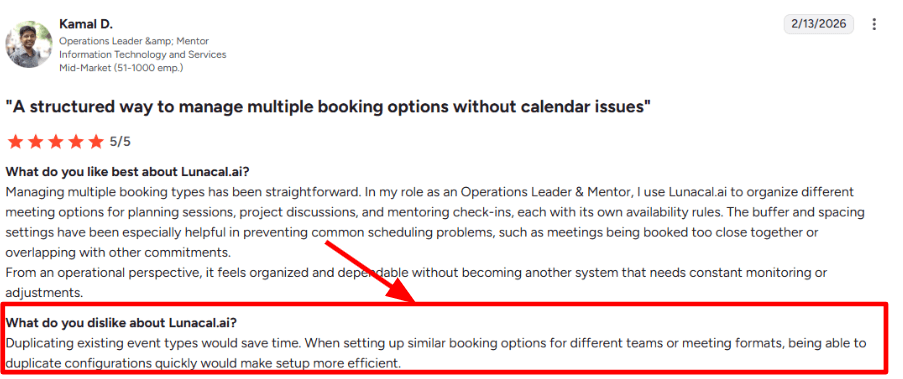
I also saw a G2 review mention event setup can feel slower when you repeat the same format across teams.
Sharing a screenshot of that review below because it matches what I noticed while configuring multiple similar meetings.
-
Availability Rules
It covers the basics like buffers, notice periods, and working hours, and it also lets you keep rules per event type so your intro call does not steal time from paid sessions.
When I tested it with a busy calendar, the conflict checks felt reliable and I did not run into double booking issues in normal use. -
Calendar Integration
It supports connecting calendars like Google and Outlook, so booked slots reflect on both sides with the right timezone handling.
I set this up in a few minutes and the calendar sync behaved as expected, including updating when meetings move. -
Payments Integration
If you charge for time, you can collect payment during booking using Stripe and PayPal. It is useful for coaches, advisors, and any service that needs commitment upfront.
The setup was straightforward, though I had to double check the payment settings once to make sure the event was truly paid and not just collecting details. -
Webhooks Events
This is where it gets deeper for ops teams. I noticed the platform exposes webhook events around payments, including payment initiated and paid, which is handy for attribution and automations.
This is documented in the Lunacal help docs on webhooks, including payment events like paid and payment initiated, which helps build clean workflows with other systems. See the help center Webhooks page on payment events help.lunacal.ai.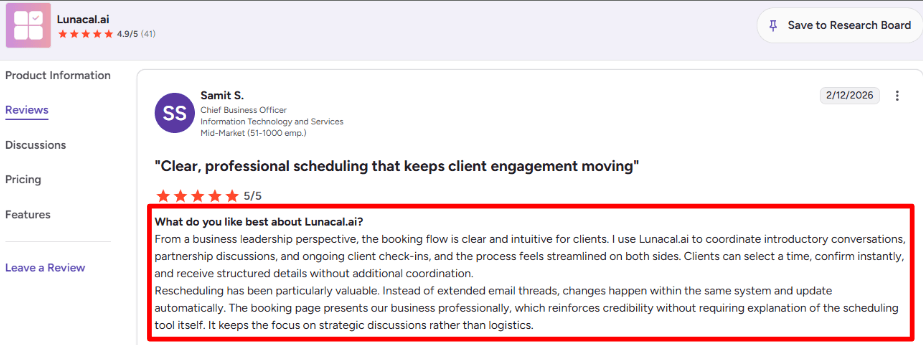
Pros
-
The booking flow feels easy for invitees, and rescheduling stays inside the same flow.
It reduces back and forth when plans change. -
Rich booking pages can add trust context before the meeting.
-
Payments during booking help filter serious buyers.
-
Calendar sync and timezone handling worked well in testing.
-
Webhooks make it easier to connect bookings to internal systems.
Cons
-
If your main need is sending a few suggested time slots from inside Pipedrive and keeping everything inside the CRM, Lunacal can feel like extra setup.
That matters when your sales team lives fully in Pipedrive Scheduler. -
Duplicating similar event types is still a time sink for teams.
-
Some advanced features appear plan gated based on the pricing table.
-
The first time I set up a paid event, I had to recheck settings once to avoid a misconfigured flow.
-
GDPR related timelines can add process overhead for some teams, as described in the data controls and retention doc on GDPR help.lunacal.ai.
Pricing
- Standard is $9 per user per month, Teams is $15, Enterprise is $25.
- Annual billing is shown with savings up to 20 percent.
- If you need teams, routing, or deeper controls, expect to be in the higher tiers.
- For solo setups, the entry tier can cover core booking and calendar sync without much overhead.
When to Choose Lunacal
If you want a booking link that also explains who you are, what the meeting is for, and what to do before showing up, Lunacal fits well.
It also makes sense if you need paid bookings, packages, or richer pages for client facing meetings.
If you mainly need Pipedrive Scheduler style slot sharing inside the CRM with minimal configuration, it may feel like more than you need.
Calendly
Calendly is best known for sharing a clean booking link so people can pick a time without email back and forth. It is usually picked when you want a reliable scheduling flow that works with your calendar and video calls.
Features
-
Calendar integration
When I connected Google Calendar, the real value was instant conflict checks. A slot that looked open on the booking page disappeared as soon as my calendar filled up. In testing, this reduced double bookings quickly, especially when I had overlapping personal and work calendars. -
Account access flow
Login uses verification emails and that can be a weak link on a busy day. I ran into a case where the email arrived too late, and it blocked setup for longer than I expected. I also saw the same theme in a Trustpilot review, and I am adding a screenshot below so you can see the exact wording.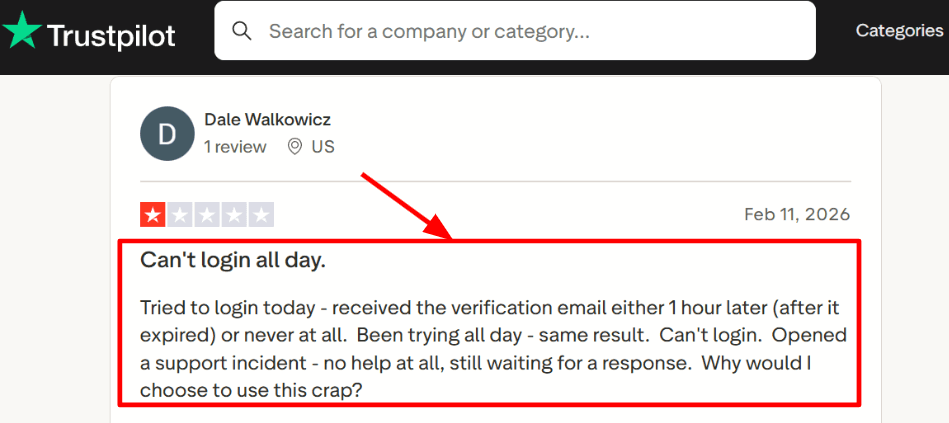
-
Availability controls
You can shape availability with working hours, buffers, minimum notice, and daily limits, so people do not book meetings that ruin your day. I liked setting a short buffer before and after calls, plus a minimum notice so last minute bookings did not show up. One small annoyance was finding the exact setting I needed after a UI change, since a few controls felt buried.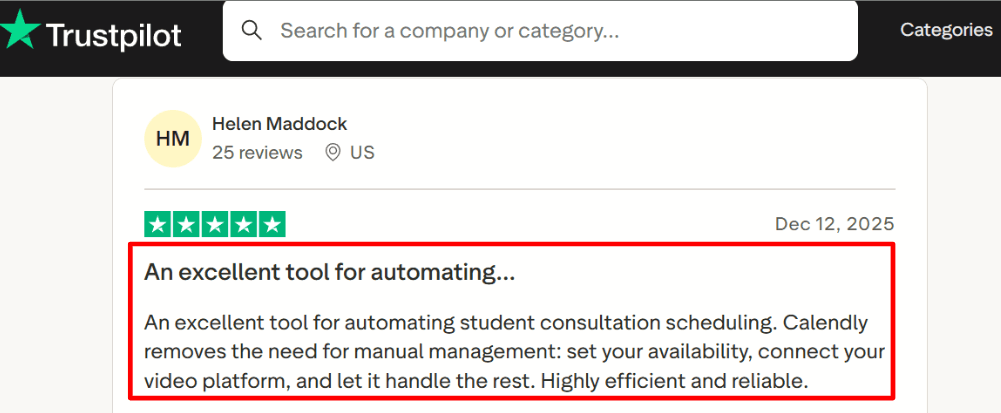
-
Routing and team setup
For teams, you can use round robin or routing forms to send people to the right person based on answers. I tested a simple qualifier form and it helped keep the wrong meetings off my calendar. If your Pipedrive Scheduler flow is tightly tied to CRM ownership, this part can take more wiring to match your exact routing rules. -
Notetaker recaps
Calendly has been rolling out Notetaker for summaries and action items, which can reduce manual note taking after calls. The rollout details and how it works are documented in Calendly Help Center content, which is useful when you need a concrete reference like this Notetaker overview on Help Center. I see this as helpful for teams that want consistent follow ups after high volume calls.
Pros
-
Cuts scheduling back and forth fast, especially once calendar integration is connected and working end to end. It is easy to get a link live and start booking.
-
Strong availability controls like buffers and minimum notice help keep your day predictable without constant manual edits.
-
Team options like round robin and routing forms support higher volume inbound scheduling.
-
Embeds work well for putting booking directly on a site or landing page.
-
Helpful add ons like Notetaker can reduce admin work after meetings.
Cons
-
If your priority is CRM native scheduling tied to deals, owners, and pipeline steps, Pipedrive Scheduler can be a better fit for that exact workflow.
-
Verification email login can fail at the worst time, and I have seen it happen in real use. A Trustpilot screenshot below shows the same issue.
-
Seat based pricing can add up as more teammates need access.
-
Some advanced routing features sit behind higher plans, which can push upgrades earlier than expected.
-
iCloud calendar support has been a sticking point and newer connections were restricted, as discussed in this iCloud thread on Calendly community.
Pricing
- Free plan exists and is fine for basic scheduling, but limits show up quickly once you need multiple event types or team workflows.
- Standard is commonly listed around 10 per seat per month when billed yearly, with higher monthly pricing on many third party pages.
- Teams is commonly listed around 16 per seat per month when billed yearly, aimed at routing and team scheduling.
- Enterprise is positioned for larger org needs, with pricing typically handled via sales and annual commitments.
When to Choose Calendly
Choose Calendly if you want a widely understood booking link, strong availability controls, and flexible team scheduling with routing. It fits teams that live in Google Calendar or Outlook and want scheduling to work across different invitees and time zones. If your scheduling needs to stay fully inside Pipedrive and mirror deal ownership and pipeline logic with minimal setup, you may want to keep Pipedrive Scheduler as the default.
HubSpot Meeting
HubSpot Meeting is popularly known for booking links that sit inside the HubSpot CRM. Use it when you want scheduling to feed straight into contacts, deals, and team routing.
Features
-
Seat based access
When I set this up, I noticed a few controls depend on which HubSpot seats are assigned, so planning roles upfront matters.
I also saw the same theme in a Trustpilot review about renewal and support follow ups.
I am sharing a screenshot below so you can see what they described.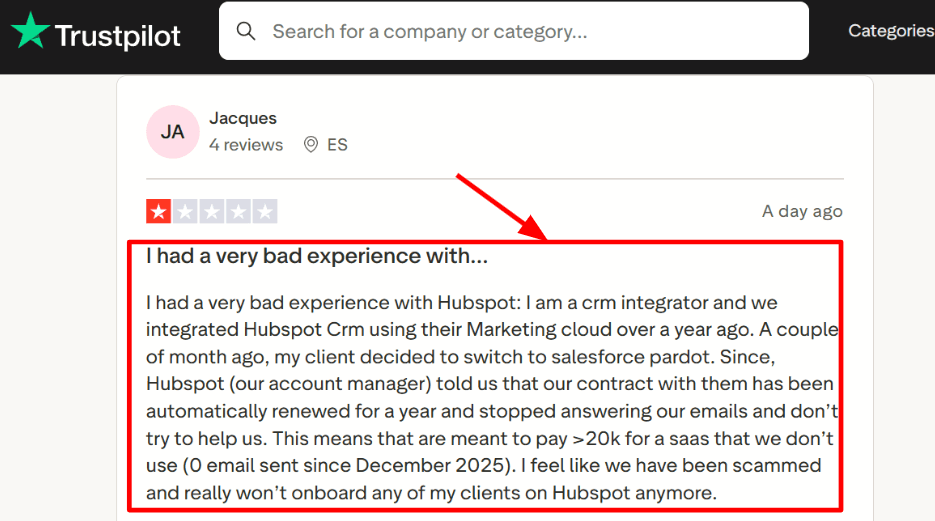
-
CRM context
The best part in daily use is that bookings land with the right contact record, so the handoff feels clean.
I saw a Trustpilot review saying they were extremely happy as a small business CRM user.
I am adding that screenshot below so you can scan the wording.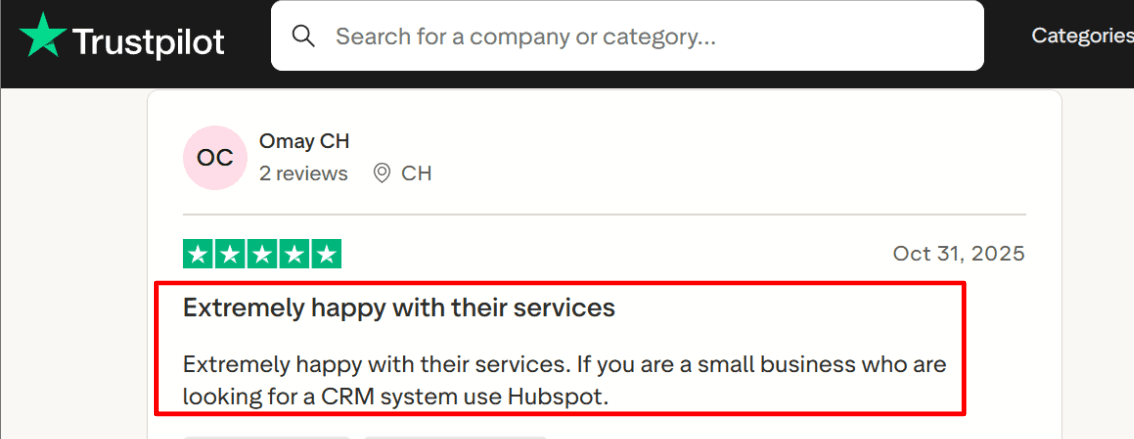
-
Calendar integration
Connecting Google Calendar or Outlook is straightforward, and the busy blocks were accurate in my testing.
It helped me avoid double booking without having to manually block time in two places. -
Round robin routing
I tested a round robin link and the availability logic is detailed, including how assignment works when multiple people are free.
One nuance I noted from HubSpot Knowledge Base is that a disconnected calendar can be treated as always available, so admin hygiene matters. -
Form and spam controls
You can add booking questions, captcha, and even block free email providers or specific domains.
One setting took me longer to find than I expected, so I would budget a few minutes to review the options.
Pros
-
Meetings and CRM stay connected, so follow ups and ownership feel simpler after you are live.
It reduces the messy step of copying booking details into a separate system. -
Calendar conflicts are handled well once Google or Outlook is connected.
-
Round robin and group scheduling are available for teams.
-
Reminder emails can reduce no shows with minimal setup effort.
-
Booking forms can collect context and filter spam with captcha and domain controls.
Cons
-
If you mainly want simple slot sharing like Pipedrive Scheduler, HubSpot can feel like extra overhead.
It fits better when you already want HubSpot CRM data in the loop. -
Costs can climb as you add seats and higher tiers.
-
Proposed times do not work in plain text emails, per HubSpot Knowledge Base.
-
Round robin links can behave oddly if a teammate calendar disconnects and is treated as always available.
-
Some settings and email customization depend on seat or tier setup, so rollout needs coordination.
Pricing
- HubSpot promotes getting started free for meeting scheduling, so you can test the flow before committing.
- Paid plans vary by hub and tier, and pricing often maps to seats and features you unlock.
- On Capterra, Sales Hub is listed with Starter at 20 per user per month, Professional at 100, and Enterprise at 150, which is useful for budgeting.
When to Choose HubSpot Meeting
Choose it if you want meetings to create clean CRM records and support team scheduling like round robin. It also fits when you care about form questions, spam controls, and tracking bookings from campaigns. Skip it if you only need a lightweight scheduler and you do not want to commit to a broader HubSpot setup. If procurement and renewals are sensitive internally, review plan terms carefully before rollout.
Chili Piper
Chili Piper is popularly known for routing inbound leads and instantly turning them into booked meetings. If your Pipedrive Scheduler flow needs routing rules, Salesforce style assignment logic, and real handoffs, this is the tool people look at.
Features
-
Routing workflows
I set up a router for inbound requests and it felt built for real lead ops, not basic scheduling. You can send the right prospect to the right rep based on rules, then book the meeting right away instead of sending a link later. I also liked that router builders got small admin upgrades like flow search in a recent update from Chili Piper Help Center. -
Concierge booking
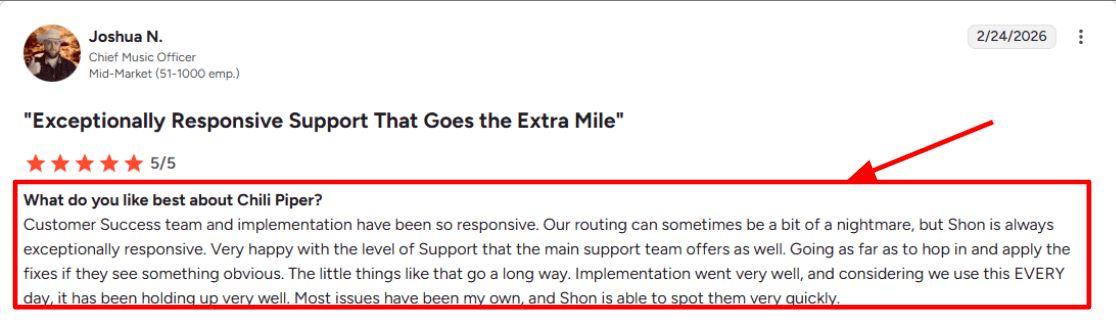
After a form submit, Concierge can qualify and then show times to book right inside the flow. While testing, I noticed debugging can take time when something breaks in a complex router. I saw the same theme in a G2 review too. Sharing a screenshot below so readers can sanity check that experience.
-
Calendar integration
Calendar connection is core here, since availability drives what gets shown and booked. One nuance I noticed is how Chili Piper shipped a global calendar connection update that helps internal booking even when an assignee calendar is disconnected, which reduces blank availability moments during handoffs. This came up in the Chili Piper Help Center January 2026 update. -
Meeting limits
You can cap meetings per rep or team, which helps when a hot campaign suddenly floods inbound. When I tried this, it made the schedule feel safer because you can stop a single rep from getting slammed in a short window. It also forces you to be clear about which meetings deserve priority. -
Spam checks
Spam and fake meeting attempts are a real thing for open booking links. Chili Piper has a spam checker concept that can score or flag suspicious activity and push signals into the CRM. I have seen teams miss this detail when they only evaluate the booking page experience.
Pros
-
Strong for routing plus scheduling when you need more than a simple link, especially for inbound conversion flows. Setup felt designed for revenue ops work that lives in the CRM.
-
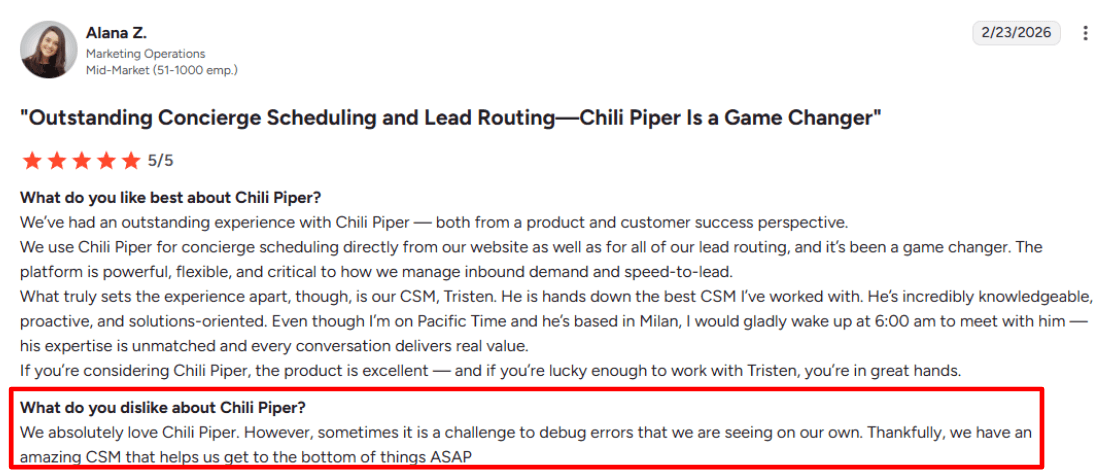
Support and implementation can be very responsive, and I saw that echoed in a G2 review. Sharing a screenshot below so readers can see how people describe it in their own words.
-
Useful admin improvements show up often, like router builder search and better logs.
-
Meeting limits help protect reps during spikes and keep calendars usable.
-
Good fit when handoffs matter, like SDR to AE booking from inside the CRM.
Cons
- If you mainly need Pipedrive Scheduler style slot sharing with light scheduling, Chili Piper can feel like too much to own day to day. The learning curve shows up fast once routers grow.
- Debugging routing issues can take longer than expected, and I have felt that during testing too.
- Pricing can climb as you add modules and as lead volume grows.
- Calendar and permissions dependencies can cause friction if internal users do not connect calendars, which is hinted at by the need for the global calendar connection changes in the Help Center update.
- Reporting often ends up being exports and CRM reports instead of one neat dashboard.
Pricing
Chili Piper pricing is usually module based, with per user pricing plus a platform fee that can scale with inbound lead volume. When I checked their pricing page, Concierge, Distro, and Handoff were shown with per user monthly pricing and a separate platform fee that changes by volume bands. ChiliCal and Chat have their own per user pricing as well. Expect pricing to vary by modules you choose and the volume tier you fall into.
When to Choose Chili Piper
Choose Chili Piper if you run inbound or lifecycle scheduling where routing rules, ownership, and quick handoffs decide pipeline speed. It fits teams that live inside a CRM and want meetings created and assigned with structure. Skip it if your main goal is lightweight Pipedrive Scheduler style booking for a small team, since the setup and ongoing admin work can feel heavier than the core need.
Cal.com
Cal.com is popularly known for flexible scheduling that you can host on Cal.com or run on your own setup. People pick it when they want deeper control over routing, teams, embeds, and automations beyond a basic scheduler.
Features
-
Workflows I set up reminders and follow ups for a few test bookings and it covered the basics without much effort. When I had a question about a workflow edge case, the in app chat and email took longer than I expected to respond.
I also noticed the same pattern in a Trustpilot review, and I am sharing a screenshot below so you can see the exact wording.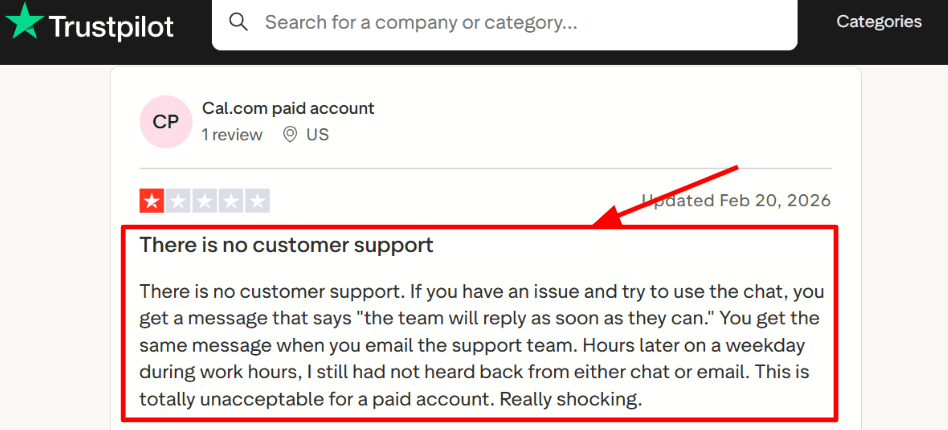
-
Calendar integration Connecting Google Calendar felt simple and it handled double booking protection the way you would expect in day to day use. I tested changes to availability and the updated slots reflected cleanly on the booking page.
I saw a Trustpilot post that said it felt easy to use even with minimal tech skills, and I am adding that screenshot below so you can judge it too.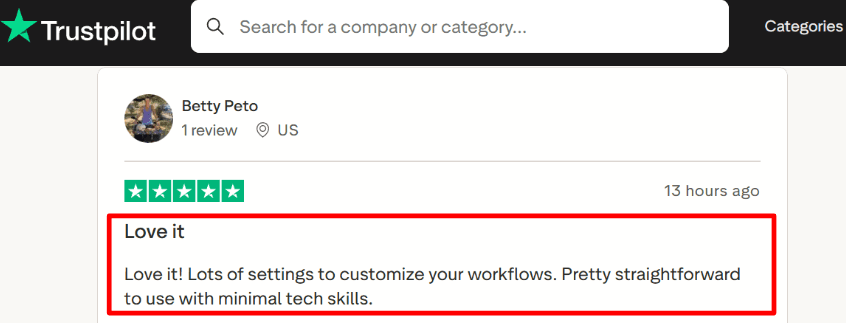
-
Routing forms You can ask a few questions before booking and route people to the right teammate based on their answers. I used this for a sales style flow where company size decided who got the meeting, and it saved a lot of manual back and forth.
-
Team scheduling Round robin and collective scheduling are built in, so you can offer one link for a group and still spread meetings across a team. I tested it with two calendars and it worked well, though the setup has a lot of switches so I had to slow down and double check my defaults.
-
Embed components If you want scheduling inside your product, the embed and API surface is one of the more serious parts of Cal.com. I found it helpful to scan the GitHub repo because it hints at how much of this is built for developers, which matters when you plan long term integrations.
Pros
- Strong fit when you need routing, embeds, and team scheduling in one place. It can cover more than a simple booking link once you start testing real workflows.
- Free plan is usable for solo setup and basic scheduling without paying upfront.
- Team modes like round robin are available on paid tiers.
- Good option when you want self hosted control for data and deployment.
- Developer docs and APIs are deep enough for product style embeds.
Cons
- If your main goal is tight CRM first scheduling inside Pipedrive deals and pipelines, Cal.com can feel like extra setup compared to a Pipedrive Scheduler alternative that is built around the CRM flow.
- Self hosting adds engineering work and ongoing maintenance.
- Some advanced settings take time to understand during first setup.
- Recurring setup has an experimental note in the docs, so I would test it carefully.
- Some org level controls like SSO and SCIM sit behind higher tier plans.
Pricing
- Free plan works for one person and basic scheduling, which is enough to trial real bookings before paying.
- Teams is listed at 12 per user per month on annual billing, and it adds team scheduling, routing forms, analytics, and removes branding.
- Organizations is listed at 28 per user per month on annual billing, and it adds SSO, SCIM, permissions, and larger governance features on the pricing page at https://cal.com/pricing
When to Choose Cal.com
Choose Cal.com if you want scheduling that can handle routing, teams, and embedded booking inside a website or product. It also fits teams that care about self hosting and deeper API work. Skip it if your scheduling needs to live inside Pipedrive as the center of the workflow and you want the smallest possible setup.
SavvyCal
SavvyCal is popularly known for its calendar overlay experience that makes picking a time feel faster for the other person. Use it when you care about fewer scheduling emails and you want a cleaner booking flow that still stays flexible.
Features
-
Calendar overlay When I tested this, the overlay was the biggest difference in day to day use. People can see their own calendar conflicts while booking, so they pick a realistic slot faster. It does reduce the back and forth when you are scheduling across busy weeks.
-
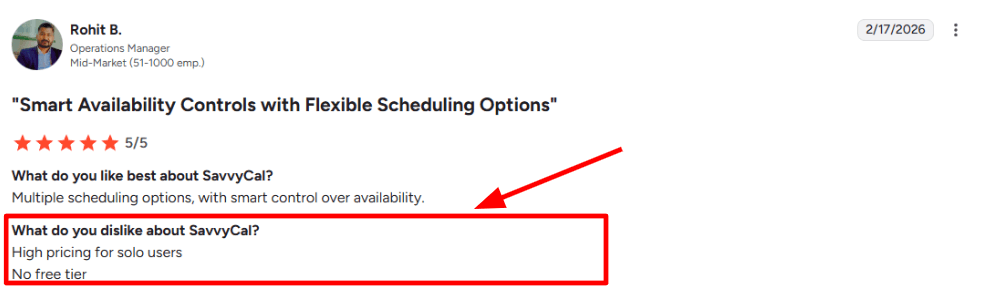
Calendar integration Setup with Google Calendar and Microsoft calendars felt straightforward, and it pulled in personal and work events in a way that matched how I expected it to behave. A G2 review also calls out the friendly interface and the multi calendar view, and I felt the same in my testing. I am sharing a screenshot of that review below.
-
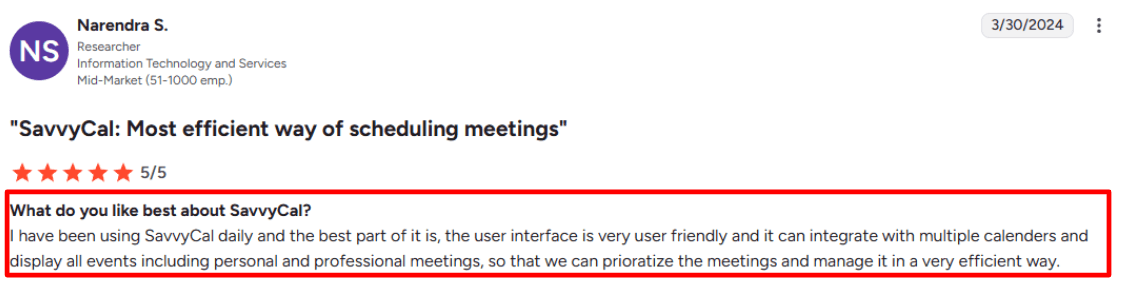
Availability controls You can build availability with recurring hours, blocks, and quick overrides, so the link stays accurate even when your week changes. One thing I noticed early is pricing can feel heavy for solo use, and I also saw that in a G2 review along with a mention of no free tier. I am sharing a screenshot of that review below.
-
Workflows It supports reminder and follow up emails, and you can personalize them deeply using variables if you want to go further. The editor is powerful, although the templating layer took me a bit of time to get fully comfortable with on my first pass.
-
Payment integration Paid meetings run through Stripe on higher plans, and it even holds the slot during checkout so you do not get accidental double booking. This matters more than people think because more meetings now happen across time zones, which Microsoft Worklab has been tracking in its workplace research. See Microsoft Worklab.
Pros
- The calendar overlay flow is genuinely faster once you start using it. It reduces the tiny scheduling delays that add up across a week.
- Clean, simple interface that is easy to share with external guests.
- Strong multi calendar support for day to day scheduling.
- Workflows cover most reminder and follow up needs.
- Stripe payments are practical for paid consults.
Cons
- If your team lives inside Pipedrive and needs meetings tied to deals and activities, Pipedrive Scheduler will feel more connected. SavvyCal can still work, but you may spend time stitching context together.
- Cost can feel steep for solo users.
- Some key features sit behind higher tiers.
- Payment cancellations require manual refund handling per SavvyCal docs.
- Custom domain setup can take a bit of patience.
Pricing
- Free plan exists for lighter use like meeting polls, with full scheduling links typically on paid plans.
- Basic is around 12 dollars per user per month, Premium is around 20 dollars per user per month, with annual billing offered.
- Premium is also where features like Stripe payments and custom domains usually show up, so budget for that if you need them.
When to Choose SavvyCal
Choose SavvyCal if you want a smoother booking experience for recipients, plus solid availability controls and workflow emails. It fits founders, operators, and client facing roles who schedule a lot across calendars and time zones. Skip it if your priority is tight scheduling inside Pipedrive deal flows and activity tracking. Also think twice if you are a solo user who mainly needs a low cost scheduler.
Acuity Scheduling
Acuity Scheduling is best known for letting clients book appointments on a clean, branded page. If you want a booking flow with payments, forms, and reminders, it is a solid option to test.
Features
-
Availability Rules
When I set it up, the availability controls felt detailed enough for real schedules. I could add buffers, limit daily bookings, and keep certain appointment types inside specific windows. It took me a bit to find every rule in the settings, so expect a short setup pass before it feels right. -
Client Self Serve
Clients can reschedule and cancel on their own, which reduces back and forth and keeps calendars clean. When I tested a change mid week, the booking flow updated fine, yet the support path felt slow when I needed a quick answer.
I also saw the same worry in a Trustpilot review, and I am adding a screenshot below so you can judge it yourself.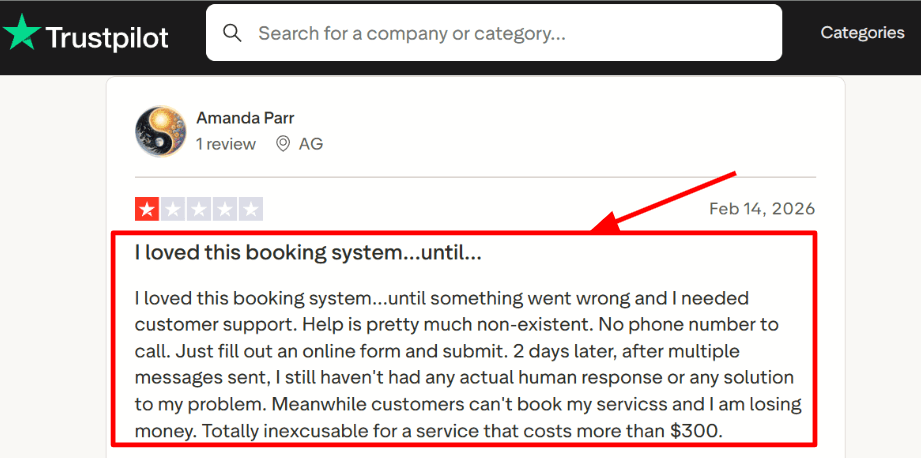
-
Payment Integration
You can take payments at booking using Stripe, Square, or PayPal, and you can also collect deposits or partial payments. In practice, this is useful when a time slot has real value and you want fewer last minute drop offs. I like pairing this with stricter cancellation rules so it stays fair for both sides. -
Calendar Integration
Calendar sync helps prevent double bookings, and it fits well if you already live inside Google Calendar or Outlook. During my test, the basic conflict checks worked as expected, and moving an appointment kept things tidy. One extra thing I noticed is that Acuity support content often lives under the broader Squarespace umbrella, which helped me find answers faster on <a href=https://support.squarespace.com/hc/en-us/categories/360002203512-Acuity-Scheduling>Squarespace support. -
No Show Controls
It is easy to build rules that discourage repeat no shows, and some users mention a simple ban style control for problem clients. A Trustpilot user called out how quick it was to add offerings and manage no shows, and I mostly agree with the ease of setup. I am sharing a screenshot below so readers can scan the exact wording, and I also felt the marketing side stayed pretty light.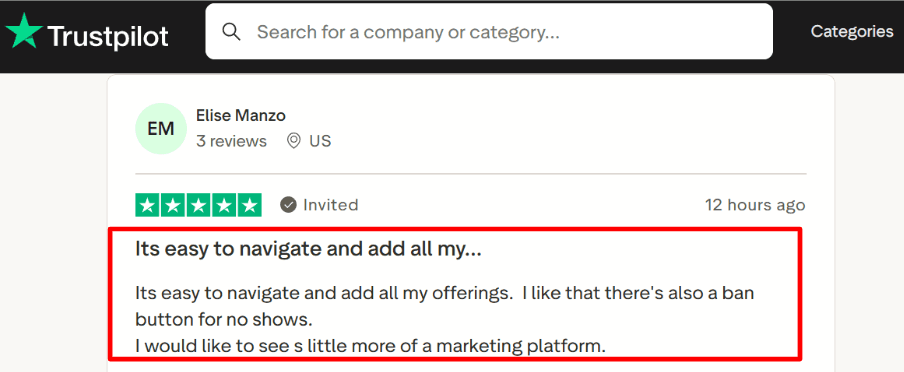
Pros
- Strong fit for appointment booking with payments, forms, and reminders in one flow. It feels practical once the basics are configured.
- Clean client experience for booking, rescheduling, and cancellations.
- Good payment options through Stripe, Square, and PayPal.
- Packages and subscriptions work well for recurring services.
- Solid calendar sync for day to day scheduling hygiene.
Cons
- If you mainly need to schedule sales meetings from inside Pipedrive deals and track outcomes in the CRM, Acuity can feel like extra steps. Pipedrive Scheduler stays closer to that workflow.
- Support can feel slow when something breaks, based on my setup experience and what some Trustpilot users report.
- SMS reminders vary by country, and some destinations are unsupported per <a href=https://help.acuityscheduling.com/hc/articles/35086777275917>Acuity Help Center.
- Advanced reporting is limited for teams that want deeper funnel style analytics.
- HIPAA enablement lives on higher tiers, so budget and process matter for clinics.
Pricing
- Free trial for 7 days.
- Paid plans are commonly listed as Starter 20 per month, Standard 34 per month, and Premium 61 per month. Enterprise pricing is custom.
- Many buyers choose annual billing for a lower effective monthly rate, so it is worth checking the live checkout flow if you care about budget planning.
When to Choose Acuity Scheduling
Choose it if your main job is letting clients book appointments, pay ahead, and share details through intake forms. It fits service businesses that want fewer emails and a predictable booking flow. Skip it if your core need is scheduling sales meetings inside Pipedrive with deal context and CRM reporting. If you expect frequent help from support during business hours, plan for a slower support channel and keep a backup contact path.
Key Takeaways
- Lunacal: Best for businesses that need a high-trust booking page with payments, packages, and team routing built in.
- Calendly: Best for simple scheduling links and broad integrations with minimal setup.
- Chili Piper: Best for sales teams that need fast inbound form-to-meeting routing.
- HubSpot Sales Hub: Best for teams already using HubSpot and wanting meetings tied closely to CRM workflows.
- Cal.com: Best for businesses that want flexible embeds, workflow control, and deeper customization.
- SavvyCal: Best for teams that want a smoother invitee-side scheduling experience with round robin support.
- Acuity Scheduling: Best for appointment-based businesses that need payments, intake forms, classes, and packages.
Methodology
Evaluating scheduling tools takes more than reading a feature list. I spent several weeks researching and testing each alternative on this list to make sure the recommendations here are grounded in real use.
Sources
- Official websites, help docs and FAQ sections were the starting point to understand what each tool actually offers and how it is positioned.
- Review platforms like G2, Trustpilot and Capterra helped me look at patterns in user feedback across different business sizes and industries.
- Threads on Reddit and Quora gave unfiltered insight into the day-to-day frustrations and wins that do not always show up in formal reviews.
Test Setup for Pipedrive Scheduler Alternatives
- Free trials and freemium plans were used to get hands-on time with each tool rather than relying on marketing material alone.
- Each tool was tested from the perspective of a small sales team that books a high volume of client meetings every week.
Common Scenarios We Tested
- Setting up a booking page and sharing it with an external contact to check how smooth the experience feels from both sides.
- Testing calendar sync reliability, time zone handling and automated reminder behaviour across a few days of real scheduling activity.
- Checking how well each tool fits into a basic CRM workflow without requiring heavy technical setup.
FAQs
What is the best Pipedrive scheduling alternative available right now?
The best Pipedrive scheduler alternatives are Lunacal, Calendly, Chili Piper, and HubSpot Sales Hub. Lunacal is one of the highest rated on G2 at 4.9/5 and stands out for its seamless payment integration, round-robin scheduling, and beautiful booking pages that are easy to set up and share directly from your CRM workflow.
Does scheduling software work differently depending on where your team or clients are located?
Yes, location matters more than most people expect. A few things to keep in mind:
- US and Canada: Most tools work well out of the box, but check timezone handling for cross-border teams
- UK and Australia: Look for tools that support local payment methods and regional calendar formats
- EU and Germany: GDPR compliance is non-negotiable. Confirm where data is stored
- French and Spanish markets: Multi-language support for booking pages makes a real difference in conversion
What should you actually look for in a Pipedrive scheduling tool?
A solid Pipedrive scheduler alternative needs two-way calendar sync, CRM data passing without manual entry, and customisable intake forms so leads qualify themselves before a call. Reliable reminders, round-robin routing for sales teams, and clean embeddable booking pages matter too. Complexity you never use is just noise.
What tools and apps does Lunacal connect with?
Lunacal integrates with Google Calendar, Outlook, Apple Calendar, Google Meet, Microsoft Teams, FaceTime, PayPal, Stripe, HubSpot, Pipedrive, and SMS reminders. It covers the core stack most sales and service teams already run on, without needing extra middleware to make connections work.
Summarize this content with AI