

Introduction
If your company is using Outlook and Microsoft Teams, you'll need a scheduler which will be able to consistently sync availability and create Microsoft Teams meeting links.
Therefore, when creating this comparison, I evaluated each and every scheduler based on the same test scenario for Outlook and Microsoft Teams, where the integrations were available: I looked at calendar availability, Teams meetings creation, booking, rescheduling, canceling, availability rules, teams scheduling and reminders. At the same time, I took into account pricing plans and documentation, distinguishing between features available within the current subscription plans and those which require the purchase of more advanced ones.
I also considered official documentation, pricing information, and users' feedback from G2, Capterra and review forums, if necessary, so that you can verify my statements by yourself.
Best Meeting Scheduler Software with Outlook and Microsoft Teams Integration
Best Outlook and Microsoft Teams Scheduling Software by Use Case
| Use case | Best tool | Why it’s a fit |
|---|---|---|
| Best overall for branded scheduling with Outlook and Teams | Lunacal (4.9/5) | Best for businesses that want Outlook and Teams integration plus a stronger booking page, reminders, payments, and a more polished client experience |
| Best for simple team scheduling | Calendly (4.7/5) | A solid fit for teams that want familiar scheduling workflows with Outlook support and basic team coordination |
| Best for Microsoft 365-first teams | Microsoft Bookings (3.8/5) | Works well for teams already inside the Microsoft ecosystem and mainly scheduling through Outlook and Teams |
| Best for solo professionals using Outlook | YouCanBookMe (4.7/5) | A good choice for solo users who want reliable Outlook syncing and straightforward booking without too much setup |
| Best for qualification-based booking flows | OnceHub (4.4/5) | Better suited for teams that want to qualify leads before booking meetings rather than just share a simple scheduling link |
Feature Comparison Table for Outlook and Teams Meeting Scheduler Software
| Feature | Lunacal | Calendly | Microsoft Bookings | YouCanBookMe | OnceHub |
|---|---|---|---|---|---|
| G2 Rating | 4.9 ★★★★★ | 4.7 ★★★★☆ | 3.8 ★★★☆☆ | 4.7 ★★★★☆ | 4.4 ★★★★☆ |
| Starting price of paid plans | $9 | $10 | $6 | $9 | $10 |
| Outlook integration | Yes | Partial | Yes | Yes | Yes |
| Microsoft Teams integration | Yes | Partial | Yes | Partial | Partial |
| Google and Apple calendar sync | Yes | Partial | Partial | Yes | Yes |
| SMS and email reminders | Yes | Yes | Partial | Yes | Yes |
| Paid meetings | Yes (Stripe, PayPal) | Yes (Stripe, PayPal) | No | Yes (Stripe) | Yes (Stripe, PayPal) |
| Scheduling page themes | Yes | Partial | Partial | Yes | Yes |
| Team scheduling | Yes | Yes | Yes | Yes | Yes |
| Round robin scheduling | Yes | Yes | No | Yes | Yes |
| Multi-session packages | Yes | No | No | No | No |
| Custom domain | Yes | No | Partial | No | No |
| GDPR | Yes | Yes | Yes | Yes | Yes |
In-Depth Review of Each Tool
Lunacal
Lunacal not only enables you to integrate your Outlook calendar but also gives you booking pages as well as Microsoft Teams integration. This tool is not just a meeting link generator because it has everything else that you require. These include reminders, payments, team routing, and branded scheduling pages. This applies to firms that use online scheduling because they are part of the sales or client onboarding process.
Lunacal is quite useful to firms which require an Outlook 365 and Microsoft Teams meeting scheduler that offers much more than just calendar. You can use the scheduling page to give the context of the service and even make payments as well as schedule meetings with various members of the staff.
Features
-
Calendar Integration
I tried out the setting-up process, and it was easy to connect calendars, as Lunacal is capable of supporting Outlook, Google, and Apple calendars. This is important if you have an organization that uses Outlook calendar but also has some side calendars here and there. I did notice one setup gap that matched a G2 review I came across. Duplicating event types would save time when you are rolling out similar meeting formats across teams, and I’m sharing that screenshot below because I felt the same drag in testing.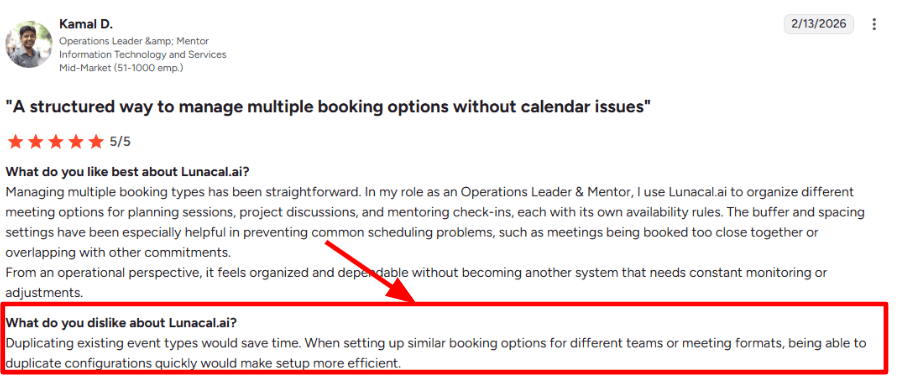
-
Meeting Tool Integration
The Microsoft angle is solid here. Lunacal’s Microsoft AppSource listing says it connects with Microsoft Teams along with Outlook, Zoom, and other core tools, so the handoff from booking to meeting stays tidy.
I also saw this show up from the other side in a G2 review. The reviewer praised the clear booking flow and smooth rescheduling, and after testing it myself, I get that. The page feels business-ready, and you can look through the screenshot below for that part too.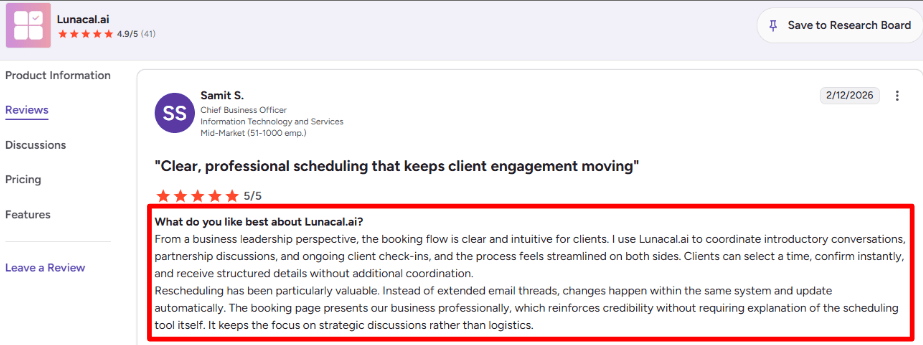
-
Team Routing
This is where Lunacal starts to separate itself from a basic meeting scheduler, with Outlook and Teams integration, but kinda in a more…together way. It supports round robin and also collective scheduling, so that one booking page can either route to the next available rep, or kind of hold off until a few people are free together at the same time.
I found it useful for sales demos, partner calls, and internal meetings where one person is optional in one workflow and mandatory in another, depending on what’s going on and how the agenda reads.
-
Booking Page Content
Lunacal lets you add FAQs, files, images, and business details on the booking page, which changes the feel of the whole flow. In practice, that means the page can answer common questions before the call instead of leaving everything to the calendar invite.
That is one area where it feels broader than the average meeting scheduler with Outlook and Teams integration, which often stops at time selection and confirmation. -
Availability Controls
Availability setup goes beyond opening hours. You can work with buffers, notice periods, approval flows, and team-specific scheduling rules, which gave me more control than I expected on first pass.
For Outlook and Teams users, Lunacal’s buffers, notice periods, approval flows and scheduling rules help keep availability consistent without relying on manual calendar management.
Pros
-
The Outlook and Teams foundation is there but it does not stop, right. In my testing it handled the Microsoft stack well while also giving more flexibility for teams that need routing, branded pages or paid meetings.
-
The booking flow feels clear for clients, and that seems to line up with the G2 feedback pretty well.
-
Round robin and collective scheduling make it more useful for sales, and for multi-person teams too.
-
Availability controls are practical, also easier to tune than a lot of simpler schedulers.
-
The booking page can carry real context which helps reduce the annoying back and forth before the meeting.
Cons
-
If your company just wants a pretty basic Microsoft first scheduler for internal or low context meetings, and you don’t really need richer pages, routing or payments, I would probably go with a more straightforward meeting scheduler that already plugs into Outlook and Teams. Lunacal starts to feel like the better fit when the booking page is actually part of the flow, not only a small utility.
-
Duplicating event types is still the most common kind of setup request when teams are creating lots of similar meeting options, so yeah that part can come up again.
-
I also had this one moment where the repetitive setup work felt slower than it should have.
-
Public plan messaging needs a quick double-check because the Google Workspace Marketplace listing still mentions a free forever plan while the main site centers paid tiers.
-
Some advanced workflows take a little exploring before the logic feels natural.
Pricing
- On the current Lunacal pricing page, Standard starts at $9 per user per month, Teams starts at $15 per user per month, and Enterprise starts at $25 per user per month. Annual billing can reduce the cost.
- From what I saw, Standard covers core scheduling and payments, Teams adds round robin and collective scheduling, and Enterprise is aimed at companies that need heavier support or custom integration help.
When to Choose Lunacal
Choose Lunacal when the booking page needs to build trust, explain the meeting, collect payment, or route people across a team.
It is a better fit for sales teams, agencies, consultants, and client-facing companies that want Outlook and Teams support but also need richer context, stronger rescheduling flows, and team scheduling logic.
If the need is only simple Microsoft calendar booking, a more basic scheduler can be enough.
Calendly
Calendly is widely known for simple booking links and clean scheduling with Outlook and Microsoft Teams. I found it useful when the goal was to let someone pick a time fast without back and forth over email.
Features
-
Calendar Integration
When I tested it with Outlook and Office 365, the basic setup was quick and conflict checking worked well. It felt dependable for blocking busy slots and keeping double bookings out.
I also came across a similar issue in a Trustpilot review where login access and email timing became a problem. The screenshot below shows that kind of edge case, and it is worth keeping in mind if fast account access matters every day.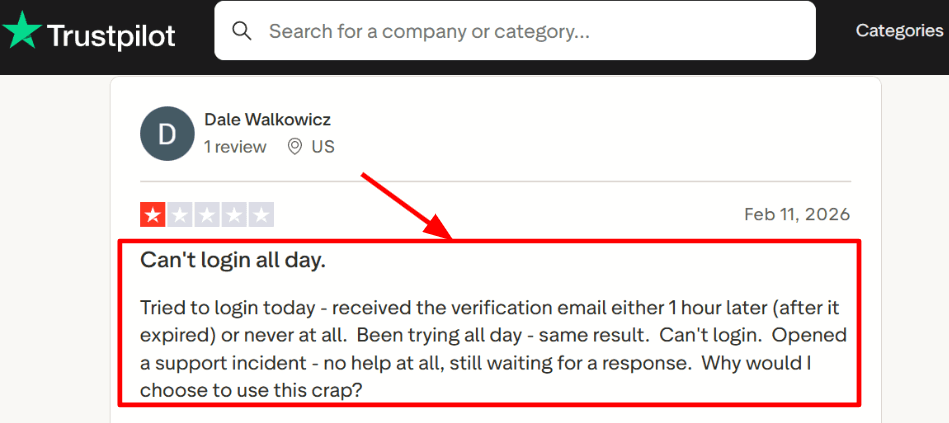
-
Meeting Tool Integration
Connecting Microsoft Teams is one of the clearest reasons to use Calendly in this use case. Once linked, it can add Teams meeting details automatically, which saves a few manual steps every single time.
I tested this flow and it was smooth. That lines up with a Trustpilot review from someone using it for student consultations, and the screenshot below is useful because it shows how people value the hands-off flow once availability and video tools are connected.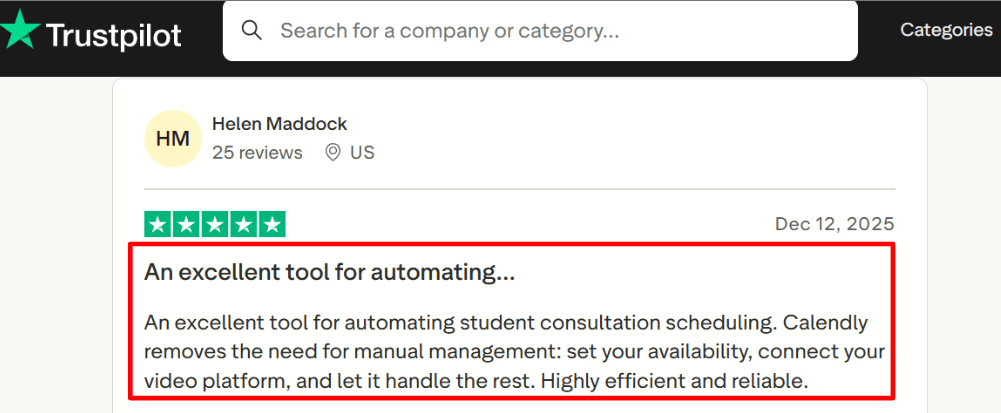
-
Availability Controls
This part is stronger than it looks at first. I could set working hours, buffers, notice periods, and limits on how many meetings happen in a day, which matters a lot for teams using Outlook calendars that are already packed.
One part took me a minute to sort out though. After a few extra settings screens, it became clear, but the first pass felt a little too layered for something so basic. -
Team Scheduling
Calendly supports round robin, collective meetings, and routing on higher plans, so it can work for sales teams or support teams using Microsoft tools. In my testing, this is where it starts feeling more like a serious scheduling system and less like a simple booking page.
For teams, the practical advantage is that routing, round-robin scheduling and collective meetings can operate alongside Outlook availability and automatically generated Teams links. -
Payment Integration
If meetings need to be paid before confirmation, Calendly supports Stripe and PayPal on paid plans. I would not call this the main reason to choose it for Outlook and Teams users, though it is still helpful for consultants, coaches, and paid advisory calls.
In testing, the setup was straightforward enough, but this feature matters more for paid appointments than for internal meetings or normal sales calls.
Pros
-
It works well for companies that live inside Outlook and Microsoft Teams and just want scheduling to run with less manual work.
In setup, that core flow felt polished and easy to trust. -
Teams links can be added automatically, which makes day to day scheduling feel cleaner.
I noticed this most when testing repeated internal and client-facing meetings. -
Availability rules are flexible enough for real work calendars.
-
Team scheduling options are solid once you move to higher plans.
-
The booking flow stays simple for invitees and does not ask them to learn anything.
Cons
-
I would skip Calendly if your company needs deep Microsoft-first administration, routing and team workflows without moving to higher plans. The basic fit is good, but the fuller setup gets more plan-dependent than some buyers expect.
-
The free plan is tight for anything beyond simple personal scheduling.
-
Some settings take extra clicks before the logic becomes obvious.
-
New iCloud calendar connections are no longer supported according to Calendly Help.
-
Payment support is useful, though it will not matter for many Teams-based internal scheduling cases.
Pricing
- Calendly has a free plan for basic use with one event type and one calendar connection. Paid plans start at $10 per seat per month billed yearly for Standard, then $16 per seat per month billed yearly for Teams. Enterprise pricing starts at $15,000 per year. For Outlook and Teams use, the real decision point is usually whether team routing and admin controls are needed.
When to Choose Calendly
Choose Calendly if the company already uses Outlook and Microsoft Teams and wants a familiar scheduler that is easy to roll out. It fits solo operators, consultants, recruiters, and sales teams that need booking links, availability control, and optional team scheduling. I would look elsewhere if the main need is a richer booking page experience, heavier Microsoft admin depth at lower tiers, or broader value from the free plan.
Microsoft Bookings
Microsoft Bookings is mostly known as the scheduler built into Microsoft 365.
It is worth looking at when your team already uses Outlook and Teams every day and wants a simple way to let people book meetings.
Features
-
Calendar integration
When I tested it the biggest strength was the Outlook side. Staff availability is pulled from Microsoft calendars so the setup feels natural for teams already inside that stack. I also noticed that this is where things can get messy if the setup is not clean. I saw the same kind of complaint in a Reddit review about bookings not syncing back properly and seats not showing right. I am sharing that screenshot below because it matches a real risk area people should watch closely.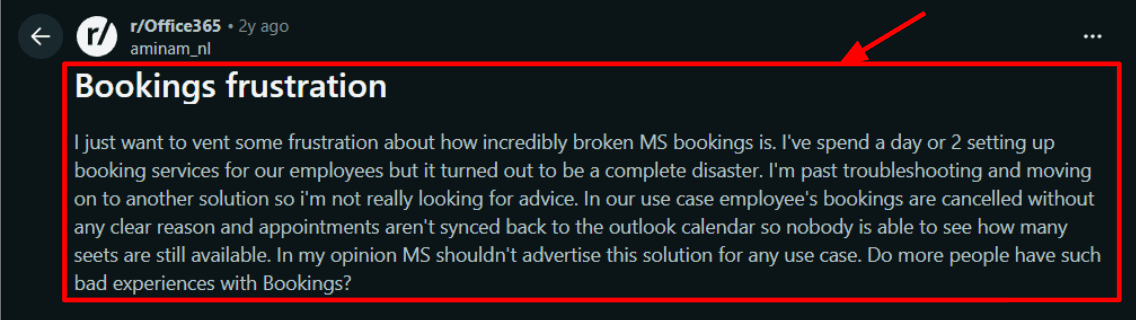
-
Meeting tool integration
Teams meeting links can be added into appointments without much extra work and that helps if you want a basic flow that staff can adopt fast. In my setup this part was smoother than some of the service setup screens. I also came across a Trustpilot review where the person spoke very positively about Microsoft support. You can look at the screenshot below as well. I would not treat that as proof of the product experience itself but it does suggest support can matter when setup gets stuck.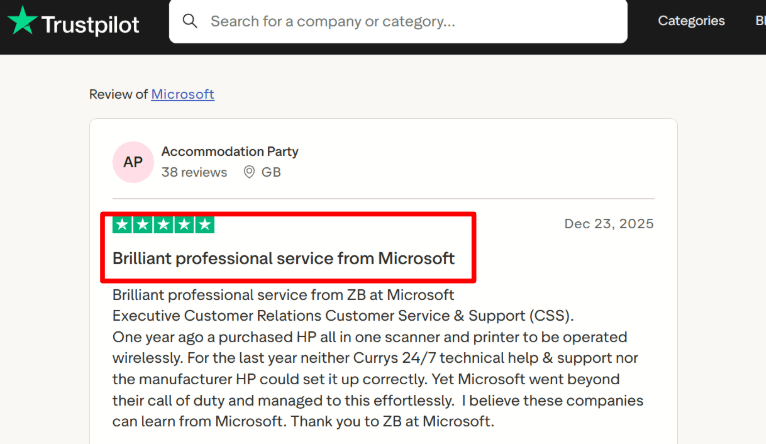
-
Shared booking pages
Because Bookings is closely connected to Microsoft 365, teams should carefully test permissions, staff calendars and service settings before rolling it out. -
Scheduling controls
You can set lead times, booking windows, time increments and service-specific rules. That matters more than it sounds because it helps avoid last minute chaos. One thing I found useful here is that some settings can be controlled at service level which gives more flexibility than a plain meeting link. -
Customer management
Customers can cancel or reschedule their own booking and admins can control page access indexing and staff visibility. There is also a deeper detail that many quick roundups skip. Microsoft later added custom domains for Shared Bookings which is useful if you care about trust and brand consistency on the booking page.
Pros
-
It fits very naturally into Outlook and Teams.
When I set it up the flow made the most sense in companies that already run on Microsoft 365. -
It is included in many Microsoft 365 plans so the entry cost can feel practical.
-
Shared booking pages work well for internal teams and service desks.
-
Teams links and Outlook availability reduce manual back and forth.
-
Admin controls for access visibility and indexing are stronger than many light schedulers.
Cons
-
I would skip Microsoft Bookings if you need a more flexible meeting scheduler with Outlook and Teams integration for a public facing sales flow or a more polished booking page.
It works best inside the Microsoft world and feels less adaptable once you want more control. -
Some advanced pieces like SMS depend on higher Microsoft plan layers.
-
SMS support is limited by region which can be a real issue for global teams.
-
I found parts of the service setup a bit harder to read than they should be.
-
There are also plan and cloud differences in the official service description which means features are not always identical for every buyer.
Pricing
- Microsoft Bookings is usually included inside Microsoft 365 plans instead of being sold as a standalone scheduler.
- Common entry points are Business Basic at $6 per user per month Business Standard at $12.50 and Business Premium at $22 when billed yearly.
- In practice the total cost can go up if you need Teams Premium features like SMS reminders.
When to Choose Microsoft Bookings
Choose Microsoft Bookings if your company already uses Microsoft 365 Outlook and Teams and wants a scheduler that feels native inside that environment. It makes the most sense for internal teams service desks education and simple client meeting flows. I would look elsewhere if the booking page itself needs to do more heavy lifting or if your team depends on broader third party integrations and more front end control.
YouCanBookMe
YouCanBookMe is popularly known for flexible scheduling pages, strong Outlook support, and easy team booking setup. I would look at it when a business wants Microsoft calendar based scheduling with Teams meetings, shared availability, and more control over the booking flow than a very basic scheduler gives.
Features
-
Calendar integration
When I tested it, the Outlook connection felt like one of the main reasons to consider it for this use case. It can check calendar availability properly and that matters when a team is already living inside Microsoft 365.
I also noticed a Trustpilot review saying free accounts lost the option to let bookers choose between appointment lengths. I’m sharing that screenshot below because it matches a real limitation if your setup depends on different durations from one page.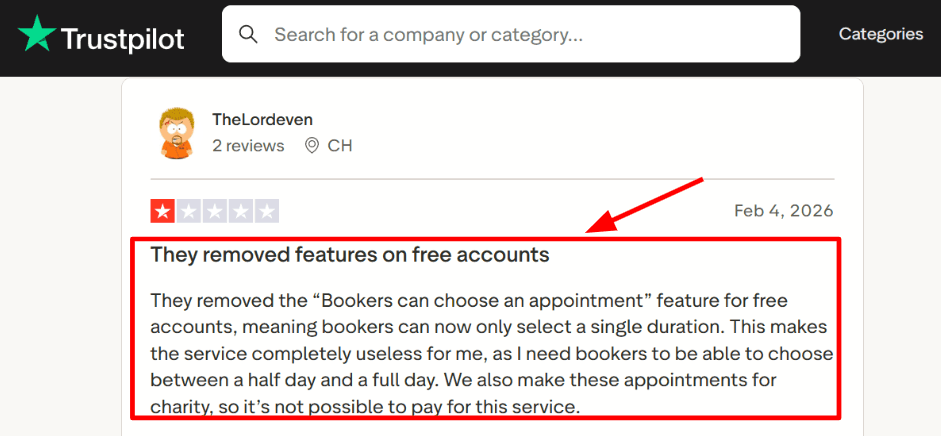
-
Meeting tool integration
For Outlook and Teams based companies, this part is practical. Once the booking is set up well, the meeting link flow is pretty clean and it removes a lot of manual back and forth.
I also saw a long-term Trustpilot review saying it saved a lot of time for a small business. That felt fair from what I tested, and the screenshot below is worth checking because this is where the tool seems to land well for smaller teams.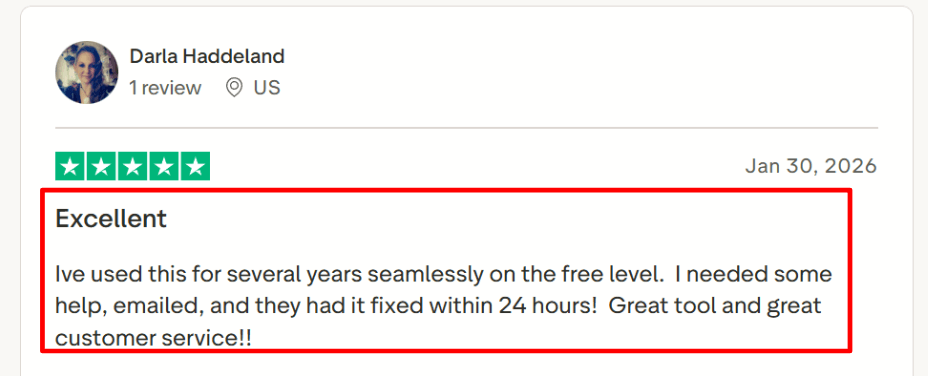
-
Team scheduling
This is useful when several people need to take meetings from one booking page. I found that round robin, team member selection, and mutual availability give enough control for sales, support, and shared inbox style setups.
One small snag came up during setup though. The deeper team rules take a bit of reading before everything behaves the way you expect. -
Availability controls
Availability is one of the stronger parts of the product. You can shape time windows, buffer logic, limits, and multiple calendars in a way that feels practical once you spend some time with it.
One detail many quick overviews skip is mutual availability, which is helpful when a booking should appear only if more than one person is free at the same time. -
Booking page control
I found YouCanBookMe better than many plain scheduling tools if the team wants more say in how the page looks and what the form collects. That includes branding, custom questions, different appointment types, and website embeds.
It also helps that the tool supports Outlook centered workflows without making the booking page feel too locked down.
Pros
- Works well for Microsoft 365 teams that need Outlook based scheduling and automatic Teams meeting links. It feels like a natural fit when the company already runs most communication through that stack.
- Strong availability controls for shared calendars, team routing, and more structured meeting setups.
- Booking pages are more flexible than many simple schedulers.
- Good fit for global scheduling because of time zone handling and language support.
- Official docs also show deeper options like mutual availability and team assignment rules.
Cons
- I would skip YouCanBookMe if you need a very simple Outlook and Teams scheduler with multiple appointment options on the free plan.
- The free plan changes around booking choices may be a problem for some setups, as noted in Trustpilot.
- Team setup takes a little patience before all rules are clear.
- It is not ideal for buyers looking for recurring bookings.
- No mobile app may matter for teams that want admin control from phones.
Pricing
- YouCanBookMe has a Free plan, then paid plans starting at about $9 per month for Individual, around $13 per month for Professional, and about $18 per user per month for Teams.
- From what I saw, pricing makes more sense when the business needs multiple booking pages, team features, workflows, and stronger Outlook based scheduling instead of a one page basic setup.
When to Choose YouCanBookMe
Choose YouCanBookMe if your company uses Outlook and Teams heavily and needs shared scheduling, better availability controls, and flexible booking pages. It also makes sense for small businesses and service teams that want team routing without moving away from Microsoft tools. I would not pick it for a very basic free setup, for recurring appointment flows, or for teams that want the lightest possible learning curve.
OnceHub
OnceHub is usually known for turning a booking link into a fuller scheduling workflow for teams. I would look at it over a basic meeting scheduler with outlook and teams integration when Outlook and Teams sync is only one part of the setup and you also need routing, assignment, or phone booking.
Features
-
Calendar integration
I found the Microsoft side solid. OnceHub supports Microsoft 365 and Exchange calendars, plus Microsoft Teams video links, so the core Outlook and Teams setup is there from the start.
What made me pause was account movement, not syncing itself. I also saw that theme in a Trustpilot review about having to start fresh to move back to Basic, and that matters if you plan to wire this deeply into your workflow. Screenshot below.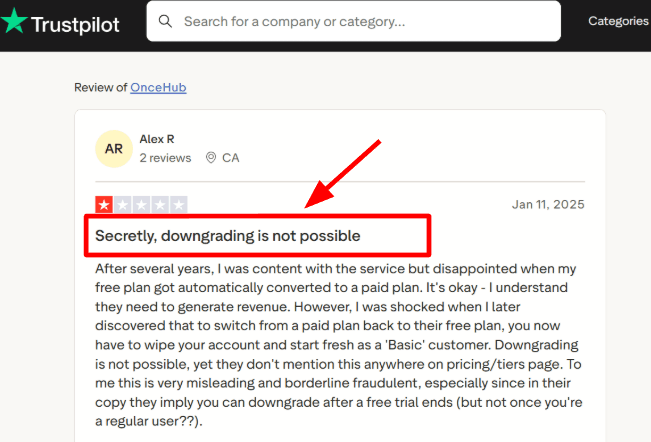
-
Live support
The setup surface is broader than it first looks, so support matters here more than it does in lighter tools. I could see why a Trustpilot review praised getting on a quick Google Meet with Sharon to sort out an unusual setup.
I did not need the same level of help, but I agree with the point. When a tool covers booking, routing, and chat, a fast human walkthrough can save more time than another help article. You can check the screenshot below.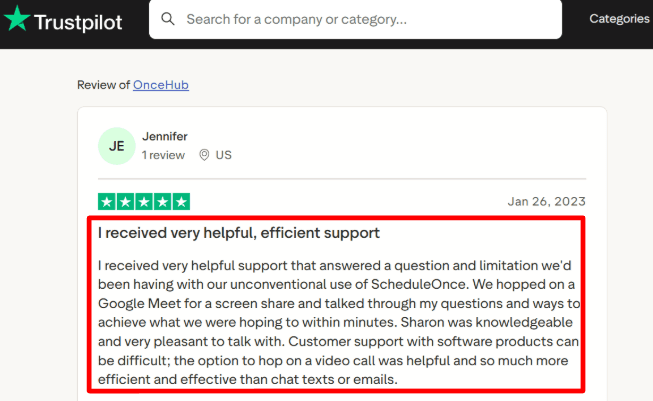
-
Routing logic
This is where OnceHub starts to separate itself from a standard meeting scheduler with outlook and teams integration. I tested the routing layer and it goes well beyond picking a host from a shared calendar.
You can route by answers, contact properties, team rules, round robin, or priority. That makes more sense for sales, support, and multi-location teams than for a single-person calendar. -
Phone booking
OnceHub now supports phone booking with conversation summaries, recordings, and automatic time zone detection. I do not see this often in scheduler tools that mainly focus on web forms.
That stood out because it changes who can book with you. If part of your audience still prefers calling, this can matter more than another widget or theme. -
Template control
I liked the admin angle here. Booking Calendar Templates and the option to offer multiple durations inside one calendar suggest the product is being shaped for larger rollouts, not just one-off links.
The detail many comparison pages miss is in the OnceHub release updates, which show recent additions like template control, group sessions, and an MCP server for AI agents.
Pros
-
It handles Microsoft calendar and Teams integration well, then layers routing, forms, and distribution on top.
In my testing, that gave it more operational depth than a simple meeting scheduler with outlook and teams integration. -
Strong fit for teams that need round robin, priority-based assignment, or qualification before booking.
-
Phone booking is a real differentiator if your users still schedule by call.
-
Support options look stronger than average for a tool with this many moving parts.
-
Recent updates suggest the product is still being actively expanded.
Cons
-
I would not pick OnceHub over a simpler meeting scheduler with outlook and teams integration if your only need is fast Outlook plus Teams booking for a small team.
The extra layers are useful, but they also make the setup heavier than a plain scheduler. -
Some account downgrade experiences called out on Trustpilot deserve a careful read before committing long term.
-
A few advanced controls sit behind higher plans or the security add-on.
-
The first pass through settings can feel more tangled than expected.
-
Some of the newer capabilities are strong, but they also make the platform feel broader than teams with basic needs may want.
Pricing
- Pricing is tiered by capability. Basic is free. Schedule starts at $12 per seat monthly or $10 yearly. Route starts at $23 monthly or $19 yearly. Engage starts at $47 monthly or $39 yearly. The Security and Compliance Add-On is $6 monthly or $5 yearly per seat, and Enterprise is custom. I checked the current OnceHub pricing page.
When to Choose OnceHub
Choose OnceHub when Outlook and Teams integration is only one part of the job and you also need routing, host assignment, phone booking, or template control across teams.
I would look elsewhere when your workflow is mostly simple one-person or small-team scheduling and speed of setup matters more than operational depth.
Key Takeaways
- Lunacal really works good when the booking page itself kinda has to help you win the meeting. It is a solid choice for teams that care about looking professional, handling payments, and having packaged offers that just make sense.
- Calendly is the easy pick for basic team scheduling. It feels familiar, it plays nice with Outlook and Teams, and it does not take much to roll out.
- Microsoft Bookings makes the most sense if your team already lives inside Microsoft 365, and you just want something that slots right into your setup.
- YouCanBookMe is a strong match for solo folks who mainly want dependable Outlook syncing , without extra layers or complicated workflows.
- OnceHub is the better bet when booking needs to start with qualification, particularly for sales teams or inbound heavy groups where leads matter first.
Methodology
To evaluate these meeting schedulers with Outlook and Microsoft Teams integration , i ran a test on each one using the same core workflows, like connect Outlook first, then check calendar availability. after that it was creating a Teams meeting link, making bookings, rescheduling, and also cancelling meetings. I even did a side by side comparison for team scheduling, shared calendars, admin controls, reminders, and the pricing.
Sources
- Official websites, FAQ sections and help documentation were reviewed to understand each tool's stated features and limitations.
- Trials and free plans were tested hands-on to go beyond what marketing pages claim.
- Review platforms like G2, Trustpilot and Capterra were used to understand how real users rate these tools over time.
- Communities on Reddit and Quora helped surface unfiltered feedback — recurring complaints, workarounds and edge cases that formal reviews often miss.
Test Setup for Outlook and Teams Integration
- Each tool was connected to a live Microsoft 365 account with both Outlook calendar and Teams enabled.
- Scheduling links were tested across different time zones to check sync accuracy and real-time availability updates.
- Admin permissions and SSO settings were reviewed where applicable to assess enterprise readiness.
Common Scenarios We Tested
- Booking internal meetings directly from Teams and checking if calendar updates reflected instantly in Outlook.
- Setting buffer times, recurring meetings and availability windows to see how each tool handled scheduling rules.
- Testing automated reminders and follow-up emails to evaluate end-to-end workflow support.
FAQs
What is the best meeting scheduler with Outlook and Teams integration?
It depends on your workflow: Lunacal to opt for branded client-facing scheduling, Calendly to choose familiar team scheduling, Microsoft Bookings for Microsoft 365 first teams, YouCanBookMe for flexible Outlook-based scheduling, or OnceHub to handle qualification and routing.
Can scheduling software automatically create Microsoft Teams meeting links?
Yes. Depending on the connected Microsoft account and product configuration, the scheduling tools in this guide can set up or add a Microsoft Teams link to a booking after it has been confirmed.
What should a good meeting scheduler with Outlook and Teams actually do?
It's crucial to have a call schedule that can integrate with Outlook email and meetings, has two-way calendar syncing, can avoid duplicate bookings, and allows you to insert booking links directly into emails. Configurable buffers, reminders and custom forms are essential. All that's lacking these features will cause friction at lightning speed.
What tools and platforms does Lunacal connect with?
Lunacal is an integration with Google Meet, Google Calendar, Outlook, Microsoft Teams, Apple Calendar, FaceTime, SMS reminders, Paypal, Stripe, HubSpot, Pipedrive and more. The Outlook and teams connection are reliable for teams already entrenched in the Microsoft environment without reliance upon manual processes.
Summarize this content with AI


